| + Voltage | 5V |
| + Current | 300mA |
| + Speed | 2500 RPM |


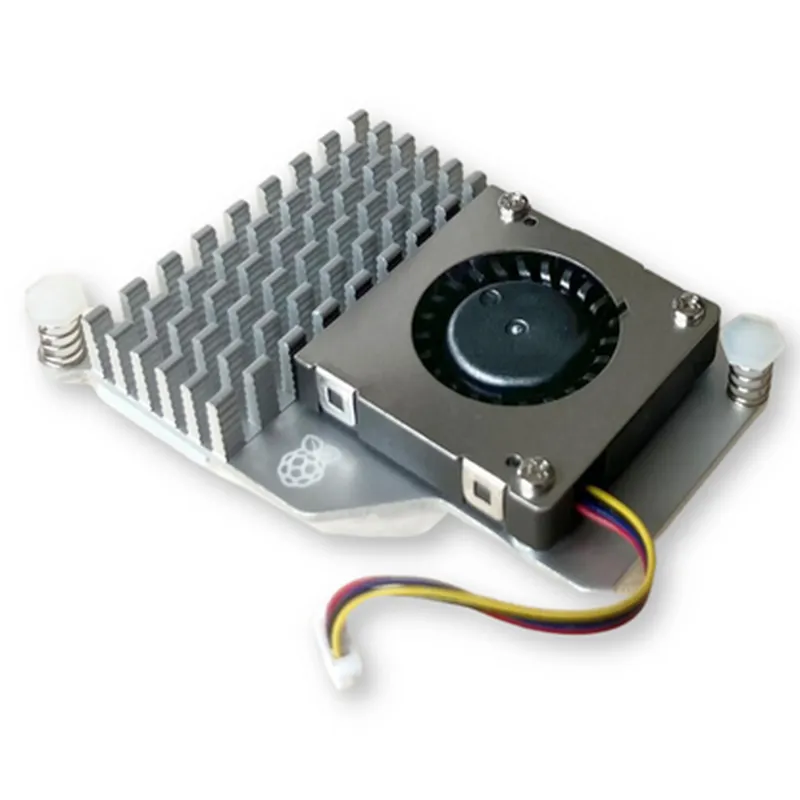
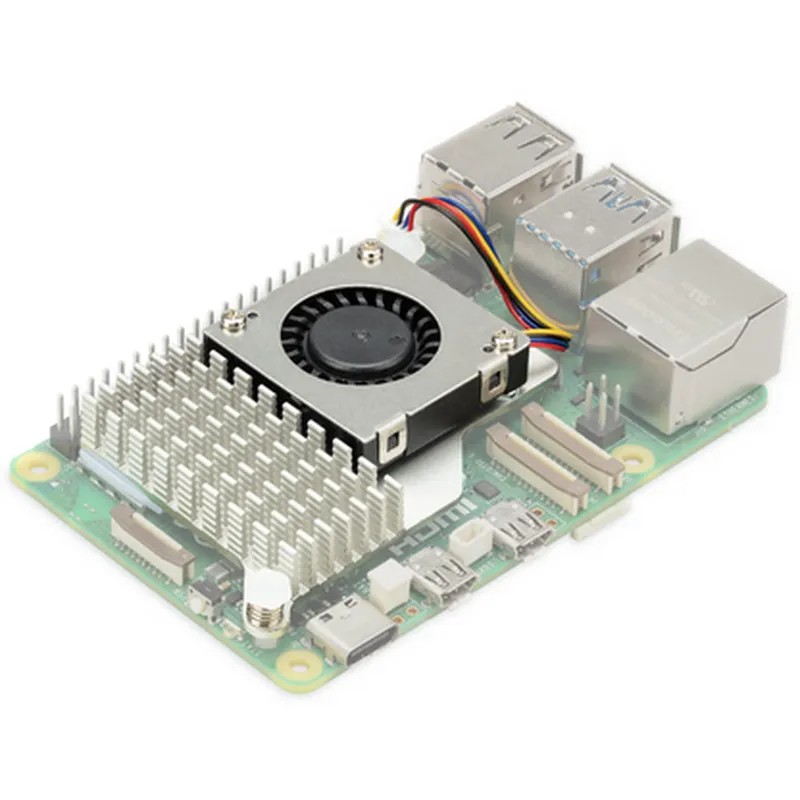
| + Voltage | 5V |
| + Current | 300mA |
| + Speed | 2500 RPM |
| + Material | Aluminum Alloy |
| + Size | 40mm x 40mm x 10mm |
| + Fin Structure | Pin Fin |
1.5W (typical)
0C to 50C (32F to 122F)
-20C to 70C (-4F to 158F)
60mm x 60mm x 15mm (2.36in x 2.36in x 0.59in)
Approximately 50g (1.76 oz)
Warranty and Support
The Raspberry Pi Active Cooler comes with a 1-year limited warranty. Technical support is available through the manufacturer's website, including FAQs, documentation, and contact information for customer support.
Raspberry Pi Active Cooler DocumentationOverviewThe Raspberry Pi Active Cooler is a compact, high-performance cooling solution designed specifically for Raspberry Pi single-board computers. This active cooler utilizes a quiet, high-reliability fan to effectively dissipate heat generated by the Raspberry Pi, ensuring stable operation and preventing overheating. The cooler is easy to install and requires minimal additional power.Technical SpecificationsDimensions: 60 x 40 x 15 mm (2.36 x 1.57 x 0.59 in)
Weight: 20g (0.71 oz)
Fan Speed: 3500 RPM 10%
Noise Level: 25 dBA 3 dBA
Power Consumption: 0.5 W 0.1 W
Compatibility: Raspberry Pi 4, 3, 2, and 1 modelsCode Examples### Example 1: Basic Installation and ConfigurationThis example demonstrates how to install the Raspberry Pi Active Cooler and configure it using the `raspi-config` tool.Code:
```bash
# Install the raspi-config tool
sudo apt-get update
sudo apt-get install raspi-config# Configure the active cooler
sudo raspi-config
```
Configuration Steps:1. In the `raspi-config` menu, navigate to Interfacing Options and select I2C.
2. Enable I2C by selecting Yes.
3. Exit the `raspi-config` menu and reboot the Raspberry Pi.### Example 2: Monitoring Fan Speed and Temperature using PythonThis example shows how to use Python to monitor the fan speed and temperature of the Raspberry Pi Active Cooler.Code:
```python
import smbus
import time# I2C address of the active cooler
I2C_ADDRESS = 0x1A# Create an I2C bus object
bus = smbus.SMBus(1)while True:
# Read fan speed (RPM)
fan_speed = bus.read_word_data(I2C_ADDRESS, 0x00)
print(f"Fan Speed: {fan_speed} RPM")# Read temperature (C)
temperature = bus.read_word_data(I2C_ADDRESS, 0x01)
print(f"Temperature: {temperature} C")# Print values every 1 second
time.sleep(1)
```
Note: This code assumes the `smbus` library is installed. Install it using `sudo apt-get install python3-smbus` if necessary.### Example 3: Controlling Fan Speed using a Python ScriptThis example demonstrates how to use Python to control the fan speed of the Raspberry Pi Active Cooler based on the system temperature.Code:
```python
import smbus
import time
import os# I2C address of the active cooler
I2C_ADDRESS = 0x1A# Create an I2C bus object
bus = smbus.SMBus(1)while True:
# Get the current system temperature
temperature = int(os.popen("vcgencmd measure_temp").read().split('=')[1].strip(''C
'))# Set fan speed based on temperature
if temperature > 50:
fan_speed = 3000 # High speed (3000 RPM)
elif temperature > 40:
fan_speed = 2000 # Medium speed (2000 RPM)
else:
fan_speed = 1000 # Low speed (1000 RPM)# Set fan speed
bus.write_word_data(I2C_ADDRESS, 0x00, fan_speed)# Print values every 1 second
time.sleep(1)
```
Note: This code assumes the `vcgencmd` command is available. Install it using `sudo apt-get install raspberrypi-ui-mods` if necessary.