Raspberry Pi Zero W Board


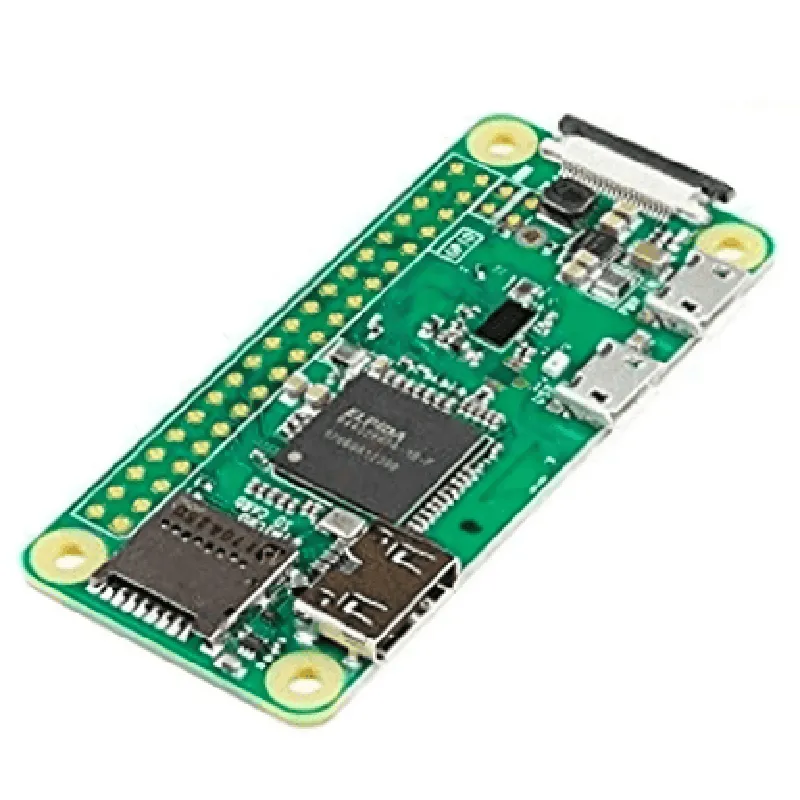
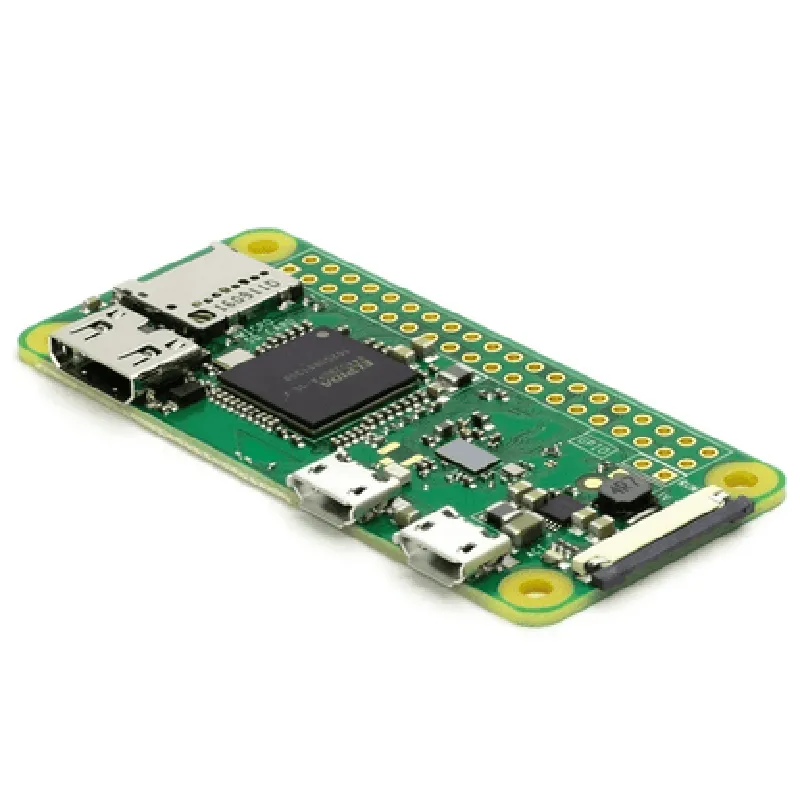
Raspberry Pi Zero W Board
The Raspberry Pi Zero W Board is a compact, low-cost, and highly capable single-board computer (SBC) designed for Internet of Things (IoT) projects, robotics, and embedded systems. It is the wireless variant of the Raspberry Pi Zero, offering Wi-Fi and Bluetooth connectivity.
The Raspberry Pi Zero W Board is a miniature computer that can run a variety of operating systems, including Raspbian, Ubuntu, and Windows 10 IoT. It is capable of executing a range of tasks, from simple computations to complex multimedia processing. The board is ideal for IoT applications, prototyping, and proof-of-concept projects.
### Processing
Broadcom BCM2835 system-on-chip (SoC) with a quad-core Cortex-A53 CPU
1GHz
64-bit
### Memory and Storage
512MB LPDDR2 SDRAM
microSD card slot for storing operating systems, programs, and data
### Wireless Connectivity
| Wi-Fi | 802.11 b/g/n wireless LAN |
Bluetooth 4.1
### Interfaces and Peripherals
40-pin GPIO header with 28 GPIO pins
Mini HDMI port for video output
One micro-USB port for data transfer and power supply
One CSI camera interface for connecting a camera module
One composite video output
### Power Management
5V, up to 2.5A, via micro-USB port
Approximately 0.5W - 1.5W, depending on usage
### Operating System
The official OS for Raspberry Pi boards, based on Linux
Supported, with a customized version for the Raspberry Pi Zero W
| Windows 10 IoT | Supported, for building IoT projects with Microsoft tools |
### Dimensions and Weight
65mm
30mm
5mm
Approximately 8g
### Additional Features
Ideal for battery-powered or energy-harvesting applications
Perfect for wearable devices, robots, and other space-constrained projects
| Open-Source | Community-driven development and extensive documentation |
The Raspberry Pi Zero W Board offers a remarkable blend of performance, functionality, and affordability, making it an attractive choice for a wide range of IoT and embedded systems projects.
Raspberry Pi Zero W Board DocumentationThe Raspberry Pi Zero W is a compact and affordable single-board computer (SBC) designed for IoT projects, robotics, and embedded systems. This documentation provides an overview of the board's features, technical specifications, and code examples to get you started with your projects.Features and Technical SpecificationsProcessor: Broadcom BCM2835 SoC (single-core CPU)
RAM: 512 MB
Storage: MicroSD card slot
Networking: 802.11 b/g/n Wi-Fi, Bluetooth 4.0
GPIO: 40-pin header (compatible with Raspberry Pi HATs)
Power: Micro-USB port (5V, 2.5A)
Dimensions: 65 mm x 30 mm x 5 mmCode Examples### Example 1: Blinking LED using Python and GPIOThis example demonstrates how to control an LED connected to GPIO pin 17 on the Raspberry Pi Zero W using Python.Hardware RequirementsRaspberry Pi Zero W board
LED (any color)
1 k resistor
Breadboard
Jumper wiresSoftware RequirementsRaspbian OS (latest version)
Python 3.xCode
```python
import RPi.GPIO as GPIO
import time# Set up GPIO mode
GPIO.setmode(GPIO.BCM)# Set up GPIO 17 as an output
GPIO.setup(17, GPIO.OUT)try:
while True:
# Turn on the LED
GPIO.output(17, GPIO.HIGH)
time.sleep(1)# Turn off the LED
GPIO.output(17, GPIO.LOW)
time.sleep(1)except KeyboardInterrupt:
# Clean up GPIO on exit
GPIO.cleanup()
```
### Example 2: Web Server using Python and FlaskThis example demonstrates how to create a simple web server using Python and Flask on the Raspberry Pi Zero W.Hardware RequirementsRaspberry Pi Zero W board
Internet connection (Wi-Fi or Ethernet)Software RequirementsRaspbian OS (latest version)
Python 3.x
Flask (install using `pip install flask`)Code
```python
from flask import Flask, render_templateapp = Flask(__name__)@app.route("/")
def index():
return "Hello, World!"if __name__ == "__main__":
app.run(host="0.0.0.0", port=80)
```
Run the script using `python app.py` and access the web server using a web browser at `http://<Raspberry Pi Zero W's IP address>`.### Example 3: Wi-Fi Connectivity using PythonThis example demonstrates how to connect to a Wi-Fi network using Python on the Raspberry Pi Zero W.Hardware RequirementsRaspberry Pi Zero W board
Wi-Fi routerSoftware RequirementsRaspbian OS (latest version)
Python 3.xCode
```python
import network# Set up Wi-Fi interface
wlan = network.WLAN(network.WLAN STA_IF)# Set Wi-Fi credentials
wlan.connect("your_wifi_ssid", "your_wifi_password")# Wait for connection
while not wlan.isconnected():
passprint("Connected to Wi-Fi!")
print("IP Address:", wlan.ifconfig()[0])
```
Replace `"your_wifi_ssid"` and `"your_wifi_password"` with your actual Wi-Fi credentials.These examples demonstrate the versatility of the Raspberry Pi Zero W and its ability to be used in various IoT projects, from simple GPIO control to web development and Wi-Fi connectivity.