High-quality, injection-molded plastic


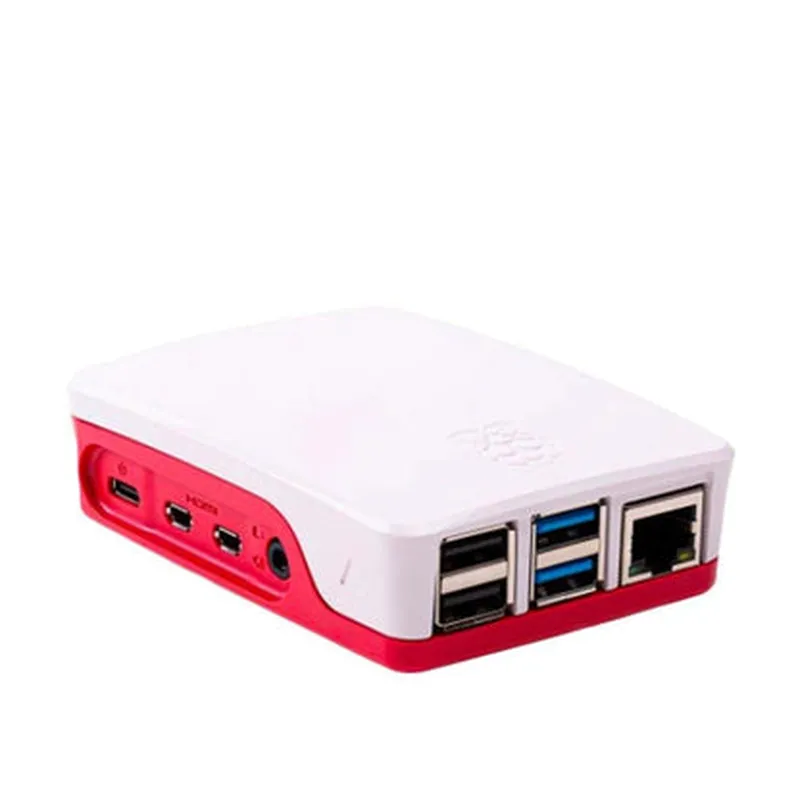
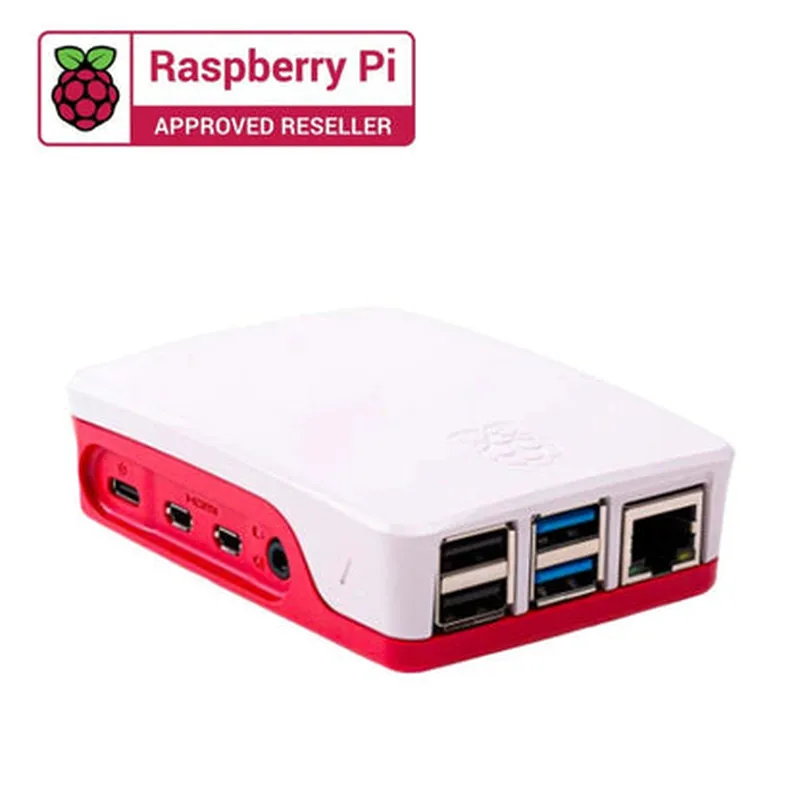
High-quality, injection-molded plastic
92mm x 60mm x 30mm (3.62" x 2.36" x 1.18")
approximately 55g (1.94 oz)
Raspberry Pi 4B
Black
Conclusion
The Raspberry Pi 4B Official Case is a high-quality, rugged, and durable enclosure that provides exceptional protection, heat dissipation, and aesthetics for the Raspberry Pi 4B. Its compact design, easy assembly, and access to all ports and connectors make it an excellent choice for a wide range of applications, from prototyping to industrial deployments.
Raspberry Pi 4B Official Case DocumentationOverviewThe Raspberry Pi 4B Official Case is a durable and compact enclosure designed specifically for the Raspberry Pi 4B single-board computer. The case provides adequate protection, ventilation, and accessibility to the Raspberry Pi's features, making it an ideal choice for a wide range of IoT projects.Key FeaturesDesigned for Raspberry Pi 4B
Durable and compact design
Adequate ventilation for heat dissipation
Easy access to GPIO pins, camera, and display ports
Secure screw-on designUsing the Raspberry Pi 4B Official Case in Various Contexts### Example 1: Basic Setup with Raspbian OSIn this example, we'll demonstrate how to set up the Raspberry Pi 4B Official Case with the Raspbian OS, basic configuration, and a simple Python script to blink an LED.Hardware RequirementsRaspberry Pi 4B
Raspberry Pi 4B Official Case
MicroSD card with Raspbian OS
Breadboard and jumper wires
LED and resistorSoftware RequirementsRaspbian OS (latest version)
Python 3.x (pre-installed on Raspbian)Steps1. Insert the microSD card with Raspbian OS into the Raspberry Pi 4B.
2. Assemble the Raspberry Pi 4B Official Case according to the official instructions.
3. Connect the LED and resistor to the breadboard and jumper wires.
4. Connect the jumper wires to GPIO pins 17 and GND on the Raspberry Pi 4B.Code
```python
import RPi.GPIO as GPIO
import time# Set up GPIO mode
GPIO.setmode(GPIO.BCM)# Define the LED pin
LED_PIN = 17# Set up the LED pin as an output
GPIO.setup(LED_PIN, GPIO.OUT)while True:
# Blink the LED
GPIO.output(LED_PIN, GPIO.HIGH)
time.sleep(1)
GPIO.output(LED_PIN, GPIO.LOW)
time.sleep(1)
```
Run the script using `python blink_led.py` (assuming the script is saved as `blink_led.py`).### Example 2: Home Automation with GPIO and PythonIn this example, we'll demonstrate how to use the Raspberry Pi 4B Official Case to control a relay module connected to a GPIO pin, allowing you to control a household appliance remotely.Hardware RequirementsRaspberry Pi 4B
Raspberry Pi 4B Official Case
Relay module (e.g., SRD-05VDC-SL-C)
Breadboard and jumper wires
Household appliance (e.g., lamp)Software RequirementsRaspbian OS (latest version)
Python 3.x (pre-installed on Raspbian)
`RPi.GPIO` library (pre-installed on Raspbian)Steps1. Connect the relay module to the breadboard and jumper wires.
2. Connect the jumper wires to GPIO pins 23 and GND on the Raspberry Pi 4B.
3. Connect the household appliance to the relay module.Code
```python
import RPi.GPIO as GPIO
import time# Set up GPIO mode
GPIO.setmode(GPIO.BCM)# Define the relay pin
RELAY_PIN = 23# Set up the relay pin as an output
GPIO.setup(RELAY_PIN, GPIO.OUT)while True:
# Turn the relay on
GPIO.output(RELAY_PIN, GPIO.HIGH)
print("Relay turned on")
time.sleep(5)# Turn the relay off
GPIO.output(RELAY_PIN, GPIO.LOW)
print("Relay turned off")
time.sleep(5)
```
Run the script using `python relay_control.py` (assuming the script is saved as `relay_control.py`).### Example 3: IoT Project with Wi-Fi and MQTTIn this example, we'll demonstrate how to use the Raspberry Pi 4B Official Case to create an IoT project that sends sensor data to an MQTT broker using Wi-Fi.Hardware RequirementsRaspberry Pi 4B
Raspberry Pi 4B Official Case
Wi-Fi module (e.g., Edimax EW-7811Un)
DHT11 temperature and humidity sensor
Breadboard and jumper wiresSoftware RequirementsRaspbian OS (latest version)
Python 3.x (pre-installed on Raspbian)
`RPi.GPIO` library (pre-installed on Raspbian)
`paho-mqtt` library (install using `pip install paho-mqtt`)Steps1. Connect the Wi-Fi module to the Raspberry Pi 4B.
2. Connect the DHT11 sensor to the breadboard and jumper wires.
3. Connect the jumper wires to GPIO pins 4 and GND on the Raspberry Pi 4B.Code
```python
import RPi.GPIO as GPIO
import time
import dht11
import paho.mqtt.client as mqtt# Set up GPIO mode
GPIO.setmode(GPIO.BCM)# Define the DHT11 pin
DHT11_PIN = 4# Set up the DHT11 sensor
dht11_sensor = dht11.DHT11(pin=DHT11_PIN)# Set up the MQTT client
mqtt_client = mqtt.Client()
mqtt_client.connect("YOUR_MQTT_BROKER_IP", 1883)while True:
# Read temperature and humidity data
temp, humid = dht11_sensor.read()# Publish data to MQTT broker
mqtt_client.publish("home/temperature", temp)
mqtt_client.publish("home/humidity", humid)# Wait for 10 seconds
time.sleep(10)
```
Replace `YOUR_MQTT_BROKER_IP` with the IP address of your MQTT broker. Run the script using `python mqtt_publisher.py` (assuming the script is saved as `mqtt_publisher.py`).