-50C to 120C (-58F to 248F)


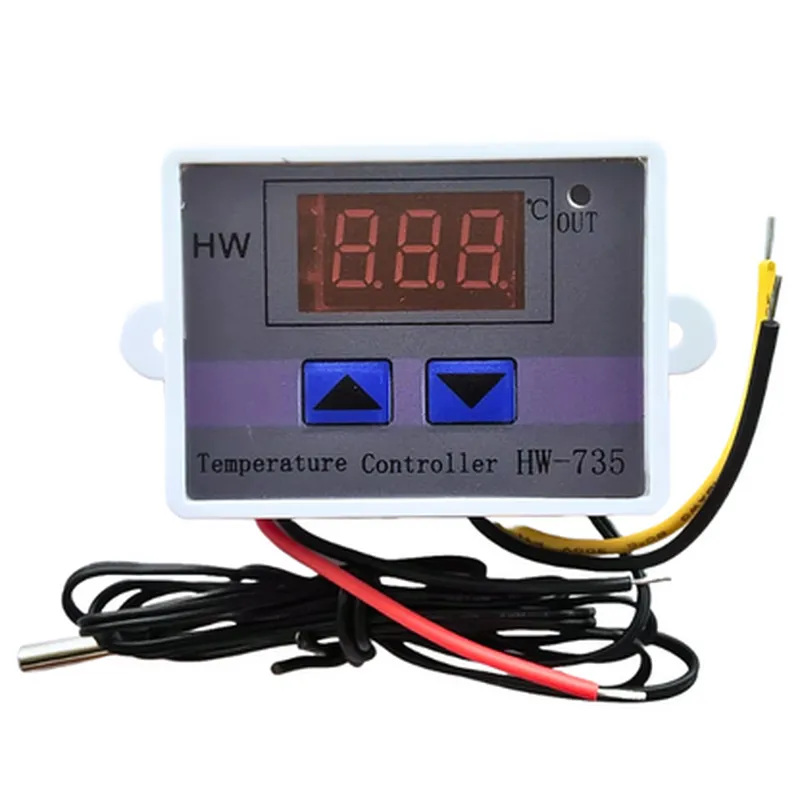
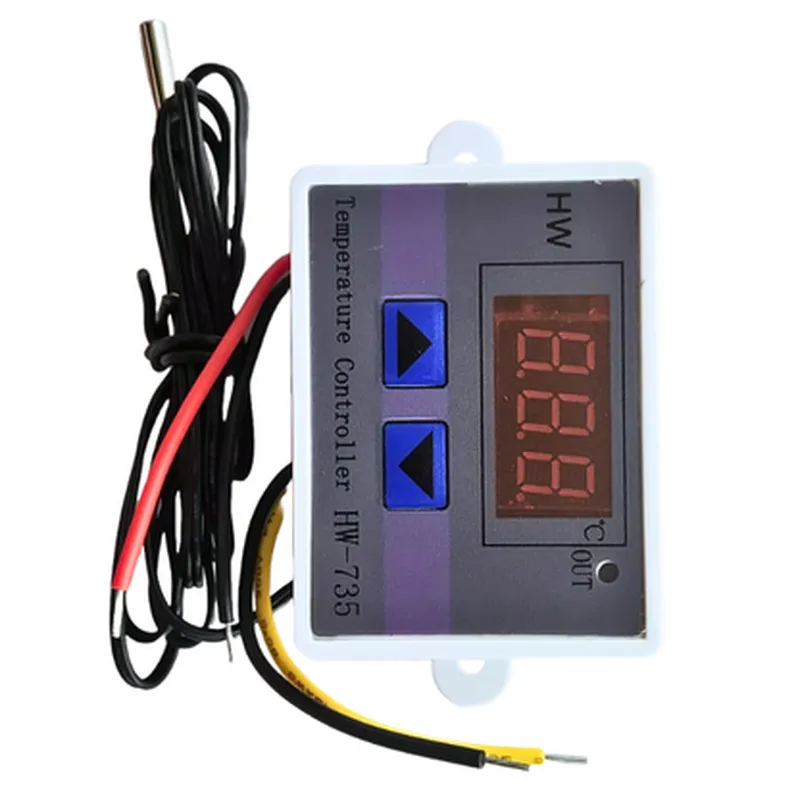
-50C to 120C (-58F to 248F)
0.5C
10A (Maximum)
12V DC
0C to 50C (32F to 122F)
-20C to 60C (-4F to 140F)
70 x 47 x 24 mm (2.76 x 1.85 x 0.94 in)
60g (2.12 oz)
Applications
Industrial Automation
Home Automation
Fermentation Temperature Control
Greenhouse Temperature Control
Heating and Cooling Systems
Temperature Monitoring and Control
XH-W3001 Intelligent Led Digital Microcomputer Temperature Controller Mini Thermostat Switch DocumentationOverviewThe XH-W3001 is a microcomputer-based temperature controller featuring a built-in LED display, water-resistant sensor probe, and a 10A max relay output. This device is designed for a wide range of applications, including temperature control, thermostat, and automation systems.Technical SpecificationsOperating Temperature: -20C to 60C
Temperature Measurement Range: -50C to 120C
Accuracy: 1C
Relay Output: 10A max, 250VAC
LED Display: 3-digit, 7-segment
Sensor Probe: Water-resistant, 1m long
Power Supply: 12VDC, 5VDC (optional)
Dimensions: 60mm x 40mm x 25mmPinout| Pin | Function |
| --- | --- |
| VCC | Power supply (12VDC or 5VDC) |
| GND | Ground |
| IN | Temperature sensor probe input |
| OUT | Relay output |
| SET | Configuration button |
| UP/DOWN | Increment/decrement buttons |Programming and ControlThe XH-W3001 can be controlled and programmed using a microcontroller or a computer via serial communication (UART or TTL). The device uses a simple ASCII-based command protocol.Example 1: Basic Temperature Control using ArduinoThis example demonstrates how to use the XH-W3001 with an Arduino board to control a relay based on temperature readings.```cpp
#include <SoftwareSerial.h>SoftwareSerial mySerial(2, 3); // RX, TXvoid setup() {
mySerial.begin(9600);
}void loop() {
// Read temperature from sensor probe
int temp = readTemp();// Set relay output based on temperature
if (temp > 25) {
mySerial.println(" relay on");
} else {
mySerial.println(" relay off");
}delay(500);
}int readTemp() {
mySerial.println(" temp");
delay(50);
String tempStr = mySerial.readStringUntil('
');
int temp = tempStr.toInt();
return temp;
}
```Example 2: Thermostat Mode using PythonThis example demonstrates how to use the XH-W3001 in thermostat mode with a Python script running on a Raspberry Pi or similar device.```python
import serialser = serial.Serial('/dev/ttyUSB0', 9600)def set_thermostat_mode():
ser.write(b'thermostat on
')def set_temperature(temp):
ser.write(f'set {temp}
'.encode())def main():
set_thermostat_mode()
while True:
temp = int(ser.readline().decode().strip())
if temp > 25:
print("Turning on fan...")
ser.write(b'relay on
')
else:
print("Turning off fan...")
ser.write(b'relay off
')
time.sleep(1)if __name__ == '__main__':
main()
```Example 3: Automatic Temperature Control using ESP32This example demonstrates how to use the XH-W3001 with an ESP32 board to create an automatic temperature control system with Wi-Fi connectivity.```cpp
#include <WiFi.h>
#include <AsyncTCP.h>// Wi-Fi credentials
const char ssid = "your_ssid";
const char password = "your_password";WiFiServer server(80);void setup() {
Serial.begin(9600);
WiFi.begin(ssid, password);
while (WiFi.status() != WL_CONNECTED) {
delay(1000);
Serial.println("Connecting to Wi-Fi...");
}
Serial.println("Connected to Wi-Fi");
server.begin();
}void loop() {
WiFiClient client = server.available();
if (client) {
while (client.available() > 0) {
String request = client.readStringUntil('
');
if (request.indexOf("get_temp") != -1) {
int temp = readTemp();
client.println("HTTP/1.1 200 OK");
client.println("Content-Type: text/plain");
client.println();
client.println(String(temp));
}
if (request.indexOf("set_temp") != -1) {
int temp = request.toInt();
setTemperature(temp);
client.println("HTTP/1.1 200 OK");
client.println("Content-Type: text/plain");
client.println();
client.println("Temperature set to " + String(temp));
}
}
}
delay(50);
}
```Notes and PrecautionsMake sure to follow proper wiring and electrical safety guidelines when using the XH-W3001.
The device may require calibration before use.
Ensure the sensor probe is properly connected and protected from moisture.
Use a suitable power supply and ensure the device is operated within its specified temperature range.By following these examples and guidelines, you can effectively integrate the XH-W3001 Intelligent Led Digital Microcomputer Temperature Controller into your IoT projects and applications.