

Stufin
Home Quick Cart Profile

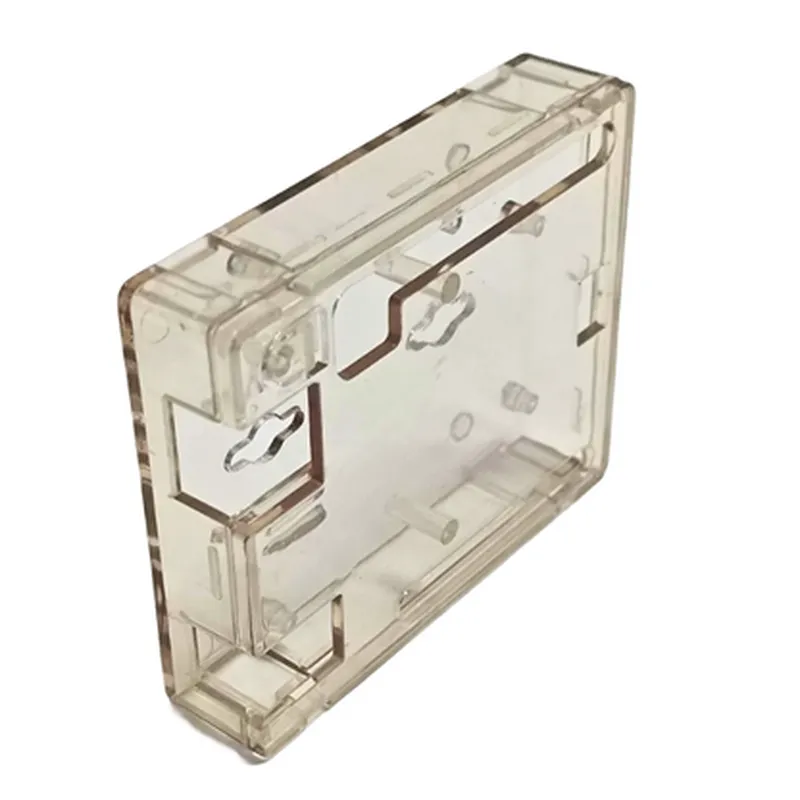
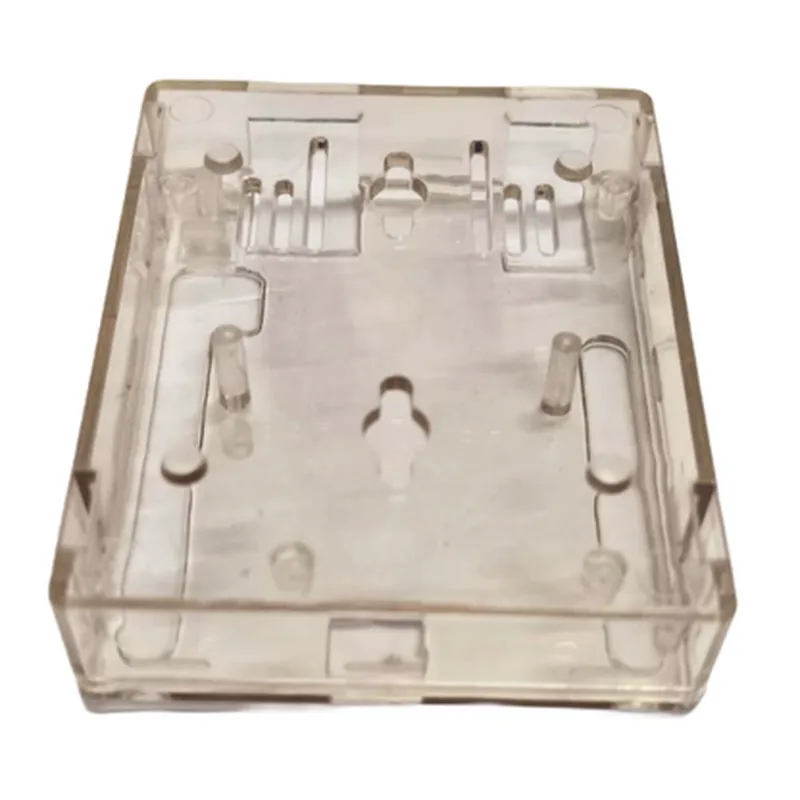
Arduino UNO R3 Transparent Plastic Case

Buy Now on Stufin

Component Description

Arduino UNO R3 Transparent Plastic Case

Overview

The Arduino UNO R3 Transparent Plastic Case is a protective enclosure designed specifically for the Arduino UNO R3 microcontroller board. This case provides a clear and durable housing for the board, allowing users to protect their project from environmental factors while maintaining visibility of the board's components.

Functionality

The primary function of the Arduino UNO R3 Transparent Plastic Case is to provide a secure and transparent enclosure for the Arduino UNO R3 board. This case allows users to

Protect the board from dust, moisture, and other environmental factors that may damage the electronics.

Maintain visibility of the board's components, making it easier to troubleshoot and debug projects.

Mount the board securely using the provided screw holes, ensuring the board remains stable and secure.

Access all ports and connectors on the Arduino UNO R3 board, including the USB port, power jack, and digital/analog pins.

Key Features

  • Transparent Plastic Material: The case is made of high-quality, transparent plastic that provides excellent visibility of the board's components.
  • Precise Fit: The case is designed to fit the Arduino UNO R3 board precisely, ensuring a snug and secure fit.
  • Screw Hole Mounting: The case features screw holes that align with the mounting holes on the Arduino UNO R3 board, allowing for secure and easy mounting.
  • Access to All Ports and Connectors: The case is designed to provide unobstructed access to all ports and connectors on the Arduino UNO R3 board, including the USB port, power jack, and digital/analog pins.
  • Durable and Rugged: The case is built to withstand regular use and handling, providing a reliable and long-lasting protective solution for the Arduino UNO R3 board.
  • Easy Assembly: The case is easy to assemble and disassemble, making it simple to install or remove the Arduino UNO R3 board as needed.
  • Compact Design: The case is designed to be compact and lightweight, making it ideal for a wide range of projects and applications.

Specifications

Material

Transparent plastic

Compatibility

Arduino UNO R3 board

Dimensions

68.5mm x 53.5mm x 24.5mm (L x W x H)

Weight

Approximately 50g

Screw hole pitch

3.2mm

Screw hole diameter

2.5mm

Applications

The Arduino UNO R3 Transparent Plastic Case is suitable for a wide range of applications, including

Robotics projects

IoT projects

Home automation projects

Wearable devices

Prototyping and development projects

Conclusion

The Arduino UNO R3 Transparent Plastic Case provides a reliable and durable protective solution for the Arduino UNO R3 board. With its precise fit, screw hole mounting, and access to all ports and connectors, this case is an ideal choice for a wide range of projects and applications.

Pin Configuration

  • Arduino UNO R3 Transparent Plastic Case - Pinout Explanation
  • The Arduino UNO R3 is a popular microcontroller board based on the ATmega328P microcontroller. The board has a total of 30 pins, which can be divided into digital pins, analog pins, power pins, and other specialized pins. Here's a detailed explanation of each pin on the Arduino UNO R3:
  • Digital Pins (14)
  • 1. Digital Pin 0 (RX): This pin is used as the serial communication receive (RX) pin. It is also a digital input/output pin.
  • Connection: Connect to a serial communication device (e.g., Bluetooth module) or use as a digital input/output.
  • 2. Digital Pin 1 (TX): This pin is used as the serial communication transmit (TX) pin. It is also a digital input/output pin.
  • Connection: Connect to a serial communication device (e.g., Bluetooth module) or use as a digital input/output.
  • 3. Digital Pin 2: This is a digital input/output pin.
  • Connection: Connect to a digital sensor, LED, or other digital device.
  • 4. Digital Pin 3: This is a digital input/output pin.
  • Connection: Connect to a digital sensor, LED, or other digital device.
  • 5. Digital Pin 4: This is a digital input/output pin.
  • Connection: Connect to a digital sensor, LED, or other digital device.
  • 6. Digital Pin 5: This is a digital input/output pin.
  • Connection: Connect to a digital sensor, LED, or other digital device.
  • 7. Digital Pin 6: This is a digital input/output pin.
  • Connection: Connect to a digital sensor, LED, or other digital device.
  • 8. Digital Pin 7: This is a digital input/output pin.
  • Connection: Connect to a digital sensor, LED, or other digital device.
  • 9. Digital Pin 8: This is a digital input/output pin.
  • Connection: Connect to a digital sensor, LED, or other digital device.
  • 10. Digital Pin 9: This is a digital input/output pin.
  • Connection: Connect to a digital sensor, LED, or other digital device.
  • 11. Digital Pin 10: This is a digital input/output pin.
  • Connection: Connect to a digital sensor, LED, or other digital device.
  • 12. Digital Pin 11: This is a digital input/output pin.
  • Connection: Connect to a digital sensor, LED, or other digital device.
  • 13. Digital Pin 12: This is a digital input/output pin.
  • Connection: Connect to a digital sensor, LED, or other digital device.
  • 14. Digital Pin 13: This is a digital input/output pin.
  • Connection: Connect to a digital sensor, LED, or other digital device.
  • Analog Pins (6)
  • 1. Analog Pin A0: This is an analog input pin.
  • Connection: Connect to an analog sensor (e.g., potentiometer, thermistor) or other analog device.
  • 2. Analog Pin A1: This is an analog input pin.
  • Connection: Connect to an analog sensor (e.g., potentiometer, thermistor) or other analog device.
  • 3. Analog Pin A2: This is an analog input pin.
  • Connection: Connect to an analog sensor (e.g., potentiometer, thermistor) or other analog device.
  • 4. Analog Pin A3: This is an analog input pin.
  • Connection: Connect to an analog sensor (e.g., potentiometer, thermistor) or other analog device.
  • 5. Analog Pin A4: This is an analog input pin.
  • Connection: Connect to an analog sensor (e.g., potentiometer, thermistor) or other analog device.
  • 6. Analog Pin A5: This is an analog input pin.
  • Connection: Connect to an analog sensor (e.g., potentiometer, thermistor) or other analog device.
  • Power Pins (7)
  • 1. VIN: This pin is the input voltage pin for the Arduino board.
  • Connection: Connect to a power source (e.g., battery, wall adapter) with a voltage between 7V and 12V.
  • 2. 5V: This pin provides a regulated 5V output.
  • Connection: Connect to devices that require a 5V power supply.
  • 3. 3V3: This pin provides a regulated 3.3V output.
  • Connection: Connect to devices that require a 3.3V power supply.
  • 4. GND: This pin is the ground pin for the Arduino board.
  • Connection: Connect to the ground pin of a power source or other devices.
  • 5. GND (near VIN): This is an additional ground pin.
  • Connection: Connect to the ground pin of a power source or other devices.
  • 6. Reset: This pin is the reset pin for the Arduino board.
  • Connection: Connect to a reset button or other reset device.
  • 7. AREF: This pin is the analog reference pin for the Arduino board.
  • Connection: Connect to an external analog reference voltage (e.g., 2.5V, 4.2V) or leave unconnected.
  • Other Pins (3)
  • 1. ICSP (MISO, MOSI, SCK, VCC, GND, RST): These pins are used for In-Circuit Serial Programming (ICSP) and are not typically used for user projects.
  • Connection: Leave unconnected or use for ICSP programming.
  • 2. XTAL (16MHz oscillator): This is the crystal oscillator pin for the Arduino board.
  • Connection: Leave unconnected or use for custom oscillator circuits.
  • 3. JOY (Joystick): This is not a standard pin, but rather a label on the board. It is not used by the Arduino UNO R3.
  • Connection: Leave unconnected.
  • When connecting pins, make sure to:
  • Use the correct pin numbering (digital pins 0-13, analog pins A0-A5)
  • Use the correct voltage levels (5V, 3.3V, VIN) for power pins
  • Use a breadboard or protoboard to connect devices and sensors
  • Follow proper wiring and soldering techniques to avoid damage to the board or devices
  • Remember to consult the official Arduino documentation and datasheets for more detailed information on using the Arduino UNO R3 with specific devices and sensors.

Code Examples

Arduino UNO R3 Transparent Plastic Case Documentation
Overview
The Arduino UNO R3 Transparent Plastic Case is a protective enclosure designed specifically for the Arduino UNO R3 board. The transparent plastic case provides a clear view of the board's components while protecting it from dust, debris, and accidental damage. This documentation provides an overview of the case's features and demonstrates its usage with code examples.
Features
Compatible with Arduino UNO R3 board
 Transparent plastic material for clear visibility of board components
 Snap-on design for easy installation and removal
 Access to all board pins and ports
 Compact and durable design
Code Examples
### Example 1: Basic LED Blinking with Arduino UNO R3 in Transparent Plastic Case
In this example, we will demonstrate a simple LED blinking program using an Arduino UNO R3 board housed in the transparent plastic case.
Hardware Requirements
Arduino UNO R3 board
 Transparent plastic case
 LED
 220 resistor
 Breadboard and jumper wires
Code
```c
int ledPin = 13; // Pin 13 for the LED
void setup() {
  pinMode(ledPin, OUTPUT);
}
void loop() {
  digitalWrite(ledPin, HIGH);
  delay(1000);
  digitalWrite(ledPin, LOW);
  delay(1000);
}
```
Explanation
In this example, we connect an LED to digital pin 13 of the Arduino UNO R3 board. The `setup()` function sets the pin as an output, and the `loop()` function toggles the LED on and off with a 1-second delay.
### Example 2: Reading Analog Input with Arduino UNO R3 in Transparent Plastic Case
In this example, we will demonstrate reading analog input from a potentiometer connected to the Arduino UNO R3 board housed in the transparent plastic case.
Hardware Requirements
Arduino UNO R3 board
 Transparent plastic case
 Potentiometer
 Breadboard and jumper wires
Code
```c
int potPin = A0; // Pin A0 for the potentiometer
int val = 0;
void setup() {
  Serial.begin(9600);
}
void loop() {
  val = analogRead(potPin);
  Serial.print("Potentiometer value: ");
  Serial.println(val);
  delay(100);
}
```
Explanation
In this example, we connect a potentiometer to analog input pin A0 of the Arduino UNO R3 board. The `setup()` function initializes the serial communication, and the `loop()` function reads the analog value from the potentiometer and prints it to the serial monitor.
These code examples demonstrate the ease of use and versatility of the Arduino UNO R3 Transparent Plastic Case in various applications. The case provides a secure and protective environment for the board, while allowing easy access to its components and pins.