RP2040 dual-core ARM Cortex-M0+


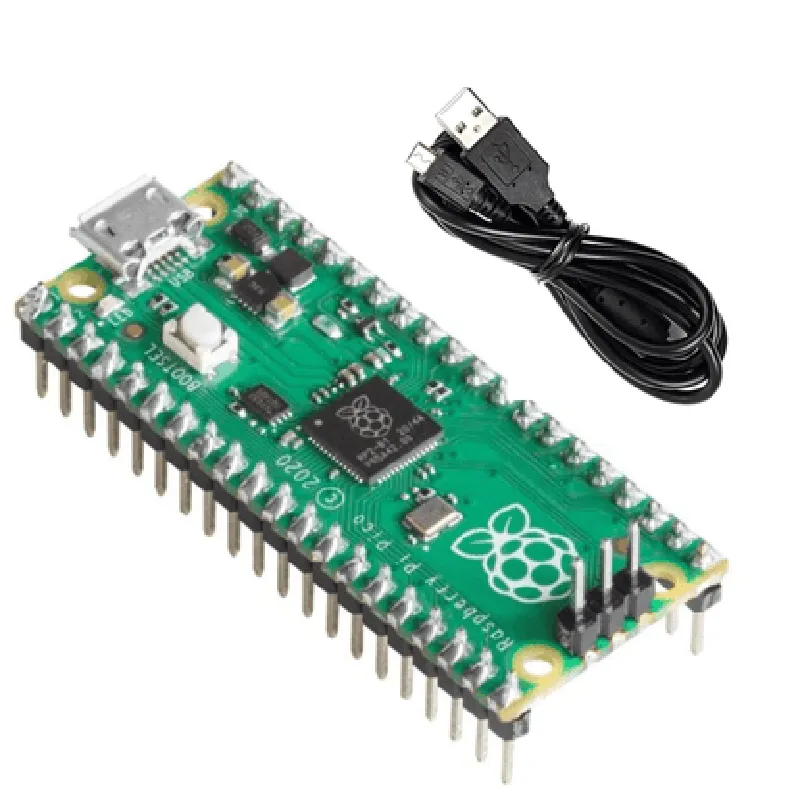
RP2040 dual-core ARM Cortex-M0+
Up to 133 MHz
264KB SRAM, 2MB flash
26 pins (digital input/output, analog input, UART, SPI, I2C, I2S)
12-bit, 4 channels
On-board voltage regulator (1.8V to 5.5V input, 3.3V output)
MicroPython, C/C++
21mm x 51mm
10g
-20C to 85C
Accessories
Micro USB cable (included)
Breadboard or perfboard (optional)
Power source (optional)
Sensors and actuators (optional)
Documentation and Resources
Official Raspberry Pi documentation and tutorials
MicroPython and C/C++ documentation
Community forums and project showcases
By combining the Raspberry Pi Pico with Headers and Micro USB Cable with your creativity and imagination, you can build innovative IoT projects that revolutionize the way we live and work.
Raspberry Pi Pico with Headers and Micro USB CableOverviewThe Raspberry Pi Pico is a low-cost, high-performance microcontroller board from Raspberry Pi, featuring a dual-core Arm Cortex-M0+ processor, 264KB of SRAM, and 2MB of flash memory. The board comes with headers and a micro USB cable, making it an ideal choice for IoT projects, robotics, and prototyping.Technical SpecificationsMicrocontroller: RP2040 (Dual-core Arm Cortex-M0+)
Processor Speed: Up to 133 MHz
RAM: 264KB
Flash Memory: 2MB
Operating Temperature: -20C to 85C
Dimensions: 51mm x 21mm
Headers: 40-pin GPIO header, 3-pin debug header
USB: Micro USB BProgramming LanguagesThe Raspberry Pi Pico can be programmed using C, C++, and MicroPython.Code Examples### Example 1: Blinking an LED using CThis example demonstrates how to use the Raspberry Pi Pico to blink an LED connected to GPIO 25.Hardware RequirementsRaspberry Pi Pico with headers
LED
1k resistor
Breadboard
Jumper wiresCode
```c
#include <stdio.h>
#include "pico/stdlib.h"#define LED_PIN 25int main() {
stdio_init_all();
gpio_init(LED_PIN);
gpio_set_dir(LED_PIN, GPIO_OUT);while (true) {
gpio_put(LED_PIN, 1);
sleep_ms(500);
gpio_put(LED_PIN, 0);
sleep_ms(500);
}
return 0;
}
```
Compile and Run1. Open a terminal and navigate to the directory where you saved the code.
2. Compile the code using `gcc`: `gcc -o blink blink.c -ludev -lstdc++`
3. Run the program: `./blink`### Example 2: Reading Temperature and Humidity using MicroPythonThis example demonstrates how to use the Raspberry Pi Pico to read temperature and humidity values from a DHT11 sensor using MicroPython.Hardware RequirementsRaspberry Pi Pico with headers
DHT11 temperature and humidity sensor
Breadboard
Jumper wiresCode
```python
import machine
import dht# Initialize the DHT11 sensor on GPIO 22
d = dht.DHT11(machine.Pin(22))while True:
# Read temperature and humidity values
temp = d.temperature()
humid = d.humidity()
# Print the values
print(f'Temperature: {temp}C, Humidity: {humid}%')
# Wait for 1 second before taking the next reading
machine.sleep(1000)
```
Run1. Open a terminal and navigate to the directory where you saved the code.
2. Run the program using MicroPython: `python dht_example.py`Note: Make sure to install the necessary libraries and drivers for the DHT11 sensor before running the code.### Example 3: USB Communication using Python (Optional)This example demonstrates how to use the Raspberry Pi Pico as a USB device, communicating with a Python script on a host computer.Hardware RequirementsRaspberry Pi Pico with headers
Micro USB cable
Host computer with Python installedPico Code (usb_example.py)
```python
import usb# Initialize the USB device
usb.init()while True:
# Wait for a USB connection
if usb.connected():
# Read data from the host computer
data = usb.recv(64)
# Print the received data
print(data.decode())
# Send a response back to the host computer
usb.send(b'Hello from Pico!')
```
Host Computer Code (usb_host.py)
```python
import pyusb# Open the USB device
dev = pyusb Device(0x0004, 0x00A2, 0x00) # Replace with your Pico's USB IDwhile True:
# Send a message to the Pico
dev.write(b'Hello Pico!')
# Read the response from the Pico
response = dev.read(64)
print(response.decode())
```
Run1. Run the Pico code using `python usb_example.py` on the Raspberry Pi Pico.
2. Run the host computer code using `python usb_host.py` on the host computer.Note: This example requires additional setup and configuration for USB communication. Refer to the Raspberry Pi Pico documentation for more information.