50V DC


50V DC
1A DC
50m (max)
100M (min)
Mechanical Characteristics
-20C to 70C
-40C to 85C
10Hz to 55Hz, 1mm amplitude
100G, 6ms duration
Packaging Information
Pack of 5 switches
Each switch is individually wrapped and protected in an anti-static bag
12x12x7.3 mm (LxWxH)
2g (approx.)
Certifications and Compliance
RoHS compliant
CE marked
Meets international safety standards for electronic components
Applications
| The Tactile 4 Pin Push Button Switch is suitable for a wide range of IoT applications, including |
Robotics
Automation systems
Wearable devices
Home automation systems
Industrial control systems
Medical devices
Consumer electronics
By incorporating the Tactile 4 Pin Push Button Switch into your IoT design, you can create a reliable and efficient user interface that provides a tactile feedback experience.
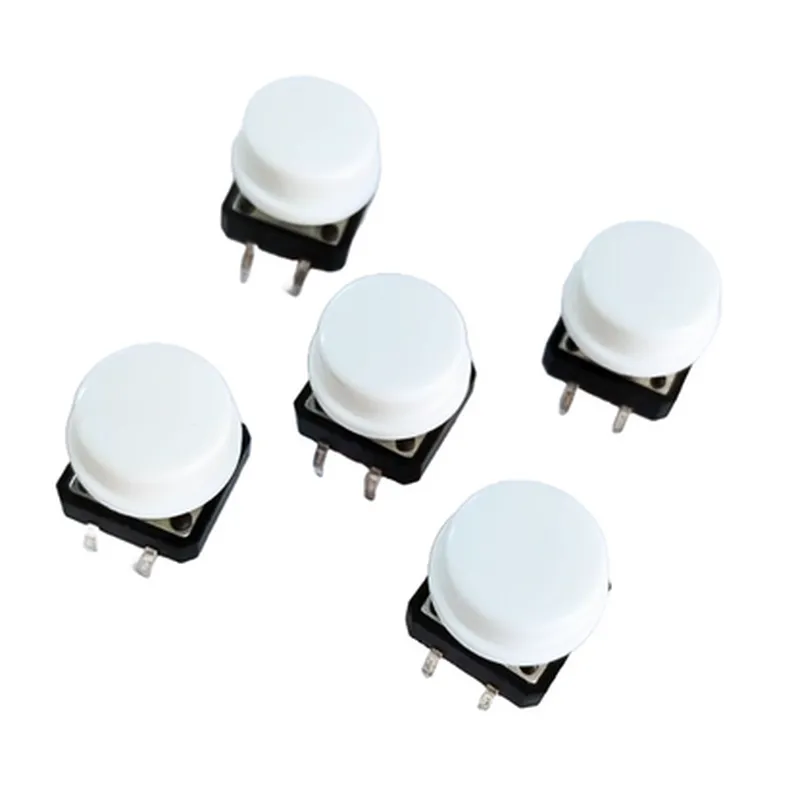
Tactile 4 Pin Push Button Switch - Pack of 5 (12x12x7.3 mm)
=====================================================
Overview
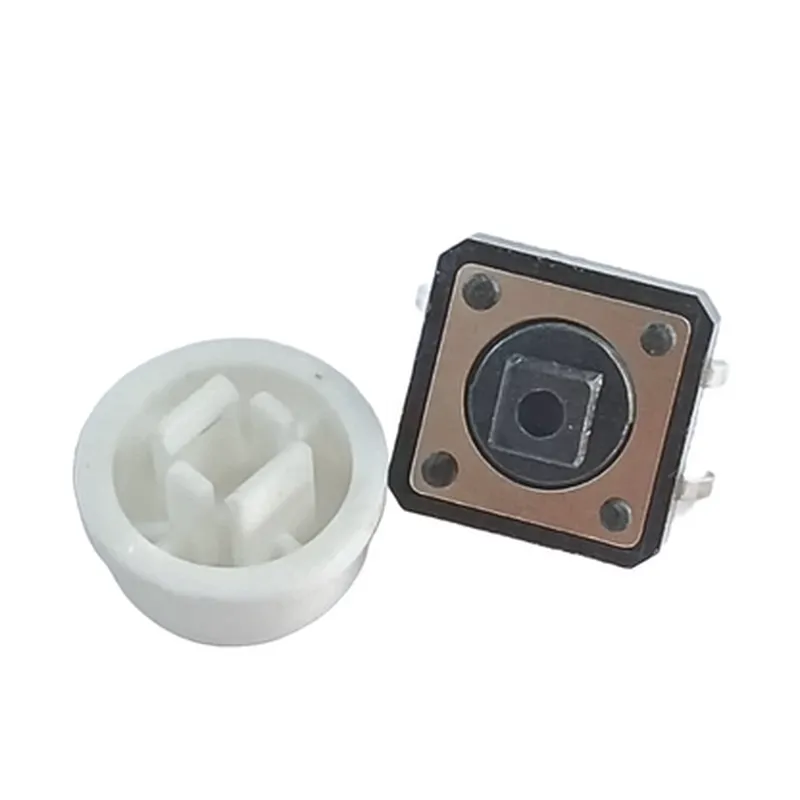
-----------The Tactile 4 Pin Push Button Switch is a compact, low-profile switch designed for use in a variety of IoT applications. This switch features a 4-pin interface, a 12x12x7.3 mm compact size, and a tactile feedback mechanism that provides a clear "click" sensation when pressed. The pack includes 5 switches.Pinout
--------The switch has the following pinout:| Pin | Function |
| --- | --- |
| 1 | VCC |
| 2 | NC (Normally Closed) |
| 3 | NO (Normally Open) |
| 4 | GND |Operation
---------The switch operates by connecting the NO (Normally Open) pin to the VCC pin when pressed, and disconnecting it when released. The NC (Normally Closed) pin is connected to GND when pressed, and disconnected when released.Code Examples
--------------### Example 1: Simple Button Press Detection with ArduinoIn this example, we'll use the Tactile 4 Pin Push Button Switch to detect button presses with an Arduino board.```c++
const int buttonPin = 2; // Pin 2 of Arduino connected to NO pin of switch
const int ledPin = 13; // Pin 13 of Arduino connected to an LEDvoid setup() {
pinMode(buttonPin, INPUT);
pinMode(ledPin, OUTPUT);
}void loop() {
int buttonState = digitalRead(buttonPin);
if (buttonState == HIGH) {
digitalWrite(ledPin, HIGH); // Turn on LED when button is pressed
} else {
digitalWrite(ledPin, LOW); // Turn off LED when button is released
}
delay(50);
}
```### Example 2: Button Press Counter with Raspberry Pi (Python)In this example, we'll use the Tactile 4 Pin Push Button Switch to count the number of button presses with a Raspberry Pi using Python.```python
import RPi.GPIO as GPIO
import timeGPIO.setmode(GPIO.BCM)
button_pin = 17 # Pin 17 of Raspberry Pi connected to NO pin of switch
GPIO.setup(button_pin, GPIO.IN, pull_up_down=GPIO.PUD_UP)button_presses = 0while True:
if GPIO.input(button_pin) == GPIO.LOW:
button_presses += 1
print(f"Button pressed {button_presses} times!")
time.sleep(0.5) # Debounce time
```Additional Resources
---------------------Datasheet: [Insert link to datasheet]
Schematic: [Insert link to schematic]Notes
------Make sure to use a suitable resistor for the LED in the Arduino example.
In the Raspberry Pi example, ensure that the RPi.GPIO library is installed and imported correctly.
Debouncing mechanisms may be necessary to prevent multiple counts from a single button press, depending on the application.