2 Pin Button Switch (Pack of 10)


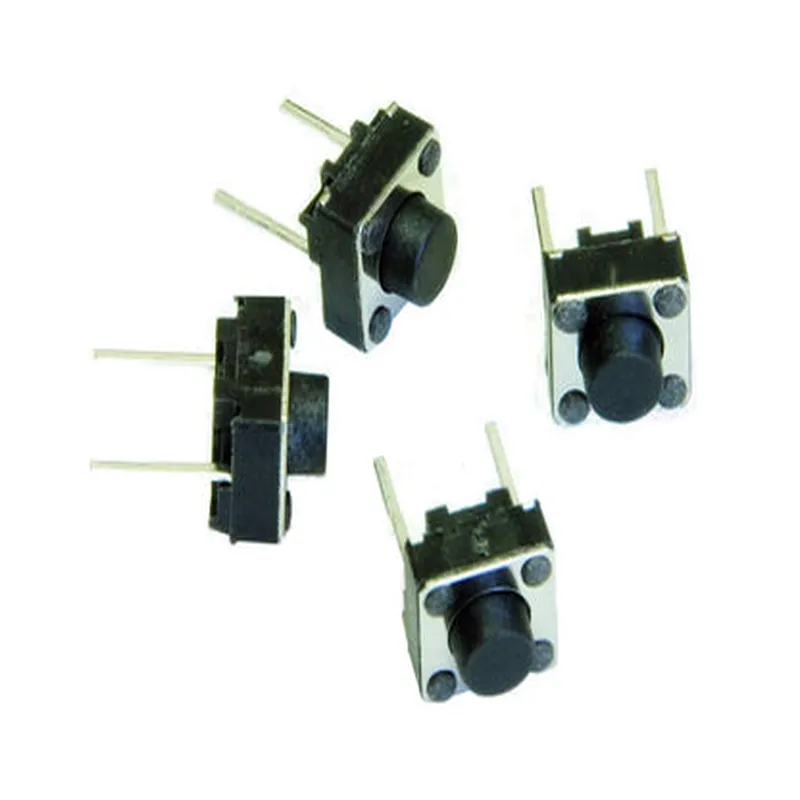
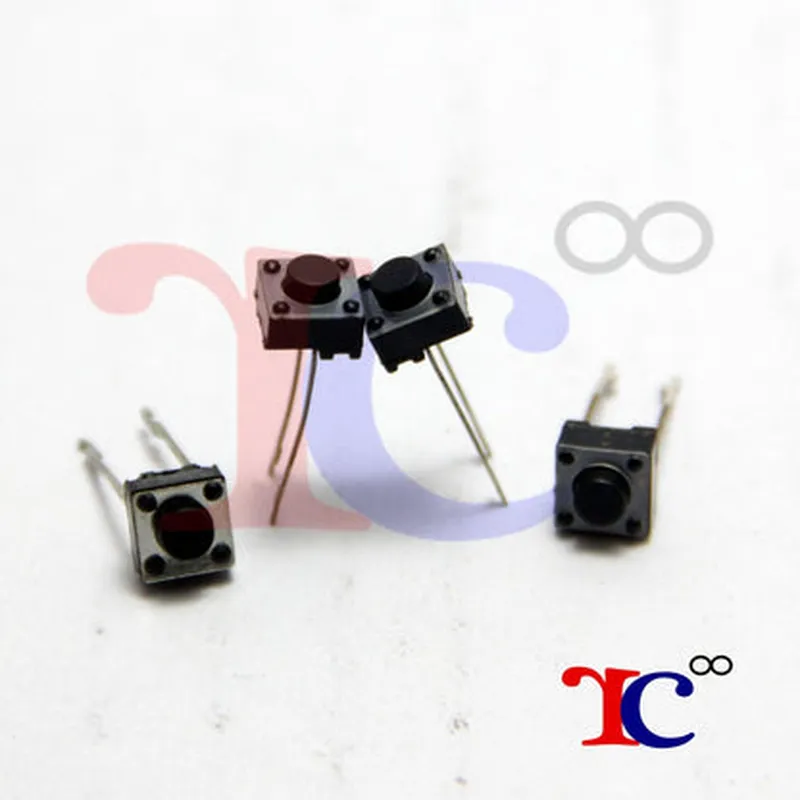
2 Pin Button Switch (Pack of 10)
Mechanical Switch
A pack of 10 miniature 2-pin button switches, ideal for various IoT, robotics, and electronics projects.
The 2 Pin Button Switch is a simple, mechanical switch that allows users to control the flow of electrical current in a circuit. When the button is pressed, the switch connects the two pins, allowing current to flow. When the button is released, the switch opens, breaking the circuit and interrupting the current flow.
6.5mm x 6.5mm x 5.5mm (L x W x H)
Approximately 0.5g per switch
PCB-mounted switch with metal contacts and a plastic housing
Typically black or gray, depending on the manufacturer
IoT projects, such as home automation systems or wearable devices
Robotics projects, such as robotic arms or grippers
Electronics projects, such as DIY gadgets or prototyping boards
Consumer electronics, such as toys or appliances
Handle the switches with care to avoid damage or deformation.
Ensure the switch is properly mounted and secured to prevent accidental activation or damage.
Use the switch within its rated voltage and current specifications to avoid degradation or failure.
Clean the switch regularly to prevent dust or dirt accumulation, which can affect its performance.
2 Pin Button Switch (Pack of 10) DocumentationOverviewThe 2 Pin Button Switch is a simple, momentary push-button switch that can be used to trigger various events in IoT projects. This pack of 10 switches is ideal for prototyping and development of IoT devices. Each switch has two pins, which are connected internally and can be used to connect to a microcontroller or other digital devices.PinoutThe 2 Pin Button Switch has the following pinout:Pin 1: One terminal of the switch
Pin 2: The other terminal of the switchOperating PrincipleWhen the button is pressed, the two pins are connected, allowing current to flow between them. When the button is released, the connection is broken, and no current flows between the pins.Code Examples### Example 1: Using the 2 Pin Button Switch with ArduinoIn this example, we will use the 2 Pin Button Switch to control an LED connected to pin 13 of an Arduino board.Hardware RequirementsArduino Board (e.g., Arduino Uno)
2 Pin Button Switch
LED
220 ohm resistor
Breadboard and jumper wiresCode
```c++
const int buttonPin = 2; // Pin connected to one terminal of the switch
const int ledPin = 13; // Pin connected to the LEDvoid setup() {
pinMode(buttonPin, INPUT); // Set button pin as input
pinMode(ledPin, OUTPUT); // Set LED pin as output
}void loop() {
int buttonState = digitalRead(buttonPin); // Read the button state
if (buttonState == HIGH) {
digitalWrite(ledPin, HIGH); // Turn on the LED
} else {
digitalWrite(ledPin, LOW); // Turn off the LED
}
delay(50);
}
```
ExplanationIn this example, we connect one terminal of the switch to digital pin 2 of the Arduino board and the other terminal to ground. When the button is pressed, the voltage on pin 2 goes high, and we read this state using `digitalRead()`. If the button is pressed, we turn on the LED connected to pin 13 using `digitalWrite()`.### Example 2: Using the 2 Pin Button Switch with Raspberry Pi (Python)In this example, we will use the 2 Pin Button Switch to trigger a Python script on a Raspberry Pi.Hardware RequirementsRaspberry Pi
2 Pin Button Switch
Breadboard and jumper wiresCode
```python
import RPi.GPIO as GPIO
import timeGPIO.setmode(GPIO.BCM) # Use Broadcom numberingbutton_pin = 17 # Pin connected to one terminal of the switchGPIO.setup(button_pin, GPIO.IN, pull_up_down=GPIO.PUD_UP)while True:
if GPIO.input(button_pin) == GPIO.LOW:
print("Button pressed!")
# Add your code here to perform an action when the button is pressed
time.sleep(0.5) # Debounce
```
ExplanationIn this example, we connect one terminal of the switch to GPIO pin 17 of the Raspberry Pi and the other terminal to ground. We use the `RPi.GPIO` library to read the button state. When the button is pressed, the voltage on the pin goes low, and we detect this state using `GPIO.input()`. If the button is pressed, we print a message to the console and add our custom code to perform an action.Note: Ensure to modify the pin numbers and code according to your specific IoT project requirements.