Stufin
Home Quick Cart Profile

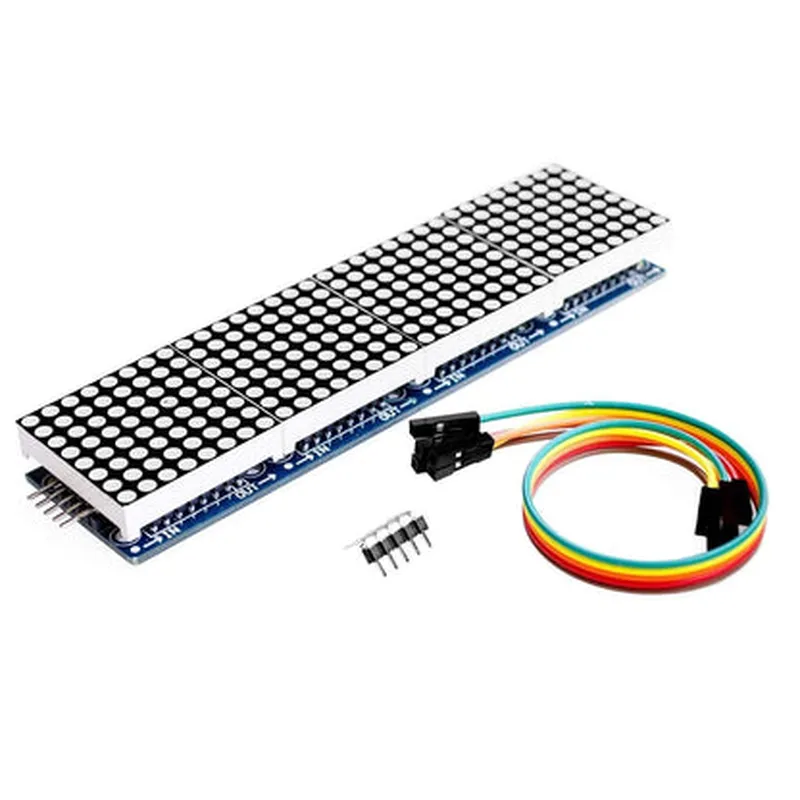
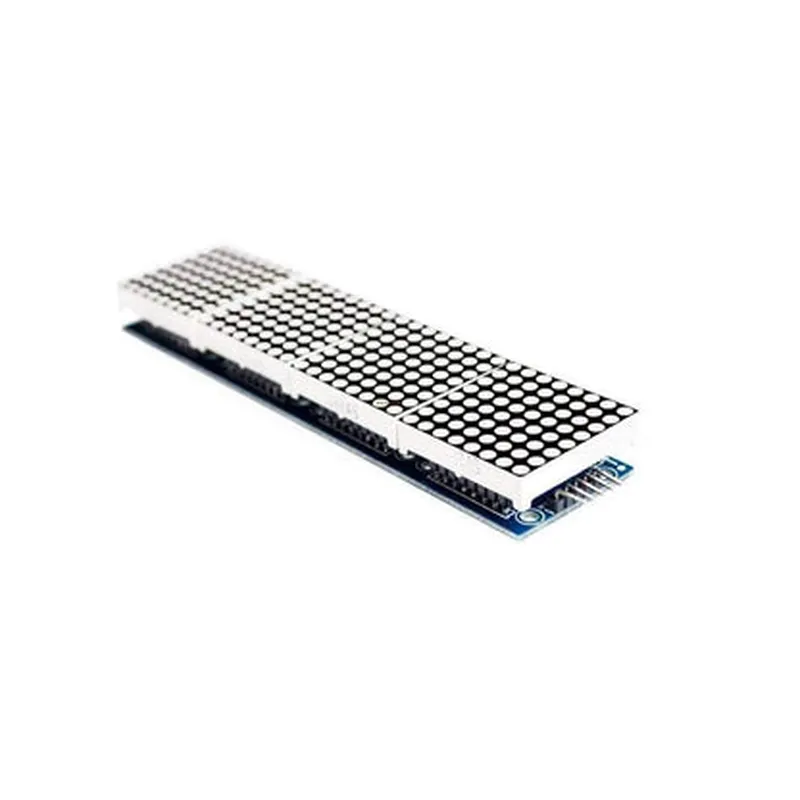
MAX7219 4 in 1 Dot Matrix Display Module

Buy Now on Stufin

Dimensions

40x30 mm (1.57x1.18 in)


Weight

10g (0.35 oz)

Mounting

Through-hole (TH)

Power supply voltage

5V

Operating temperature range

-25C to +85C (-13F to +185F)

Applications

The MAX7219 4 in 1 Dot Matrix Display Module is suitable for a wide range of applications, including

IoT projects and prototyping

Robotics and automation

Industrial control systems

Home automation and smart home devices

Wearable devices and accessories

Advertising and signage displays

Documentation and Resources

Datasheet

MAX7219 Datasheet.pdf

Application Note

MAX7219 Application Note.pdf

Example Code

MAX7219 Example Code.zip (for Arduino, Raspberry Pi, and ESP32)

Conclusion

The MAX7219 4 in 1 Dot Matrix Display Module is a high-density display driver module that offers a compact and efficient solution for a wide range of applications. Its high-speed display update, low power consumption, and software-controlled brightness adjustment make it an ideal choice for applications requiring a high-quality display solution.

Pin Configuration

  • MAX7219 4 in 1 Dot Matrix Display Module Pinout Explanation
  • The MAX7219 4 in 1 Dot Matrix Display Module is a popular IoT component used for displaying information in various applications. It consists of 24 pins, which are responsible for controlling the display, communicating with microcontrollers, and powering the module. Here's a detailed explanation of each pin, along with connection guidelines:
  • Pin 1: VCC (Power Supply)
  • Function: Provides power to the module
  • Connection: Connect to a 5V power supply (e.g., from an Arduino or another microcontroller)
  • Note: Ensure the power supply is stable and within the recommended voltage range (4.5V to 5.5V)
  • Pin 2: GND (Ground)
  • Function: Provides a reference ground for the module
  • Connection: Connect to the ground pin of the power supply or microcontroller
  • Note: A good ground connection is essential for proper module operation
  • Pin 3: DIN (Data In)
  • Function: Receives serial data from the microcontroller
  • Connection: Connect to the digital output pin of the microcontroller (e.g., Arduino's digital pin 10-13)
  • Note: Ensure the connection is secure and not prone to interference
  • Pin 4: CLK (Clock)
  • Function: Receives the clock signal from the microcontroller
  • Connection: Connect to the digital output pin of the microcontroller (e.g., Arduino's digital pin 10-13)
  • Note: The clock signal synchronizes data transfer between the microcontroller and the display module
  • Pin 5: CS (Chip Select)
  • Function: Enables or disables the module's data reception
  • Connection: Connect to the digital output pin of the microcontroller (e.g., Arduino's digital pin 10-13)
  • Note: The chip select signal determines when the module is ready to receive data
  • Pin 6: No Connection
  • Function: No internal connection
  • Connection: Leave this pin unconnected
  • Pin 7: No Connection
  • Function: No internal connection
  • Connection: Leave this pin unconnected
  • Pin 8: SEG A
  • Function: Controls the A segment of the display
  • Connection: Not applicable (internal connection)
  • Pin 9: SEG B
  • Function: Controls the B segment of the display
  • Connection: Not applicable (internal connection)
  • Pin 10: SEG C
  • Function: Controls the C segment of the display
  • Connection: Not applicable (internal connection)
  • Pin 11: SEG D
  • Function: Controls the D segment of the display
  • Connection: Not applicable (internal connection)
  • Pin 12: SEG E
  • Function: Controls the E segment of the display
  • Connection: Not applicable (internal connection)
  • Pin 13: SEG F
  • Function: Controls the F segment of the display
  • Connection: Not applicable (internal connection)
  • Pin 14: SEG G
  • Function: Controls the G segment of the display
  • Connection: Not applicable (internal connection)
  • Pin 15: SEG DP
  • Function: Controls the decimal point segment of the display
  • Connection: Not applicable (internal connection)
  • Pin 16: DIG 0
  • Function: Controls the digit 0 of the display
  • Connection: Not applicable (internal connection)
  • Pin 17: DIG 1
  • Function: Controls the digit 1 of the display
  • Connection: Not applicable (internal connection)
  • Pin 18: DIG 2
  • Function: Controls the digit 2 of the display
  • Connection: Not applicable (internal connection)
  • Pin 19: DIG 3
  • Function: Controls the digit 3 of the display
  • Connection: Not applicable (internal connection)
  • Pin 20: No Connection
  • Function: No internal connection
  • Connection: Leave this pin unconnected
  • Pin 21: No Connection
  • Function: No internal connection
  • Connection: Leave this pin unconnected
  • Pin 22: No Connection
  • Function: No internal connection
  • Connection: Leave this pin unconnected
  • Pin 23: No Connection
  • Function: No internal connection
  • Connection: Leave this pin unconnected
  • Pin 24: No Connection
  • Function: No internal connection
  • Connection: Leave this pin unconnected
  • When connecting the MAX7219 4 in 1 Dot Matrix Display Module to a microcontroller, ensure the following:
  • Use a suitable communication protocol (e.g., SPI) to transmit data from the microcontroller to the display module.
  • Provide a stable power supply and a good ground connection.
  • Use secure and reliable connections to prevent data loss or module malfunction.
  • By following these guidelines, you can successfully integrate the MAX7219 4 in 1 Dot Matrix Display Module into your IoT project and display information effectively.

Code Examples

MAX7219 4 in 1 Dot Matrix Display Module Documentation
Overview
The MAX7219 4 in 1 Dot Matrix Display Module is a compact, high-brightness display module consisting of four 8x8 dot matrix displays, driven by the MAX7219 IC. This module is ideal for displaying alphanumeric characters, symbols, and graphics in various IoT applications.
Pinouts and Connections
The module has the following pinouts:
VCC: Positive power supply (5V)
 GND: Ground
 DIN: Data input
 CLK: Clock input
 CS: Chip select
Features
4 built-in 8x8 dot matrix displays
 High-brightness displays with a wide viewing angle
 Supports alphanumeric characters, symbols, and graphics
 Individual display control for each of the 4 displays
 MAX7219 IC for easy interfacing with microcontrollers
Code Examples
### Example 1: Displaying a Scrollable Text Message using Arduino
In this example, we will display a scrollable text message "HELLO WORLD" on the MAX7219 4 in 1 Dot Matrix Display Module using an Arduino Uno board.
```cpp
#include <MaxMatrix.h>
// Define the pin connections
#define DIN_PIN 12
#define CS_PIN  11
#define CLK_PIN 10
// Create a MaxMatrix object
MaxMatrix mx = MaxMatrix(DIN_PIN, CS_PIN, CLK_PIN);
void setup() {
  // Initialize the MAX7219 module
  mx.init();
}
void loop() {
  // Define the text message
  char message[] = "HELLO WORLD";
// Display the text message
  mx.setText(message);
// Scroll the text message
  for (int i = 0; i < strlen(message); i++) {
    mx.scrollTextLeft();
    delay(50);
  }
// Clear the display
  mx.fillScreen(LOW);
  delay(500);
}
```
### Example 2: Displaying a Temperature Reading using Raspberry Pi (Python)
In this example, we will display a temperature reading on the MAX7219 4 in 1 Dot Matrix Display Module using a Raspberry Pi board and a DS18B20 temperature sensor.
```python
import max7219
from datetime import datetime
import Adafruit_DHT
# Initialize the MAX7219 module
device = max7219.Max7219()
# Initialize the DS18B20 temperature sensor
temperature_sensor = Adafruit_DHT.DS18B20
while True:
    # Read the temperature from the sensor
    temperature = Adafruit_DHT.read_retry(temperature_sensor, 4)
# Format the temperature reading
    temperature_str = "{:.1f}C".format(temperature)
# Clear the display
    device.clear()
# Display the temperature reading
    device.show_message(temperature_str)
# Wait for 1 second before updating the display
    time.sleep(1)
```
### Example 3: Displaying a Custom Graphic using ESP32 (C)
In this example, we will display a custom graphic on the MAX7219 4 in 1 Dot Matrix Display Module using an ESP32 board.
```c
#include <WiFi.h>
#include <MaxMatrix.h>
// Define the pin connections
#define DIN_PIN 18
#define CS_PIN  5
#define CLK_PIN 23
// Create a MaxMatrix object
MaxMatrix mx = MaxMatrix(DIN_PIN, CS_PIN, CLK_PIN);
// Define a custom graphic
const uint8_t graphic[] = {
  0x18, 0x18, 0x18, 0x18, 0x18, 0x18, 0x18, 0x18,
  0x18, 0x00, 0x00, 0x00, 0x00, 0x00, 0x00, 0x18,
  0x18, 0x00, 0x18, 0x18, 0x00, 0x18, 0x18, 0x18,
  0x18, 0x00, 0x00, 0x00, 0x00, 0x00, 0x00, 0x18,
  0x18, 0x18, 0x18, 0x18, 0x18, 0x18, 0x18, 0x18,
};
void setup() {
  // Initialize the MAX7219 module
  mx.init();
}
void loop() {
  // Clear the display
  mx.fillScreen(LOW);
// Display the custom graphic
  mx.drawImage(graphic, 0, 0);
// Wait for 1 second before updating the display
  delay(1000);
}
```
Note: The above code examples assume that you have the necessary libraries installed and configured on your development board. You may need to modify the pin connections and initialization code based on your specific board and setup.