The programmer enables debuggers to access the target microcontroller's memory and registers, facilitating the identification and correction of errors.


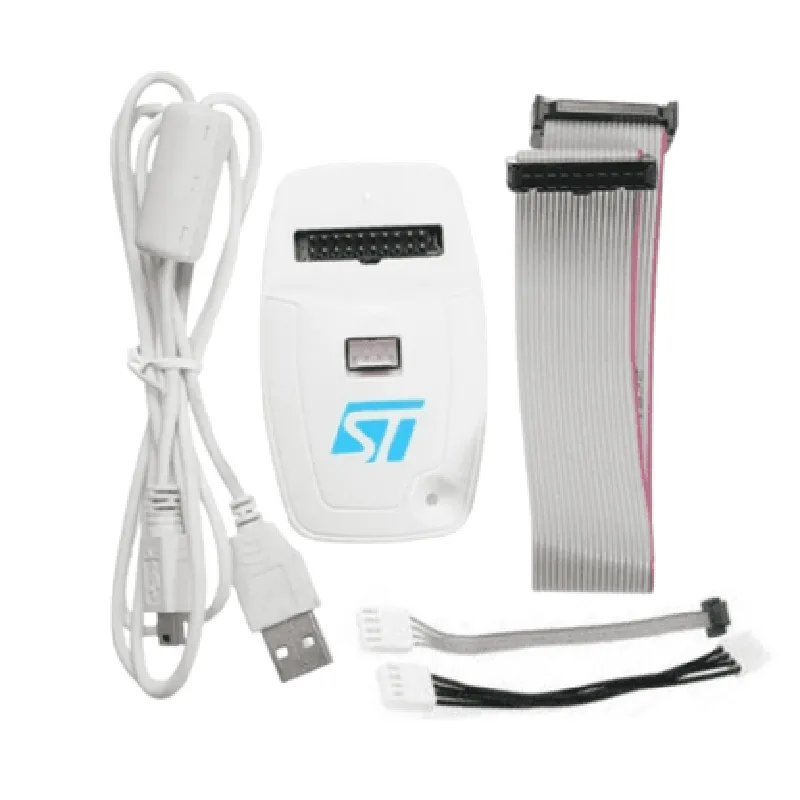
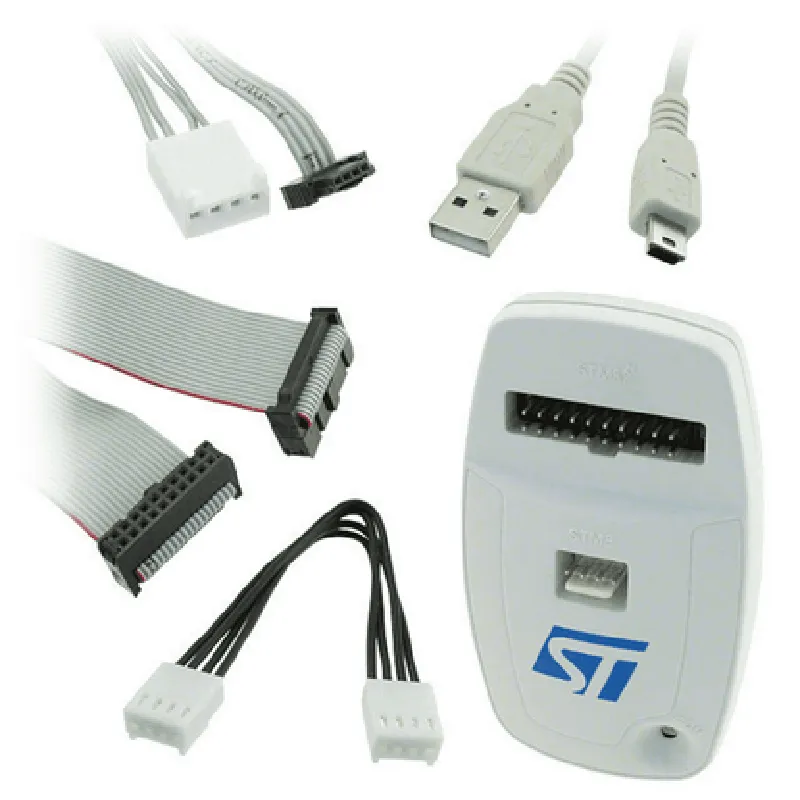
The programmer enables debuggers to access the target microcontroller's memory and registers, facilitating the identification and correction of errors.
The programmer can be used to verify the correctness of the programmed firmware, ensuring that the target device operates as intended.
Key Features
Technical Specifications
50 mm x 20 mm x 10 mm (1.97 in x 0.79 in x 0.39 in)
10 g (0.35 oz)
0C to 50C (32F to 122F)
-20C to 70C (-4F to 158F)
5V (from USB interface)
<50mA (typical)
Software Support
| The ST-Link V2 Programmer is supported by a range of software tools, including | |
| STM32CubeMX | A graphical software configuration tool that allows for easy configuration and programming of STM32 microcontrollers. |
A popular integrated development environment (IDE) for developing and debugging embedded systems.
A comprehensive IDE for developing and debugging embedded systems.
Overall, the ST-Link V2 Programmer is a powerful and versatile tool that is essential for anyone working with STM32 microcontrollers. Its high-speed programming capabilities, compact design, and robustness make it an ideal choice for a wide range of applications, from rapid prototyping to production programming.
ST-Link V2 Programmer DocumentationOverviewThe ST-Link V2 is a popular, low-cost in-circuit debugger and programmer for STM32 microcontrollers. It allows developers to debug and program their STM32-based projects with ease. This documentation provides an overview of the ST-Link V2 programmer, its features, and code examples to demonstrate its usage in various contexts.FeaturesIn-circuit debugging and programming for STM32 microcontrollers
Supports JTAG and SWD interfaces
USB 2.0 full-speed interface
Compatible with Windows, macOS, and Linux operating systems
Open-source software support through the OpenOCD projectCode Examples### Example 1: Programming an STM32F103RB Microcontroller using ST-Link V2 and Keil VisionIn this example, we will program an STM32F103RB microcontroller using the ST-Link V2 programmer and Keil Vision IDE.Hardware RequirementsSTM32F103RB microcontroller
ST-Link V2 programmer
Keil Vision IDE (version 5 or later)Software RequirementsKeil Vision IDE (version 5 or later)
ST-Link V2 driver (install from Keil Vision IDE)CodeCreate a new project in Keil Vision IDE and add the following code to the `main.c` file:
```c
#include <stdio.h>
#include <stdint.h>
#include "stm32f10x.h"int main(void) {
// Initialize the GPIO Peripheral
RCC_APB2PeriphClockCmd(RCC_APB2Periph_GPIOA, ENABLE);// Set GPIO Pin 5 as Output
GPIO_InitTypeDef GPIO_InitTypeDef;
GPIO_InitTypeDef.GPIO_Pin = GPIO_Pin_5;
GPIO_InitTypeDef.GPIO_Mode = GPIO_Mode_Out;
GPIO_InitTypeDef.GPIO_Speed = GPIO_Speed_50MHz;
GPIO_Init(GPIOA, &GPIO_InitTypeDef);while (1) {
// Toggle GPIO Pin 5
GPIO_WriteBit(GPIOA, GPIO_Pin_5, Bit_SET);
delay(500);
GPIO_WriteBit(GPIOA, GPIO_Pin_5, Bit_RESET);
delay(500);
}
}void delay(uint32_t time) {
for (uint32_t i = 0; i < time; i++);
}
```
Programming Steps1. Connect the ST-Link V2 programmer to the STM32F103RB microcontroller.
2. Open Keil Vision IDE and create a new project.
3. Select the STM32F103RB microcontroller and the ST-Link V2 programmer as the debug interface.
4. Compile and download the code to the microcontroller using the ST-Link V2 programmer.
5. Observe the LED connected to GPIO Pin 5 toggling on and off.### Example 2: Debugging an STM32L476VG Microcontroller using ST-Link V2 and OpenOCDIn this example, we will debug an STM32L476VG microcontroller using the ST-Link V2 programmer and OpenOCD.Hardware RequirementsSTM32L476VG microcontroller
ST-Link V2 programmerSoftware RequirementsOpenOCD (version 0.10 or later)
ST-Link V2 driver (install from OpenOCD)CodeCreate a simple C program to blink an LED connected to GPIO Pin 5:
```c
#include <stdio.h>
#include <stdint.h>
#include "stm32l4xxxx.h"int main(void) {
// Initialize the GPIO Peripheral
LL_APB2_GRP1_EnableClock(LL_APB2_GRP1_PERIPH_GPIOA);// Set GPIO Pin 5 as Output
LL_GPIO_SetPinMode(GPIOA, LL_GPIO_PIN_5, LL_GPIO_MODE_OUTPUT);while (1) {
// Toggle GPIO Pin 5
LL_GPIO_TogglePin(GPIOA, LL_GPIO_PIN_5);
delay(500);
}
}void delay(uint32_t time) {
for (uint32_t i = 0; i < time; i++);
}
```
Debugging Steps1. Connect the ST-Link V2 programmer to the STM32L476VG microcontroller.
2. Open a terminal and navigate to the OpenOCD installation directory.
3. Run the following command to start the OpenOCD server:
```
openocd -f interface/stlink-v2.cfg -f target/stm32l4x.cfg
```
4. In another terminal, use the `telnet` command to connect to the OpenOCD server:
```
telnet localhost 4444
```
5. Use the `reset` command to reset the microcontroller and start the debug session:
```
reset
```
6. Use the `continue` command to start the program execution:
```
continue
```
7. Observe the LED connected to GPIO Pin 5 toggling on and off.Note: The above examples are just a demonstration of how to use the ST-Link V2 programmer in different contexts. You may need to modify the code and configuration files to suit your specific project requirements.