5V


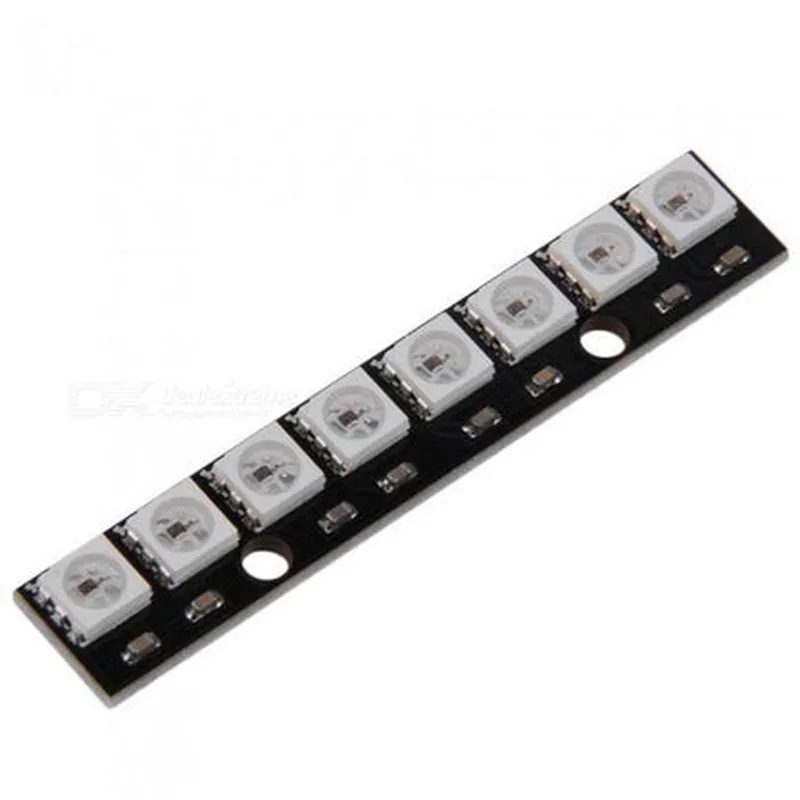
5V
1.2A (max)
5050 RGB
1200mcd (typical)
120
WS2812
800Kbps
50mm x 15mm
5g
Applications
--------------
| The WS2812 8 Bit RGB LED (Straight) is suitable for a wide range of applications, including |
IoT lighting systems
Stage lighting
LED strips and arrays
Advertising displays
Decorative lighting
Ambient lighting
Industrial control systems
Robotics and automation
Conclusion
----------
The WS2812 8 Bit RGB LED (Straight) is a versatile and powerful component that offers unparalleled flexibility and customization options for IoT lighting applications. Its compact design, high-brightness LEDs, and built-in IC make it an ideal choice for a wide range of projects and applications.
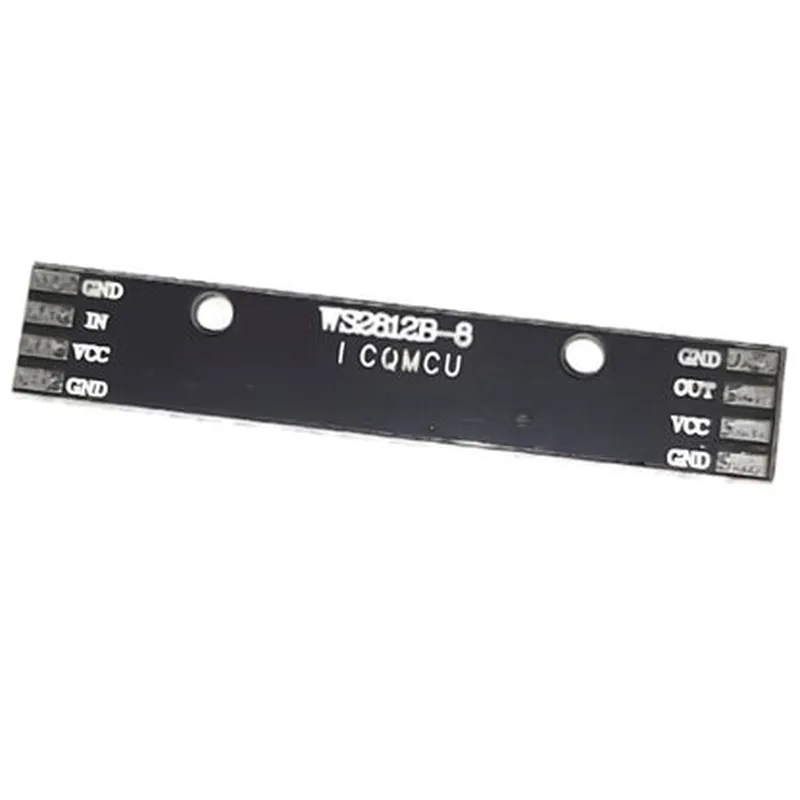
WS2812 8-Bit RGB LED (Straight) DocumentationOverviewThe WS2812 is an 8-bit RGB LED component that integrates a control IC, a constant current driver, and an RGB LED into a single package. It is widely used in various IoT projects, such as LED strips, pixel art, and ambient lighting, due to its compact size, ease of use, and high brightness.PinoutThe WS2812 has a single input pin, DI (Data In), and a single output pin, DO (Data Out). The DO pin is used to connect multiple WS2812 LEDs in series.| Pin | Function |
| --- | --- |
| DI (Data In) | Input pin for sending data to the LED |
| DO (Data Out) | Output pin for sending data to the next LED in the chain |
| VCC | Power supply pin (typically 5V) |
| GND | Ground pin |Communication ProtocolThe WS2812 uses a one-wire communication protocol to transmit data. The protocol consists of a sequence of high-frequency pulses (800 kHz) that encode the RGB data for each LED. The pulse width and timing are critical, and the protocol requires careful attention to ensure reliable communication.Code Examples### Example 1: Arduino Uno - Single WS2812 LEDIn this example, we will demonstrate how to control a single WS2812 LED using an Arduino Uno board.
```cpp
#include <Adafruit_WS2812.h>// Define the LED pin (digital pin 6 on Arduino Uno)
#define LED_PIN 6// Create an instance of the WS2812 library
Adafruit_WS2812 strip = Adafruit_WS2812(1, LED_PIN);void setup() {
// Initialize the LED strip
strip.begin();
}void loop() {
// Set the LED color to red
strip.setPixelColor(0, strip.Color(255, 0, 0));
strip.show();
delay(1000);// Set the LED color to green
strip.setPixelColor(0, strip.Color(0, 255, 0));
strip.show();
delay(1000);// Set the LED color to blue
strip.setPixelColor(0, strip.Color(0, 0, 255));
strip.show();
delay(1000);
}
```
### Example 2: Raspberry Pi - WS2812 LED Strip (5 LEDs)In this example, we will demonstrate how to control a WS2812 LED strip with 5 LEDs using a Raspberry Pi.```python
import time
import pyws2812# Define the LED pin (GPIO 18 on Raspberry Pi)
LED_PIN = 18# Create an instance of the WS2812 library
strip = pyws2812.WS2812(5, LED_PIN)while True:
# Set the LEDs to a rainbow pattern
for i in range(5):
strip.set_pixel(i, (i 255) % 255, (i 255) % 255, (i 255) % 255)
strip.update()
time.sleep(0.5)# Set the LEDs to off
for i in range(5):
strip.set_pixel(i, 0, 0, 0)
strip.update()
time.sleep(0.5)
```
### Example 3: ESP32 - WS2812 LED Strip (10 LEDs) with WiFi ControlIn this example, we will demonstrate how to control a WS2812 LED strip with 10 LEDs using an ESP32 board and WiFi connectivity.```cpp
#include <WiFi.h>
#include <Adafruit_WS2812.h>// Define the LED pin (GPIO 16 on ESP32)
#define LED_PIN 16// Create an instance of the WS2812 library
Adafruit_WS2812 strip = Adafruit_WS2812(10, LED_PIN);// WiFi credentials
const char ssid = "Your_WiFi_Network";
const char password = "Your_WiFi_Password";WiFiServer server(80);void setup() {
// Initialize the LED strip
strip.begin();// Connect to WiFi
WiFi.begin(ssid, password);
while (WiFi.status() != WL_CONNECTED) {
delay(1000);
Serial.println("Connecting to WiFi...");
}// Start the server
server.begin();
Serial.println("Server started");
}void loop() {
// Handle incoming HTTP requests
WiFiClient client = server.available();
if (client) {
String request = client.readStringUntil('
');
if (request.indexOf("/red") != -1) {
// Set the LEDs to red
for (int i = 0; i < 10; i++) {
strip.setPixelColor(i, strip.Color(255, 0, 0));
}
strip.show();
} else if (request.indexOf("/green") != -1) {
// Set the LEDs to green
for (int i = 0; i < 10; i++) {
strip.setPixelColor(i, strip.Color(0, 255, 0));
}
strip.show();
} else if (request.indexOf("/blue") != -1) {
// Set the LEDs to blue
for (int i = 0; i < 10; i++) {
strip.setPixelColor(i, strip.Color(0, 0, 255));
}
strip.show();
}
client.stop();
}
}
```
These code examples demonstrate the basic operation of the WS2812 LED component in various contexts. You can modify and extend these examples to suit your specific IoT project requirements.