Stufin
Home Quick Cart Profile

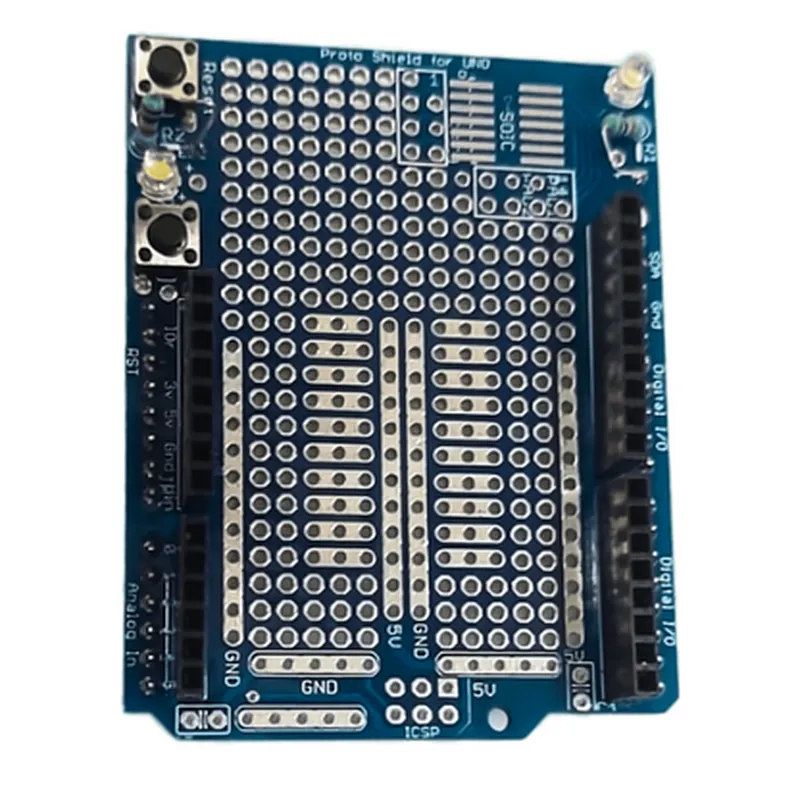
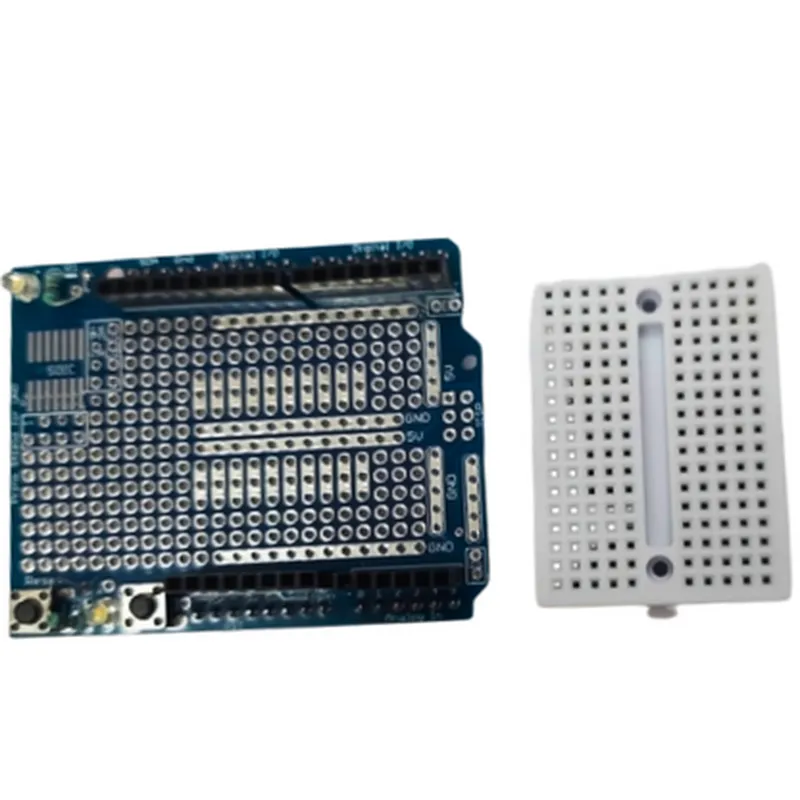
Arduino UNO Prototyping Shield

Buy Now on Stufin

Dimensions

68.5mm x 53.5mm (2.7" x 2.1")


Operating Voltage

5V

Operating Temperature

-20C to 70C (-4F to 158F)

Compatible with

Arduino UNO and Arduino UNO Rev3 boards

Use Cases

The Arduino UNO Prototyping Shield is ideal for a wide range of applications, including

Rapid prototyping and proof-of-concept development

Educational projects and learning platforms

IoT projects and development

Robotics and automation projects

Prototyping and testing of custom circuits and modules

Conclusion

The Arduino UNO Prototyping Shield is a versatile and convenient tool for anyone working with the Arduino UNO board. Its large prototyping area, headers, and pinouts make it an ideal platform for building and testing custom circuits, while its stackable design and labelled connections make it easy to use and integrate with a wide range of components and modules.

Pin Configuration

  • Arduino UNO Prototyping Shield Pinout Guide
  • The Arduino UNO Prototyping Shield is a convenient and versatile breakout board designed to simplify prototyping and development with the popular Arduino UNO microcontroller. The shield provides an array of through-hole pins, solder pads, and a breadboard-compatible layout, making it an ideal choice for IoT projects. In this guide, we'll explore the pinout of the Arduino UNO Prototyping Shield, detailing each pin's function and how to connect them.
  • Digital Pins
  • 1. D0 (RX): Receive pin for serial communication. Connect to the RX pin of a serial device, such as a GPS module or a Bluetooth module.
  • 2. D1 (TX): Transmit pin for serial communication. Connect to the TX pin of a serial device, such as a GPS module or a Bluetooth module.
  • 3. D2: General-purpose digital input/output pin. Can be used as an input to read sensor data or as an output to control LEDs, relays, or other devices.
  • 4. D3: General-purpose digital input/output pin. Can be used as an input to read sensor data or as an output to control LEDs, relays, or other devices.
  • 5. D4: General-purpose digital input/output pin. Can be used as an input to read sensor data or as an output to control LEDs, relays, or other devices.
  • 6. D5: General-purpose digital input/output pin. Can be used as an input to read sensor data or as an output to control LEDs, relays, or other devices.
  • 7. D6: General-purpose digital input/output pin. Can be used as an input to read sensor data or as an output to control LEDs, relays, or other devices.
  • 8. D7: General-purpose digital input/output pin. Can be used as an input to read sensor data or as an output to control LEDs, relays, or other devices.
  • 9. D8: General-purpose digital input/output pin. Can be used as an input to read sensor data or as an output to control LEDs, relays, or other devices.
  • 10. D9: General-purpose digital input/output pin. Can be used as an input to read sensor data or as an output to control LEDs, relays, or other devices.
  • 11. D10: General-purpose digital input/output pin. Can be used as an input to read sensor data or as an output to control LEDs, relays, or other devices.
  • 12. D11: General-purpose digital input/output pin. Can be used as an input to read sensor data or as an output to control LEDs, relays, or other devices.
  • 13. D12: General-purpose digital input/output pin. Can be used as an input to read sensor data or as an output to control LEDs, relays, or other devices.
  • 14. D13 (LED): General-purpose digital input/output pin. Can be used as an input to read sensor data or as an output to control LEDs, relays, or other devices. This pin is also connected to the built-in LED on the Arduino UNO board.
  • Analog Pins
  • 1. A0: Analog input pin. Can be used to read analog sensor data from devices such as potentiometers, thermistors, or photodiodes.
  • 2. A1: Analog input pin. Can be used to read analog sensor data from devices such as potentiometers, thermistors, or photodiodes.
  • 3. A2: Analog input pin. Can be used to read analog sensor data from devices such as potentiometers, thermistors, or photodiodes.
  • 4. A3: Analog input pin. Can be used to read analog sensor data from devices such as potentiometers, thermistors, or photodiodes.
  • 5. A4 (SDA): Analog input pin. Can be used to read analog sensor data from devices such as potentiometers, thermistors, or photodiodes. Also serves as the I2C data line.
  • 6. A5 (SCL): Analog input pin. Can be used to read analog sensor data from devices such as potentiometers, thermistors, or photodiodes. Also serves as the I2C clock line.
  • Power Pins
  • 1. VIN: Input voltage pin for the Arduino UNO board. Connect to a power source, such as a battery or a wall adapter, to power the board.
  • 2. 3V3: 3.3V regulated output pin. Can be used to power external devices that require a 3.3V supply.
  • 3. 5V: 5V regulated output pin. Can be used to power external devices that require a 5V supply.
  • 4. GND: Ground pin. Connect to the negative terminal of a power source or to the ground pin of an external device.
  • Other Pins
  • 1. RST: Reset pin. Connect to a reset button or a capacitor to create a manual reset circuit.
  • 2. AREF: Analog reference pin. Can be used to provide an external reference voltage for analog-to-digital converters.
  • How to Connect the Pins
  • To connect the pins on the Arduino UNO Prototyping Shield, follow these general steps:
  • 1. Identify the pin you want to use on the shield.
  • 2. Determine the type of connection required (e.g., digital input/output, analog input, power supply, etc.).
  • 3. Choose the corresponding pin on your external device (e.g., sensor, LED, relay, etc.).
  • 4. Connect the pin on the shield to the corresponding pin on the external device using a suitable jumper wire, breadboard, or PCB trace.
  • 5. Ensure that the connections are secure and do not short out adjacent pins.
  • Remember to consult the datasheet for the specific external device you are using to ensure correct pin connections and voltage levels. Additionally, take precautions to avoid damaging the Arduino UNO board or the Prototyping Shield by exceeding maximum voltage ratings or drawing excessive current.

Code Examples

Arduino UNO Prototyping Shield Documentation
Overview
The Arduino UNO Prototyping Shield is a versatile prototyping board designed to work seamlessly with the Arduino UNO board. It provides a convenient platform for building and testing IoT projects, allowing users to quickly prototype and validate their ideas. The shield features a solderless breadboard area, making it easy to add and remove components without the need for soldering.
Features
Solderless breadboard area for easy component addition and removal
 Compatible with Arduino UNO board
 Multiple power and ground rails for easy connections
 Provides access to all Arduino UNO pins
Code Examples
### Example 1: Simple LED Blinking
In this example, we will demonstrate how to use the Arduino UNO Prototyping Shield to blink an LED connected to digital pin 13.
Components needed:
Arduino UNO board
 Arduino UNO Prototyping Shield
 1 x LED
 1 x 220 resistor
 Jumper wires
Code:
```c
const int ledPin = 13;  // LED connected to digital pin 13
void setup() {
  pinMode(ledPin, OUTPUT); // Set LED pin as output
}
void loop() {
  digitalWrite(ledPin, HIGH); // Turn LED on
  delay(1000); // Wait for 1 second
  digitalWrite(ledPin, LOW); // Turn LED off
  delay(1000); // Wait for 1 second
}
```
Connection diagram:
1. Connect the LED anode (positive leg) to digital pin 13 on the Arduino UNO board.
2. Connect the LED cathode (negative leg) to a 220 resistor.
3. Connect the other end of the resistor to a ground rail on the prototyping shield.
4. Connect the jumper wires to the Arduino UNO board and the prototyping shield as needed.
### Example 2: Reading Potentiometer Values
In this example, we will demonstrate how to use the Arduino UNO Prototyping Shield to read the values from a potentiometer connected to analog pin A0.
Components needed:
Arduino UNO board
 Arduino UNO Prototyping Shield
 1 x Potentiometer (10k)
 Jumper wires
Code:
```c
const int potPin = A0;  // Potentiometer connected to analog pin A0
void setup() {
  Serial.begin(9600); // Initialize serial communication
}
void loop() {
  int potValue = analogRead(potPin); // Read potentiometer value
  Serial.print("Potentiometer value: ");
  Serial.println(potValue); // Print potentiometer value
  delay(100); // Wait for 100ms
}
```
Connection diagram:
1. Connect one end of the potentiometer to analog pin A0 on the Arduino UNO board.
2. Connect the other end of the potentiometer to a power rail on the prototyping shield.
3. Connect the jumper wires to the Arduino UNO board and the prototyping shield as needed.
Note: These examples are just a starting point, and you can modify them to suit your specific IoT project requirements. The Arduino UNO Prototyping Shield provides a flexible platform for building and testing a wide range of IoT projects.