5V - 24V


5V - 24V
100mA - 1A (dependent on the control board and printer configuration)
Normally Open (NO)
10Hz - 100Hz
1-2 meters (dependent on the manufacturer and specific product)
Typically JST-XH or similar
0C - 40C
-20C - 60C
Installation and Configuration
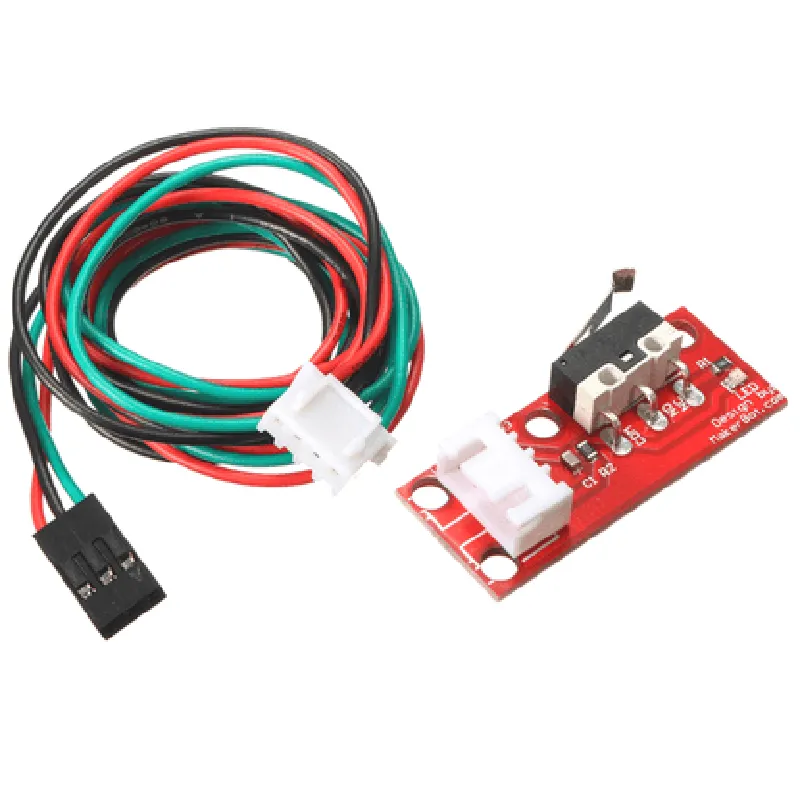
The Endstop Switch is typically installed on the 3D printer's frame or carriage, and connected to the control board using the provided cable. The switch is connected to the endstop input on the control board, and the trigger point is adjusted according to the manufacturer's instructions or the user's preferences.
Troubleshooting and Maintenance
Regularly inspect the switch and cable for signs of wear or damage.
Ensure the switch is properly adjusted and calibrated to prevent false triggers or missed endstops.
Clean the switch and surrounding area to prevent dust and debris buildup.
By providing a reliable and accurate endstop detection mechanism, the Endstop Switch for 3D Printers with Cable ensures safe and precise operation of 3D printers, reducing the risk of damage and downtime.
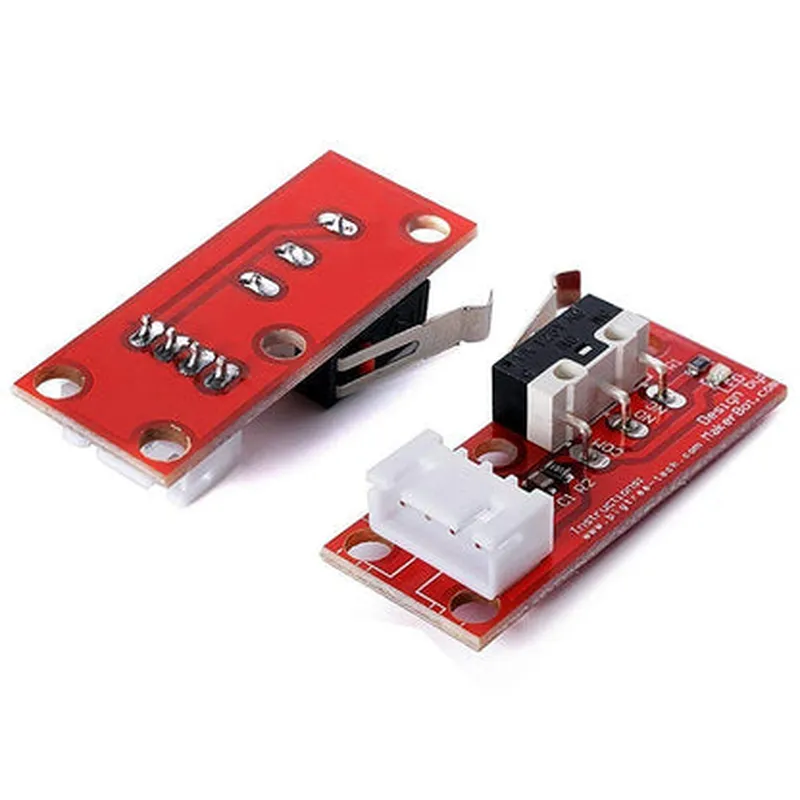
Endstop Switch for 3D Printers with CableOverviewThe Endstop Switch for 3D Printers with Cable is a crucial component in 3D printing technology. It is designed to detect the physical limits of the 3D printer's axes, preventing the printer head from moving beyond its designated boundaries. This switch features a cable connection, making it easy to integrate into various 3D printing systems.Technical SpecificationsOperating Voltage: 5V to 24V DC
Switch Type: Normally Open (NO) or Normally Closed (NC)
Switch Debounce Time: 10ms
Cable Length: 1.5m
Connectors: JST-XH 2-pinCode Examples### Example 1: Using the Endstop Switch with Marlin Firmware (Arduino)In this example, we will demonstrate how to use the Endstop Switch with Marlin Firmware on an Arduino-based 3D printer controller.```c++
// Define the endstop pin as digital input
#define ENDSTOP_PIN 2void setup() {
// Initialize the endstop pin as an input with internal pull-up
pinMode(ENDSTOP_PIN, INPUT_PULLUP);
}void loop() {
// Read the endstop state
int endstopState = digitalRead(ENDSTOP_PIN);// If the endstop is triggered, stop the printer
if (endstopState == LOW) {
// Execute code to stop the printer (e.g., disable motors, etc.)
Serial.println("Endstop triggered! Stopping printer...");
}
}
```### Example 2: Using the Endstop Switch with Raspberry Pi (Python)In this example, we will demonstrate how to use the Endstop Switch with a Raspberry Pi and Python.```python
import RPi.GPIO as GPIO
import time# Set up GPIO mode
GPIO.setmode(GPIO.BCM)# Define the endstop pin
ENDSTOP_PIN = 17# Set up the endstop pin as an input
GPIO.setup(ENDSTOP_PIN, GPIO.IN, pull_up_down=GPIO.PUD_UP)while True:
# Read the endstop state
endstop_state = GPIO.input(ENDSTOP_PIN)# If the endstop is triggered, stop the printer
if endstop_state == False:
print("Endstop triggered! Stopping printer...")
# Execute code to stop the printer (e.g., disable motors, etc.)
time.sleep(1)
```### Example 3: Using the Endstop Switch with GRBL Firmware (C++In this example, we will demonstrate how to use the Endstop Switch with GRBL Firmware on an Arduino-based CNC controller.```c++
#define ENDSTOP_PIN 2void setup() {
// Initialize the endstop pin as an input with internal pull-up
pinMode(ENDSTOP_PIN, INPUT_PULLUP);
}void loop() {
// Read the endstop state
int endstopState = digitalRead(ENDSTOP_PIN);// If the endstop is triggered, stop the spindle
if (endstopState == LOW) {
// Execute code to stop the spindle (e.g., disable motor, etc.)
Serial.println("Endstop triggered! Stopping spindle...");
}
}
```Note: The code examples provided are for illustration purposes only and may require modifications to work with specific 3D printing or CNC systems.