7inch Official Raspberry Pi Display



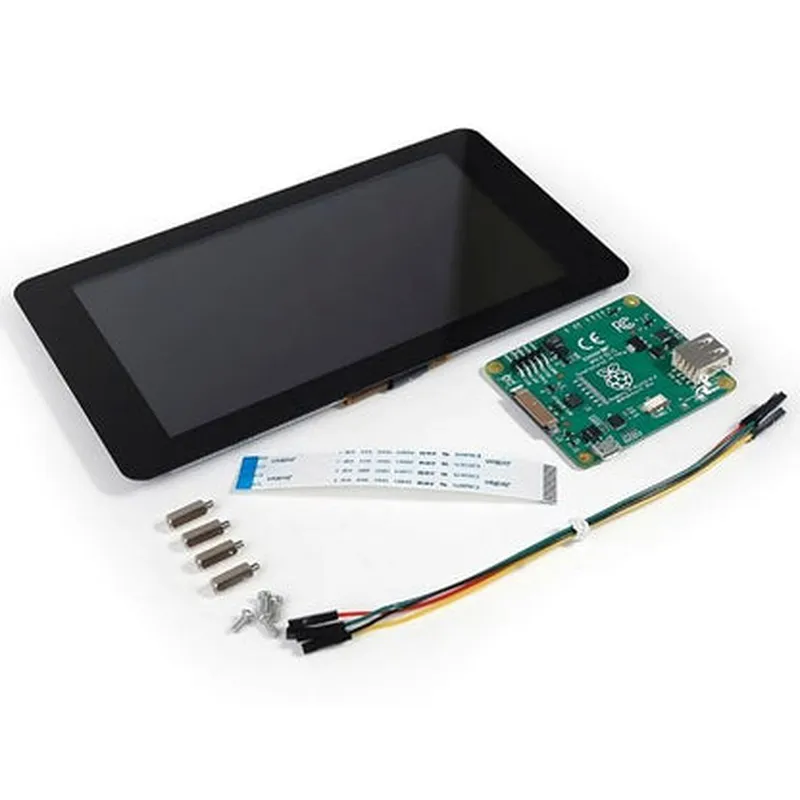
7inch Official Raspberry Pi Display
The 7inch Official Raspberry Pi Display is a high-quality, multi-touch capacitive touchscreen display designed specifically for use with Raspberry Pi boards. This display is an official accessory from the Raspberry Pi Foundation, ensuring seamless integration and optimal performance with Raspberry Pi systems.
| The 7inch Official Raspberry Pi Display is a versatile display solution that provides a convenient and intuitive way to interact with Raspberry Pi projects. It offers a range of features that make it an ideal choice for various applications, including |
Displaying graphical user interfaces (GUIs) and multimedia content
Providing a touch-based input method for users
Enhancing the overall user experience in Raspberry Pi-based projects
7 inches
1024x600 pixels (WSVGA)
| 16 | 9 |
250 cd/m
178/178 (H/V)
Multi-touch capacitive touchscreen with 10-point touch support
Supports gestures and tap events
Compatible with Raspberry Pi boards (A+/B+/2B/3B/3B+/4B)
Connects to the Raspberry Pi's DSI (Display Serial Interface) port
Powered via the Raspberry Pi board (no external power supply required)
Compact design with a thickness of 12mm
approximately 250g
compatible with standard VESA 75 mounting systems
Compatible with various operating systems, including Raspbian, Windows 10 IoT, and more
acrylic screen protector, mounting screws, and a DSI cable (sold separately)
194mm x 110mm x 12mm (L x W x H)
0C to 40C (32F to 104F)
-20C to 60C (-4F to 140F)
20% to 80% (non-condensing)
CE, FCC, and RoHS compliant
Meets Raspberry Pi Foundation's quality and compatibility standards
1-year limited warranty from the Raspberry Pi Foundation
Comprehensive documentation and technical support available from the Raspberry Pi Foundation and online communities
By combining a high-quality display with intuitive touchscreen capabilities, the 7inch Official Raspberry Pi Display is an ideal choice for various projects, including interactive kiosks, home automation systems, and industrial control systems.
7inch Official Raspberry Pi Display DocumentationOverviewThe 7inch Official Raspberry Pi display is a high-quality, compact LCD display designed specifically for the Raspberry Pi series of single-board computers. This display provides a convenient and efficient way to add a visual interface to your IoT projects, prototypes, and proof-of-concepts.Technical SpecificationsDisplay Size: 7 inches
Resolution: 1024x600 pixels
Touchscreen: 5-point capacitive touch
Interface: 40-pin GPIO connector (compatible with Raspberry Pi models A, B, A+, B+, 2B, 3B, and 3B+)
Power Consumption: 5V, 1.5AProgramming Languages and DriversThe 7inch Official Raspberry Pi display is compatible with the following programming languages and drivers:Python (Raspbian OS): uses the `tkinter` library for GUI development
C++ (Raspbian OS): uses the `bcm2835` library for low-level GPIO accessExample 1: Simple GUI Application with tkinter (Python)This example demonstrates how to create a simple GUI application using the `tkinter` library and display it on the 7inch Official Raspberry Pi display.Code:
```python
import tkinter as tk# Create a tkinter window
window = tk.Tk()
window.title("Raspberry Pi Display Example")# Create a label and button
label = tk.Label(window, text="Hello, World!", font=("Helvetica", 24))
label.pack()button = tk.Button(window, text="Exit", command=window.destroy)
button.pack()# Run the GUI event loop
window.mainloop()
```
Example 2: Capacitive Touch Input with bcm2835 (C++)This example demonstrates how to use the `bcm2835` library to read capacitive touch input from the display.Code:
```c
#include <bcm2835.h>int main() {
// Initialize the bcm2835 library
if (!bcm2835_init()) {
return 1;
}// Set up the display's touch interface
bcm2835_gpio_fsel(RPI_GPIO_P1_15, BCM2835_GPIO_FSEL_INPT);
bcm2835_gpio_fsel(RPI_GPIO_P1_16, BCM2835_GPIO_FSEL_INPT);
bcm2835_gpio_fsel(RPI_GPIO_P1_17, BCM2835_GPIO_FSEL_INPT);// Read touch input
while (1) {
uint8_t touch_state = bcm2835_gpio_lev(RPI_GPIO_P1_15);
if (touch_state) {
printf("Touch detected!
");
}
bcm2835_delay(50);
}// Clean up
bcm2835_close();
return 0;
}
```
Example 3: Displaying an Image (Python)This example demonstrates how to display an image on the 7inch Official Raspberry Pi display using the `PIL` (Python Imaging Library).Code:
```python
from PIL import Image
import tkinter as tk# Create a tkinter window
window = tk.Tk()
window.title("Raspberry Pi Display Example")# Load an image
image = Image.open("image.png")# Create a tkinter image object
tk_image = tk.PhotoImage(image)# Create a label to display the image
label = tk.Label(window, image=tk_image)
label.pack()# Run the GUI event loop
window.mainloop()
```
These examples demonstrate the capabilities of the 7inch Official Raspberry Pi display and provide a starting point for developing more complex IoT projects.