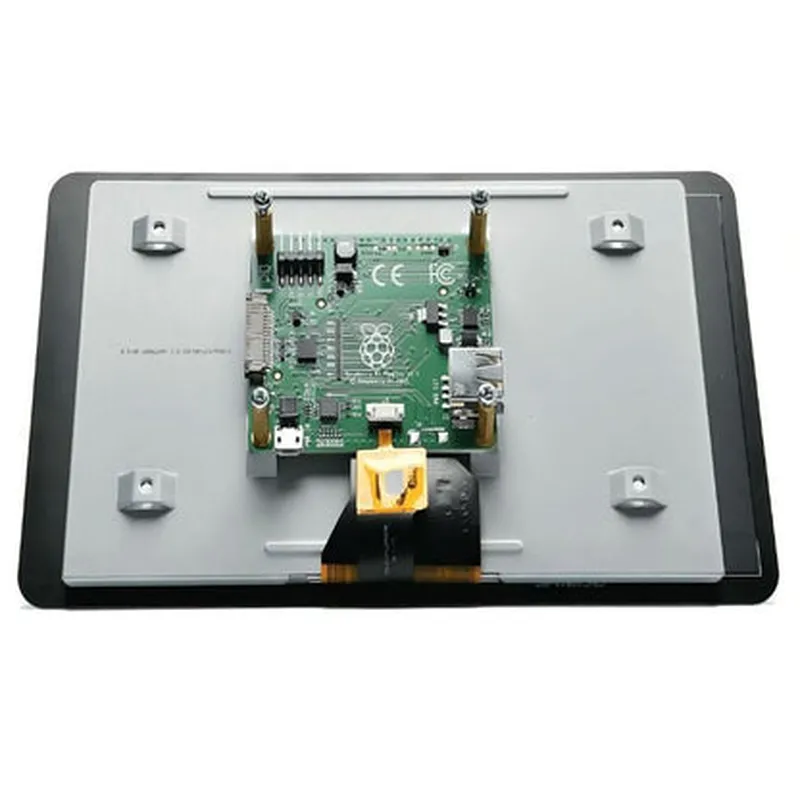
7inch Official Raspberry Pi Display Documentation
The 7inch Official Raspberry Pi display is a high-quality touchscreen display designed specifically for use with Raspberry Pi boards. This display features a 7-inch touchscreen LCD with a resolution of 1024x600 pixels, making it ideal for a wide range of applications, from DIY projects to industrial automation.
Display Size: 7 inches
 Resolution: 1024x600 pixels
 Touchscreen: Capacitive touchscreen with 10-point touch
 Interface: HDMI and USB
 Power Supply: 5V, 2A
 Compatibility: Raspberry Pi 4, Raspberry Pi 3, Raspberry Pi 2
To get started with the 7inch Official Raspberry Pi display, follow these steps:
1. Connect the display to your Raspberry Pi board using the HDMI cable.
2. Power on your Raspberry Pi board.
3. Install the Raspbian operating system on your Raspberry Pi board.
4. Update the Raspbian operating system to the latest version.
5. Configure the display settings to enable the touchscreen functionality.
### Example 1: Basic Display Usage with Python
In this example, we will demonstrate how to use the 7inch Official Raspberry Pi display to display a simple GUI application using Python and the Tkinter library.
```python
import tkinter as tk
# Create a Tkinter window
window = tk.Tk()
# Set the window title
window.title("Raspberry Pi Display Example")
# Create a label and display it on the screen
label = tk.Label(window, text="Hello, World!")
label.pack()
# Start the Tkinter event loop
window.mainloop()
```
Run this code on your Raspberry Pi board, and you should see a window with the label "Hello, World!" displayed on the screen.
### Example 2: Touchscreen Example with Python and Kivy
In this example, we will demonstrate how to use the 7inch Official Raspberry Pi display's touchscreen functionality with Python and the Kivy library.
```python
import kivy
from kivy.app import App
from kivy.uix.button import Button
class TouchscreenExample(App):
    def build(self):
        button = Button(text='Click me!')
        button.bind(on_press=self.on_button_press)
        return button
def on_button_press(self, instance):
        print('Button pressed!')
if __name__ == '__main__':
    TouchscreenExample().run()
```
Run this code on your Raspberry Pi board, and you should see a button displayed on the screen. When you touch the button, it will print "Button pressed!" to the console.
### Example 3: Displaying an Image with Python and PIL
In this example, we will demonstrate how to use the 7inch Official Raspberry Pi display to display an image using Python and the PIL (Python Imaging Library).
```python
from PIL import Image
import numpy as np
# Open an image file
image = Image.open('image.jpg')
# Convert the image to a format compatible with the display
image = image.resize((1024, 600), Image.ANTIALIAS)
image = np.array(image)
# Create a window and display the image
window = tk.Tk()
tk.image = tk.PhotoImage(image)
label = tk.Label(image=tk.image)
label.pack()
window.mainloop()
```
Replace 'image.jpg' with the path to the image file you want to display. Run this code on your Raspberry Pi board, and you should see the image displayed on the screen.
If you encounter any issues with the display, check the power supply and ensure that the HDMI cable is securely connected.
 If the touchscreen is not responding, try recalibrating the touchscreen using the `sudo apt-get install xinput-calibrator` command and following the on-screen instructions.
The 7inch Official Raspberry Pi display is a versatile and powerful component that can be used in a wide range of applications. With its high-quality touchscreen display and compatibility with Raspberry Pi boards, it's an ideal choice for DIY projects, industrial automation, and more. By following the examples and guidelines provided in this documentation, you can unlock the full potential of this display and bring your projects to life.