The module operates at a low voltage (5V) and consumes minimal power, making it suitable for battery-powered applications.


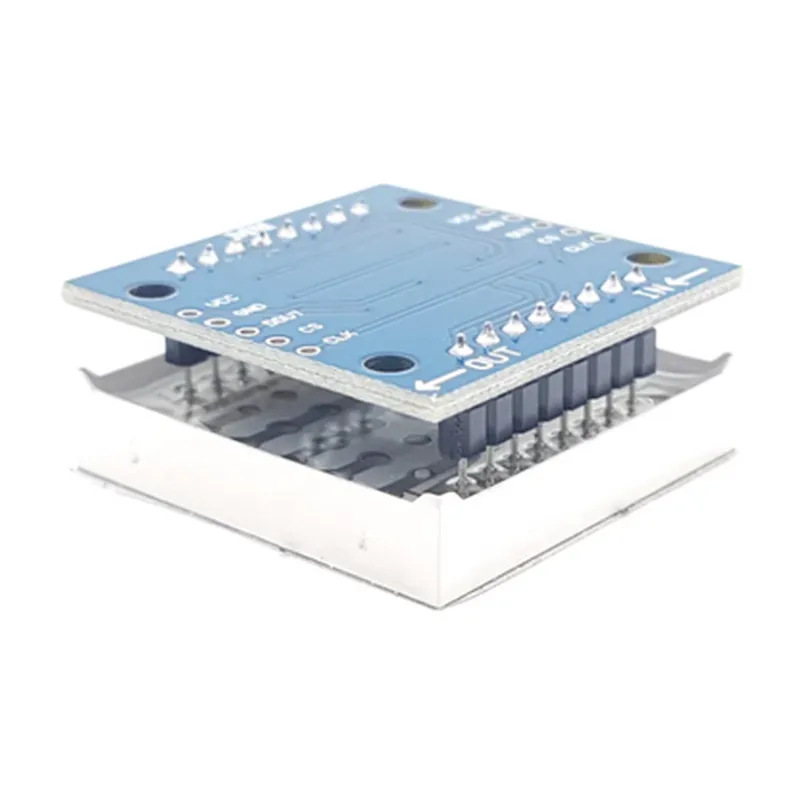
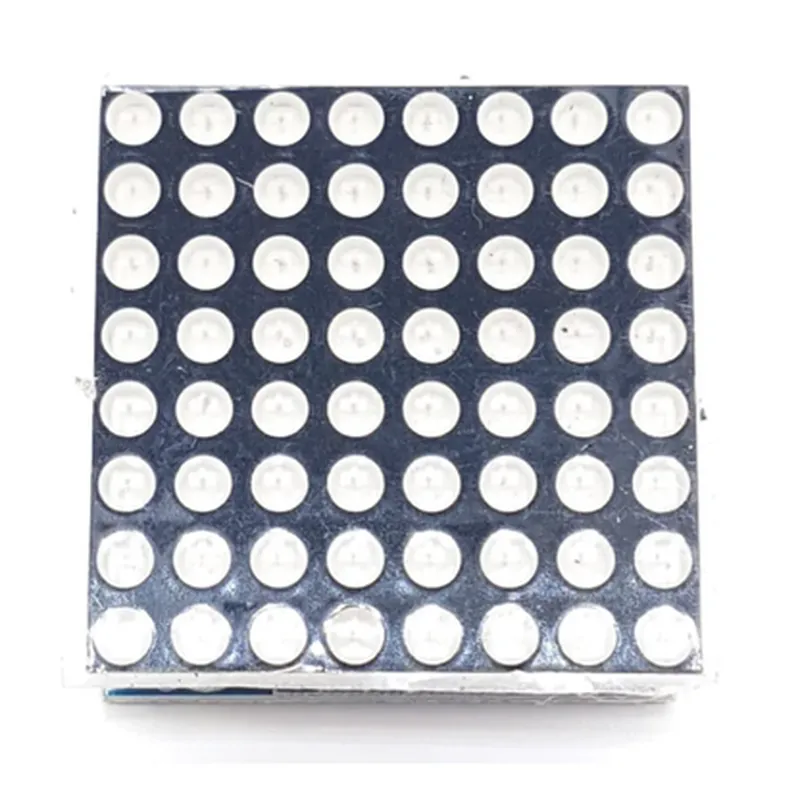
The module operates at a low voltage (5V) and consumes minimal power, making it suitable for battery-powered applications.
The module can be controlled using a serial communication protocol (e.g., SPI, I2C), allowing for easy integration with microcontrollers and other digital devices.
| On-Board Resistors | The module includes on-board resistors, eliminating the need for external resistors and simplifying the design process. |
The module is compact and lightweight, making it ideal for wearable devices, robotics, and other space-constrained applications.
The module is easy to use, with a simple interface and minimal external components required.
Technical Specifications
8x8 array of high-brightness LEDs
| MAX7219 IC | Serial input/output common-cathode display driver |
5V
20mA (typical)
SPI, I2C (compatible)
38mm x 38mm x 8mm (L x W x H)
10g (approx.)
Applications
| The MAX7219 8x8 LED Dot Matrix Display Module is suitable for a wide range of IoT applications, including |
Wearable devices (e.g., smartwatches, fitness trackers)
Robotics and automation systems
Home automation systems
Industrial control systems
Advertising and signage displays
Gaming and entertainment devices
MAX7219 8x8 LED Dot Matrix Display Module DocumentationOverviewThe MAX7219 8x8 LED Dot Matrix Display Module is a compact, high-brightness display module designed for use in various IoT and embedded system projects. It features an 8x8 LED dot matrix display, driven by the MAX7219 LED driver chip, which provides a simple and efficient way to control the display.Hardware SpecificationsDisplay: 8x8 LED dot matrix
Driver Chip: MAX7219
Communication Protocol: SPI (Serial Peripheral Interface)
Operating Voltage: 5V
Dimensions: 32mm x 32mm x 10mmSoftware InterfaceThe MAX7219 8x8 LED Dot Matrix Display Module can be controlled using a microcontroller or single-board computer via the SPI protocol. The display module has the following pins:VCC: Power supply (5V)
GND: Ground
DIN (Data In): SPI data input
CLK (Clock): SPI clock input
CS (Chip Select): SPI chip select inputCode Examples### Example 1: Basic Display Control using ArduinoIn this example, we will use an Arduino Uno board to control the MAX7219 8x8 LED Dot Matrix Display Module.```c++
#include <SPI.h>const int_csPin = 10; // Chip Select pin
const int_dataPin = 11; // Data pin
const int_clockPin = 13; // Clock pinvoid setup() {
SPI.begin();
pinMode(_csPin, OUTPUT);
}void loop() {
// Clear the display
digitalWrite(_csPin, LOW);
SPI.transfer(0x0C);
digitalWrite(_csPin, HIGH);// Set the display brightness (0x00 to 0x0F)
digitalWrite(_csPin, LOW);
SPI.transfer(0x0A);
SPI.transfer(0x05);
digitalWrite(_csPin, HIGH);// Display a smiley face on the first row
digitalWrite(_csPin, LOW);
SPI.transfer(0x01);
SPI.transfer(B01000000);
SPI.transfer(B10000010);
SPI.transfer(B10000010);
SPI.transfer(B01000000);
digitalWrite(_csPin, HIGH);delay(1000);
}
```### Example 2: Scrolling Text Display using Raspberry Pi (Python)In this example, we will use a Raspberry Pi to control the MAX7219 8x8 LED Dot Matrix Display Module and display a scrolling text message.```python
import time
import spidev# Initialize the SPI interface
spi = spidev.SpiDev()
spi.open(0, 0)
spi.max_speed_hz = 1000000# Define the chip select pin
_csPin = 17def send_command(cmd):
spi.xfer([cmd])
time.sleep(0.001)def send_data(data):
spi.xfer([data])
time.sleep(0.001)def clear_display():
send_command(0x0C)def set_brightness(brightness):
send_command(0x0A)
send_command(brightness)def display_text(text):
for char in text:
for row in range(8):
byte = 0x00
if char == ' ':
byte = 0x00
elif char == 'A':
byte = 0x3E
# Add more characters to the font table as needed
send_command(0x01)
send_data(byte)
time.sleep(0.1)try:
while True:
clear_display()
set_brightness(5)
display_text("Hello, World! ")
time.sleep(1)
except KeyboardInterrupt:
spi.close()
```Note: In the Python example, you will need to install the `spidev` library and configure the SPI interface on your Raspberry Pi.### Example 3: Animated Icon Display using ESP32 (C++)In this example, we will use an ESP32 board to control the MAX7219 8x8 LED Dot Matrix Display Module and display an animated icon.```c++
#include <WiFi.h>
#include <SPI.h>const int_csPin = 5; // Chip Select pin
const int_dataPin = 18; // Data pin
const int_clockPin = 19; // Clock pinvoid setup() {
SPI.begin();
pinMode(_csPin, OUTPUT);
}void loop() {
// Clear the display
digitalWrite(_csPin, LOW);
SPI.transfer(0x0C);
digitalWrite(_csPin, HIGH);// Display an animated icon (e.g., a heart beating)
for (int i = 0; i < 8; i++) {
digitalWrite(_csPin, LOW);
SPI.transfer(0x01);
SPI.transfer(heartbeat[i]);
digitalWrite(_csPin, HIGH);
delay(100);
}
}const byte heartbeat[] = {
B00000000,
B00001000,
B00011100,
B00111110,
B01111111,
B01111111,
B00111110,
B00011100
};
```Note: In the ESP32 example, you will need to configure the SPI interface and pin assignments according to your specific board and setup.