

Stufin
Home Quick Cart Profile

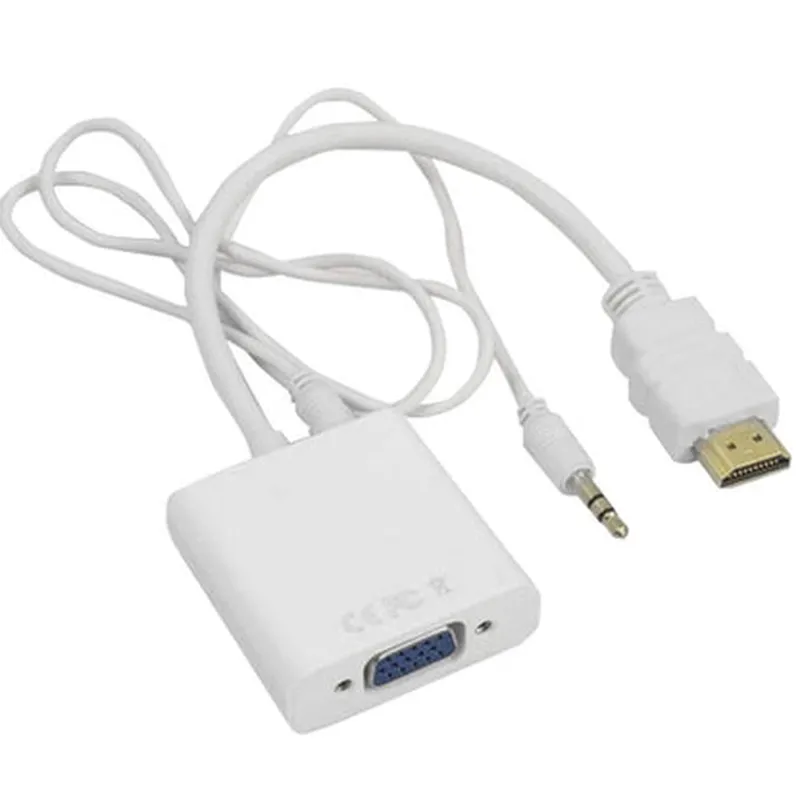
HDMI to VGA Converter with Audio - White

Buy Now on Stufin

Input

HDMI 1.3-compliant

Output

VGA (HD-15)

Audio Output

3.5mm stereo audio jack

Resolution

Up to 1920x1200 @ 60Hz

Power Requirements

USB-powered (cable included)

Operating Temperature

0C to 40C (32F to 104F)

Storage Temperature

-20C to 70C (-4F to 158F)

Dimensions

60mm x 40mm x 20mm (2.36" x 1.57" x 0.79")

Weight

40g (1.41 oz)

Package Contents

HDMI to VGA Converter with Audio - White

USB power cable

User manual

Pin Configuration

  • HDMI to VGA Converter with Audio - White: Pinout Explanation and Connection Guide
  • The HDMI to VGA Converter with Audio - White is a compact adapter that allows users to connect HDMI-compatible devices to VGA displays or projectors while also transmitting audio signals. The converter has a total of 19 pins, which are divided into three connectors: HDMI, VGA, and 3.5mm audio jack. Below is a detailed explanation of each pin and a step-by-step connection guide.
  • HDMI Connector (19 pins)
  • 1. HDMI Pin 1: TMDS Data2+
  • Function: Transmits TMDS (Transition Minimized Differential Signaling) data on the positive differential pair.
  • 2. HDMI Pin 2: TMDS Data2-
  • Function: Transmits TMDS data on the negative differential pair.
  • 3. HDMI Pin 3: TMDS Data1+
  • Function: Transmits TMDS data on the positive differential pair.
  • 4. HDMI Pin 4: TMDS Data1-
  • Function: Transmits TMDS data on the negative differential pair.
  • 5. HDMI Pin 5: TMDS Data0+
  • Function: Transmits TMDS data on the positive differential pair.
  • 6. HDMI Pin 6: TMDS Data0-
  • Function: Transmits TMDS data on the negative differential pair.
  • 7. HDMI Pin 7: TMDS Clock+
  • Function: Transmits the TMDS clock signal on the positive differential pair.
  • 8. HDMI Pin 8: TMDS Clock-
  • Function: Transmits the TMDS clock signal on the negative differential pair.
  • 9. HDMI Pin 9: CEC (Consumer Electronics Control)
  • Function: Carries CEC control signals for device control and communication.
  • 10. HDMI Pin 10: Reserved
  • Function: Not used in this converter.
  • 11. HDMI Pin 11: SCL (Serial Clock)
  • Function: Carries I2C clock signals for device communication.
  • 12. HDMI Pin 12: SDA (Serial Data)
  • Function: Carries I2C data signals for device communication.
  • 13. HDMI Pin 13: HPD (Hot Plug Detect)
  • Function: Detects the presence of a display device and initiates the HDMI handshake.
  • 14. HDMI Pin 14: ARC (Audio Return Channel)
  • Function: Carries audio return channel signals.
  • 15. HDMI Pin 15: TMDS Data3+
  • Function: Transmits TMDS data on the positive differential pair.
  • 16. HDMI Pin 16: TMDS Data3-
  • Function: Transmits TMDS data on the negative differential pair.
  • 17. HDMI Pin 17: TMDS Data4+
  • Function: Transmits TMDS data on the positive differential pair.
  • 18. HDMI Pin 18: TMDS Data4-
  • Function: Transmits TMDS data on the negative differential pair.
  • 19. HDMI Pin 19: GND (Ground)
  • Function: Provides a ground connection for the HDMI interface.
  • VGA Connector (15 pins)
  • 1. VGA Pin 1: R (Red)
  • Function: Carries the red video signal.
  • 2. VGA Pin 2: G (Green)
  • Function: Carries the green video signal.
  • 3. VGA Pin 3: B (Blue)
  • Function: Carries the blue video signal.
  • 4. VGA Pin 4: HSync (Horizontal Sync)
  • Function: Carries the horizontal synchronization signal.
  • 5. VGA Pin 5: VSync (Vertical Sync)
  • Function: Carries the vertical synchronization signal.
  • 6. VGA Pin 6: GND (Ground)
  • Function: Provides a ground connection for the VGA interface.
  • 7. VGA Pin 7: R (Red) GND
  • Function: Provides a ground connection for the red video signal.
  • 8. VGA Pin 8: G (Green) GND
  • Function: Provides a ground connection for the green video signal.
  • 9. VGA Pin 9: B (Blue) GND
  • Function: Provides a ground connection for the blue video signal.
  • 10. VGA Pin 10: NC (No Connect)
  • Function: Not used in this converter.
  • 11. VGA Pin 11: NC (No Connect)
  • Function: Not used in this converter.
  • 12. VGA Pin 12: NC (No Connect)
  • Function: Not used in this converter.
  • 13. VGA Pin 13: NC (No Connect)
  • Function: Not used in this converter.
  • 14. VGA Pin 14: GND (Ground)
  • Function: Provides a ground connection for the VGA interface.
  • 15. VGA Pin 15: GND (Ground)
  • Function: Provides a ground connection for the VGA interface.
  • 3.5mm Audio Jack (4 pins)
  • 1. Audio Pin 1: L (Left Audio)
  • Function: Carries the left audio channel signal.
  • 2. Audio Pin 2: R (Right Audio)
  • Function: Carries the right audio channel signal.
  • 3. Audio Pin 3: GND (Ground)
  • Function: Provides a ground connection for the audio interface.
  • 4. Audio Pin 4: MIC (Microphone)
  • Function: Not used in this converter.
  • Connection Guide:
  • 1. Connect the HDMI connector to an HDMI-compatible device, such as a laptop or gaming console.
  • 2. Connect the VGA connector to a VGA display or projector.
  • 3. Connect the 3.5mm audio jack to a speaker system or headphones.
  • 4. Ensure the converter is powered via an external power source (if required).
  • 5. The converter will automatically detect the HDMI input and convert the signal to VGA with audio.
  • 6. Adjust the display settings on the connected device to output the correct resolution and audio format.
  • By following this pinout explanation and connection guide, you should be able to successfully connect the HDMI to VGA Converter with Audio - White to your devices and enjoy high-quality video and audio transmission.

Code Examples

HDMI to VGA Converter with Audio - White
The HDMI to VGA Converter with Audio - White is a compact and reliable device that converts HDMI video signals to VGA (Video Graphics Array) signals, allowing users to connect HDMI devices to VGA displays or projectors. This converter also supports audio transmission, making it a versatile solution for various applications.
Technical Specifications:
Input: HDMI (Type A)
 Output: VGA (HD-15) + 3.5mm Audio Jack
 Resolution: Up to 1080p (1920x1080) @ 60Hz
 Audio: 2-Channel Analog Audio (Stereo)
 Power: USB Bus-Powered (No External Power Required)
 Operating Temperature: 0C to 40C (32F to 104F)
 Dimensions: 60mm x 40mm x 20mm (2.36" x 1.57" x 0.79")
Code Examples:
Example 1: Using the HDMI to VGA Converter with an Arduino Board
In this example, we will use the HDMI to VGA Converter to display the output of an Arduino board on a VGA monitor.
Hardware Requirements:
Arduino Board (e.g., Arduino Uno)
 HDMI to VGA Converter with Audio - White
 VGA Monitor
Software Requirements:
Arduino IDE (Version 1.8 or later)
Code:
```c++
#include < Adafruit_GFX.h>
#include <Adafruit_SPITFT.h>
#define VGA_PIN 11 // Pin for VGA signal
Adafruit_SPITFT tft = Adafruit_SPITFT(VGA_PIN);
void setup() {
  tft.begin();
  tft.fillScreen(ILI9341_BLACK);
  tft.setTextColor(ILI9341_WHITE);
  tft.setTextSize(2);
  tft.println("Hello, World!");
}
void loop() {
  // Nothing to do here, output is displayed on VGA monitor
}
```
Explanation:
In this example, we use the Arduino board to generate a VGA signal, which is then converted to HDMI using the HDMI to VGA Converter. The output is displayed on a VGA monitor.
Example 2: Using the HDMI to VGA Converter with a Raspberry Pi
In this example, we will use the HDMI to VGA Converter to display the output of a Raspberry Pi on a VGA projector.
Hardware Requirements:
Raspberry Pi (e.g., Raspberry Pi 4)
 HDMI to VGA Converter with Audio - White
 VGA Projector
Software Requirements:
Raspbian OS (Version 10 or later)
Code:
```bash
# Configure the Raspberry Pi to output VGA signal
sudo raspi-config
```
Select:
Advanced Options
 Resolution
 VGA (640x480)
Explanation:
In this example, we configure the Raspberry Pi to output a VGA signal, which is then converted to HDMI using the HDMI to VGA Converter. The output is displayed on a VGA projector.
Example 3: Using the HDMI to VGA Converter with a PC (Windows)
In this example, we will use the HDMI to VGA Converter to extend the desktop of a Windows PC to a VGA monitor.
Hardware Requirements:
PC (Windows 10 or later)
 HDMI to VGA Converter with Audio - White
 VGA Monitor
Software Requirements:
Windows 10 or later
Code:
Not applicable (no code required)
Explanation:
In this example, we connect the HDMI output of the PC to the HDMI input of the HDMI to VGA Converter. The converter then outputs a VGA signal, which is connected to the VGA monitor. The Windows PC recognizes the VGA monitor as an extended desktop, allowing us to display content on both the primary monitor and the VGA monitor.
Note: These examples are for illustration purposes only and may require additional configuration or software setup depending on the specific use case.