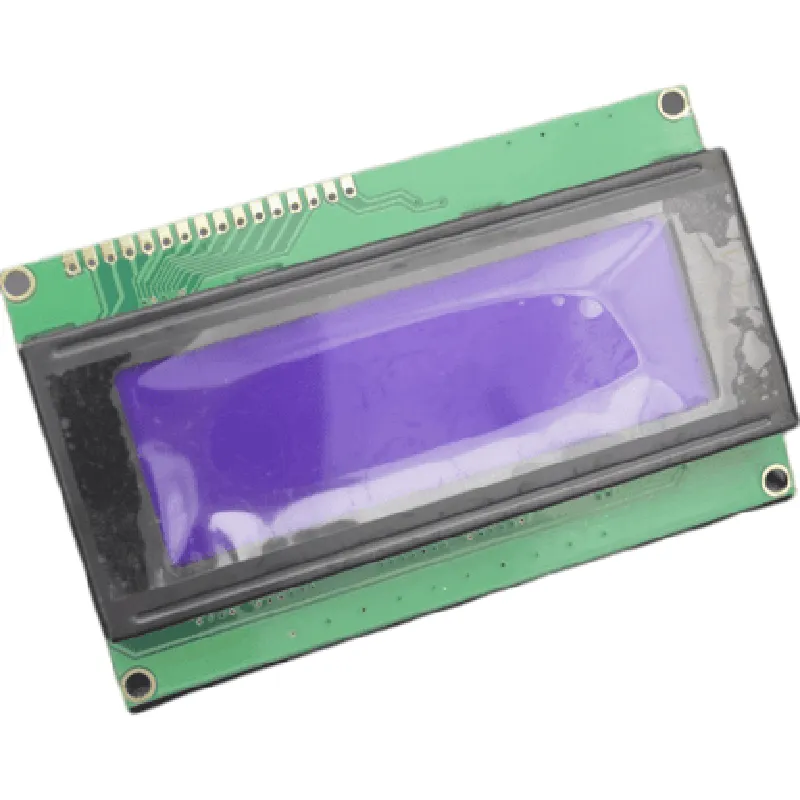
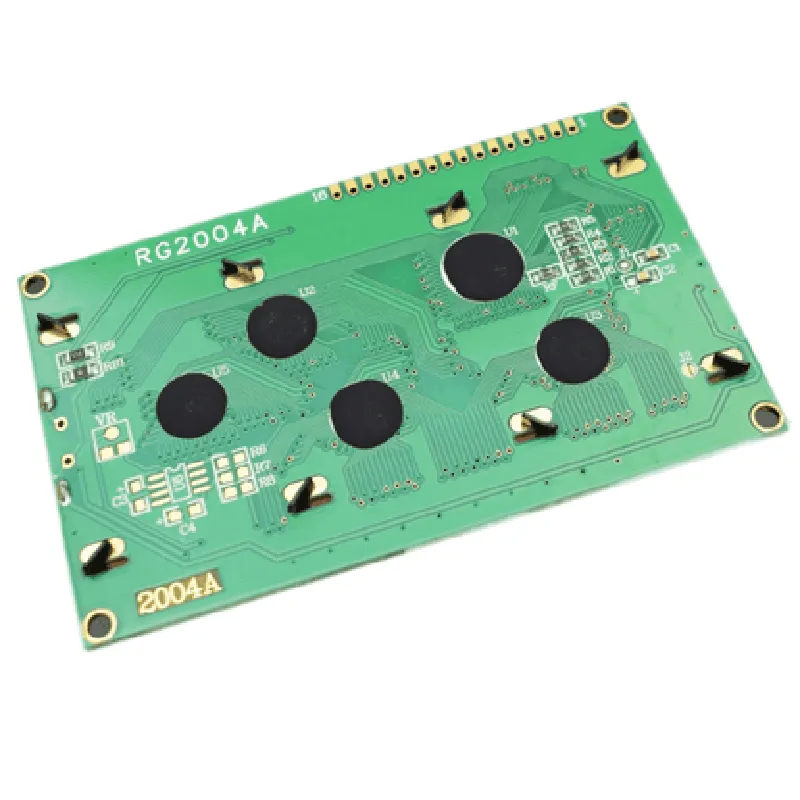
20x4 LCD Display Module (Blue) Documentation
The 20x4 LCD Display Module (Blue) is a character-based liquid crystal display (LCD) module that can display up to 20 characters per line and 4 lines in total. It is a popular display module for various microcontroller and embedded system projects. This module is based on the HD44780U controller/driver, which is a widely used controller for alphanumeric LCD displays.
Display Type: STN (Super-Twist Nematic) positive transmissive
 Display Size: 20 characters x 4 lines
 Character Font: 5x8 dots
 Viewing Angle: 45
 Operating Temperature: -20C to +70C
 Storage Temperature: -30C to +80C
 Power Supply: 5V
 Interface: 8-bit or 4-bit parallel interface
 Backlight Color: Blue
The 20x4 LCD Display Module (Blue) has a 16-pin interface, with the following pinout:
VCC (Pin 1): 5V power supply
 GND (Pin 2): Ground
 VEE (Pin 3): Contrast adjustment voltage ( typically connected to GND or VCC)
 RS (Pin 4): Register Select (High for data, Low for instruction)
 R/W (Pin 5): Read/Write (High for read, Low for write)
 EN (Pin 6): Enable (High to enable, Low to disable)
 D0-D7 (Pins 7-14): 8-bit data bus
 BLA (Pin 15): Backlight Anode (connected to 5V or 3.3V for backlight on)
 BLK (Pin 16): Backlight Cathode (connected to GND for backlight on)
### Example 1: Basic 4-Line Display using Arduino
In this example, we will connect the 20x4 LCD Display Module (Blue) to an Arduino Uno board and display a simple 4-line message.
```cpp
#include <LiquidCrystal.h>
// Define the LCD pins
const int rs = 12, en = 11, d4 = 5, d5 = 4, d6 = 3, d7 = 2;
// Create an instance of the LiquidCrystal class
LiquidCrystal_I2C lcd(rs, en, d4, d5, d6, d7);
void setup() {
  // Initialize the LCD
  lcd.begin(20, 4);
}
void loop() {
  // Display a 4-line message
  lcd.setCursor(0, 0);
  lcd.print("Hello, World!");
  lcd.setCursor(0, 1);
  lcd.print("Line 2: This is a test");
  lcd.setCursor(0, 2);
  lcd.print("Line 3: LCD Display Module");
  lcd.setCursor(0, 3);
  lcd.print("Line 4: 20x4 Blue Backlight");

  delay(1000);
}
```
### Example 2: Interactive Menu using Raspberry Pi (Python)
In this example, we will connect the 20x4 LCD Display Module (Blue) to a Raspberry Pi and create an interactive menu using Python.
```python
import RPi.GPIO as GPIO
import time
# Define the LCD pins
lcd_rs = 7
lcd_en = 8
lcd_d4 = 25
lcd_d5 = 24
lcd_d6 = 23
lcd_d7 = 18
# Set up the GPIO pins
GPIO.setmode(GPIO.BCM)
GPIO.setup(lcd_rs, GPIO.OUT)
GPIO.setup(lcd_en, GPIO.OUT)
GPIO.setup(lcd_d4, GPIO.OUT)
GPIO.setup(lcd_d5, GPIO.OUT)
GPIO.setup(lcd_d6, GPIO.OUT)
GPIO.setup(lcd_d7, GPIO.OUT)
# Initialize the LCD
def lcd_init():
  GPIO.output(lcd_rs, 0)
  GPIO.output(lcd_en, 0)
  time.sleep(0.05)
  GPIO.output(lcd_en, 1)
  time.sleep(0.05)
  GPIO.output(lcd_en, 0)
  lcd_send_byte(0x33)
  lcd_send_byte(0x32)
  lcd_send_byte(0x28)
  lcd_send_byte(0x0C)
  lcd_send_byte(0x01)
# Send a byte to the LCD
def lcd_send_byte(byte):
  bit = bin(byte)[2:].zfill(8)
  for i in range(8):
    if bit[i] == '1':
      GPIO.output([lcd_d4, lcd_d5, lcd_d6, lcd_d7][i], 1)
    else:
      GPIO.output([lcd_d4, lcd_d5, lcd_d6, lcd_d7][i], 0)
  GPIO.output(lcd_en, 1)
  time.sleep(0.05)
  GPIO.output(lcd_en, 0)
# Send a string to the LCD
def lcd_send_string(string):
  for char in string:
    lcd_send_byte(ord(char))
# Initialize the LCD
lcd_init()
# Display an interactive menu
while True:
  lcd_send_string("Menu:")
  lcd_send_string(" 1. Option 1")
  lcd_send_string(" 2. Option 2")
  lcd_send_string(" 3. Option 3")
  lcd_send_string(" 4. Exit")

  # Read user input (e.g., using a keypad or button)
  # and update the menu accordingly
  time.sleep(1)
```
Note: These examples are just a starting point, and you may need to modify the code to suit your specific requirements. Additionally, you may need to add additional libraries or modules depending on your development environment.