Stufin
Home Quick Cart Profile

7 inch LCD Capacitive Touch Panel with HDMI and USB Cable


Buy Now on Stufin

Component Name

7 inch LCD Capacitive Touch Panel with HDMI and USB Cable
Overview

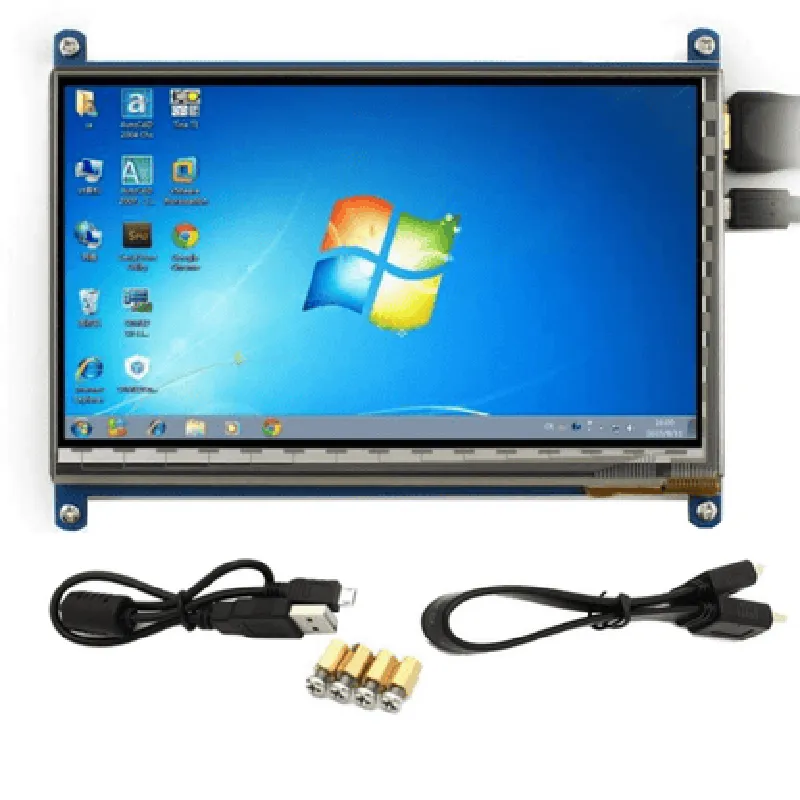
The 7 inch LCD Capacitive Touch Panel with HDMI and USB Cable is a comprehensive display solution designed for various IoT applications, including industrial control systems, kiosks, digital signage, and interactive displays. This component combines a high-quality 7-inch LCD display with a capacitive touch panel, HDMI input, and USB connectivity, making it an ideal choice for developers and integrators seeking a compact and versatile display solution.
Display

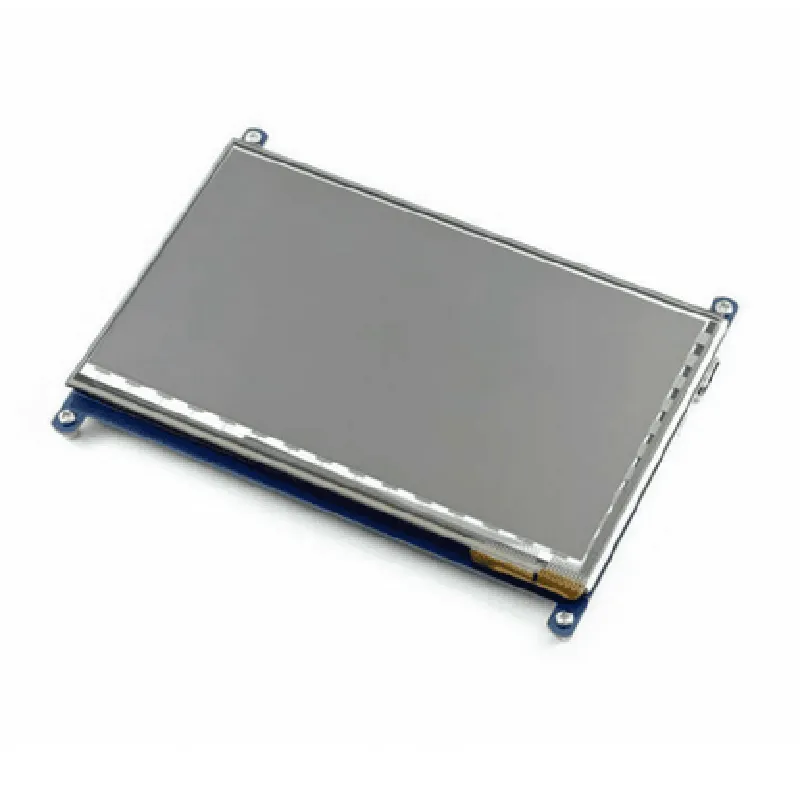
+ Resolution1024x600 pixels
+ Brightness250 cd/m
+ Operating Temperature-20C to 60C

Touch Panel

+ Capacitive touch technology

+ Supports multi-touch gestures

+ Accuracy1mm

HDMI Input

+ Resolutionup to 1080p (1920x1080 pixels) at 60 Hz
+ HDMI version1.4

USB Connectivity

+ USB version2.0
+ Supported peripheralskeyboards, mice, storage devices

Key Features

  • Compact Design: The 7-inch LCD capacitive touch panel is designed to be compact and lightweight, making it easy to integrate into a wide range of applications.
  • High-Quality Display: The display features a high-resolution LCD panel, ensuring clear and vivid image reproduction.
  • Capacitive Touch Panel: The touch panel provides a responsive and intuitive user experience, supporting multi-touch gestures and offering a high-degree of accuracy.
  • HDMI Input: The HDMI input enables users to connect to a wide range of devices, including computers, media players, game consoles, and other HDMI-compatible sources.
  • USB Connectivity: The USB interface allows users to connect peripherals such as keyboards, mice, and storage devices, and can be used for firmware updates and data transfer.
  • Wide Operating Temperature Range: The component is designed to operate in a wide temperature range, making it suitable for use in various environments.
  • Long-Lasting: The component is built with durability in mind, ensuring a long lifespan and minimizing the need for maintenance or replacement.

Applications

  • Industrial control systems
  • Kiosks
  • Digital signage
  • Interactive displays
  • Home automation systems
  • Medical devices
  • Automotive systems
The 7 inch LCD Capacitive Touch Panel with HDMI and USB Cable is suitable for a wide range of IoT applications, including

Dimensions

+ Width164mm
+ Height92mm
+ Depth15mm

Weight

approximately 250g

Certifications and Compliance

The 7 inch LCD Capacitive Touch Panel with HDMI and USB Cable complies with relevant industry standards and regulations, including CE, FCC, and RoHS.

Pin Configuration

  • 7 inch LCD Capacitive Touch Panel with HDMI and USB Cable
  • Pinout Description
  • The 7-inch LCD capacitive touch panel comes with a 30-pin FPC (Flexible Printed Circuit) connector, which is used to connect the display to a controller board or a single-board computer. Below is a detailed description of each pin:
  • Power Pins:
  • 1. VCC (Pin 1): 5V power supply input for the LCD panel.
  • 2. GND (Pin 2): Ground connection for the LCD panel.
  • HDMI Interface Pins:
  • 3. HDMI_TX0+ (Pin 3): HDMI transmitter lane 0 positive differential signal.
  • 4. HDMI_TX0- (Pin 4): HDMI transmitter lane 0 negative differential signal.
  • 5. HDMI_TX1+ (Pin 5): HDMI transmitter lane 1 positive differential signal.
  • 6. HDMI_TX1- (Pin 6): HDMI transmitter lane 1 negative differential signal.
  • 7. HDMI_TX2+ (Pin 7): HDMI transmitter lane 2 positive differential signal.
  • 8. HDMI_TX2- (Pin 8): HDMI transmitter lane 2 negative differential signal.
  • 9. HDMI_CLK+ (Pin 9): HDMI clock positive differential signal.
  • 10. HDMI_CLK- (Pin 10): HDMI clock negative differential signal.
  • Touch Panel Interface Pins:
  • 11. TP_INT (Pin 11): Touch panel interrupt signal output.
  • 12. TP_CLK (Pin 12): Touch panel clock signal input.
  • 13. TP_DIN (Pin 13): Touch panel data input signal.
  • 14. TP_DOUT (Pin 14): Touch panel data output signal.
  • 15. TP_RST (Pin 15): Touch panel reset signal input.
  • USB Interface Pins:
  • 16. USB_DP (Pin 16): USB data positive signal.
  • 17. USB_DN (Pin 17): USB data negative signal.
  • 18. USB_VBUS (Pin 18): USB power bus (5V) input.
  • 19. USB_GND (Pin 19): USB ground connection.
  • Backlight Control Pins:
  • 20. BL_EN (Pin 20): Backlight enable signal input.
  • 21. BL_PWM (Pin 21): Backlight PWM control signal input.
  • Miscellaneous Pins:
  • 22. NC (Pin 22): Not connected (no internal connection).
  • 23. NC (Pin 23): Not connected (no internal connection).
  • 24. NC (Pin 24): Not connected (no internal connection).
  • 25. NC (Pin 25): Not connected (no internal connection).
  • 26. NC (Pin 26): Not connected (no internal connection).
  • 27. NC (Pin 27): Not connected (no internal connection).
  • 28. NC (Pin 28): Not connected (no internal connection).
  • 29. NC (Pin 29): Not connected (no internal connection).
  • 30. NC (Pin 30): Not connected (no internal connection).
  • Connection Structure:
  • To connect the pins, follow these steps:
  • 1. Connect the power pins (VCC and GND) to a 5V power supply.
  • 2. Connect the HDMI interface pins (HDMI_TX0+, HDMI_TX0-, ..., HDMI_CLK-, HDMI_CLK+) to an HDMI transmitter or a controller board's HDMI output.
  • 3. Connect the touch panel interface pins (TP_INT, TP_CLK, TP_DIN, TP_DOUT, TP_RST) to a touch panel controller or a single-board computer's touch interface.
  • 4. Connect the USB interface pins (USB_DP, USB_DN, USB_VBUS, USB_GND) to a USB host or a single-board computer's USB port.
  • 5. Connect the backlight control pins (BL_EN, BL_PWM) to a backlight driver or a single-board computer's backlight control interface.
  • 6. Ensure all unused pins (NC) are not connected to any signals to prevent damage or incorrect operation.
  • Note:
  • Before connecting the pins, ensure you have a comprehensive understanding of the specific requirements and specifications of your project.
  • Refer to the datasheet and user manual provided with the component for more detailed information on pin connections and usage guidelines.
  • Always use proper cable management and securely connect the FPC connector to the controller board or single-board computer to prevent damage or signal integrity issues.

Code Examples

7 inch LCD Capacitive Touch Panel with HDMI and USB Cable
Overview
The 7 inch LCD Capacitive Touch Panel with HDMI and USB Cable is a compact display module designed for various IoT applications. It features a 7-inch LCD screen with capacitive touch functionality, making it ideal for interactive projects. The module comes with an HDMI interface for video input and a USB cable for touch data transmission.
Technical Specifications
Display Size: 7 inches
 Display Type: LCD
 Resolution: 1024x600 pixels
 Touch Type: Capacitive
 HDMI Version: 1.4
 USB Interface: USB 2.0
 Operating Temperature: -20C to 60C
 Power Supply: 5V DC
Hardware Connections
HDMI Port: Connect to an HDMI output device (e.g., Raspberry Pi, PC, or media player)
 USB Port: Connect to a USB host device (e.g., Raspberry Pi, PC, or microcontroller)
 Power Supply: Connect to a 5V DC power source
Software Libraries and Examples
### Example 1: Using with Raspberry Pi (Python)
To use the 7 inch LCD Capacitive Touch Panel with a Raspberry Pi, you'll need to install the Raspbian operating system and the necessary libraries. Here's an example code snippet to get you started:
```python
import pygame
import RPi.GPIO as GPIO
# Initialize the HDMI display
pygame.init()
screen = pygame.display.set_mode((1024, 600))
# Initialize the touch interface
GPIO.setmode(GPIO.BCM)
GPIO.setup(17, GPIO.IN, pull_up_down=GPIO.PUD_UP)  # Touch interrupt pin
while True:
    # Handle touch events
    if GPIO.input(17) == 0:
        print("Touch detected!")
        # Handle touch coordinates and gesture recognition here
# Update the screen
    screen.fill((255, 255, 255))
    pygame.display.flip()
```
This example initializes the HDMI display and sets up the touch interface using the RPi.GPIO library. It then enters an infinite loop, waiting for touch events and updating the screen accordingly.
### Example 2: Using with Arduino (C++)
To use the 7 inch LCD Capacitive Touch Panel with an Arduino board, you'll need to connect the USB cable to the Arduino's USB port and use a library like USB Host Shield Library. Here's an example code snippet to get you started:
```c++
#include <USBHost.h>
#include <TouchScreen.h>
// Initialize the USB host shield
USBHost usb;
// Initialize the touch screen
TouchScreen ts = TouchScreen(usb);
void setup() {
  Serial.begin(9600);
  usb.begin();
  ts.begin();
}
void loop() {
  // Read touch data from the screen
  TS_Point p = ts.getPoint();
  Serial.print("Touch X: ");
  Serial.print(p.x);
  Serial.print(" Y: ");
  Serial.println(p.y);
delay(50);
}
```
This example initializes the USB host shield and the touch screen using the USB Host Shield Library and TouchScreen libraries. It then enters an infinite loop, reading touch data from the screen and printing the coordinates to the serial monitor.
Additional Resources
Datasheet: [Insert link to datasheet]
 User Manual: [Insert link to user manual]
 Application Notes: [Insert link to application notes]
Note: The examples provided are for illustration purposes only and may require additional libraries, setup, and configuration depending on the specific use case. Always consult the datasheet and user manual for detailed instructions and precautions when working with the 7 inch LCD Capacitive Touch Panel with HDMI and USB Cable.