Basic Component Kit for Projects


Basic Component Kit for Projects
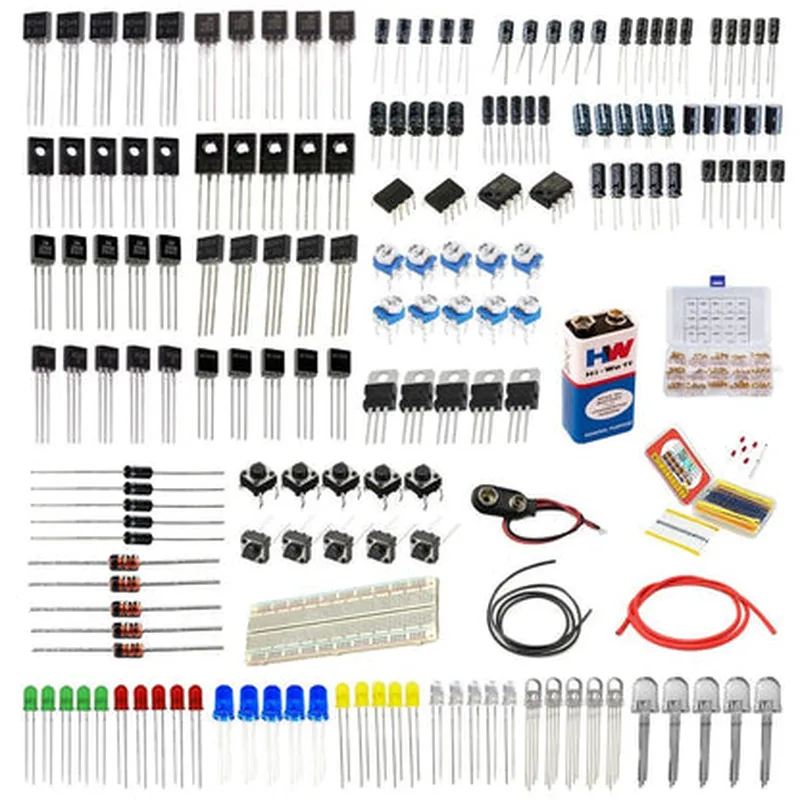
The Basic Component Kit for Projects is a comprehensive starter kit designed to provide a foundation for building a wide range of Internet of Things (IoT) projects. This kit is ideal for beginners, hobbyists, and professionals looking to prototype and develop innovative IoT solutions. The kit includes a carefully selected set of essential components, making it an excellent starting point for exploring the world of IoT development.
| The Basic Component Kit for Projects is designed to provide a flexible and versatile platform for building IoT projects. The kit's components can be used to create a variety of applications, including |
Simple sensor-based projects
Robotics and automation systems
Home automation systems
Wearable devices
IoT-based data logging and monitoring systems
Temperature sensor (e.g., DS18B20)
Humidity sensor (e.g., DHT11)
Light sensor (e.g., LDR)
Motion sensor (e.g., PIR)
These sensors enable the creation of projects that can detect and respond to environmental changes, such as temperature, humidity, light, and motion.
Wi-Fi module (e.g., ESP8266)
Bluetooth module (e.g., HC-05)
These modules allow projects to connect to the internet, communicate with other devices, and transfer data wirelessly.
| + Processor | [Insert processor type] |
| + Operating Frequency | [Insert frequency] |
| + RAM | [Insert RAM size] |
| + Flash Memory | [Insert flash memory size] |
| + Temperature sensor | [Insert temperature range] |
| + Humidity sensor | [Insert humidity range] |
| + Light sensor | [Insert light sensitivity range] |
| + Motion sensor | [Insert motion detection range] |
| + Wi-Fi module | [Insert wireless standard] |
| + Bluetooth module | [Insert Bluetooth version] |
| + Input Voltage | [Insert input voltage range] |
| + Output Voltage | [Insert output voltage] |
| + Output Current | [Insert output current] |
| To get started with the Basic Component Kit for Projects, follow these steps |
| The kit includes comprehensive documentation, including |
User manual with detailed instructions and tutorials
Schematic diagrams and datasheets for each component
Sample code and projects to get you started
Online resources and community support for troubleshooting and project development
The Basic Component Kit for Projects comes with a [insert warranty period] warranty and dedicated customer support. For any questions or issues, please refer to the kit's documentation or contact our support team.
By providing a comprehensive set of essential components, the Basic Component Kit for Projects offers a solid foundation for exploring the world of IoT development. Whether you're a beginner or an experienced developer, this kit is an excellent starting point for bringing your innovative ideas to life.
Basic Component Kit for ProjectsThe Basic Component Kit for Projects is a versatile IoT kit that includes a selection of fundamental components commonly used in IoT projects. This kit provides a convenient way to get started with IoT development, prototyping, and proof-of-concept projects.Components Included:1 x Breadboard
1 x Arduino Uno Microcontroller Board
1 x ESP8266 Wi-Fi Module
1 x DHT11 Temperature and Humidity Sensor
1 x LDR (Light Dependent Resistor) Sensor
1 x LED (Light Emitting Diode)
1 x 1k Resistor
1 x 330 Resistor
Jumper Wires (assorted)Getting Started:Before using the Basic Component Kit for Projects, ensure you have a basic understanding of electronics, programming, and IoT concepts. Familiarize yourself with the components and their datasheets.Example 1: Temperature and Humidity Monitoring using DHT11 and Arduino UnoIn this example, we will connect the DHT11 sensor to the Arduino Uno board to read temperature and humidity values.Hardware Connections:Connect the VCC pin of the DHT11 sensor to the 5V pin on the Arduino Uno board.
Connect the GND pin of the DHT11 sensor to the GND pin on the Arduino Uno board.
Connect the Data pin of the DHT11 sensor to Digital Pin 2 on the Arduino Uno board.Software Code:
```c
#include <DHT.h>#define DHTPIN 2 // Data pin connected to Digital Pin 2
#define DHTTYPE DHT11 // DHT11 sensor typeDHT dht(DHTPIN, DHTTYPE);void setup() {
Serial.begin(9600);
dht.begin();
}void loop() {
int temperature = dht.readTemperature();
int humidity = dht.readHumidity();Serial.print("Temperature: ");
Serial.print(temperature);
Serial.println("C");Serial.print("Humidity: ");
Serial.print(humidity);
Serial.println("%");delay(2000);
}
```
Example 2: Wi-Fi Enabled LED Control using ESP8266 and Arduino UnoIn this example, we will connect the ESP8266 Wi-Fi module to the Arduino Uno board to control an LED remotely using Wi-Fi.Hardware Connections:Connect the VCC pin of the ESP8266 module to the 3.3V pin on the Arduino Uno board.
Connect the GND pin of the ESP8266 module to the GND pin on the Arduino Uno board.
Connect the TX pin of the ESP8266 module to Digital Pin 10 on the Arduino Uno board.
Connect the RX pin of the ESP8266 module to Digital Pin 11 on the Arduino Uno board.
Connect the LED to Digital Pin 13 on the Arduino Uno board through a 330 resistor.Software Code:
```c
#include <WiFi.h>
#include <ESP8266WiFi.h>const char ssid = "your_wifi_ssid";
const char password = "your_wifi_password";WiFiServer server(80);void setup() {
Serial.begin(9600);// Connect to Wi-Fi
WiFi.begin(ssid, password);
while (WiFi.status() != WL_CONNECTED) {
delay(1000);
Serial.println("Connecting to Wi-Fi...");
}Serial.println("Connected to Wi-Fi");
Serial.println("Starting server...");server.begin();
}void loop() {
WiFiClient client = server.available();
if (client) {
String request = client.readStringUntil('
');
if (request.indexOf("/led/on") != -1) {
digitalWrite(13, HIGH);
client.println("HTTP/1.1 200 OK");
client.println("Content-type:text/html");
client.println();
client.println("<h1>LED is ON</h1>");
} else if (request.indexOf("/led/off") != -1) {
digitalWrite(13, LOW);
client.println("HTTP/1.1 200 OK");
client.println("Content-type:text/html");
client.println();
client.println("<h1>LED is OFF</h1>");
}
}
}
```
Note: Replace "your_wifi_ssid" and "your_wifi_password" with your actual Wi-Fi credentials. Open a web browser and navigate to `http://<ESP8266_IP Address>/led/on` or `http://<ESP8266_IP Address>/led/off` to control the LED remotely.These examples demonstrate the versatility of the Basic Component Kit for Projects and provide a starting point for your IoT project development.