Graphical LCD


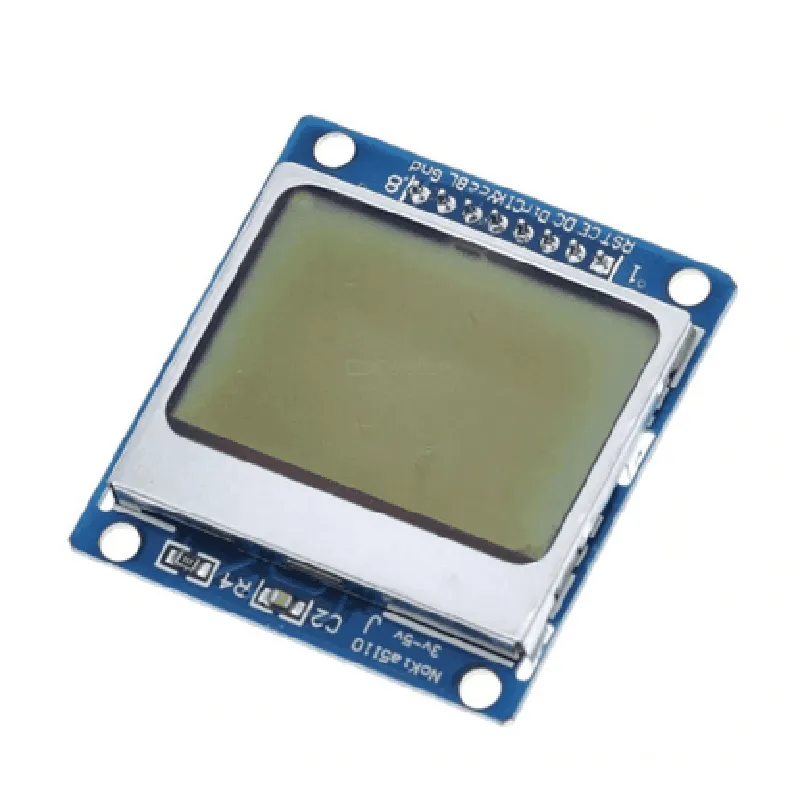
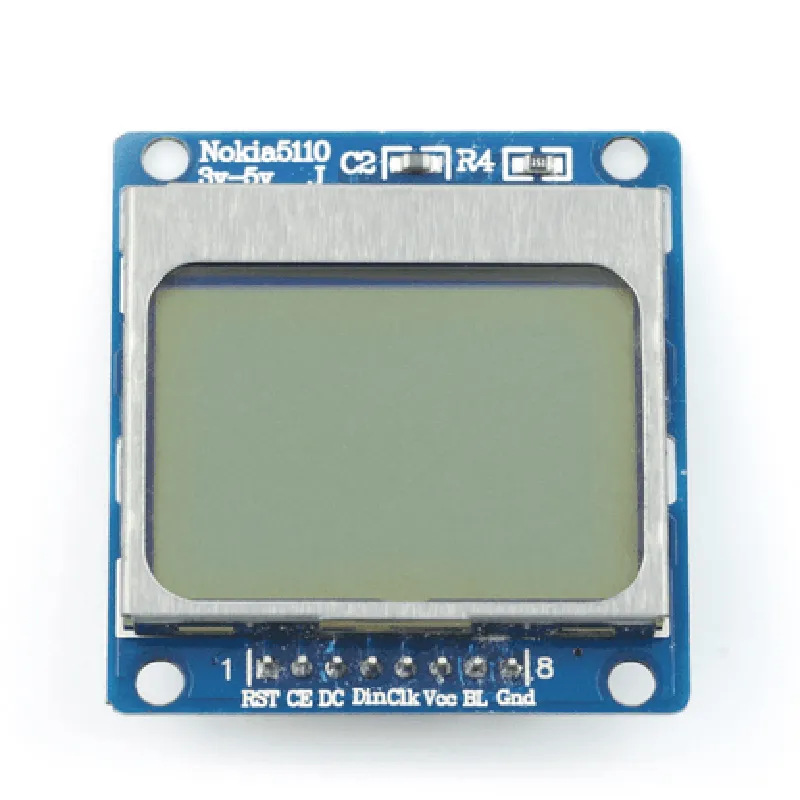
Graphical LCD
1.3 inches (33mm) diameter
128x64 pixels
64 pixels per inch
SPI (Serial Peripheral Interface)
<20mA
-20C to 70C
-40C to 85C
33mm x 23mm x 7mm
Applications
| The Nokia Screen is suitable for a wide range of IoT applications, including |
Wearable devices, such as smartwatches or fitness trackers
Home automation systems, such as temperature or lighting control systems
Industrial IoT devices, such as sensors or monitoring systems
Prototyping and proof-of-concept development
Resources
Available upon request
Available for download, including example code and documentation
Available online, including step-by-step guides and tutorials for integrating the Nokia Screen into IoT projects.
Nokia Screen Component DocumentationOverviewThe Nokia Screen is a programmable LCD display component designed for use in various Internet of Things (IoT) projects. It features a 84x48 pixel monochrome display, making it ideal for displaying simple graphics, text, and numerical data. This component is compatible with various microcontrollers and development boards.PinoutThe Nokia Screen component has a 7-pin interface:| Pin | Function |
| --- | --- |
| VCC | Power supply (3.3V or 5V) |
| GND | Ground |
| SCL | Serial Clock (I2C) |
| SDA | Serial Data (I2C) |
| RST | Reset |
| CS | Chip Select (SPI) |
| backlight | Backlight control |Communication ProtocolsThe Nokia Screen supports both I2C and SPI communication protocols. The default protocol is I2C.Example Code### Example 1: Displaying Text using I2C (Arduino)This example demonstrates how to display a simple text message on the Nokia Screen using an Arduino board and the I2C protocol.
```c++
#include <Wire.h>#define Nokia_Screen_I2C_ADDRESS 0x3Cvoid setup() {
Wire.begin();
Nokia_Screen_Init(); // Initialize the Nokia Screen
}void loop() {
Nokia_Screen_Clear(); // Clear the screen
Nokia_Screen_SetCursor(0, 0); // Set cursor to top-left corner
Nokia_Screen_Print("Hello, World!"); // Print text
delay(1000);
}void Nokia_Screen_Init() {
Wire.beginTransmission(Nokia_Screen_I2C_ADDRESS);
Wire.write(0x00); // Command to initialize the screen
Wire.endTransmission();
}void Nokia_Screen_Clear() {
Wire.beginTransmission(Nokia_Screen_I2C_ADDRESS);
Wire.write(0x01); // Command to clear the screen
Wire.endTransmission();
}void Nokia_Screen_SetCursor(uint8_t row, uint8_t col) {
Wire.beginTransmission(Nokia_Screen_I2C_ADDRESS);
Wire.write(0x02); // Command to set cursor
Wire.write(row); // Row number
Wire.write(col); // Column number
Wire.endTransmission();
}void Nokia_Screen_Print(char text) {
Wire.beginTransmission(Nokia_Screen_I2C_ADDRESS);
Wire.write(0x03); // Command to print text
Wire.write(text); // Text to be printed
Wire.endTransmission();
}
```
### Example 2: Displaying Graphics using SPI (Raspberry Pi)This example demonstrates how to display a simple graphic image on the Nokia Screen using a Raspberry Pi and the SPI protocol.
```python
import spidevSpiDev = spidev.SpiDev()SpiDev.open(0, 0) # Open SPI channel 0, chip select 0def Nokia_Screen_Init():
SpiDev.xfer([0x00, 0x00]) # Initialize the screendef Nokia_Screen_Clear():
SpiDev.xfer([0x01, 0x00]) # Clear the screendef Nokia_Screen_SetPixel(x, y, value):
SpiDev.xfer([0x02, x, y, value]) # Set pixel at (x, y) to valuedef Nokia_Screen_DrawImage(image_data):
SpiDev.xfer([0x03] + image_data) # Draw image from image_dataimage_data = [ # Simple 8x8 image data
0x00, 0x00, 0x00, 0x00, 0x00, 0x00, 0x00, 0x00,
0x00, 0x00, 0x00, 0x00, 0x00, 0x00, 0x00, 0x00,
0x00, 0x00, 0x00, 0x00, 0x00, 0x00, 0x00, 0x00,
0x00, 0x00, 0x00, 0x00, 0x00, 0x00, 0x00, 0x00,
0x00, 0x00, 0x00, 0x00, 0x00, 0x00, 0x00, 0x00,
0x00, 0x00, 0x00, 0x00, 0x00, 0x00, 0x00, 0x00,
0x00, 0x00, 0x00, 0x00, 0x00, 0x00, 0x00, 0x00,
0x00, 0x00, 0x00, 0x00, 0x00, 0x00, 0x00, 0x00,
]Nokia_Screen_Init()
Nokia_Screen_Clear()
Nokia_Screen_DrawImage(image_data)
```
Additional ResourcesDatasheet: [Nokia Screen Datasheet](https://www.example.com/nokia_screen_datasheet.pdf)
Tutorial: [Getting Started with Nokia Screen and Arduino](https://www.example.com/nokia_screen_arduino_tutorial)
Library: [Nokia Screen Arduino Library](https://www.example.com/nokia_screen_arduino_library.zip)