30mm x 30mm x 10mm (H x W x D)



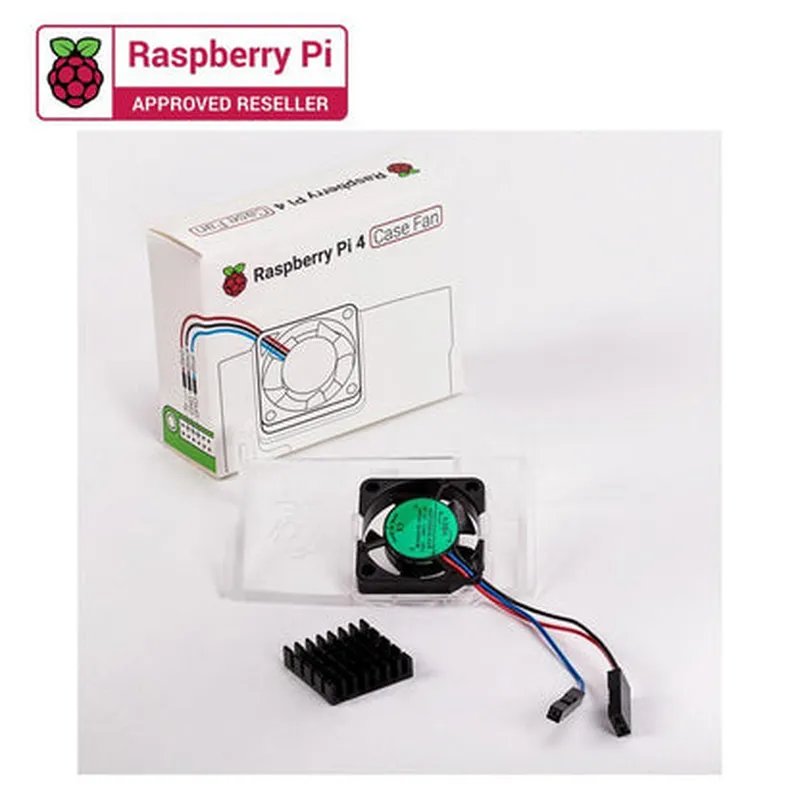
30mm x 30mm x 10mm (H x W x D)
5V
0.2A
1W
25 dBA (idle), 35 dBA (max)
5000 RPM (max)
2-pin
150mm
20g
Conclusion
The Raspberry Pi 4 Official Case Fan is a reliable and efficient cooling solution designed specifically for the Raspberry Pi 4. Its compact design, low noise operation, and energy efficiency make it an ideal accessory for users who want to ensure their Raspberry Pi 4 operates at optimal temperatures.
Raspberry Pi 4 Official Case Fan DocumentationOverview
The Raspberry Pi 4 Official Case Fan is a high-quality, compact fan designed specifically for the Raspberry Pi 4 case. It provides efficient cooling for the Raspberry Pi 4, ensuring stable performance and prolonging the lifespan of the board.Technical SpecificationsDimensions: 30mm x 30mm x 7mm
Power Consumption: 5V, 0.2A
Noise Level: 20dBA
Airflow: 3.4 CFM
Connector: 2-pin JST-PH (compatible with Raspberry Pi 4 GPIO)Programming and ControlThe Raspberry Pi 4 Official Case Fan can be controlled and monitored using the Raspberry Pi's GPIO pins. Here are some code examples to demonstrate how to use the fan in different contexts:Example 1: Basic Fan Control using PythonIn this example, we will use Python to control the fan's ON/OFF state.Code:
```python
import RPi.GPIO as GPIO
import time# Set up GPIO library
GPIO.setmode(GPIO.BCM)
GPIO.setwarnings(False)# Define fan pin
fan_pin = 17# Set fan pin as output
GPIO.setup(fan_pin, GPIO.OUT)try:
while True:
# Turn fan ON
GPIO.output(fan_pin, GPIO.HIGH)
print("Fan is ON")
time.sleep(5)# Turn fan OFF
GPIO.output(fan_pin, GPIO.LOW)
print("Fan is OFF")
time.sleep(5)except KeyboardInterrupt:
# Clean up GPIO
GPIO.cleanup()
```
Example 2: Temperature-based Fan Control using PythonIn this example, we will use Python to control the fan based on the Raspberry Pi's temperature.Code:
```python
import RPi.GPIO as GPIO
import time
import os# Set up GPIO library
GPIO.setmode(GPIO.BCM)
GPIO.setwarnings(False)# Define fan pin
fan_pin = 17# Set fan pin as output
GPIO.setup(fan_pin, GPIO.OUT)try:
while True:
    # Get temperature from Raspberry Pi
    temp = int(os.popen("vcgencmd measure_temp").read()[5:-3])
# Turn fan ON if temperature exceeds 60C
if temp > 60:
GPIO.output(fan_pin, GPIO.HIGH)
print("Fan is ON (Temperature: {}C)".format(temp))
else:
GPIO.output(fan_pin, GPIO.LOW)
print("Fan is OFF (Temperature: {}C)".format(temp))time.sleep(5)except KeyboardInterrupt:
# Clean up GPIO
GPIO.cleanup()
```
Example 3: Fan Control using systemd Service (Raspbian OS)In this example, we will create a systemd service to control the fan based on the Raspberry Pi's temperature.Code:
Create a file `/etc/systemd/system/fan_control.service` with the following contents:
```bash
[Unit]
Description=Fan Control Service[Service]
User=root
ExecStart=/usr/bin/python /home/pi/fan_control.py
Restart=always[Install]
WantedBy=multi-user.target
```
Create a file `/home/pi/fan_control.py` with the following contents:
```python
import os
import timewhile True:
# Get temperature from Raspberry Pi
temp = int(os.popen("vcgencmd measure_temp").read()[5:-3])# Turn fan ON if temperature exceeds 60C
if temp > 60:
os.system("gpio -g write 17 1")
print("Fan is ON (Temperature: {}C)".format(temp))
else:
os.system("gpio -g write 17 0")
print("Fan is OFF (Temperature: {}C)".format(temp))time.sleep(5)
```
Enable and start the service:
```bash
sudo systemctl enable fan_control.service
sudo systemctl start fan_control.service
```
These examples demonstrate how to control the Raspberry Pi 4 Official Case Fan using Python and systemd services. You can modify the code to suit your specific requirements and applications.