128x64 Pixel Graphic LCD


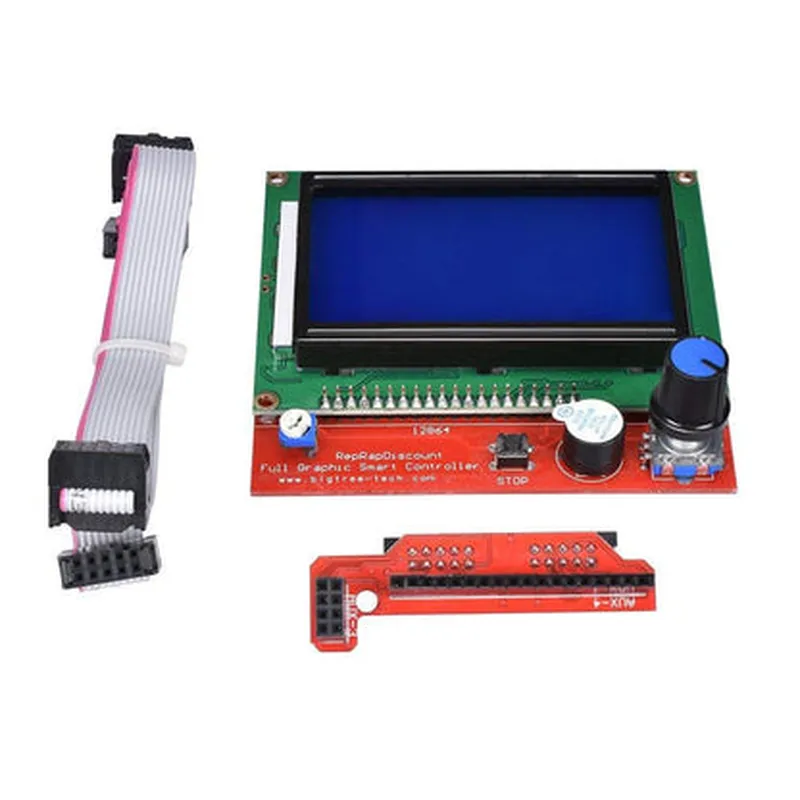
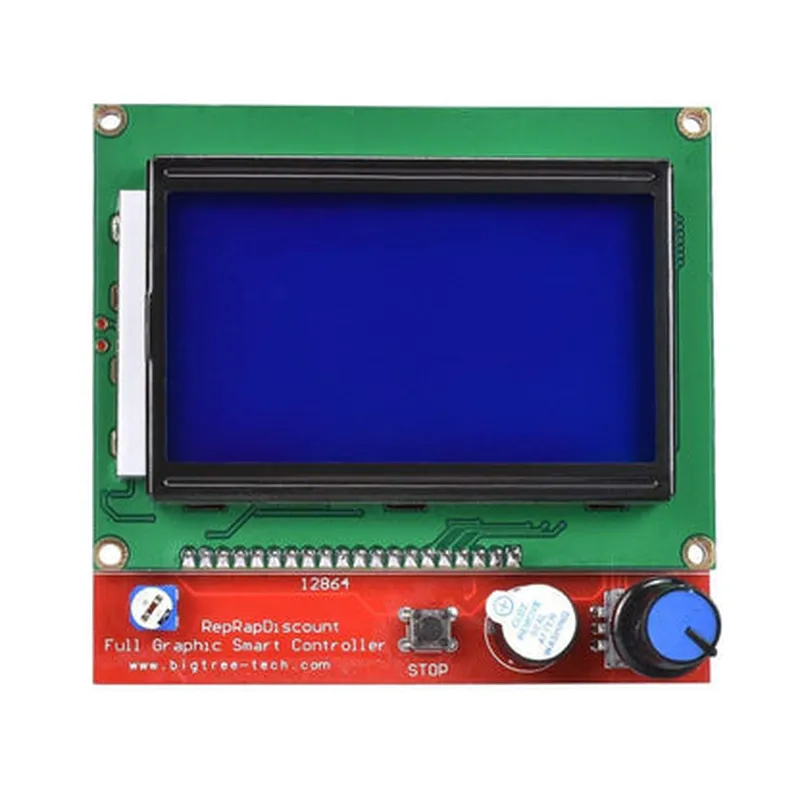
128x64 Pixel Graphic LCD
1.44 inches (36.72 mm)
128x64 Pixels
Resistive Touch Screen
STM32F103C8T6 (or equivalent)
UART, SPI, I2C
5V DC (Typical), 3.3V to 5.5V (Operating Range)
0C to 50C
-20C to 70C
43.2 mm x 33.5 mm x 13.5 mm
Applications
| The 3D Printer 12864 Graphic Smart Display is ideal for various 3D printing applications, including |
FDM/FFF 3D Printers
SLA/DLP/LCD 3D Printers
Delta/Belt-driven 3D Printers
CNC Milling Machines
Laser Engravers
Conclusion
The 3D Printer 12864 Graphic Smart Display is an advanced, user-friendly display module that elevates the 3D printing experience. Its cutting-edge features, versatility, and rugged design make it an excellent choice for 3D printer manufacturers, enthusiasts, and professionals alike.
3D Printer 12864 Graphic Smart Display DocumentationOverviewThe 3D Printer 12864 Graphic Smart Display is a high-resolution, 128x64 pixel graphical LCD display designed specifically for 3D printing applications. This component provides a user-friendly interface for monitoring and controlling 3D printing processes, offering a range of features and customization options.Technical SpecificationsDisplay Type: Graphical LCD
Resolution: 128x64 pixels
Interface: SPI
Operating Voltage: 5V
Communication Protocol: UARTHardware ConnectionTo connect the 3D Printer 12864 Graphic Smart Display to your microcontroller or 3D printer board, follow these steps:1. Connect the VCC pin to a 5V power source.
2. Connect the GND pin to a ground pin on your microcontroller or 3D printer board.
3. Connect the SCK (clock) pin to a digital pin on your microcontroller or 3D printer board (e.g., SCK on Arduino or Raspberry Pi).
4. Connect the MOSI (master out slave in) pin to a digital pin on your microcontroller or 3D printer board (e.g., MOSI on Arduino or Raspberry Pi).
5. Connect the CS (chip select) pin to a digital pin on your microcontroller or 3D printer board (e.g., CS on Arduino or Raspberry Pi).Software Library and ExamplesTo interact with the 3D Printer 12864 Graphic Smart Display, you can use the following libraries and examples:### Example 1: Basic Display Initialization and Text Printing (Arduino)Library: U8g2 Library for ArduinoCode:
```cpp
#include <U8g2lib.h>// Define the display pins
#define CS_PIN 5
#define SCK_PIN 13
#define MOSI_PIN 11// Initialize the display
U8G2_LCD_LOGO u8g2(U8G2_R0, / clock=/ SCK_PIN, / data=/ MOSI_PIN, / cs=/ CS_PIN, / reset=/ U8X8_PIN_NONE);void setup() {
// Initialize the display
u8g2.begin();
u8g2.setPowerSave(0);
}void loop() {
// Clear the display
u8g2.clearBuffer();
// Print text on the display
u8g2.setFont(u8g2_font_ncenB14_tr);
u8g2.drawStr(0, 20, "3D Printer Status:");
u8g2.drawStr(0, 40, "Printing...");
// Update the display
u8g2.sendBuffer();
delay(1000);
}
```
### Example 2: Custom Graphics and Icons (Raspberry Pi with Python)Library: python-u8g2Code:
```python
import u8g2# Initialize the display
disp = u8g2.U8G2_LCD_LOGO(u8g2.U8G2_R0, cs=17, clock=23, mosi=24, reset=None)# Create a custom icon
icon_data = [
0x00, 0x00, 0x00, 0x00, 0x00, 0x00, 0x00, 0x00,
0x00, 0x00, 0x80, 0x80, 0x80, 0x80, 0x00, 0x00,
0x00, 0x80, 0xC0, 0xE0, 0xF0, 0xF8, 0xFC, 0xFE,
0x80, 0xC0, 0xE0, 0xF0, 0xF8, 0xFC, 0xFE, 0xFF,
0xC0, 0xE0, 0xF0, 0xF8, 0xFC, 0xFE, 0xFF, 0xFF,
0xE0, 0xF0, 0xF8, 0xFC, 0xFE, 0xFF, 0xFF, 0xFF,
0xF0, 0xF8, 0xFC, 0xFE, 0xFF, 0xFF, 0xFF, 0xFF,
0xF8, 0xFC, 0xFE, 0xFF, 0xFF, 0xFF, 0xFF, 0xFF,
]# Draw the custom icon on the display
disp.setDrawColor(1)
disp.drawXBMP(0, 0, 16, 16, icon_data)# Update the display
disp.send_BUFFER()
```
### Example 3: Real-time Data Monitoring (ESP32 with MicroPython)Library: u8g2-micropythonCode:
```python
import u8g2
import machine# Initialize the display
disp = u8g2.U8G2_LCD_LOGO(u8g2.U8G2_R0, cs=5, clock=18, mosi=23, reset=None)# Define a function to update the display with real-time data
def update_display(telemetry_data):
disp.clearBuffer()
disp.setFont(u8g2.font_6x10)
disp.setDrawColor(1)
# Print real-time data on the display
disp.drawStr(0, 10, "Temp: " + str(telemetry_data['temperature']) + "C")
disp.drawStr(0, 20, "Humidity: " + str(telemetry_data['humidity']) + "%")
disp.drawStr(0, 30, "Pressure: " + str(telemetry_data['pressure']) + " kPa")
# Update the display
disp.sendBuffer()# Simulate real-time telemetry data
telemetry_data = {'temperature': 25.5, 'humidity': 60.2, 'pressure': 1013.25}while True:
update_display(telemetry_data)
machine.delay(1000) # Update the display every 1 second
```
These examples demonstrate how to use the 3D Printer 12864 Graphic Smart Display in various contexts, including Arduino, Raspberry Pi, and ESP32 microcontrollers. By leveraging the U8g2 library, you can create custom graphics, icons, and interfaces for your 3D printing applications.