The keyboard is designed to be compact and lightweight, making it easy to integrate into a variety of projects and applications.


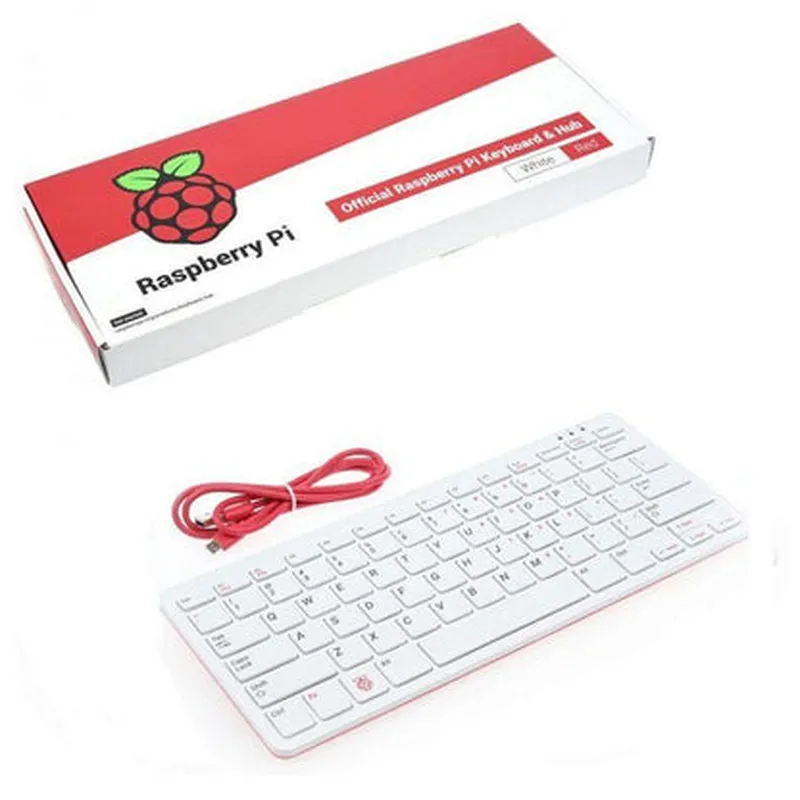
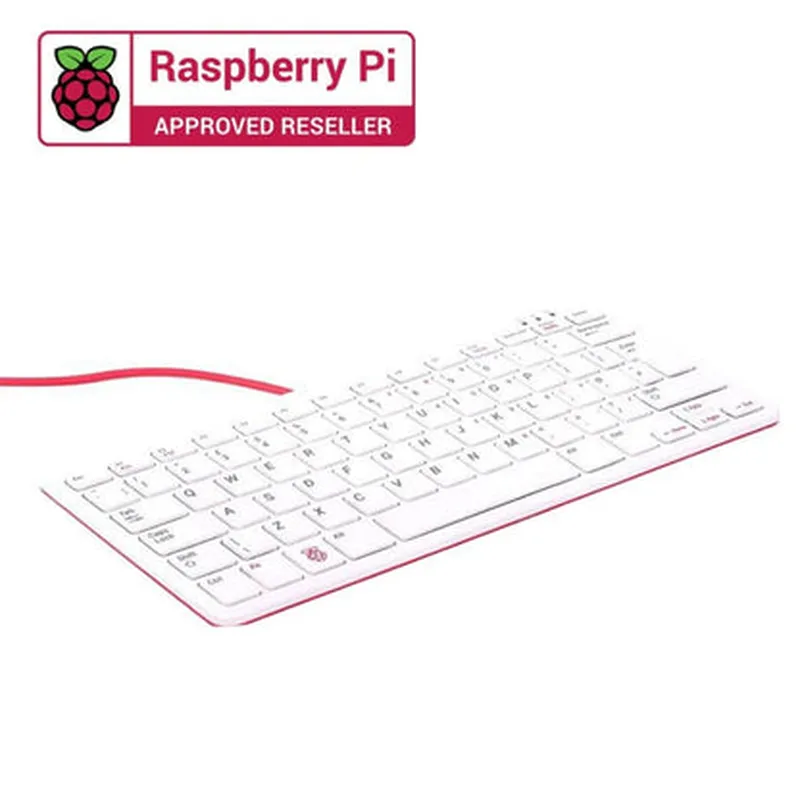
The keyboard is designed to be compact and lightweight, making it easy to integrate into a variety of projects and applications.
The keyboard features an ergonomic layout that is designed to reduce fatigue and discomfort, allowing users to type for extended periods with ease.
| High-Quality Keys | The keyboard features high-quality, tactile keys that provide a crisp and responsive feedback, making typing a joy. |
The keyboard features LED indicators for Caps Lock, Num Lock, and Scroll Lock, making it easy to monitor the status of these functions.
| Hot-Swappable Keys | The keyboard features hot-swappable keys, allowing users to easily replace or customize individual keys as needed. |
The keyboard is specifically designed for use with the Raspberry Pi and is fully compatible with all Raspberry Pi models.
The keyboard connects to the Raspberry Pi via a standard USB connection, making it easy to integrate into a variety of projects.
The keyboard is built to last, with a durable construction that can withstand heavy use and harsh environments.
Technical Specifications
284 x 95 x 30mm (11.2 x 3.7 x 1.2 inches)
250g (8.8 oz)
USB 2.0
250mA
Raspberry Pi OS, Windows, macOS, Linux
QWERTY layout, with options for AZERTY, QWERTZ, and other layouts
Conclusion
The Raspberry Pi Official Keyboard (White-Red) is a high-quality, compact, and versatile keyboard designed specifically for use with the Raspberry Pi. With its ergonomic layout, high-quality keys, and durable construction, it is perfect for a wide range of applications, from general computing and browsing to industrial and commercial uses.
Raspberry Pi Official Keyboard (White-Red) DocumentationThe Raspberry Pi Official Keyboard (White-Red) is a compact, wired keyboard designed specifically for the Raspberry Pi single-board computer. This keyboard is a great addition to any Raspberry Pi project, providing a convenient and intuitive way to interact with your device.Getting StartedTo get started with the Raspberry Pi Official Keyboard (White-Red), simply connect it to your Raspberry Pi using the provided USB cable. No additional setup or installation is required.Code ExamplesHere are a few code examples that demonstrate how to use the Raspberry Pi Official Keyboard (White-Red) in various contexts:### Example 1: Reading Keyboard Input using PythonThis example shows how to use the `pynput` library to read keyboard input from the Raspberry Pi Official Keyboard (White-Red) using Python.
```python
from pynput import keyboarddef on_press(key):
try:
print('alphanumeric key {0} pressed'.format(key.char))
except AttributeError:
print('special key {0} pressed'.format(key))def on_release(key):
print('{0} released'.format(key))
if key == keyboard.Key.esc:
# Stop listener
return False# Collect events until released
with keyboard.Listener(
on_press=on_press,
on_release=on_release) as listener:
listener.join()
```
This code creates a keyboard listener that prints a message to the console whenever a key is pressed or released. You can modify the `on_press` and `on_release` functions to perform custom actions based on the keyboard input.### Example 2: Using the Keyboard with a GUI Application (TKinter)This example demonstrates how to use the Raspberry Pi Official Keyboard (White-Red) with a GUI application built using Python's Tkinter library.
```python
import tkinter as tkroot = tk.Tk()
root.title("Raspberry Pi Keyboard Example")def key_press(event):
print(f"Key pressed: {event.keysym}")root.bind("<Key>", key_press)label = tk.Label(root, text="Press a key to see the output!")
label.pack()root.mainloop()
```
In this example, we create a simple GUI application with a label and bind the `key_press` function to the `<Key>` event. Whenever a key is pressed, the `key_press` function is called, and it prints a message to the console indicating which key was pressed.### Example 3: Using the Keyboard with a Command-Line Interface (CLI)This example shows how to use the Raspberry Pi Official Keyboard (White-Red) to create a simple command-line interface (CLI) using Python's built-in `input` function.
```python
while True:
command = input(" Enter a command: ")
if command == "hello":
print("Hello, world!")
elif command == "quit":
break
else:
print("Unknown command. Try again!")
```
In this example, we create a simple CLI that prompts the user to enter a command. The user's input is stored in the `command` variable, and we perform different actions based on the input. You can modify the CLI to perform custom actions based on the user's input.I hope these examples help you get started with using the Raspberry Pi Official Keyboard (White-Red) in your IoT projects!