

Stufin
Home Quick Cart Profile

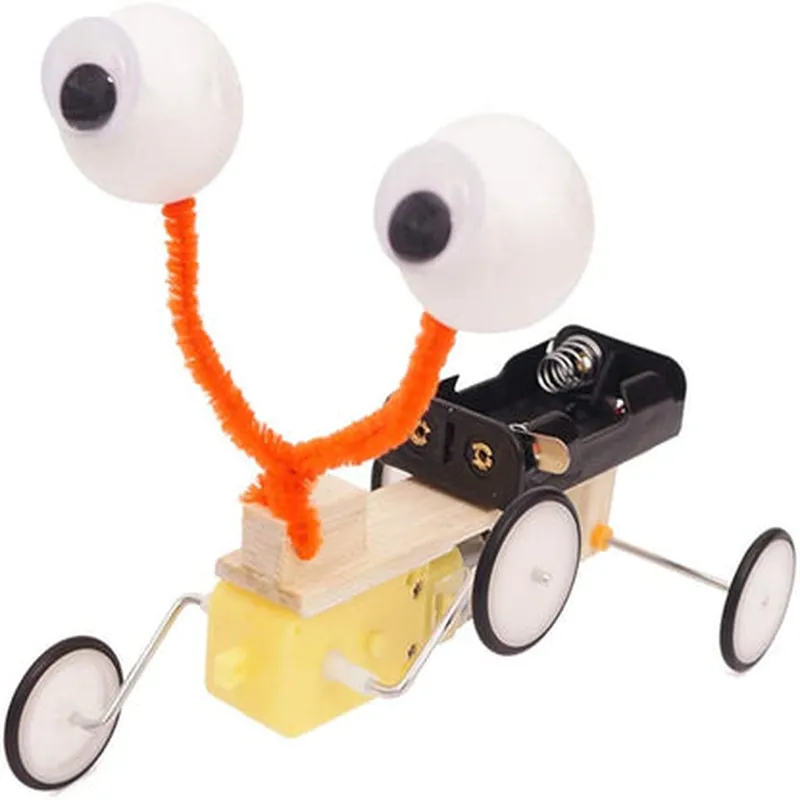
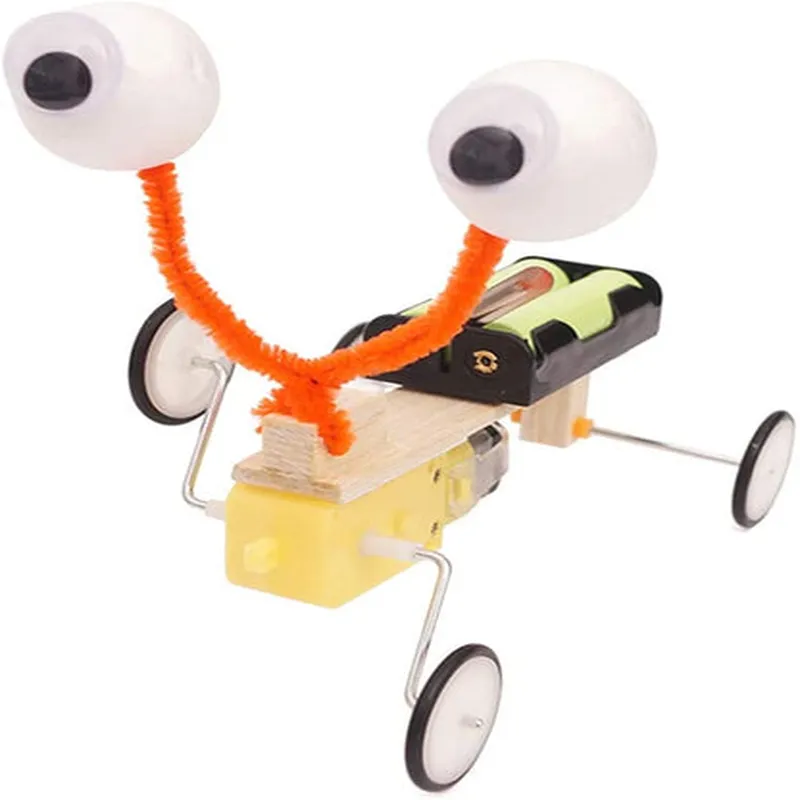
DIY Educational Electric Reptile Robot for Science Experiment

Buy Now on Stufin

Component Name

DIY Educational Electric Reptile Robot for Science Experiment

Overview

The DIY Educational Electric Reptile Robot for Science Experiment is a hands-on, interactive learning platform designed for students and enthusiasts to explore the fundamentals of robotics, electronics, and programming. This robot is a reptile-shaped, modular device that allows users to learn by doing, experimenting, and creating while having fun.

Functionality

The DIY Educational Electric Reptile Robot is a fully functional robot that can be controlled using a variety of programming languages and interfaces. Its primary function is to educate users on the principles of robotics, electronics, and programming through a series of fun and engaging science experiments.

Key Features

Mechanical Structure

Reptile-shaped design with modular components, allowing for easy assembly and disassembly

Made of high-quality ABS plastic for durability and longevity

Equipped with movable limbs, enabling the robot to crawl, walk, and turn

Electronics and Sensors

Arduino-compatible microcontroller board for programming and control

Equipped with a range of sensors, including

+ Ultrasonic sensors for obstacle detection and navigation

+ Infrared sensors for line following and edge detection

+ Light sensors for detecting ambient light levels

+ Sound sensors for detecting sounds and vibrations

Onboard motor drivers for controlling the movement of the robot's limbs

Programming and Control

Supports multiple programming languages, including

+ C/C++

+ Python

+ Scratch

+ Makeblock's mBlock (based on MIT Scratch)

Can be controlled using a variety of interfaces, including

+ PC/laptop via USB cable

+ Mobile devices via Bluetooth or Wi-Fi

+ Remote control using a dedicated app

Educational Value

Teaches fundamental concepts of robotics, electronics, and programming

Encourages hands-on learning, experimentation, and creativity

Develops problem-solving skills, critical thinking, and analytical reasoning

Prepares students for careers in STEM fields, such as robotics, artificial intelligence, and engineering

Additional Features

Expansion ports for adding custom modules and peripherals

LED indicators and a buzzer for auditory and visual feedback

Rechargeable battery with a charging indicator

Includes a comprehensive user manual, tutorials, and example projects

Technical Specifications

Microcontroller Board

Arduino-compatible, with 32-bit MCU and 512 KB flash memory

Sensors

Ultrasonic, infrared, light, and sound sensors

Motor Drivers

Onboard motor drivers for 4 DC motors

Power Supply

Rechargeable 3.7V 1000mAh Li-ion battery

Dimensions

320 mm x 220 mm x 120 mm (12.6 in x 8.7 in x 4.7 in)

Weight

450g (15.9 oz)

Target Audience

Students (ages 10-18) interested in robotics, electronics, and programming

Educators and teachers looking for hands-on, interactive learning tools

Hobbyists and enthusiasts interested in DIY robotics and STEM projects

What's Included

DIY Educational Electric Reptile Robot mainboard

Arduino-compatible microcontroller board

Sensors (ultrasonic, infrared, light, and sound)

Motor drivers and DC motors

Rechargeable battery and charging cable

User manual, tutorials, and example projects

Expansion ports and modules (optional)

Pin Configuration

  • DIY Educational Electric Reptile Robot for Science Experiment: Pinout Explanation and Connection Guide
  • This DIY Educational Electric Reptile Robot is an innovative science experiment kit designed to educate students about robotics, electronics, and programming. The robot's main board features various pins that enable users to connect sensors, actuators, and other components to create a fully functional reptile robot. This documentation provides a detailed explanation of each pin, along with a step-by-step connection guide to help users get started.
  • Pinout Explanation:
  • 1. VCC (5V): This pin provides a 5V power supply to the robot's components. Connect this pin to a 5V power source or a battery.
  • 2. GND: This pin is the ground connection for the robot's circuitry. Connect this pin to the negative terminal of the power source or battery.
  • 3. TX (Transmit): This pin is used for serial communication between the robot and a computer or other devices. Connect this pin to the RX (Receive) pin of a serial communication module, such as a USB-to-TTL serial adapter.
  • 4. RX (Receive): This pin is used for serial communication between the robot and a computer or other devices. Connect this pin to the TX (Transmit) pin of a serial communication module, such as a USB-to-TTL serial adapter.
  • 5. SCL (Serial Clock): This pin is used for I2C communication between the robot's microcontroller and I2C devices, such as sensors or displays. Connect this pin to the SCL pin of an I2C device.
  • 6. SDA (Serial Data): This pin is used for I2C communication between the robot's microcontroller and I2C devices, such as sensors or displays. Connect this pin to the SDA pin of an I2C device.
  • 7. Motor A+: This pin is connected to the positive terminal of Motor A, which controls the robot's left leg.
  • 8. Motor A-: This pin is connected to the negative terminal of Motor A, which controls the robot's left leg.
  • 9. Motor B+: This pin is connected to the positive terminal of Motor B, which controls the robot's right leg.
  • 10. Motor B-: This pin is connected to the negative terminal of Motor B, which controls the robot's right leg.
  • 11. IR Receiver: This pin is connected to an infrared receiver module, which allows the robot to receive commands from an infrared remote control.
  • 12. Trainer Port: This pin is a 3.5mm audio jack that allows users to connect a trainer module for programming and debugging the robot.
  • 13. Sensor VCC: This pin provides a 5V power supply to sensors and other components connected to the robot's sensor ports.
  • 14. Sensor GND: This pin is the ground connection for sensors and other components connected to the robot's sensor ports.
  • 15. Sensor 1: This pin is connected to a sensor, such as a photodiode or an ultrasonic sensor, which allows the robot to detect its environment.
  • 16. Sensor 2: This pin is connected to a sensor, such as a photodiode or an ultrasonic sensor, which allows the robot to detect its environment.
  • 17. Sensor 3: This pin is connected to a sensor, such as a photodiode or an ultrasonic sensor, which allows the robot to detect its environment.
  • Connection Guide:
  • 1. Power Connection:
  • Connect the VCC (5V) pin to a 5V power source or a battery.
  • Connect the GND pin to the negative terminal of the power source or battery.
  • 2. Serial Communication:
  • Connect the TX (Transmit) pin to the RX (Receive) pin of a serial communication module, such as a USB-to-TTL serial adapter.
  • Connect the RX (Receive) pin to the TX (Transmit) pin of a serial communication module, such as a USB-to-TTL serial adapter.
  • 3. Motor Connection:
  • Connect the Motor A+ pin to the positive terminal of Motor A.
  • Connect the Motor A- pin to the negative terminal of Motor A.
  • Connect the Motor B+ pin to the positive terminal of Motor B.
  • Connect the Motor B- pin to the negative terminal of Motor B.
  • 4. IR Receiver Connection:
  • Connect the IR Receiver pin to an infrared receiver module.
  • 5. Trainer Module Connection:
  • Connect the Trainer Port pin to a trainer module for programming and debugging the robot.
  • 6. Sensor Connection:
  • Connect the Sensor VCC pin to the VCC pin of a sensor module.
  • Connect the Sensor GND pin to the GND pin of a sensor module.
  • Connect the Sensor 1 pin to a sensor module, such as a photodiode or an ultrasonic sensor.
  • Connect the Sensor 2 pin to a sensor module, such as a photodiode or an ultrasonic sensor.
  • Connect the Sensor 3 pin to a sensor module, such as a photodiode or an ultrasonic sensor.
  • Important Notes:
  • Make sure to follow proper safety precautions when working with electronics.
  • Use the correct voltage and polarity when connecting power sources and components.
  • Verify the pinouts and connection diagrams for each component before making connections.
  • Consult the robot's user manual and datasheets for specific component connections and programming guides.
  • By following this pinout explanation and connection guide, users can successfully assemble and program their DIY Educational Electric Reptile Robot for Science Experiment, exploring the fascinating world of robotics and electronics.

Code Examples

Component Documentation: DIY Educational Electric Reptile Robot for Science Experiment
Overview
The DIY Educational Electric Reptile Robot is a versatile and interactive Internet of Things (IoT) component designed for science experiments and educational purposes. This robot is an ideal platform for students and hobbyists to learn about robotics, programming, and electronics while having fun. The robot features a reptile-inspired design, allowing it to move and interact with its environment in a unique and engaging way.
Hardware Components
Microcontroller Board (e.g., Arduino Uno or compatible)
 Motor Driver IC (e.g., L298N)
 2x DC Motors
 Power Source (e.g., 6V Battery or USB Cable)
 Jumper Wires
 Breadboard
 Chassis and Body (3D printed or laser cut)
Software Components
Arduino IDE (version 1.8.x or later)
 Compatible programming languages: C, C++, Python (using Arduino-Python library)
Code Examples
### Example 1: Basic Movement and Obstacle Avoidance
This example demonstrates how to control the robot's movement and avoid obstacles using ultrasonic sensors.
Hardware Requirements
2x Ultrasonic Sensors (HC-SR04)
 2x Jumper Wires
Software Code
```c
const int leftMotorForward = 2;
const int leftMotorBackward = 3;
const int rightMotorForward = 4;
const int rightMotorBackward = 5;
const int ultrasonicTrigPin = 6;
const int ultrasonicEchoPin = 7;
void setup() {
  pinMode(leftMotorForward, OUTPUT);
  pinMode(leftMotorBackward, OUTPUT);
  pinMode(rightMotorForward, OUTPUT);
  pinMode(rightMotorBackward, OUTPUT);
  pinMode(ultrasonicTrigPin, OUTPUT);
  pinMode(ultrasonicEchoPin, INPUT);
}
void loop() {
  int distance = getDistance();
  if (distance < 20) {
    // Obstacle detected, turn around
    turnAround();
  } else {
    // Move forward
    moveForward();
  }
  delay(50);
}
int getDistance() {
  digitalWrite(ultrasonicTrigPin, HIGH);
  delayMicroseconds(10);
  digitalWrite(ultrasonicTrigPin, LOW);
  int distance = pulseIn(ultrasonicEchoPin, HIGH);
  distance = distance  0.034 / 2;
  return distance;
}
void moveForward() {
  digitalWrite(leftMotorForward, HIGH);
  digitalWrite(rightMotorForward, HIGH);
}
void turnAround() {
  digitalWrite(leftMotorForward, LOW);
  digitalWrite(rightMotorForward, LOW);
  digitalWrite(leftMotorBackward, HIGH);
  digitalWrite(rightMotorBackward, HIGH);
  delay(500);
  digitalWrite(leftMotorBackward, LOW);
  digitalWrite(rightMotorBackward, LOW);
}
```
### Example 2: Line Follower
This example demonstrates how to program the robot to follow a black line on a white surface using infrared sensors.
Hardware Requirements
2x Infrared Sensors (TCRT5000)
 2x Jumper Wires
Software Code
```c
const int leftMotorForward = 2;
const int leftMotorBackward = 3;
const int rightMotorForward = 4;
const int rightMotorBackward = 5;
const int infraredLeftPin = 6;
const int infraredRightPin = 7;
void setup() {
  pinMode(leftMotorForward, OUTPUT);
  pinMode(leftMotorBackward, OUTPUT);
  pinMode(rightMotorForward, OUTPUT);
  pinMode(rightMotorBackward, OUTPUT);
  pinMode(infraredLeftPin, INPUT);
  pinMode(infraredRightPin, INPUT);
}
void loop() {
  int leftValue = digitalRead(infraredLeftPin);
  int rightValue = digitalRead(infraredRightPin);
  
  if (leftValue == HIGH && rightValue == HIGH) {
    // Both sensors on the line, move forward
    moveForward();
  } else if (leftValue == LOW && rightValue == HIGH) {
    // Left sensor off the line, turn right
    turnRight();
  } else if (leftValue == HIGH && rightValue == LOW) {
    // Right sensor off the line, turn left
    turnLeft();
  } else {
    // Both sensors off the line, stop
    stopMotors();
  }
  delay(50);
}
void moveForward() {
  digitalWrite(leftMotorForward, HIGH);
  digitalWrite(rightMotorForward, HIGH);
}
void turnRight() {
  digitalWrite(leftMotorForward, LOW);
  digitalWrite(rightMotorForward, HIGH);
}
void turnLeft() {
  digitalWrite(leftMotorForward, HIGH);
  digitalWrite(rightMotorForward, LOW);
}
void stopMotors() {
  digitalWrite(leftMotorForward, LOW);
  digitalWrite(rightMotorForward, LOW);
}
```
Note: In both examples, you will need to adjust the motor pin connections and sensor pin connections according to your specific robot setup. Additionally, you may need to fine-tune the code to optimize the robot's performance.