Stufin
Home Quick Cart Profile

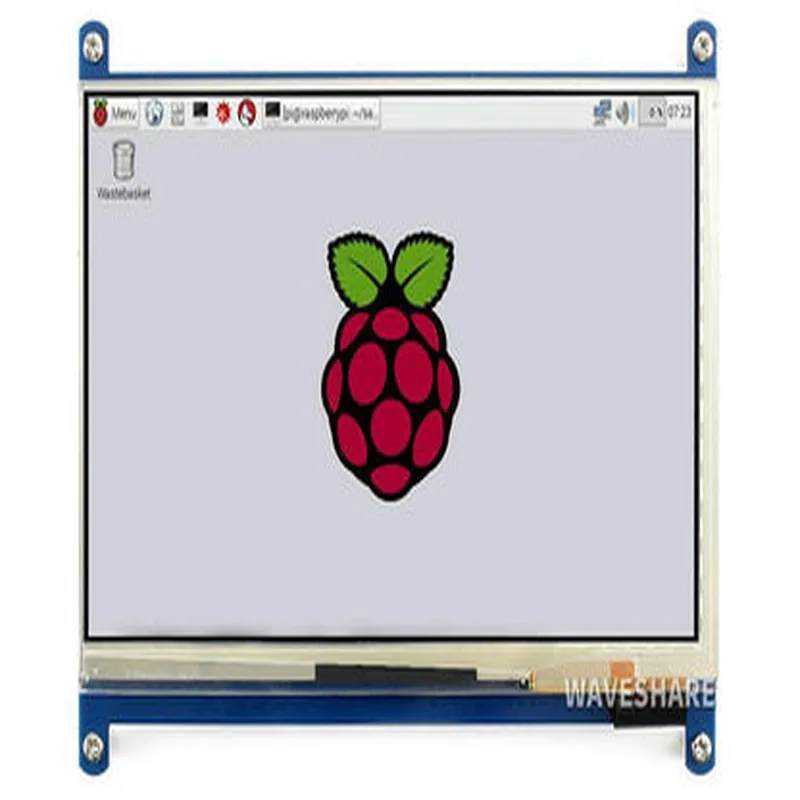
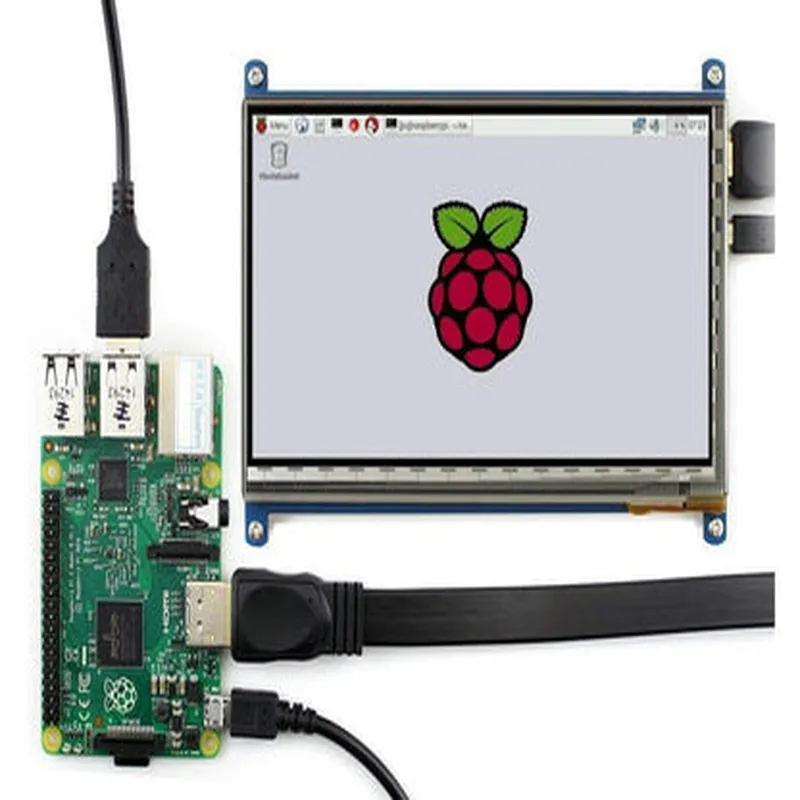
Waveshare HDMI 7 inch Display

Buy Now on Stufin

Component Name

Waveshare HDMI 7 Inch Display

Overview

The Waveshare HDMI 7 Inch Display is a compact, high-resolution display module designed for various applications, including IoT projects, embedded systems, and industrial control systems. This display module features a 7-inch LCD screen with a resolution of 1024x600 pixels, making it an ideal choice for displaying images, videos, and user interfaces in a variety of settings.

Functionality

The Waveshare HDMI 7 Inch Display module is a passive display device that receives video signals through an HDMI interface. It does not have any onboard processing capabilities, making it dependent on an external device, such as a single-board computer (SBC), a media player, or a computer, to generate the video signal.

The display module can be used in a wide range of applications, including

IoT projects

Embedded systems, home automation, industrial control systems

Digital signage

Advertising, information displays, kiosks

Multimedia

Media players, set-top boxes, game consoles

Medical devices

Medical imaging, patient monitoring systems

Industrial control

HMI (Human-Machine Interface) systems, industrial automation

Key Features

  • High-Resolution Display: The display module features a 7-inch LCD screen with a resolution of 1024x600 pixels, providing a clear and detailed image.
  • HDMI Interface: The module has an HDMI interface, which supports resolutions up to 1080p (1920x1080 pixels) at 60Hz.
  • Wide Viewing Angle: The display has a wide viewing angle of 160 (horizontal) and 140 (vertical), ensuring that the image remains clear even when viewed from the side.
  • High Brightness: The display has a high brightness of 300 cd/m, making it suitable for use in various lighting conditions.
  • Low Power Consumption: The module has a low power consumption of around 6W, making it suitable for battery-powered devices.
  • Compact Design: The display module has a compact design, making it easy to integrate into tight spaces.
  • Multi-Language Support: The display supports multiple languages, including English, German, French, Italian, Spanish, Portuguese, and more.
  • Support for Various Operating Systems: The display is compatible with various operating systems, including Windows, Linux, and macOS.

Technical Specifications

Display Type

TFT LCD

Display Size

7 inches

Resolution

1024x600 pixels

Aspect Ratio

169

Brightness

300 cd/m

Viewing Angle

160 (horizontal), 140 (vertical)

HDMI Interface

Version 1.3

HDMI Resolution

Up to 1080p (1920x1080 pixels) at 60Hz

Power Consumption

Around 6W

Power Supply

12V DC

Operating Temperature

-20C to 60C

Storage Temperature

-30C to 70C

Dimensions

165 mm x 105 mm x 20 mm

Pinout and Connectors

HDMI Connector

A standard HDMI connector for connecting to an HDMI-enabled device.

Power Connector

A 2-pin connector for power supply (12V DC).

Mounting Holes

Four mounting holes (M3) for securing the display module to a surface.

Resources

For more information on the Waveshare HDMI 7 Inch Display, including datasheets, user manuals, and software resources, please visit the manufacturer's website or consult the provided documentation.

Pin Configuration

  • Waveshare HDMI 7 inch Display Pinout Explanation
  • The Waveshare HDMI 7-inch Display is a popular display module used in various IoT projects. It features an HDMI interface, making it easy to connect to a wide range of devices. Here's a detailed explanation of each pin on the display module:
  • Pinout:
  • 1. VIN (5V): Input power pin, accepts 5V DC voltage from an external power source.
  • 2. GND: Ground pin, connects to the ground of the power source and other components.
  • 3. HDMI_TX_HS: HDMI transmitter high-speed data pin, carries high-speed digital video signals.
  • 4. HDMI_TX_VS: HDMI transmitter vertical sync pin, carries vertical synchronization signals.
  • 5. HDMI_TX_CLK: HDMI transmitter clock pin, carries the pixel clock signal.
  • 6. HDMI_TX_D2+, HDMI_TX_D2-: HDMI transmitter differential data pins (lane 2), carry high-speed digital video signals.
  • 7. HDMI_TX_D1+, HDMI_TX_D1-: HDMI transmitter differential data pins (lane 1), carry high-speed digital video signals.
  • 8. HDMI_TX_D0+, HDMI_TX_D0-: HDMI transmitter differential data pins (lane 0), carry high-speed digital video signals.
  • 9. HDMI_CEC: HDMI Consumer Electronics Control pin, used for remote control and device control.
  • 10. HDMI_HPD: HDMI Hot Plug Detect pin, used to detect the presence of an HDMI sink device.
  • 11. AUDIO_R: Right-channel audio output pin, carries analog audio signals.
  • 12. AUDIO_L: Left-channel audio output pin, carries analog audio signals.
  • 13. AUDIO_GND: Audio ground pin, connects to the ground of the audio circuit.
  • Connection Structure:
  • To connect the Waveshare HDMI 7-inch Display to an HDMI source device (e.g., Raspberry Pi, PC, or gaming console), follow these steps:
  • 1. Power Connection:
  • Connect the VIN (5V) pin to a 5V DC power source.
  • Connect the GND pin to the ground of the power source.
  • 2. HDMI Connection:
  • Connect the HDMI_TX_HS, HDMI_TX_VS, HDMI_TX_CLK, HDMI_TX_D2+, HDMI_TX_D2-, HDMI_TX_D1+, HDMI_TX_D1-, HDMI_TX_D0+, and HDMI_TX_D0- pins to the corresponding pins on the HDMI source device.
  • Ensure the HDMI connector is securely connected to the display module and the source device.
  • 3. Audio Connection (Optional):
  • Connect the AUDIO_R, AUDIO_L, and AUDIO_GND pins to an external audio amplifier or speaker.
  • Note: The display module does not have built-in speakers; audio output is optional.
  • 4. Mounting:
  • Mount the display module to a suitable enclosure or casing, ensuring proper ventilation and heat dissipation.
  • Important Notes:
  • The display module requires an HDMI signal to operate; ensure the source device is configured to output an HDMI signal.
  • The display module's power consumption is around 500mA; choose a suitable power supply capable of delivering 5V, 2.5A or higher.
  • When connecting the HDMI cable, ensure it is securely connected to both the display module and the source device to avoid signal loss or damage.
  • By following these guidelines, you can successfully connect the Waveshare HDMI 7-inch Display to your desired IoT project or setup.

Code Examples

Waveshare HDMI 7 inch Display Documentation
Overview
The Waveshare HDMI 7 inch Display is a compact and versatile display module designed for use in various IoT projects. It features a 7-inch LCD screen with a resolution of 1024x600 pixels, supporting HDMI input and capacitive touch functionality. This documentation provides an overview of the display's specifications, pinouts, and example code snippets to get you started with integrating it into your IoT projects.
Specifications
Display Size: 7 inches
 Resolution: 1024x600 pixels
 Interface: HDMI
 Touchscreen: Capacitive, 5-point touch
 Power Supply: 5V DC
 Operating System: Compatible with Windows, Linux, and Android
Pinouts
The Waveshare HDMI 7 inch Display has the following pinouts:
HDMI port: For connecting to a HDMI source device
 Power connector: 5V DC input
 Touch interface: I2C interface for capacitive touch functionality
 LED backlight control: For adjusting the display's backlight brightness
Example Code Snippets
### Example 1: Raspberry Pi with Raspbian OS
To use the Waveshare HDMI 7 inch Display with a Raspberry Pi, you'll need to configure the HDMI output and enable the touch interface. Here's an example Python script using the RPi.GPIO library:
```python
import RPi.GPIO as GPIO
import time
# Set up HDMI output
GPIO.setmode(GPIO.BCM)
GPIO.setup(17, GPIO.OUT)  # CE0 (HDMI output)
GPIO.output(17, GPIO.HIGH)
# Set up touch interface (I2C)
import smbus
bus = smbus.SMBus(1)
touch_addr = 0x48
# Initialize touch interface
bus.write_byte(touch_addr, 0x00)  # Reset
bus.write_byte(touch_addr, 0x01)  # Enable touch
# Read touch data ( coordinates and touch state)
touch_data = bus.read_i2c_block_data(touch_addr, 0x02, 6)
x_coord = (touch_data[0] << 8) + touch_data[1]
y_coord = (touch_data[2] << 8) + touch_data[3]
touch_state = touch_data[4]
print("Touch coordinates: ({}, {}) - State: {}".format(x_coord, y_coord, touch_state))
```
### Example 2: Windows 10 IoT Core with C#
To use the Waveshare HDMI 7 inch Display with a Windows 10 IoT Core device, you'll need to create a Universal Windows Platform (UWP) app and use the Windows.Devices.Input namespace to access the touch interface. Here's an example C# code snippet:
```csharp
using Windows.Devices.Input;
using Windows.UI.Xaml.Controls;
// Initialize the touchscreen
TouchCapabilities touchCapabilities = new TouchCapabilities();
TouchDevice touchDevice = touchCapabilities.GetTouchDevice();
// Handle touch events
touchDevice.TouchEntered += TouchDevice_TouchEntered;
touchDevice.TouchMoved += TouchDevice_TouchMoved;
touchDevice.TouchExited += TouchDevice_TouchExited;
// Setup HDMI output
DisplayInformation displayInfo = DisplayInformation.GetForCurrentView();
displayInfo.TrySetOrientation(DisplayOrientations.Landscape);
```
Additional Resources
For more information on using the Waveshare HDMI 7 inch Display, please refer to the following resources:
Waveshare Official Documentation: [www.waveshare.com/wiki/HDMI_Display_7inch](http://www.waveshare.com/wiki/HDMI_Display_7inch)
 Raspberry Pi Forums: [www.raspberrypi.org/forums/viewtopic.php?t=191142](http://www.raspberrypi.org/forums/viewtopic.php?t=191142)
 Windows 10 IoT Core Documentation: [docs.microsoft.com/en-us/windows/iot-core/](http://docs.microsoft.com/en-us/windows/iot-core/)