1 x HDMI (Type A)


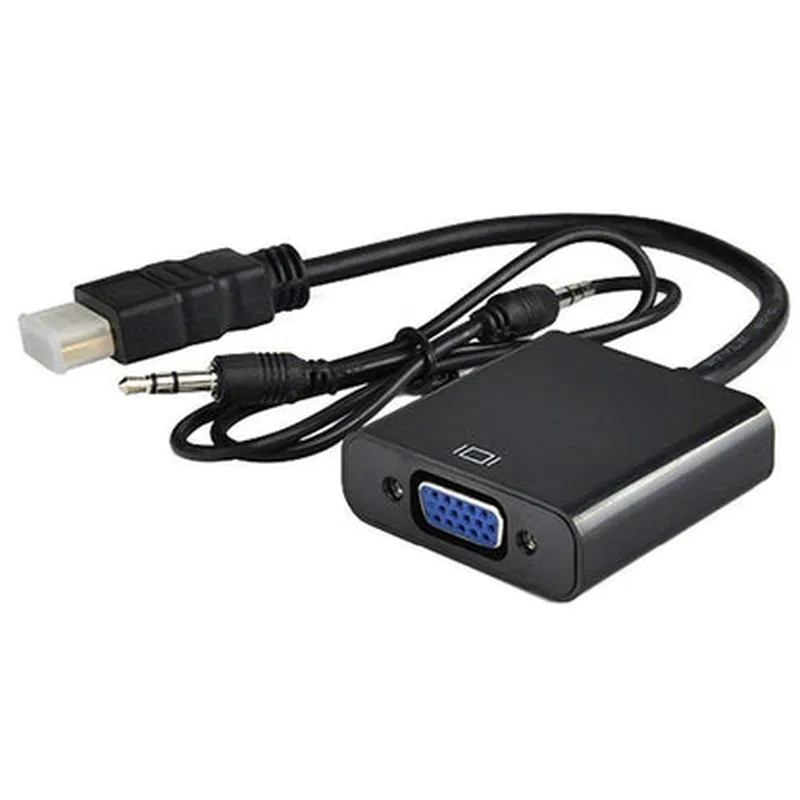
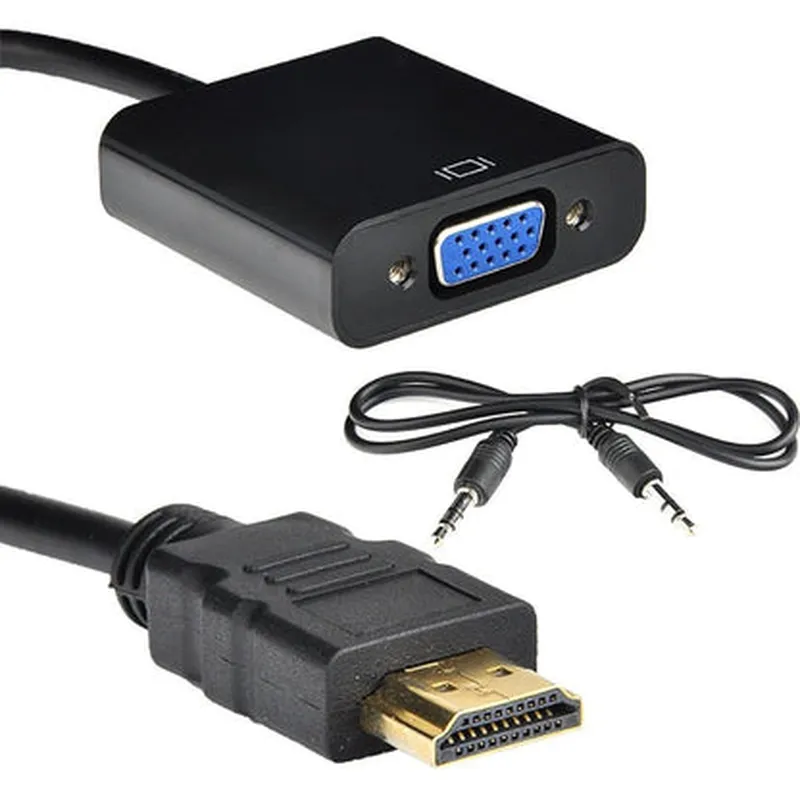
1 x HDMI (Type A)
1 x VGA (15-pin)
Up to 1080p (1920x1080) at 60Hz
Supports audio transmission from HDMI to VGA
USB-powered
2.5 x 1.5 x 0.8 inches (64 x 38 x 20 mm)
2.2 oz (62g)
32F to 104F (0C to 40C)
-4F to 140F (-20C to 60C)
Package Contents
1 x HDMI to VGA Converter with Audio - Black
1 x USB Power Cable
Warranty and Support
The HDMI to VGA Converter with Audio - Black is backed by a one-year limited warranty and dedicated technical support team.
HDMI to VGA Converter with Audio - BlackOverviewThe HDMI to VGA Converter with Audio - Black is a versatile and compact device that converts digital HDMI signals to analog VGA signals, allowing users to connect modern devices with HDMI outputs to older displays or projectors with VGA inputs. This converter also supports audio output through a 3.5mm audio jack, making it an ideal solution for presentations, media streaming, and gaming.Technical SpecificationsInput: HDMI 1.3, resolution up to 1080p (1920x1080)
Output: VGA, resolution up to 1080p (1920x1080)
Audio Output: 3.5mm audio jack, supporting stereo audio
Power Supply: USB-powered, 5V, 1A
Dimensions: 60mm x 40mm x 20mm (2.36in x 1.57in x 0.79in)
Weight: 60g (2.12oz)
Operating Temperature: 0C to 40C (32F to 104F)Code ExamplesExample 1: Python Script to Automate HDMI to VGA ConversionIn this example, we will use a Python script to automate the HDMI to VGA conversion process using the converter. We will assume that the converter is connected to a Raspberry Pi single-board computer.Hardware RequirementsRaspberry Pi (any model)
HDMI to VGA Converter with Audio - Black
VGA monitor or projector
HDMI cable
USB cable (for powering the converter)Software RequirementsRaspbian OS (or any other OS supported by Raspberry Pi)
Python 3.xCode
```python
import os
import time# Set the HDMI output resolution to 1080p
os.system("sudo tvservice -e 'HDMI 1 1920 1080 60'")# Wait for 2 seconds to allow the HDMI output to stabilize
time.sleep(2)# Use the HDMI to VGA converter to output the signal to VGA
os.system("sudo fbset -xres 1920 -yres 1080 -vxres 1920 -vyres 1080 -vx 0 -vy 0")
```
This script sets the HDMI output resolution to 1080p, waits for 2 seconds to allow the signal to stabilize, and then uses the HDMI to VGA converter to output the signal to a VGA monitor or projector.Example 2: Using the Converter with a Media PlayerIn this example, we will use the HDMI to VGA converter with a media player to play videos on a VGA monitor or projector.Hardware RequirementsMedia player (e.g., Kodi, Plex, or any other media player software)
HDMI to VGA Converter with Audio - Black
VGA monitor or projector
HDMI cable
USB cable (for powering the converter)Software RequirementsMedia player software (e.g., Kodi, Plex, or any other media player software)Configuration1. Connect the media player to the HDMI input of the converter using an HDMI cable.
2. Connect the VGA output of the converter to the VGA input of the monitor or projector using a VGA cable.
3. Connect the audio output of the converter to the audio input of the monitor or projector using a 3.5mm audio cable.
4. Configure the media player to output the video signal to the HDMI output.
5. Play a video using the media player, and the converter will automatically convert the HDMI signal to VGA and output it to the monitor or projector.Example 3: Using the Converter with a Gaming ConsoleIn this example, we will use the HDMI to VGA converter with a gaming console to play games on a VGA monitor or projector.Hardware RequirementsGaming console (e.g., PlayStation, Xbox, or any other gaming console)
HDMI to VGA Converter with Audio - Black
VGA monitor or projector
HDMI cable
USB cable (for powering the converter)Software RequirementsNone (the gaming console will handle the video output)Configuration1. Connect the gaming console to the HDMI input of the converter using an HDMI cable.
2. Connect the VGA output of the converter to the VGA input of the monitor or projector using a VGA cable.
3. Connect the audio output of the converter to the audio input of the monitor or projector using a 3.5mm audio cable.
4. Configure the gaming console to output the video signal to the HDMI output.
5. Play a game using the gaming console, and the converter will automatically convert the HDMI signal to VGA and output it to the monitor or projector.Note: The above examples are for illustration purposes only and may require additional configuration and setup depending on the specific use case and hardware/software requirements.