55mm x 40mm


55mm x 40mm
12g
0C to 50C
-40C to 80C
Certifications and Compliance
CE and FCC certified
RoHS and REACH compliant
Accessories and Support
Compatible with Raspberry Pi camera modules
Compatible with Raspberry Pi display modules
Extensive community support and resources
Detailed documentation and guides available
Applications
Industrial automation and control systems
IoT gateways and edge computing devices
Robotics and autonomous systems
Digital signage and kiosk applications
Home automation and security systems
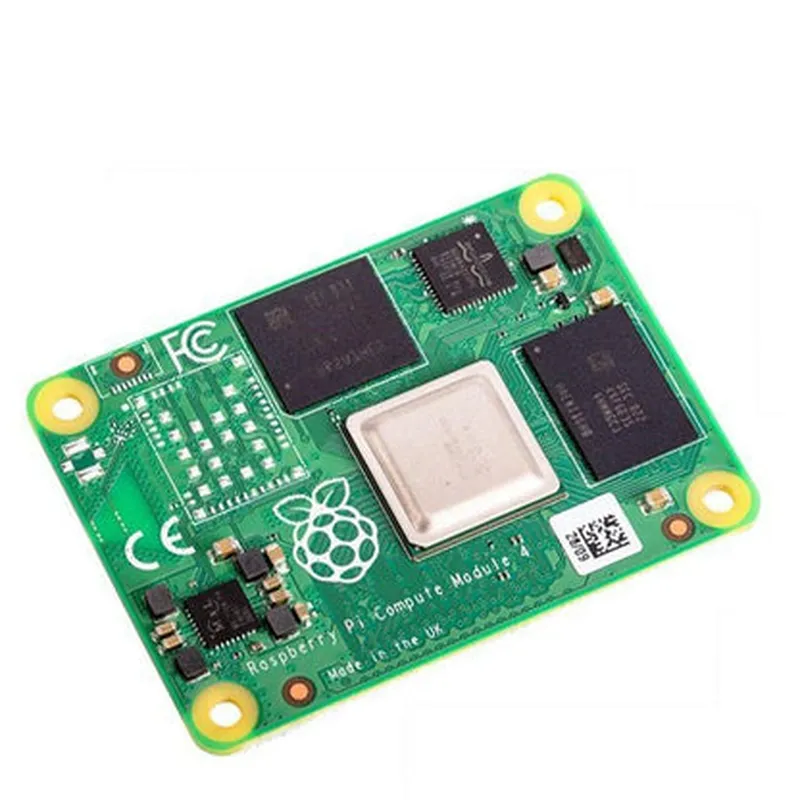
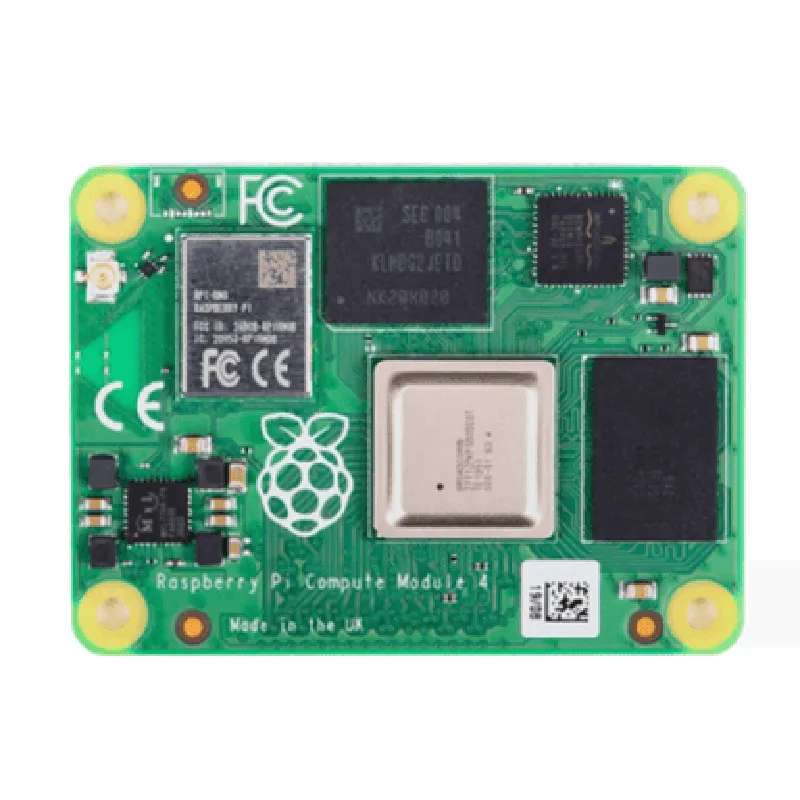
The Raspberry Pi Compute Module 4 with 2GB RAM, 8GB eMMC offers a unique combination of high performance, low power consumption, and compact size, making it an ideal choice for a wide range of applications where a small, affordable, and highly capable computer is required.
Raspberry Pi Compute Module 4 with 2GB RAM, 8GB eMMCThe Raspberry Pi Compute Module 4 (CM4) is a compact, high-performance system-on-module (SoM) designed for industrial and commercial applications. This module combines the Raspberry Pi 4's processing power with 2GB of RAM and 8GB of eMMC flash storage.Key Features:Broadcom BCM2711B0 quad-core Cortex-A72 CPU
2GB LPDDR4-2400 SDRAM
8GB eMMC flash storage
Dual-band 802.11ac wireless networking
Bluetooth 5.0
Gigabit Ethernet
USB 2.0 and USB 3.0 interfaces
HDMI 2.0a output
40-pin GPIO headerOperating System:The Raspberry Pi Compute Module 4 supports various operating systems, including Raspbian, Ubuntu, and Yocto Project. For this documentation, we will focus on using Raspbian, the official OS for Raspberry Pi devices.Code Examples:### Example 1: Basic GPIO Control using PythonThis example demonstrates how to use the Raspberry Pi Compute Module 4's GPIO pins to control an LED.Hardware:Raspberry Pi Compute Module 4
Breadboard
LED
1k resistor
Jumper wiresSoftware:Raspbian OS
Python 3.xCode:
```python
import RPi.GPIO as GPIO
import time# Set up GPIO mode
GPIO.setmode(GPIO.BCM)# Set up GPIO pin 17 as an output
GPIO.setup(17, GPIO.OUT)while True:
# Turn the LED on
GPIO.output(17, GPIO.HIGH)
time.sleep(1)
# Turn the LED off
GPIO.output(17, GPIO.LOW)
time.sleep(1)
```
Explanation:In this example, we use the RPi.GPIO library to control the GPIO pins. We set up pin 17 as an output and toggle its state between high and low to turn the LED on and off.### Example 2: Web-based Temperature Sensor using Flask and DHT11This example demonstrates how to use the Raspberry Pi Compute Module 4 to read temperature data from a DHT11 sensor and serve it on a web page using Flask.Hardware:Raspberry Pi Compute Module 4
Breadboard
DHT11 temperature and humidity sensor
Jumper wiresSoftware:Raspbian OS
Python 3.x
Flask web framework
Adafruit DHT libraryCode:
```python
from flask import Flask, render_template
import Adafruit_DHTapp = Flask(__name__)# Set up DHT11 sensor
dht_sensor = Adafruit_DHT.DHT11
dht_pin = 4@app.route('/')
def index():
# Read temperature data from DHT11 sensor
humidity, temperature = Adafruit_DHT.read_retry(dht_sensor, dht_pin)
# Render HTML template with temperature data
return render_template('index.html', temperature=temperature)if __name__ == '__main__':
app.run(host='0.0.0.0', port=80)
```
HTML Template (index.html):
```html
<!DOCTYPE html>
<html>
<head>
<title>Temperature Sensor</title>
</head>
<body>
<h1>Temperature: {{ temperature }}C</h1>
</body>
</html>
```
Explanation:In this example, we use the Adafruit DHT library to read temperature data from the DHT11 sensor. We then use Flask to create a web server that serves an HTML page with the current temperature data. The HTML template uses Jinja2 templating to display the temperature value.These examples demonstrate the versatility of the Raspberry Pi Compute Module 4 and its ability to be used in various IoT applications.