The keyboard and mouse are designed to be compact and lightweight, making them ideal for use in a wide range of applications, from DIY projects to industrial installations.


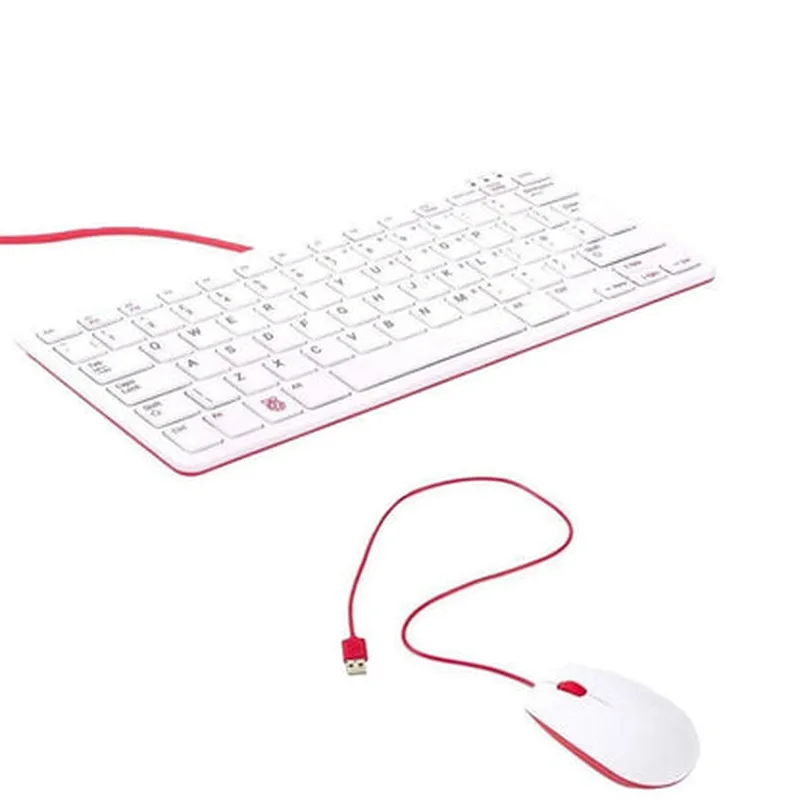
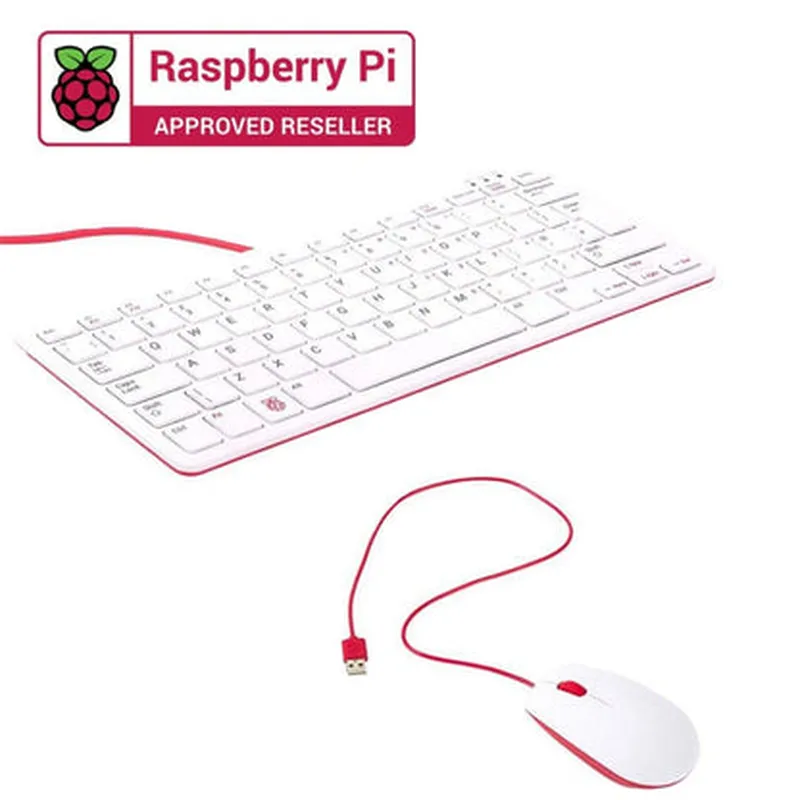
The keyboard and mouse are designed to be compact and lightweight, making them ideal for use in a wide range of applications, from DIY projects to industrial installations.
The keyboard and mouse are specifically designed for use with Raspberry Pi boards, ensuring optimal compatibility and performance.
| Plug-and-Play | No additional setup or configuration is required; simply plug in the keyboard and mouse and start working. |
| 79-Key Keyboard Layout | The keyboard features a standard 79-key layout, including all the essential keys, function keys, and a cursor pad. |
| Three-Button Optical Mouse | The mouse features a precise optical sensor and three buttons, providing precise control and navigation. |
Both the keyboard and mouse connect to your Raspberry Pi using standard USB cables, ensuring reliable and fast data transfer.
The Raspberry Pi Official Keyboard and Mouse Kit is a genuine Raspberry Pi product, ensuring compatibility, quality, and reliability.
Technical Specifications
280 x 100 x 20 mm (11.0 x 3.9 x 0.8 in)
60 x 100 x 30 mm (2.4 x 3.9 x 1.2 in)
250 g (8.8 oz)
60 g (2.1 oz)
1.5 m (4.9 ft)
USB
Raspberry Pi 2, 3, 4, and 400
Applications
| The Raspberry Pi Official Keyboard and Mouse Kit is suitable for a wide range of applications, including |
DIY projects and prototypes
Robotics and automation
Home automation and IoT projects
Industrial control and monitoring systems
Educational and research projects
Retro game consoles and emulation systems
Conclusion
The Raspberry Pi Official Keyboard and Mouse Kit is a reliable, efficient, and intuitive input device solution for Raspberry Pi single-board computers. With its compact design, plug-and-play functionality, and optimized performance, this kit is an ideal accessory for a wide range of projects and applications.
Raspberry Pi Official Keyboard and Mouse Kit DocumentationOverviewThe Raspberry Pi Official Keyboard and Mouse Kit is a compact and ergonomic keyboard and mouse combo designed specifically for use with Raspberry Pi single-board computers. This kit provides a convenient and cost-effective solution for users who want a reliable and efficient way to interact with their Raspberry Pi projects.Technical SpecificationsKeyboard:
+ Layout: QWERTY
+ Keys: 78
+ Interface: USB
+ Dimensions: 284 x 93 x 23mm
Mouse:
+ Interface: USB
+ Sensor: Optical
+ Resolution: 1000 dpi
+ Dimensions: 100 x 60 x 35mmUsing the Raspberry Pi Official Keyboard and Mouse KitThe Raspberry Pi Official Keyboard and Mouse Kit can be used with any Raspberry Pi model that has a USB port. Here are some code examples that demonstrate how to use this component in various contexts:Example 1: Using the Keyboard to Input Data in PythonIn this example, we will use the Raspberry Pi Official Keyboard to input data in a Python script.```python
# Import the necessary module
import keyboard# Define a function to read input from the keyboard
def read_input():
print("Enter your name: ")
name = input()
print("Hello, " + name + "!")# Call the function
read_input()
```In this example, we use the `keyboard` module to read input from the user through the Raspberry Pi Official Keyboard. When the user presses Enter, the input is stored in the `name` variable and printed to the console.Example 2: Using the Mouse to Control a GUI ApplicationIn this example, we will use the Raspberry Pi Official Mouse to control a simple GUI application built using the Pygame library.```python
# Import the necessary modules
import pygame
import sys# Initialize Pygame
pygame.init()# Set up the display
screen = pygame.display.set_mode((640, 480))# Set up the mouse
pygame.mouse.set_visible(True)# Define a function to handle mouse events
def handle_mouse_events():
while True:
for event in pygame.event.get():
if event.type == pygame.QUIT:
pygame.quit()
sys.exit()
elif event.type == pygame.MOUSEMOTION:
print("Mouse moved to: " + str(event.pos))
elif event.type == pygame.MOUSEBUTTONDOWN:
print("Mouse button pressed at: " + str(event.pos))
elif event.type == pygame.MOUSEBUTTONUP:
print("Mouse button released at: " + str(event.pos))# Call the function
handle_mouse_events()
```In this example, we use the Pygame library to create a GUI application that responds to mouse events. When the user moves the mouse, presses a mouse button, or releases a mouse button, the corresponding event is handled by the `handle_mouse_events` function.Example 3: Using the Keyboard and Mouse Together in a GameIn this example, we will use both the Raspberry Pi Official Keyboard and Mouse to control a simple game built using the Pygame library.```python
# Import the necessary modules
import pygame
import sys# Initialize Pygame
pygame.init()# Set up the display
screen = pygame.display.set_mode((640, 480))# Set up the keyboard and mouse
pygame.key.set_repeat(10, 10)
pygame.mouse.set_visible(True)# Define a function to handle keyboard and mouse events
def handle_events():
while True:
for event in pygame.event.get():
if event.type == pygame.QUIT:
pygame.quit()
sys.exit()
elif event.type == pygame.KEYDOWN:
if event.key == pygame.K_UP:
print("Up arrow pressed")
elif event.key == pygame.K_DOWN:
print("Down arrow pressed")
elif event.type == pygame.MOUSEMOTION:
print("Mouse moved to: " + str(event.pos))
elif event.type == pygame.MOUSEBUTTONDOWN:
print("Mouse button pressed at: " + str(event.pos))# Call the function
handle_events()
```In this example, we use both the keyboard and mouse to control a simple game. When the user presses the up or down arrow keys, a message is printed to the console. When the user moves the mouse or presses a mouse button, a message is also printed to the console.These examples demonstrate the versatility and ease of use of the Raspberry Pi Official Keyboard and Mouse Kit in various contexts.