XBee USB Explorer


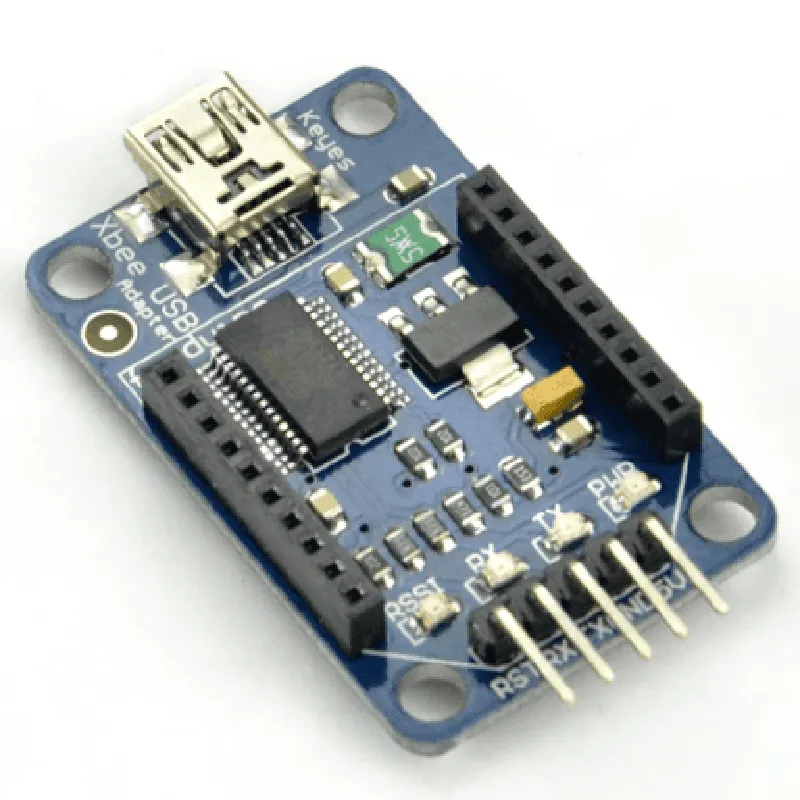
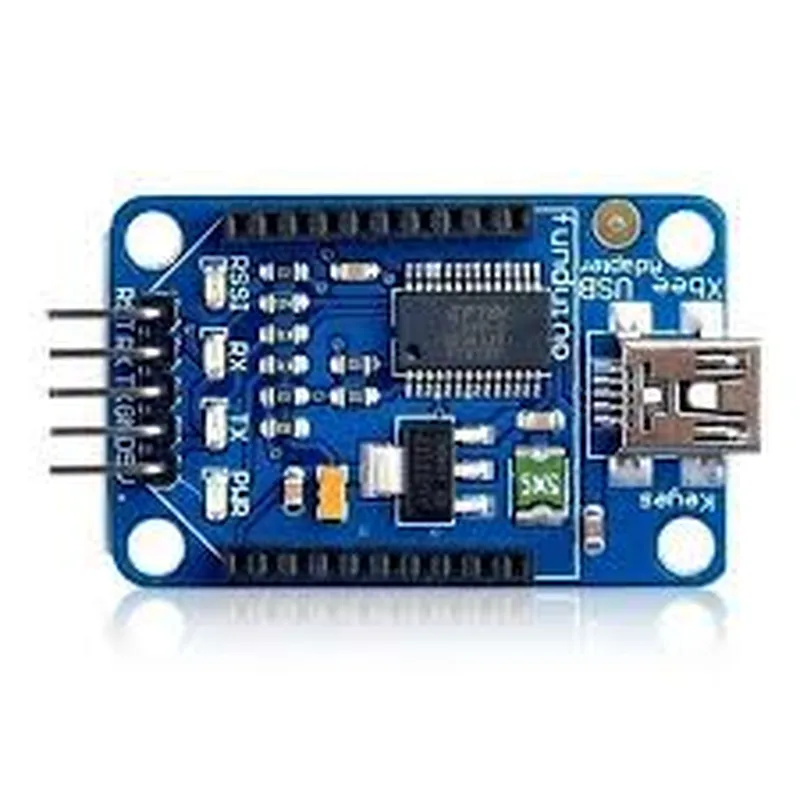
XBee USB Explorer
The XBee USB Explorer is a development tool designed to simplify the process of configuring and testing XBee modules, a popular series of wireless communication modules used in IoT applications. This explorer provides a convenient and easy-to-use interface for connecting XBee modules to a computer, enabling users to configure, program, and test their XBee-based projects.
| The XBee USB Explorer serves as a bridge between the XBee module and a computer, allowing users to |
2.5 inches x 1.5 inches x 0.5 inches (63.5 mm x 38.1 mm x 12.7 mm)
0.6 oz (17 g)
32F to 158F (0C to 70C)
-40F to 185F (-40C to 85C)
50 mA (max)
FCC (Federal Communications Commission) compliant
CE (Conformit Europene) compliant
RoHS (Restriction of Hazardous Substances) compliant
XBee module (not included)
USB cable (included)
Quick start guide (included)
By providing a convenient and easy-to-use interface for configuring and testing XBee modules, the XBee USB Explorer is an essential tool for developers, engineers, and hobbyists working on IoT projects that utilize XBee technology.
XBee USB Explorer DocumentationThe XBee USB Explorer is a simple, plug-and-play device that allows users to connect XBee modules to their computer's USB port. It provides an easy way to configure, test, and communicate with XBee devices.Hardware DetailsCompatible with XBee, XBee-Pro, and XBee-PRO 900HP modules
USB 2.0 interface
3.3V power regulator for XBee module
10-pin XBee socket
5-pin DCE-9 connector for serial communication
LED indicators for power, RSSI, and associate statusSoftware ConfigurationThe XBee USB Explorer can be configured using the XCTU software provided by Digi International. XCTU allows users to configure XBee modules, test communication, and update firmware.Code Examples### Example 1: Using the XBee USB Explorer with Python (Windows)In this example, we will use Python to send data from a computer to an XBee module connected to the XBee USB Explorer.RequirementsPython 3.x
PySerial library (install using `pip install pyserial`)
XCTU software (for initial configuration of XBee module)Code
```python
import serial# Open the serial connection to the XBee USB Explorer
ser = serial.Serial('COM3', 9600, timeout=1) # Replace COM3 with the actual COM port# Send data to the XBee module
ser.write(b'Hello, XBee!')# Close the serial connection
ser.close()
```
### Example 2: Using the XBee USB Explorer with Arduino (Serial Communication)In this example, we will use an Arduino board to send data to an XBee module connected to the XBee USB Explorer.RequirementsArduino IDE
XBee module configured for serial communication
XCTU software (for initial configuration of XBee module)Code
```c++
#include <SoftwareSerial.h>// Define the serial pins for communication with the XBee module
SoftwareSerial xbeeSerial(2, 3); // Replace with the actual pinsvoid setup() {
xbeeSerial.begin(9600);
}void loop() {
xbeeSerial.print("Hello, XBee!");
delay(1000);
}
```
### Example 3: Using the XBee USB Explorer with a MicroPython Board (e.g., Pyboard)In this example, we will use a MicroPython board (e.g., Pyboard) to send data to an XBee module connected to the XBee USB Explorer.RequirementsMicroPython firmware on the Pyboard
XCTU software (for initial configuration of XBee module)Code
```python
import uart# Initialize the serial connection to the XBee module
uart.init(baudrate=9600)# Send data to the XBee module
uart.write(b'Hello, XBee!')# Close the serial connection
uart.deinit()
```
Important NotesMake sure to configure the XBee module using XCTU software before using it with the XBee USB Explorer.
The examples provided are for demonstration purposes only and may require modifications to suit specific use cases.
Always follow proper safety precautions when working with electrical components.