Stufin
Home Quick Cart Profile

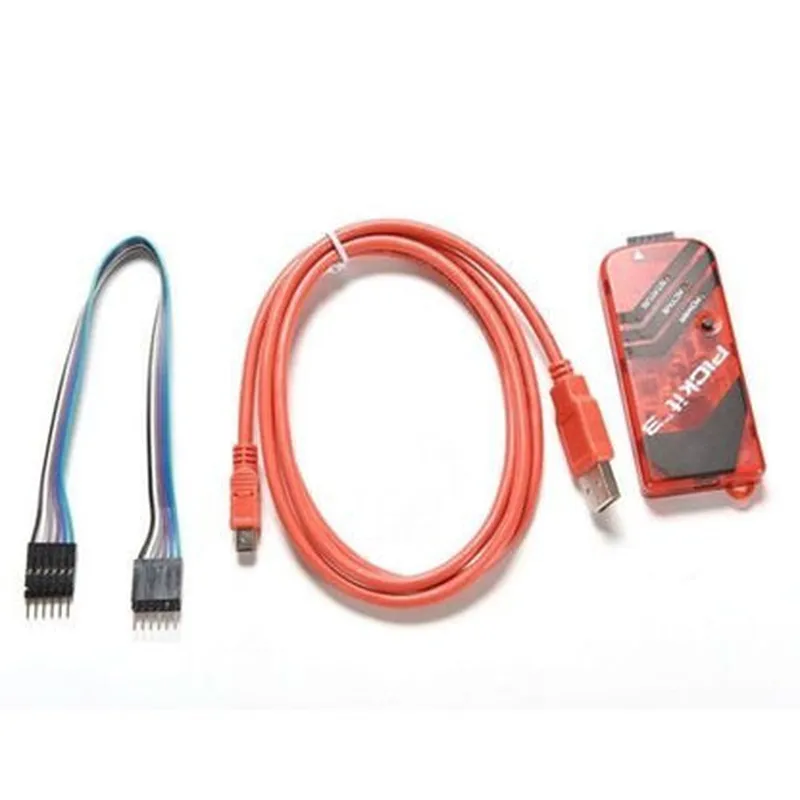
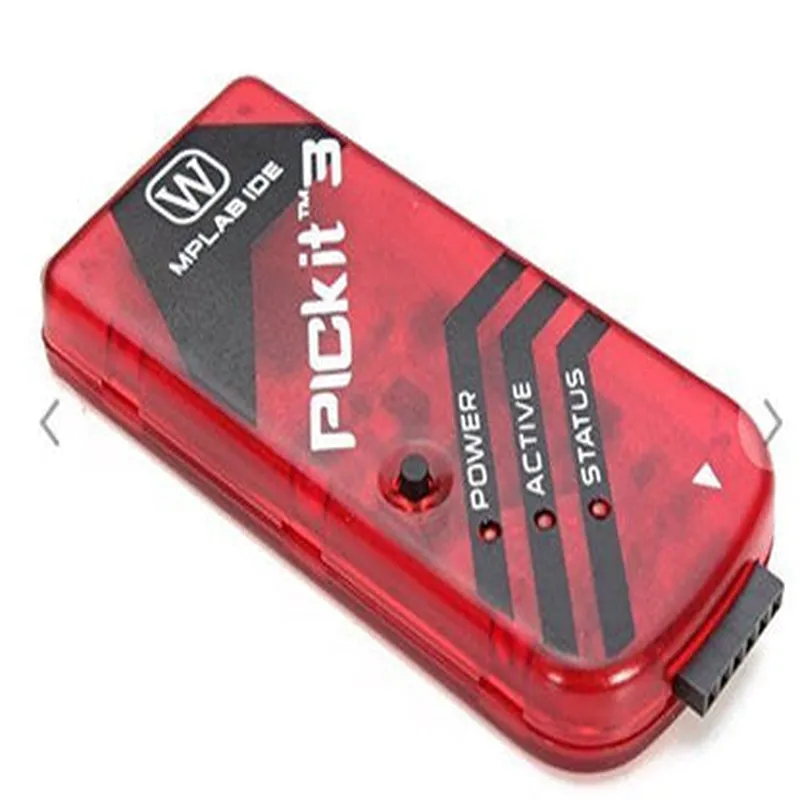
PICkit3 USB Debugger Programmer Emulator Controller Development Board


Buy Now on Stufin

Name

PICkit3 USB Debugger Programmer Emulator Controller Development Board
Description

The PICkit3 is a powerful and feature-rich development board designed for debugging, programming, and emulating Microchip PIC microcontrollers. This board serves as a versatile tool for developers, engineers, and hobbyists to design, test, and deploy a wide range of IoT and embedded systems projects.

Functionality

  • Debugger: The PICkit3 allows users to debug their PIC microcontroller-based projects by providing real-time debugging, single-stepping, and breakpoint capabilities.
  • Programmer: The board can program PIC microcontrollers using the In-Circuit Serial Programming (ICSP) protocol, enabling users to load firmware, update software, and configure device settings.
  • Emulator: The PICkit3 can emulate a PIC microcontroller, allowing users to test and verify their code without the need for a physical device.
  • Controller: The board can be used as a standalone controller for IoT and embedded systems projects, enabling users to develop and deploy custom applications.
The PICkit3 USB Debugger Programmer Emulator Controller Development Board is a multi-functional tool that offers the following capabilities
Key Features

  • USB Connectivity: The PICkit3 features a built-in USB interface, providing easy connectivity to PCs and laptops.
  • High-Speed Programming: The board supports high-speed programming, reducing the time required to load firmware and update software.
  • Real-Time Debugging: The PICkit3 offers real-time debugging capabilities, allowing users to monitor and control their code execution in real-time.
  • Breakpoint Capability: The board supports breakpoint functionality, enabling users to pause code execution at specific points for debugging and analysis.
  • ICSP Compatibility: The PICkit3 is compatible with Microchip's ICSP protocol, ensuring seamless programming and debugging of PIC microcontrollers.
  • Microcontroller Support: The board supports a wide range of Microchip PIC microcontrollers, including 8-bit, 16-bit, and 32-bit devices.
  • Development Environment: The PICkit3 is compatible with popular development environments, such as MPLAB X IDE and XC8 compiler, providing a comprehensive development ecosystem.
  • Power Management: The board features power management capabilities, allowing users to control and monitor power consumption in their projects.
  • Expansion Capabilities: The PICkit3 has expansion headers, enabling users to connect external peripherals, sensors, and actuators to their projects.
  • Compact Form Factor: The board's compact design makes it ideal for prototyping, proof-of-concept development, and deployment in space-constrained applications.

Controller

PIC24FJ256GB110 microcontroller

Clock Speed

Up to 32 MHz

Memory

256 KB Flash, 16 KB RAM

USB Interface

USB 2.0 Full-Speed

Power Supply

USB-powered or external power source (optional)

Operating Temperature

0C to 70C

Dimensions

85 mm x 55 mm x 17 mm (3.35 in x 2.17 in x 0.67 in)

Applications

The PICkit3 USB Debugger Programmer Emulator Controller Development Board is ideal for a wide range of applications, including

IoT devices and sensors

Embedded systems and robotics

Industrial automation and control systems

Consumer electronics and wearables

Prototyping and proof-of-concept development

Education and research

Pin Configuration

  • PICkit3 USB Debugger Programmer Emulator Controller Development Board Pinout Explanation
  • The PICkit3 is a powerful and versatile development tool for Microchip's PIC microcontrollers. This document provides a detailed explanation of the pins on the PICkit3 board, along with connection guidelines.
  • Pinout:
  • The PICkit3 board has a total of 24 pins, divided into three main sections:
  • ### Section 1: ICSP Pins (6 Pins)
  • These pins are used for In-Circuit Serial Programming (ICSP) and debugging.
  • 1. Vpp (Pin 1): This pin provides the programming voltage to the target microcontroller. Typically, this pin is connected to the Vpp pin on the target device.
  • 2. Vdd (Pin 2): This pin provides the power supply voltage to the target microcontroller. Typically, this pin is connected to the Vdd pin on the target device.
  • 3. GND (Pin 3): This pin is the ground connection for the target microcontroller.
  • 4. PGD (Pin 4): This pin is the data line for ICSP communication.
  • 5. PGC (Pin 5): This pin is the clock line for ICSP communication.
  • 6. AUX (Pin 6): This pin is an auxiliary input/output pin, used for additional functionality such as target voltage sensing.
  • ### Section 2: USB andPower Pins (6 Pins)
  • These pins are used for connecting the board to a computer via USB and for power supply.
  • 1. VUSB (Pin 7): This pin is connected to the USB bus voltage (5V).
  • 2. GND (Pin 8): This pin is the ground connection for the USB bus.
  • 3. D- (Pin 9): This pin is the USB data negative line.
  • 4. D+ (Pin 10): This pin is the USB data positive line.
  • 5. VREG (Pin 11): This pin is the output of the onboard voltage regulator (3.3V).
  • 6. GND (Pin 12): This pin is the ground connection for the voltage regulator.
  • ### Section 3: GPIO andEmulation Pins (12 Pins)
  • These pins are used for general-purpose input/output (GPIO) and emulation functions.
  • 1. PGC (Pin 13): This pin is an emulation control pin, used for debugging and emulation.
  • 2. PGD (Pin 14): This pin is an emulation data pin, used for debugging and emulation.
  • 3. RA0 (Pin 15): This pin is a GPIO pin, can be used for digital input/output or analog input.
  • 4. RA1 (Pin 16): This pin is a GPIO pin, can be used for digital input/output or analog input.
  • 5. RA2 (Pin 17): This pin is a GPIO pin, can be used for digital input/output or analog input.
  • 6. RA3 (Pin 18): This pin is a GPIO pin, can be used for digital input/output or analog input.
  • 7. RA4 (Pin 19): This pin is a GPIO pin, can be used for digital input/output or analog input.
  • 8. RA5 (Pin 20): This pin is a GPIO pin, can be used for digital input/output or analog input.
  • 9. RB0 (Pin 21): This pin is a GPIO pin, can be used for digital input/output or analog input.
  • 10. RB1 (Pin 22): This pin is a GPIO pin, can be used for digital input/output or analog input.
  • 11. RB2 (Pin 23): This pin is a GPIO pin, can be used for digital input/output or analog input.
  • 12. RB3 (Pin 24): This pin is a GPIO pin, can be used for digital input/output or analog input.
  • Connection Guidelines:
  • When connecting the PICkit3 to a target microcontroller, make sure to follow these guidelines:
  • Use a 6-pin ICSP cable to connect the ICSP pins (Vpp, Vdd, GND, PGD, PGC, and AUX) to the corresponding pins on the target microcontroller.
  • Connect the VREG pin to the power supply pin on the target microcontroller (if necessary).
  • Connect the GND pins to the ground connection on the target microcontroller.
  • Use the GPIO pins (RA0-RA5 and RB0-RB3) to connect to the desired peripherals on the target microcontroller.
  • Ensure that the PICkit3 is properly connected to a computer via USB for programming and debugging.
  • Remember to consult the datasheet of the target microcontroller and the PICkit3 for specific connection details and guidelines.

Code Examples

PICkit3 USB Debugger Programmer Emulator Controller Development Board Documentation
Overview
The PICkit3 USB Debugger Programmer Emulator Controller Development Board is a versatile development tool designed for Microchip's 8-bit, 16-bit, and 32-bit PIC microcontrollers. This board provides a comprehensive debugging, programming, and emulation solution for developers, allowing for efficient testing and development of IoT applications.
Features
USB interface for connecting to a computer
 In-circuit debugger and programmer
 Emulator controller for debugging and testing
 Supports various Microchip PIC microcontrollers
 Compatible with various development environments, including MPLAB X IDE
Getting Started
To use the PICkit3 USB Debugger Programmer Emulator Controller Development Board, follow these steps:
1. Connect the board to your computer using a USB cable.
2. Install the necessary drivers and software, such as MPLAB X IDE.
3. Connect the target PIC microcontroller to the board using a suitable adapter or cable.
Code Examples
### Example 1: Blinking an LED using a PIC16F877A Microcontroller
In this example, we will use the PICkit3 to program and debug a PIC16F877A microcontroller to blink an LED connected to port RB0.
Hardware Requirements
PIC16F877A microcontroller
 LED connected to port RB0
 Resistor (1k)
 Breadboard and jumper wires
Software Requirements
MPLAB X IDE
 XC8 compiler
Code
```c
#include <xc.h>
#define _XTAL_FREQ 8000000 // 8MHz crystal frequency
void main(void) {
    TRISB = 0x00; // Set port B as output
    while (1) {
        RB0 = 1; // Set RB0 high
        __delay_ms(500); // Delay for 500ms
        RB0 = 0; // Set RB0 low
        __delay_ms(500); // Delay for 500ms
    }
    return;
}
```
Steps
1. Connect the PIC16F877A microcontroller to the PICkit3 board.
2. Create a new project in MPLAB X IDE and select the PIC16F877A as the target device.
3. Write and compile the code above.
4. Program the microcontroller using the PICkit3.
5. Connect the LED and resistor to port RB0.
6. Run the program and observe the LED blinking.
### Example 2: Debugging a PIC18F4520 Microcontroller using the PICkit3
In this example, we will use the PICkit3 to debug a PIC18F4520 microcontroller running a simple program that increments a counter.
Hardware Requirements
PIC18F4520 microcontroller
 Breadboard and jumper wires
Software Requirements
MPLAB X IDE
 XC8 compiler
Code
```c
#include <xc.h>
unsigned char counter = 0;
void main(void) {
    TRISC = 0x00; // Set port C as output
    while (1) {
        counter++;
        PORTC = counter; // Display counter value on port C
        __delay_ms(100); // Delay for 100ms
    }
    return;
}
```
Steps
1. Connect the PIC18F4520 microcontroller to the PICkit3 board.
2. Create a new project in MPLAB X IDE and select the PIC18F4520 as the target device.
3. Write and compile the code above.
4. Program the microcontroller using the PICkit3.
5. Open the MPLAB X IDE debugger and connect to the PICkit3.
6. Set breakpoints in the code and run the program.
7. Use the debugger to step through the code, examine variables, and debug the program.
These examples demonstrate the versatility of the PICkit3 USB Debugger Programmer Emulator Controller Development Board in various contexts, including programming, debugging, and testing of Microchip PIC microcontrollers.