Raspberry Pi Zero WH + Raspberry Pi Zero W-WH Enclosure- Case and Camera Cable Documentation
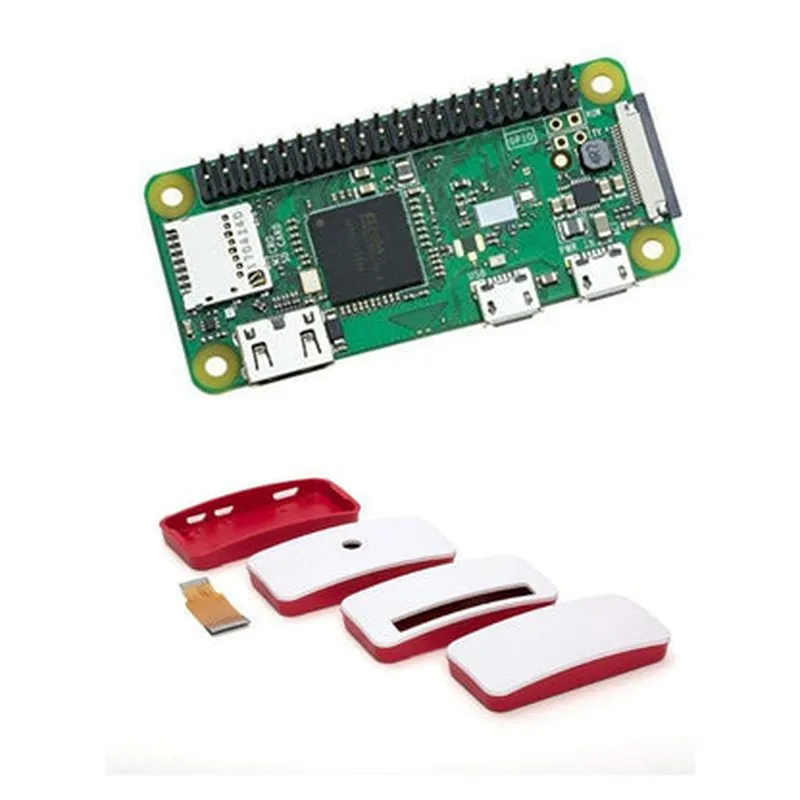
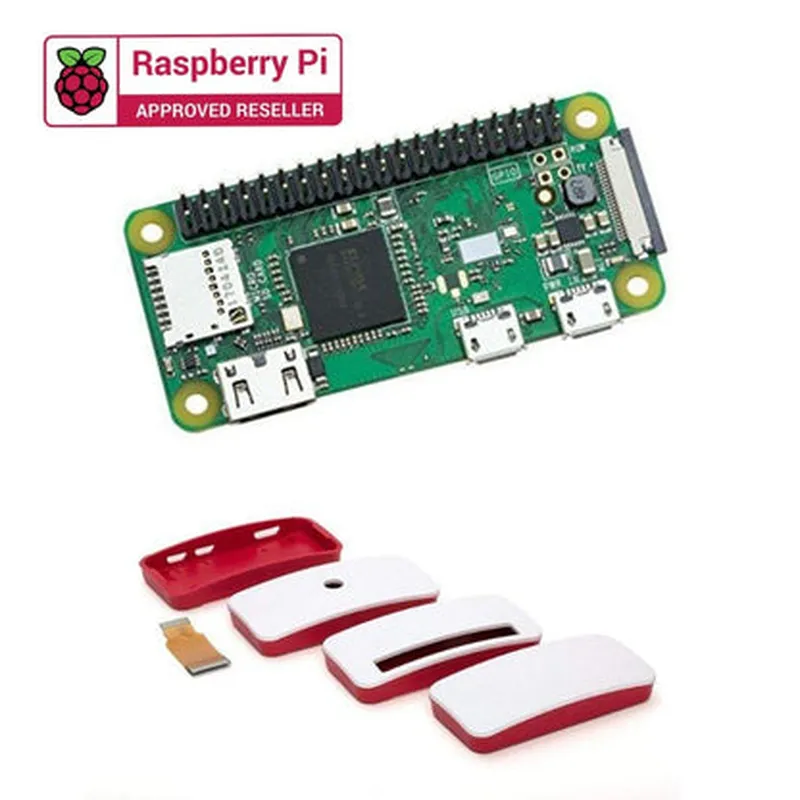
The Raspberry Pi Zero WH is a small, low-cost, and highly capable single-board computer that is ideal for IoT projects. When combined with the Raspberry Pi Zero W-WH Enclosure-Case and camera cable, it provides a compact and versatile solution for projects that require camera functionality.
Raspberry Pi Zero WH:
	+ Processor: Broadcom BCM2835, 1GHz single-core CPU
	+ RAM: 512MB
	+ Storage: MicroSD card slot
	+ Wi-Fi: 802.11 b/g/n wireless LAN
	+ Bluetooth: 4.0
	+ Camera: CSI (Camera Serial Interface) connector
	+ Operating System: Raspbian (official OS)
 Raspberry Pi Zero W-WH Enclosure-Case:
	+ Material: High-quality ABS plastic
	+ Dimensions: 65mm x 30mm x 15mm
	+ Features: Access to all ports, camera mount, and LED indicators
 Camera Cable:
	+ Length: 15cm
	+ Connector: CSI connector
### Example 1: Capturing Images with the Raspberry Pi Zero WH and Camera
This example demonstrates how to capture images using the Raspberry Pi Zero WH and the camera module.
Python Code
```python
import picamera
# Initialize the camera
camera = picamera.PiCamera()
# Set the camera resolution and framerate
camera.resolution = (640, 480)
camera.framerate = 30
# Capture an image and save it to a file
camera.capture('image.jpg')
# Clean up
camera.close()
```
### Example 2: Streaming Video over Wi-Fi using the Raspberry Pi Zero WH and Camera
This example demonstrates how to stream video over Wi-Fi using the Raspberry Pi Zero WH and the camera module.
Python Code
```python
import picamera
import socket
# Initialize the camera
camera = picamera.PiCamera()
# Set the camera resolution and framerate
camera.resolution = (640, 480)
camera.framerate = 30
# Create a socket object
sock = socket.socket(socket.AF_INET, socket.SOCK_STREAM)
# Bind the socket to a specific address and port
sock.bind(('0.0.0.0', 8080))
# Listen for incoming connections
sock.listen(1)
# Accept an incoming connection
conn, addr = sock.accept()
# Stream video over Wi-Fi
while True:
    camera.capture('stream.jpg')
    with open('stream.jpg', 'rb') as f:
        conn.sendall(f.read())
# Clean up
camera.close()
sock.close()
```
Note: These examples assume that you have Raspbian installed on your Raspberry Pi Zero WH and that you have enabled the camera interface in the Raspberry Pi configuration.
Make sure that the camera module is properly connected to the CSI connector on the Raspberry Pi Zero WH.
 Verify that the camera is enabled in the Raspberry Pi configuration using the `raspi-config` utility.
 Check that the Wi-Fi connection is stable and working properly.
Raspberry Pi Zero WH documentation: <https://www.raspberrypi.org/documentation/hardware/computemodule/RPi_Zero.pdf>
 Picamera library documentation: <https://picamera.readthedocs.io/en/release-1.13/>
 Raspbian documentation: <https://www.raspberrypi.org/documentation/configuration/>