| + Microcontroller | ATmega328P (Uno) or ATmega328P (Nano) |
| + Flash Memory | 32 KB (Uno) or 16 KB (Nano) |
| + SRAM | 2 KB (Uno) or 1 KB (Nano) |
| + EEPROM | 1 KB (Uno) or 512 bytes (Nano) |


| + Microcontroller | ATmega328P (Uno) or ATmega328P (Nano) |
| + Flash Memory | 32 KB (Uno) or 16 KB (Nano) |
| + SRAM | 2 KB (Uno) or 1 KB (Nano) |
| + EEPROM | 1 KB (Uno) or 512 bytes (Nano) |
| + Temperature and humidity sensor | DHT11 |
| + Light sensor | Photodiode |
| + Ultrasonic distance sensor | HC-SR04 |
| + Buzzer | 5V active buzzer |
| + LED lights | 5mm LED x 5 |
| + Servo motor | SG90 |
| + DC motor | 3V-6V DC motor |
| + Breadboard | 400-point solderless breadboard |
| + Jumper Wires | 20x male-male, 20x male-female, and 20x female-female |
| + USB cable | 1.5m long |
| + Power adapter | 5V, 500mA |
Target Audience
Ideal for introductory electronics and programming courses.
Suitable for teaching electronics, programming, and IoT concepts.
Perfect for makers and DIY enthusiasts interested in electronics and IoT projects.
Operating System Compatibility
The Arduino Student Kit is compatible with Windows, macOS, and Linux operating systems.
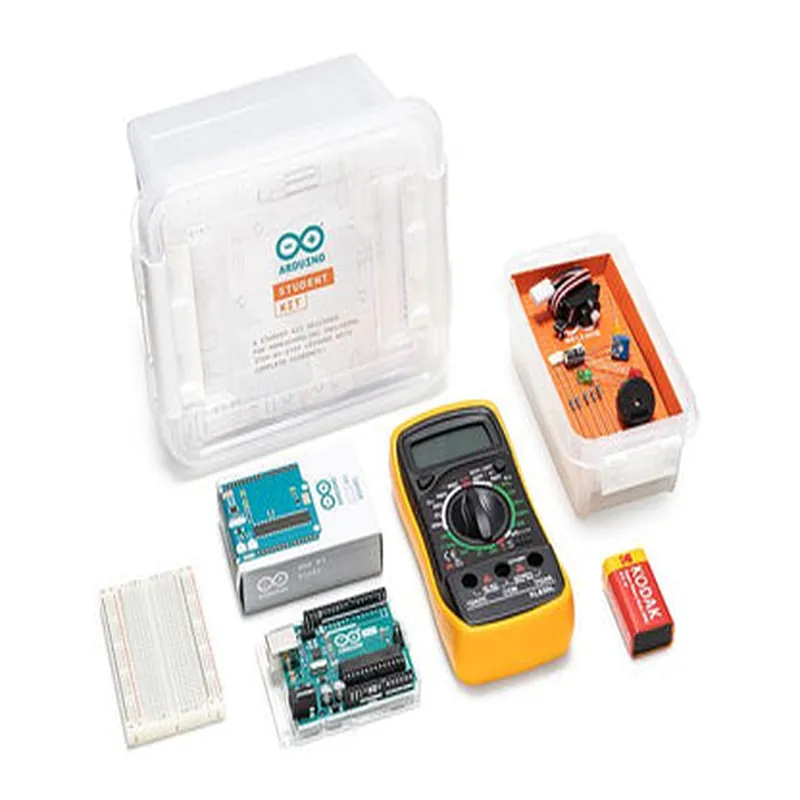
Arduino Student Kit DocumentationOverviewThe Arduino Student Kit is a comprehensive starter kit designed for students and beginners to learn the fundamentals of electronics, programming, and robotics. The kit includes a range of components, including an Arduino Uno board, breadboard, jumper wires, LEDs, resistors, sensors, and more.Components IncludedArduino Uno board
Breadboard
Jumper wires
LEDs (5 x red, 5 x green, 5 x yellow)
Resistors (10 x 1k, 10 x 2k, 10 x 4.7k)
Sensors (photodiode, temperature sensor, ultrasonic sensor)
Power supply (USB cable, 9V battery, battery holder)
Other components (push buttons, potentiometers, etc.)Code Examples### Example 1: Blinking LEDThis example demonstrates how to use the Arduino Uno board to control an LED.Hardware RequirementsArduino Uno board
Breadboard
LED (any color)
1k resistor
Jumper wiresCode
```c
const int ledPin = 13; // Pin 13 on the Arduino Uno boardvoid setup() {
pinMode(ledPin, OUTPUT); // Set the LED pin as an output
}void loop() {
digitalWrite(ledPin, HIGH); // Turn the LED on
delay(1000); // Wait for 1 second
digitalWrite(ledPin, LOW); // Turn the LED off
delay(1000); // Wait for 1 second
}
```
ExplanationThis code sets up the Arduino Uno board to control an LED connected to Pin 13. The `setup()` function sets the LED pin as an output, and the `loop()` function toggles the LED on and off every second using the `digitalWrite()` function.### Example 2: Reading Sensor Data (Temperature Sensor)This example demonstrates how to use the temperature sensor to read temperature data.Hardware RequirementsArduino Uno board
Breadboard
Temperature sensor
Jumper wiresCode
```c
const int tempPin = A0; // Analog input pin for the temperature sensorvoid setup() {
Serial.begin(9600); // Initialize the serial communication at 9600bps
}void loop() {
int tempValue = analogRead(tempPin); // Read the analog value from the temperature sensor
float temperature = (tempValue 5.0 / 1023.0 - 0.5) 100.0; // Convert the analog value to Celsius
Serial.print("Temperature: ");
Serial.print(temperature);
Serial.println("C");
delay(1000); // Wait for 1 second
}
```
ExplanationThis code sets up the Arduino Uno board to read data from the temperature sensor connected to Analog Input Pin A0. The `setup()` function initializes the serial communication, and the `loop()` function reads the analog value from the temperature sensor using the `analogRead()` function. The code then converts the analog value to Celsius using a calculation and prints the temperature value to the serial monitor.### Example 3: Simple Robotics (Line Follower)This example demonstrates how to use the Arduino Uno board to control a simple line-following robot.Hardware RequirementsArduino Uno board
Breadboard
2 x L293D motor driver ICs
2 x DC motors
2 x Wheels
1 x Photodiode
Jumper wiresCode
```c
const int leftMotorForward = 2; // Pin 2 for the left motor forward control
const int leftMotorBackward = 3; // Pin 3 for the left motor backward control
const int rightMotorForward = 4; // Pin 4 for the right motor forward control
const int rightMotorBackward = 5; // Pin 5 for the right motor backward control
const int photodiodePin = A1; // Analog input pin for the photodiodevoid setup() {
pinMode(leftMotorForward, OUTPUT);
pinMode(leftMotorBackward, OUTPUT);
pinMode(rightMotorForward, OUTPUT);
pinMode(rightMotorBackward, OUTPUT);
}void loop() {
int lineDetection = analogRead(photodiodePin); // Read the photodiode value
if (lineDetection > 500) { // If the photodiode detects the line
digitalWrite(leftMotorForward, HIGH); // Move the left motor forward
digitalWrite(rightMotorForward, LOW); // Stop the right motor
} else {
digitalWrite(leftMotorForward, LOW); // Stop the left motor
digitalWrite(rightMotorForward, HIGH); // Move the right motor forward
}
delay(50); // Wait for 50ms
}
```
ExplanationThis code sets up the Arduino Uno board to control a simple line-following robot using the photodiode sensor and two DC motors. The `setup()` function sets the motor control pins as outputs, and the `loop()` function reads the photodiode value using the `analogRead()` function. Based on the photodiode value, the code controls the motors to move the robot forward or turn to follow the line.