approximately 45g (1.59 oz)
Power Requirements
5V DC power input (via micro-USB port)


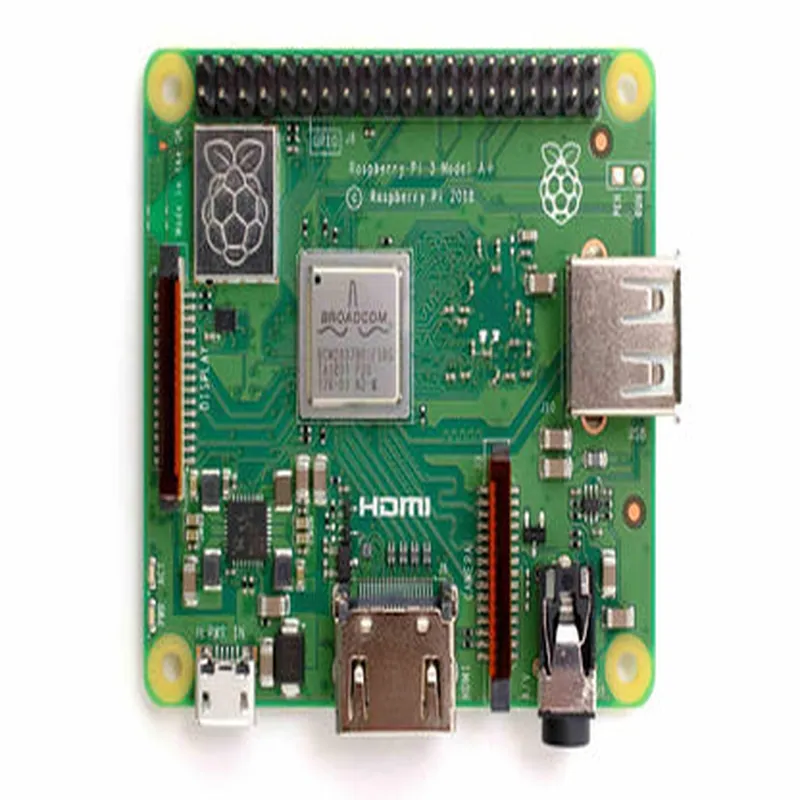
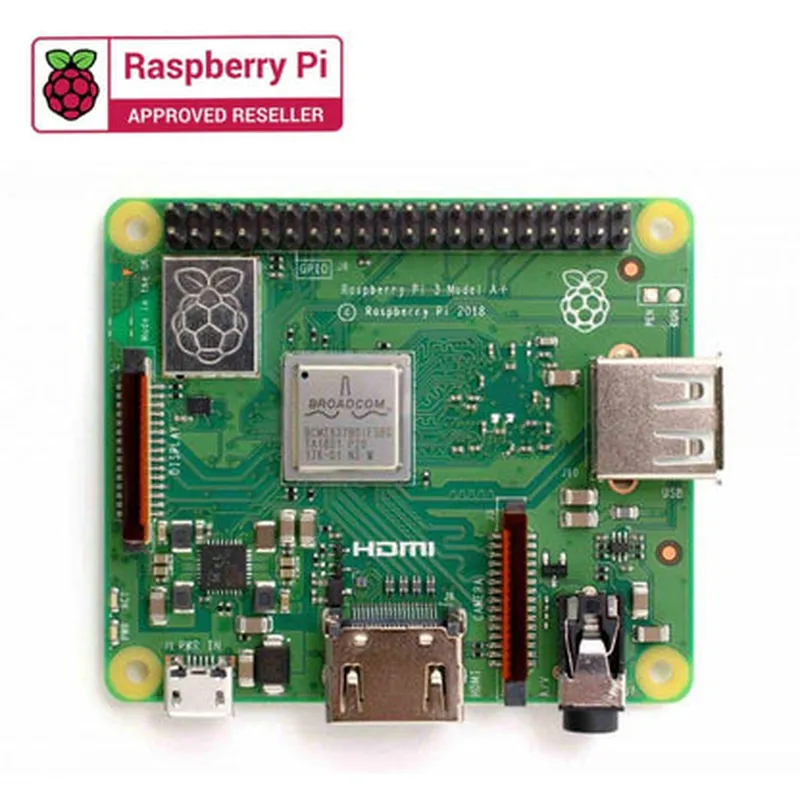
approximately 45g (1.59 oz)
Power Requirements
5V DC power input (via micro-USB port)
approximately 600mA (idle), 1.2A (max)
Documentation and Resources
| //www.raspberrypi.org/documentation/> | |
| //www.raspberrypi.org/software/> | |
The Raspberry Pi 3 Model A+ is an excellent choice for anyone looking to build innovative IoT projects, prototype new ideas, or simply learn about computer science and programming. Its compact size, low cost, and impressive capabilities make it an ideal platform for a wide range of applications.
Raspberry Pi 3 Model A+ DocumentationOverviewThe Raspberry Pi 3 Model A+ is a single-board computer and a popular component in the Internet of Things (IoT) ecosystem. It offers a balance of performance, power consumption, and cost, making it an ideal choice for a wide range of projects, from embedded systems to media centers.SpecificationsProcessor: Quad-core Cortex-A53 CPU (BCM2837B0)
RAM: 512 MB LPDDR2 SDRAM
Storage: MicroSD card slot
Operating System: Raspbian (default), compatible with various Linux distributions
Networking: Wi-Fi (802.11b/g/n), Bluetooth 4.2, Ethernet (RJ45)
GPIO: 40-pin header with GPIO, I2C, SPI, UART, and power pins
Power: 5V, 2.5A recommended power supplyCode Examples### Example 1: Blinking an LED using Python and GPIOThis example demonstrates how to use the Raspberry Pi's GPIO pins to control an LED.Hardware RequirementsRaspberry Pi 3 Model A+
Breadboard
LED
1 k resistor
Jumper wiresSoftware RequirementsRaspbian OS
Python 3.xCode
```python
import RPi.GPIO as GPIO
import time# Set up GPIO mode
GPIO.setmode(GPIO.BCM)# Define the LED pin
LED_PIN = 17# Set up the LED pin as an output
GPIO.setup(LED_PIN, GPIO.OUT)while True:
# Turn the LED on
GPIO.output(LED_PIN, GPIO.HIGH)
time.sleep(1)
# Turn the LED off
GPIO.output(LED_PIN, GPIO.LOW)
time.sleep(1)
```
ExplanationThis code uses the `RPi.GPIO` library to interact with the GPIO pins. It sets up pin 17 as an output and repeatedly toggles the LED on and off using the `GPIO.output()` function.### Example 2: Reading Temperature and Humidity using a DHT11 Sensor and PythonThis example demonstrates how to use the Raspberry Pi to read temperature and humidity data from a DHT11 sensor.Hardware RequirementsRaspberry Pi 3 Model A+
DHT11 temperature and humidity sensor
Breadboard
Jumper wiresSoftware RequirementsRaspbian OS
Python 3.x
`dht11` library (install using `pip install dht11`)Code
```python
import dht11# Define the DHT11 pin
DHT11_PIN = 4# Create a DHT11 object
dht11_sensor = dht11.DHT11(pin=DHT11_PIN)while True:
# Read temperature and humidity data
temperature, humidity = dht11_sensor.read()# Print the data
print(f"Temperature: {temperature}C, Humidity: {humidity}%")# Wait 1 second before reading again
time.sleep(1)
```
ExplanationThis code uses the `dht11` library to interact with the DHT11 sensor. It creates a `DHT11` object and uses it to read temperature and humidity data, which is then printed to the console.These examples demonstrate the Raspberry Pi 3 Model A+'s capabilities in interacting with external components and sensing the environment. With its powerful processor, versatile GPIO pins, and wide range of compatible libraries and frameworks, the Raspberry Pi 3 Model A+ is an ideal choice for various IoT projects.