Stufin
Home Quick Cart Profile

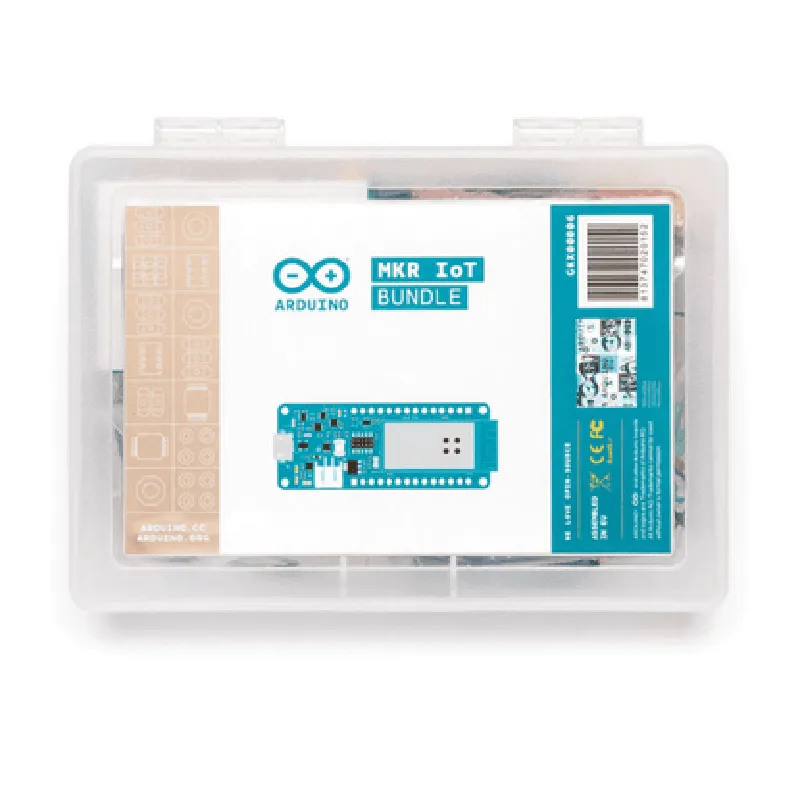
Arduino MKR IoT Bundle

Buy Now on Stufin

Microcontroller

Microchip SAMD21G18A

Wi-Fi and Bluetooth ConnectivityOnboard Wi-Fi and Bluetooth modules enable wireless communication and IoT connectivity
I/O Pins14 digital I/O pins, 6 analog I/O pins, and 2 UARTs provide flexibility for connecting sensors, actuators, and other devices

Power Management

Provides a reliable and efficient power management system for IoT devices

Operating Voltage

3.3V

Flash Memory

256KB

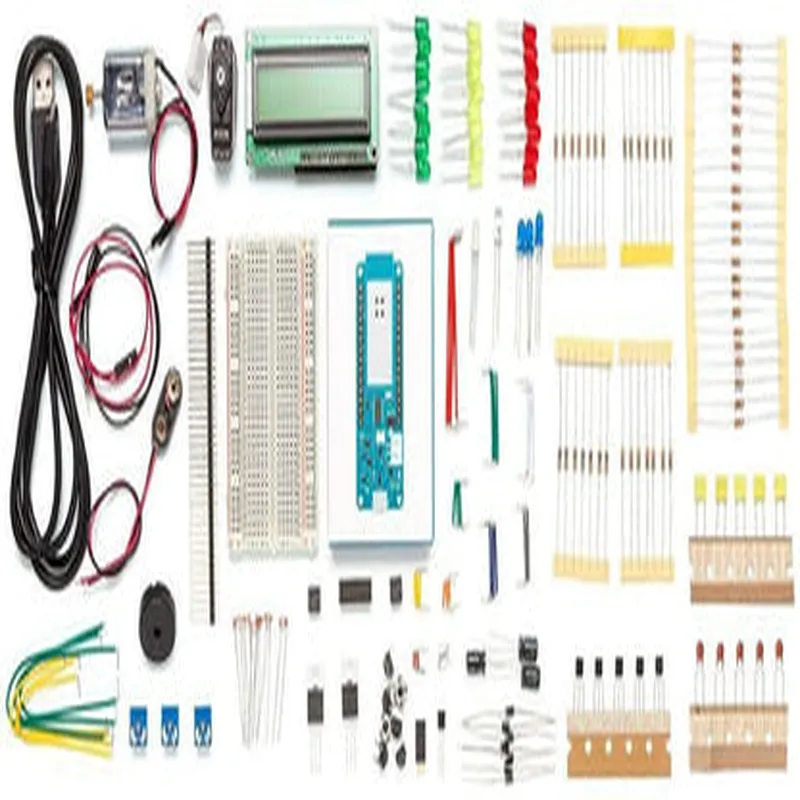
Bundle Components

In addition to the MKR board, the bundle includes the following components
Wi-Fi AntennaA high-gain Wi-Fi antenna for improved wireless connectivity
ESP32 Wi-Fi/BT AntennaAn additional antenna for Wi-Fi and Bluetooth applications

Sensor Pack

A selection of sensors, including temperature, humidity, and pressure sensors, to enable environmental monitoring and sensing applications

Micro-USB to USB-A CableA convenient cable for connecting the MKR board to a computer or other devices
USB-C to Micro-USB CableA cable for charging and powering the MKR board
Li-Po BatteryA rechargeable Li-Po battery for powering the MKR board

Functionality

The Arduino MKR IoT Bundle is designed to provide a comprehensive solution for developing IoT projects. The bundle's key functionality includes

Wireless Connectivity

Enables wireless communication and IoT connectivity through Wi-Fi and Bluetooth

Sensor Integration

Allows for the connection of a range of sensors to monitor and collect environmental data

Actuator Control

Enables control of actuators, such as relays, LEDs, and motors, to interact with the physical world

Development Platform

Offers a flexible and intuitive development platform for creating innovative IoT applications

Applications

The Arduino MKR IoT Bundle is ideal for a wide range of IoT applications, including

Environmental Monitoring

Monitoring temperature, humidity, and pressure in various environments

Smart Home Automation

Controlling and automating home appliances and devices

Industrial Automation

Monitoring and controlling industrial equipment and processes

Wearable Devices

Developing wearable devices that integrate with the internet and cloud services

Technical Specifications

For detailed technical specifications, please refer to the Arduino MKR IoT Bundle datasheet.

Getting Started

To get started with the Arduino MKR IoT Bundle, please refer to the official Arduino documentation and tutorials, which provide comprehensive guides on setting up and programming the board.

Pin Configuration

  • Arduino MKR IoT Bundle Pinout Documentation
  • The Arduino MKR IoT Bundle is a powerful and feature-rich development board designed for IoT projects. The board is equipped with a variety of pins that can be used for different purposes. Here's a comprehensive breakdown of each pin on the Arduino MKR IoT Bundle:
  • Digital Pins
  • 1. Digital Pin 0 (D0) / UART_TX: This pin is used as the transmit pin for the UART (Universal Asynchronous Receiver-Transmitter) communication protocol. It can also be used as a digital input/output pin.
  • 2. Digital Pin 1 (D1) / UART_RX: This pin is used as the receive pin for the UART communication protocol. It can also be used as a digital input/output pin.
  • 3. Digital Pin 2 (D2) / I2C_SCL: This pin is used as the clock pin for I2C (Inter-Integrated Circuit) communication protocol. It can also be used as a digital input/output pin.
  • 4. Digital Pin 3 (D3) / I2C_SDA: This pin is used as the data pin for I2C communication protocol. It can also be used as a digital input/output pin.
  • 5. Digital Pin 4 (D4): This is a digital input/output pin.
  • 6. Digital Pin 5 (D5): This is a digital input/output pin.
  • 7. Digital Pin 6 (D6): This is a digital input/output pin.
  • 8. Digital Pin 7 (D7): This is a digital input/output pin.
  • 9. Digital Pin 8 (D8): This is a digital input/output pin.
  • 10. Digital Pin 9 (D9): This is a digital input/output pin.
  • 11. Digital Pin 10 (D10): This is a digital input/output pin.
  • 12. Digital Pin 11 (D11): This is a digital input/output pin.
  • 13. Digital Pin 12 (D12): This is a digital input/output pin.
  • 14. Digital Pin 13 (D13) / LED: This pin is connected to an on-board LED. It can be used as a digital input/output pin or to control the on-board LED.
  • Analog Pins
  • 1. Analog Pin A0: This is an analog input pin.
  • 2. Analog Pin A1: This is an analog input pin.
  • 3. Analog Pin A2: This is an analog input pin.
  • 4. Analog Pin A3: This is an analog input pin.
  • 5. Analog Pin A4: This is an analog input pin.
  • 6. Analog Pin A5: This is an analog input pin.
  • Power Pins
  • 1. VIN: This pin is used to supply power to the board from an external power source.
  • 2. 5V: This pin provides a regulated 5V output.
  • 3. 3.3V: This pin provides a regulated 3.3V output.
  • 4. GND: This pin is used as a ground connection.
  • Communication Pins
  • 1. USB: This is a USB type-C connector used for programming and communication with a computer.
  • Others
  • 1. LiPo Battery Connector: This connector is used to connect a LiPo battery for powering the board.
  • 2. Reset Button: This button is used to reset the board.
  • 3. ON/OFF Switch: This switch is used to power the board on and off.
  • How to Connect Pins
  • When connecting pins on the Arduino MKR IoT Bundle, follow these general guidelines:
  • Use a breadboard or a PCB (Printed Circuit Board) to connect components to the digital and analog pins.
  • Use jumper wires to connect components to the power pins (VIN, 5V, 3.3V, and GND).
  • Use a USB type-C cable to connect the board to a computer for programming and communication.
  • Use a LiPo battery to power the board through the LiPo battery connector.
  • Use the reset button and ON/OFF switch to control the board's power state.
  • Remember to follow proper soldering and wiring techniques to avoid damaging the board or components. Always refer to the official Arduino documentation and datasheets for specific pin usage and configuration guidelines.

Code Examples

Arduino MKR IoT Bundle Documentation
The Arduino MKR IoT Bundle is a comprehensive kit that combines the best of Arduino's IoT offerings, including the MKR WiFi 1010 board, a Wi-Fi module, and various sensors. This bundle enables developers to create a wide range of IoT projects, from simple devices to complex systems.
Hardware Components:
Arduino MKR WiFi 1010 board
 Wi-Fi module (IEEE 802.11b/g/n)
 Temperature and humidity sensor (DHT11)
 Light sensor (photoresistor)
 Motion sensor (PIR)
 3-axis accelerometer (LIS3DH)
 Micro-USB cable
 Power adapter
 Breadboard and jumper wires
Software Library:
The Arduino MKR IoT Bundle is compatible with the Arduino Integrated Development Environment (IDE) and supports various libraries for Wi-Fi, sensors, and other components.
Code Examples:
### Example 1: Wi-Fi Connectivity and Temperature/Humidity Monitoring
This example demonstrates how to connect to a Wi-Fi network and read temperature and humidity data from the DHT11 sensor.
```c++
#include <WiFiNina.h>
#include <DHT.h>
// Wi-Fi credentials
char ssid[] = "yourSSID";
char pass[] = "yourPASSWORD";
// DHT11 pin connections
#define DHTPIN 2
DHT dht(DHTPIN, DHT11);
void setup() {
  // Initialize serial communication
  Serial.begin(9600);
// Connect to Wi-Fi
  WiFi.begin(ssid, pass);
  while (WiFi.status() != WL_CONNECTED) {
    delay(1000);
    Serial.println("Connecting to Wi-Fi...");
  }
Serial.println("Connected to Wi-Fi");
  Serial.println(" Initializing DHT11...");
  dht.begin();
}
void loop() {
  // Read temperature and humidity data
  float tempC = dht.readTemperature();
  float humidity = dht.readHumidity();
// Print data to serial monitor
  Serial.print("Temperature: ");
  Serial.print(tempC);
  Serial.println("C");
  Serial.print("Humidity: ");
  Serial.print(humidity);
  Serial.println("%");
delay(2000);
}
```
### Example 2: Motion Detection and Notification using IFTTT
This example demonstrates how to use the PIR motion sensor to detect movement and send a notification to an IFTTT (If This Then That) applet using the Arduino MKR IoT Bundle's Wi-Fi capabilities.
```c++
#include <WiFiNina.h>
#include <IFTTTMaker.h>
// Wi-Fi credentials
char ssid[] = "yourSSID";
char pass[] = "yourPASSWORD";
// IFTTT Maker API key
char apiKey[] = "yourAPIKEY";
// PIR pin connections
#define PIRPIN 3
IFTTTMaker ifttt(apiKey);
void setup() {
  // Initialize serial communication
  Serial.begin(9600);
// Connect to Wi-Fi
  WiFi.begin(ssid, pass);
  while (WiFi.status() != WL_CONNECTED) {
    delay(1000);
    Serial.println("Connecting to Wi-Fi...");
  }
Serial.println("Connected to Wi-Fi");
  pinMode(PIRPIN, INPUT);
}
void loop() {
  // Read PIR sensor data
  int pirState = digitalRead(PIRPIN);
if (pirState == HIGH) {
    // Motion detected, send notification to IFTTT
    ifttt.sendEvent("motion_detected", "Motion detected!");
    Serial.println("Motion detected!");
  }
delay(50);
}
```
### Example 3: Accelerometer Data Streaming to a Web Dashboard
This example demonstrates how to use the LIS3DH 3-axis accelerometer to stream acceleration data to a web dashboard using the Arduino MKR IoT Bundle's Wi-Fi capabilities.
```c++
#include <WiFiNina.h>
#include <WiFiClient.h>
#include <LIS3DH.h>
// Wi-Fi credentials
char ssid[] = "yourSSID";
char pass[] = "yourPASSWORD";
// Web dashboard URL
char dashboardURL[] = "http://yourdashboard.com/accelerometer";
LIS3DH accelerometer;
void setup() {
  // Initialize serial communication
  Serial.begin(9600);
// Connect to Wi-Fi
  WiFi.begin(ssid, pass);
  while (WiFi.status() != WL_CONNECTED) {
    delay(1000);
    Serial.println("Connecting to Wi-Fi...");
  }
Serial.println("Connected to Wi-Fi");
  accelerometer.begin();
}
void loop() {
  // Read acceleration data
  int x, y, z;
  accelerometer.readAcceleration(x, y, z);
// Create a WiFi client instance
  WiFiClient client;
// Connect to the web dashboard
  if (client.connect(dashboardURL, 80)) {
    // Send acceleration data to the dashboard
    client.print("GET /update?");
    client.print("x=");
    client.print(x);
    client.print("&y=");
    client.print(y);
    client.print("&z=");
    client.print(z);
    client.println(" HTTP/1.1");
    client.println("Host: yourdashboard.com");
    client.println("Connection: close");
    client.println();
  }
delay(50);
}
```
These examples demonstrate the versatility of the Arduino MKR IoT Bundle and its potential applications in IoT projects.