0C to 50C


0C to 50C
5V DC (via DC power jack or USB)
Typical 1.5W ( idle), Max 3.5W ( max performance)
120mm x 80mm x 20mm (4.7" x 3.1" x 0.8")
Software Support
| The Raspberry Pi Compute Module 4 IO Board supports a range of operating systems, including |
Raspberry Pi OS (official OS)
Ubuntu
Windows 10 IoT Enterprise
Yocto Project
Custom Linux distributions
Typical Applications
The Raspberry Pi Compute Module 4 IO Board is an ideal development platform for engineers, makers, and innovators working on a wide range of projects that require a high-performance, feature-rich, and cost-effective system-on-module solution.
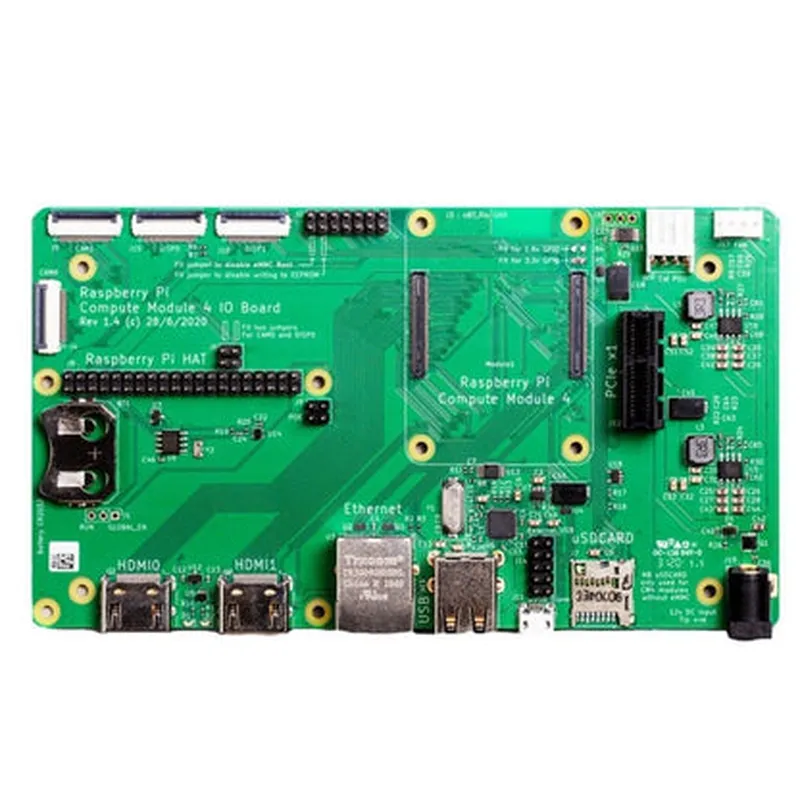
Raspberry Pi Compute Module 4 IO Board DocumentationOverviewThe Raspberry Pi Compute Module 4 IO Board is a development board designed for prototyping and testing IoT projects using the Raspberry Pi Compute Module 4. It provides a convenient way to access the Compute Module's I/O signals, making it easier to develop and test projects.FeaturesCompatible with Raspberry Pi Compute Module 4
Breakout for all GPIO, HDMI, USB, and Ethernet interfaces
2x20-pin header for accessing GPIO signals
Power supply and reset switches
USB-C for-power delivery and data transfer
MicroSD card slot for Compute Module storageCode Examples### Example 1: GPIO Input/Output using PythonThis example demonstrates how to use the Raspberry Pi Compute Module 4 IO Board to read and write digital signals using Python.Hardware Requirements:Raspberry Pi Compute Module 4
Raspberry Pi Compute Module 4 IO Board
Breadboard and jumper wires
LED and resistor for output testing
Button or switch for input testingPython Code:
```python
import RPi.GPIO as GPIO# Set up GPIO library
GPIO.setmode(GPIO.BCM)# Define input and output pins
input_pin = 17
output_pin = 23# Set up input pin as input
GPIO.setup(input_pin, GPIO.IN, pull_up_down=GPIO.PUD_UP)# Set up output pin as output
GPIO.setup(output_pin, GPIO.OUT)while True:
# Read input pin state
input_state = GPIO.input(input_pin)
print(f"Input pin state: {input_state}")# Toggle output pin state
output_state = GPIO.output(output_pin, not GPIO.input(output_pin))
print(f"Output pin state: {output_state}")# Wait for 1 second
time.sleep(1)
```
This code reads the state of an input pin (e.g., a button press) and toggles the state of an output pin (e.g., an LED) based on the input state.### Example 2: HDMI Display using Raspberry Pi OSThis example demonstrates how to use the Raspberry Pi Compute Module 4 IO Board to display output on an HDMI monitor using the Raspberry Pi OS.Hardware Requirements:Raspberry Pi Compute Module 4
Raspberry Pi Compute Module 4 IO Board
HDMI monitor
HDMI cable
Power supply for the Compute ModuleRaspberry Pi OS Configuration:1. Insert the microSD card into the Compute Module 4 IO Board.
2. Connect the HDMI monitor to the HDMI port on the IO Board.
3. Power on the Compute Module 4.
4. Configure the Raspberry Pi OS to use the HDMI output:
```bash
sudo raspi-config
```
Select "Interfacing Options" and then "HDMI" to enable HDMI output.5. Restart the Compute Module 4:
```
sudo reboot
```
The Raspberry Pi OS will now display on the HDMI monitor.These examples demonstrate the flexibility and versatility of the Raspberry Pi Compute Module 4 IO Board in various IoT project contexts.