15W, 5V, 3A


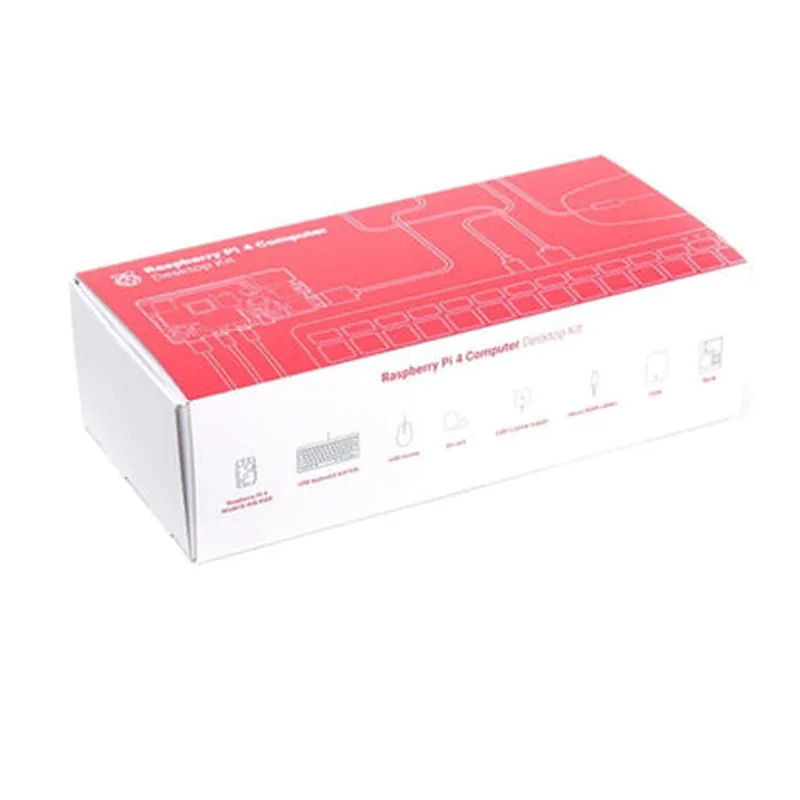
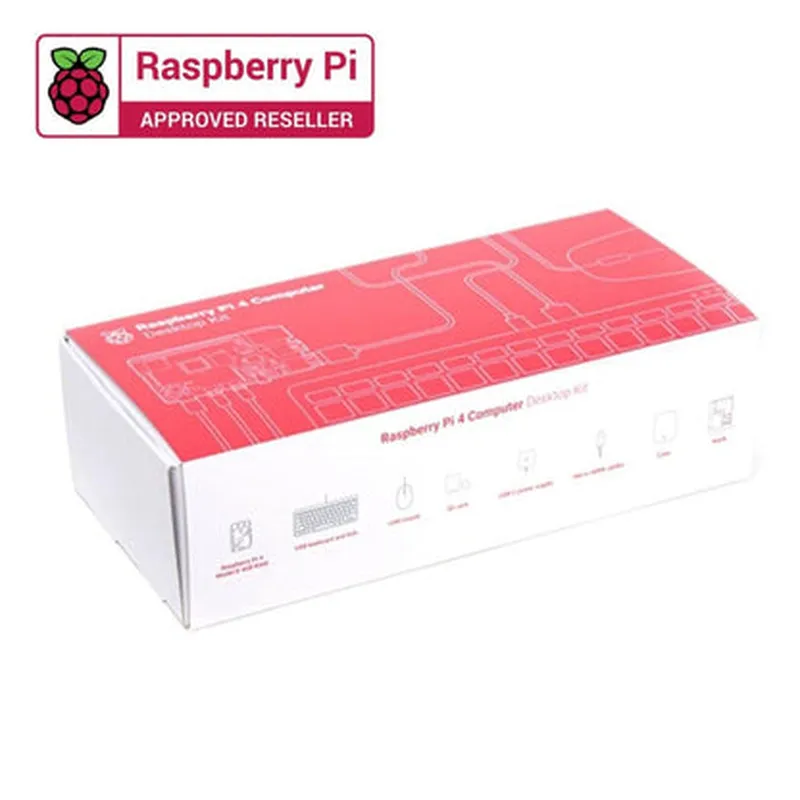
15W, 5V, 3A
UK-layout, compact design, built-in USB hub with three ports
Optical, high-precision, 1000 DPI
| Micro-HDMI to HDMI Cable | 1.5m, high-quality, supports up to 4K resolution |
Designed for Raspberry Pi 4, ensures optimal thermal performance
| USB-C Power Cable | 1.5m, supports up to 3A current |
| Genuine Raspberry Pi 4 Case | High-quality, official Raspberry Pi case, designed for optimal airflow and protection |
Applications
| The Raspberry Pi 4 Desktop Kit (without Raspberry Pi Board) is suitable for a wide range of applications, including |
Learning programming and computer science concepts
Building media centers and home automation systems
Creating retro game consoles and emulators
Developing IoT projects and prototypes
Setting up a home office or small business computer
Conclusion
The Raspberry Pi 4 Desktop Kit (without Raspberry Pi Board) provides a comprehensive bundle of accessories that enable you to get started with your Raspberry Pi 4 project. With its high-quality power supply, keyboard, mouse, and other peripherals, this kit is ideal for anyone looking to build a desktop computer or IoT project with the Raspberry Pi 4.
Raspberry Pi 4 Desktop Kit (without Raspberry Pi Board) DocumentationOverviewThe Raspberry Pi 4 Desktop Kit is a comprehensive bundle of accessories designed to complement the Raspberry Pi 4 single-board computer (not included). This kit provides everything you need to get started with your Raspberry Pi 4 project, minus the board itself. With this kit, you'll have a complete desktop setup, including a power supply, keyboard, mouse, HDMI cable, and more.Kit ContentsOfficial Raspberry Pi 4 Power Supply (5V, 3A)
Raspberry Pi Keyboard (UK layout)
Raspberry Pi Mouse
HDMI 2.0 Cable (1.5m)
Micro USB Cable (1.5m)
Official Raspberry Pi Beginner's Guide BookSetup and ConfigurationTo set up your Raspberry Pi 4 Desktop Kit, follow these steps:1. Insert the microSD card (not included) into the Raspberry Pi 4 board.
2. Connect the power supply to the Raspberry Pi 4 board.
3. Connect the keyboard and mouse to the Raspberry Pi 4 board using the provided USB cables.
4. Connect the HDMI cable to the Raspberry Pi 4 board and a HDMI-enabled monitor.
5. Power on your Raspberry Pi 4 board.Example Code: Python Script for GPIO LED BlinkingThe following example demonstrates how to use the Raspberry Pi 4 GPIO pins to blink an LED connected to GPIO 17.
```python
import RPi.GPIO as GPIO
import time# Set up GPIO mode
GPIO.setmode(GPIO.BCM)# Set up GPIO 17 as an output
GPIO.setup(17, GPIO.OUT)try:
while True:
# Turn on LED
GPIO.output(17, GPIO.HIGH)
time.sleep(1)
# Turn off LED
GPIO.output(17, GPIO.LOW)
time.sleep(1)except KeyboardInterrupt:
# Clean up GPIO on exit
GPIO.cleanup()
```
Example Code: Python Script for Reading Temperature and Humidity using DHT11 SensorThe following example demonstrates how to use the Raspberry Pi 4 to read temperature and humidity values from a DHT11 sensor connected to GPIO 4.
```python
import RPi.GPIO as GPIO
import dht11# Set up GPIO mode
GPIO.setmode(GPIO.BCM)# Set up DHT11 sensor on GPIO 4
dht_sensor = dht11.DHT11(pin=4)try:
while True:
# Read temperature and humidity values
result = dht_sensor.read()
if result.is_valid():
print("Temperature: {:.1f}C".format(result.temperature))
print("Humidity: {:.1f}%".format(result.humidity))
else:
print("Error reading sensor data")# Wait 1 second before taking the next reading
time.sleep(1)except KeyboardInterrupt:
# Clean up GPIO on exit
GPIO.cleanup()
```
Example Code: Python Script for Webcam Capture using OpenCVThe following example demonstrates how to use the Raspberry Pi 4 to capture images from a webcam connected to the USB port using OpenCV.
```python
import cv2# Open the default camera (index 0)
cap = cv2.VideoCapture(0)while True:
# Capture frame-by-frame
ret, frame = cap.read()# Display the frame
cv2.imshow('Webcam', frame)# Press 'q' to quit
if cv2.waitKey(1) & 0xFF == ord('q'):
break# Release the capture
cap.release()
cv2.destroyAllWindows()
```
These examples demonstrate the versatility of the Raspberry Pi 4 Desktop Kit, showcasing its potential for various applications, from GPIO control to sensor integration and computer vision.