Desktop Combo Kit for Raspberry Pi 4 Model B (without Raspberry Pi 4)
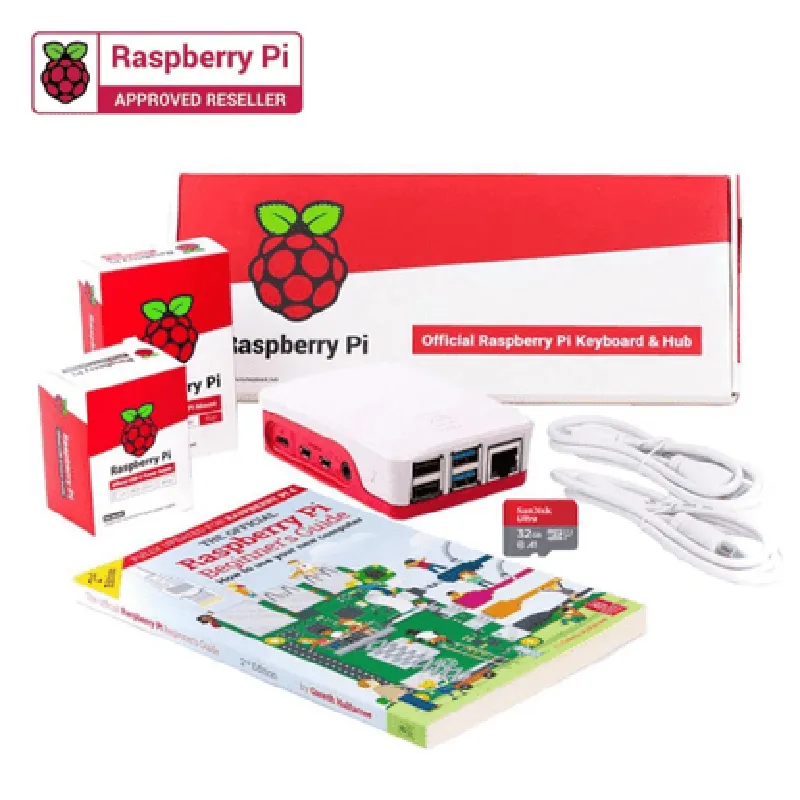
The Desktop Combo Kit for Raspberry Pi 4 Model B is a comprehensive kit designed to enhance the functionality of the Raspberry Pi 4 Model B single-board computer. This kit does not include the Raspberry Pi 4 Model B board itself, but provides all the necessary peripherals and accessories to get started with your projects. The kit includes a USB keyboard, USB mouse, power adapter, HDMI cable, and a high-quality ABS plastic case.
1. USB Keyboard: A compact and lightweight USB keyboard designed for Raspberry Pi.
2. USB Mouse: A high-resolution USB optical mouse for precise navigation.
3. Power Adapter: A 5V 3A power adapter for powering the Raspberry Pi 4 Model B.
4. HDMI Cable: A high-quality HDMI cable for connecting the Raspberry Pi to a monitor or display.
5. ABS Plastic Case: A durable and stylish ABS plastic case that fits the Raspberry Pi 4 Model B snugly.
### Example 1: Using the USB Keyboard and Mouse with Python
This example demonstrates how to use the USB keyboard and mouse with Python to create a simple interactive program.
Code:
```python
import pygame
# Initialize Pygame
pygame.init()
# Set up the display
screen = pygame.display.set_mode((800, 600))
# Set up the keyboard and mouse
keyboard = pygame.keyboard
mouse = pygame.mouse
while True:
    # Handle events
    for event in pygame.event.get():
        if event.type == pygame.QUIT:
            pygame.quit()
            sys.exit()
        elif event.type == pygame.KEYDOWN:
            print("Key pressed:", event.key)
        elif event.type == pygame.MOUSEBUTTONDOWN:
            print("Mouse button pressed:", event.button)
# Update the display
    pygame.display.flip()
```
This code initializes Pygame, sets up a display window, and uses the USB keyboard and mouse to detect key presses and mouse clicks.
### Example 2: Using the HDMI Cable with OMXPlayer
This example demonstrates how to use the HDMI cable to play a video file using OMXPlayer on the Raspberry Pi.
Code:
```bash
omxplayer -o hdmi /path/to/video.mp4
```
This command plays the specified video file on the HDMI-connected display.
### Example 3: Using the Power Adapter with a Python Script
This example demonstrates how to use the power adapter to power the Raspberry Pi and execute a Python script that blinks an LED connected to GPIO pin 17.
Code:
```python
import RPi.GPIO as GPIO
import time
# Set up GPIO pin 17 as an output
GPIO.setmode(GPIO.BCM)
GPIO.setup(17, GPIO.OUT)
while True:
    # Blink the LED
    GPIO.output(17, GPIO.HIGH)
    time.sleep(1)
    GPIO.output(17, GPIO.LOW)
    time.sleep(1)
```
This code sets up GPIO pin 17 as an output and blinks an LED connected to it using the Raspberry Pi's GPIO library.
Note: These examples assume that you have already installed the necessary dependencies and configured your Raspberry Pi 4 Model B properly.