Stufin
Home Quick Cart Profile

Raspberry Pi Zero W Kit

Buy Now on Stufin

Processor

Broadcom BCM2835 SoC (System on Chip) with a quad-core Cortex-A53 CPU @ 1.0 GHz


Memory

512 MB LPDDR2 RAM

Storage

microSD card slot for storage (no on-board storage)

Wireless Connectivity

+ Wi-Fi802.11 b/g/n
+ Bluetooth4.0
GPIO (General Purpose Input/Output)40-pin header with GPIO, UART, I2C, SPI, and I2S interfaces

Display

Mini HDMI port (supports up to 1080p@60Hz)

Power

Micro-USB port for power input (5V, 2.5A)

### Additional Features

Compact Size

65 mm x 30 mm x 5 mm (2.56 in x 1.18 in x 0.2 in)

Low Power Consumption

Typically consumes around 100-200 mA at 5V

HAT (Hardware Attached on Top) CompatibilitySupports a wide range of HATs, including camera, display, and sensor modules
Open-Source PlatformEncourages community-driven development and hacking

### What's in the Kit

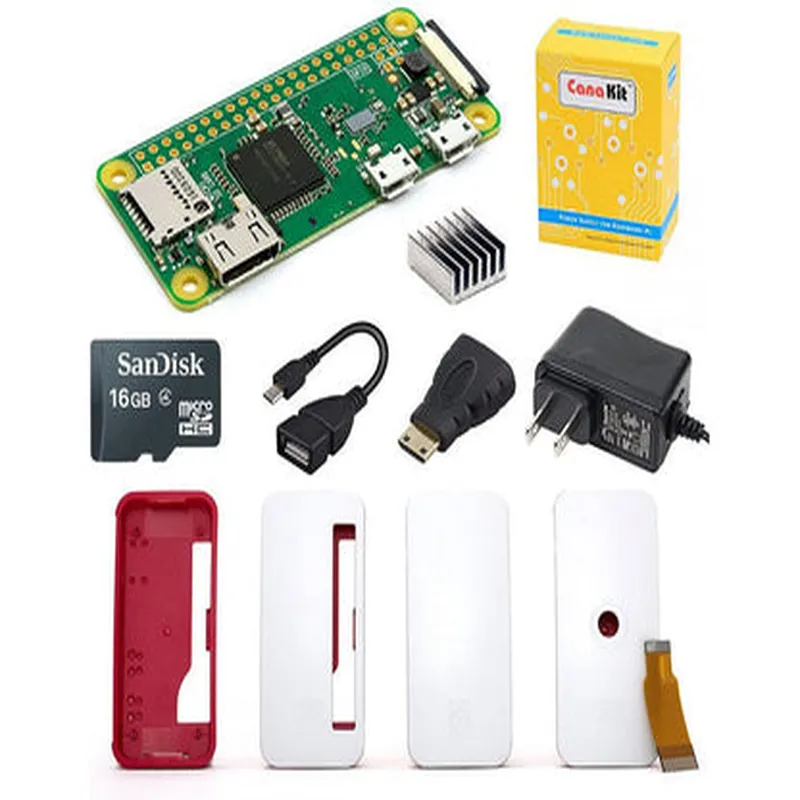
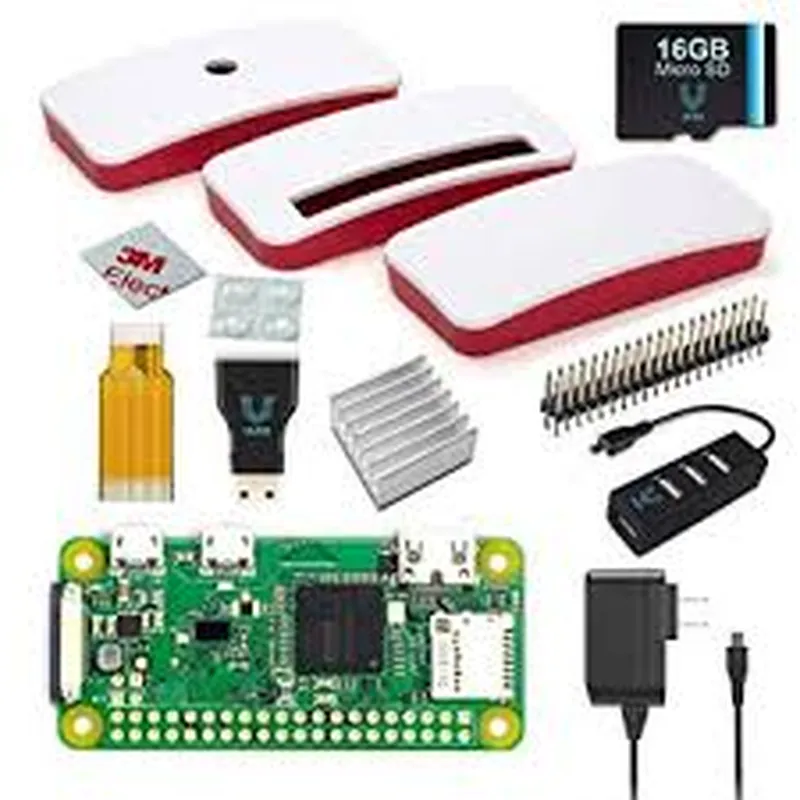
Raspberry Pi Zero W board

microSD card adapter

Mini HDMI cable

USB cable (for power and data transfer)

Quick start guide

Target Applications

The Raspberry Pi Zero W Kit is suitable for a wide range of projects, including

IoT development and prototyping

Robotics and automation systems

Embedded systems and industrial control

Home automation and smart home projects

Media centers and digital signage

Retro game consoles and emulators

Learning and educational projects

Conclusion

The Raspberry Pi Zero W Kit is an excellent choice for anyone looking to create innovative IoT projects, prototyped embedded systems, or simply want a compact, affordable, and highly capable single-board computer. With its wireless connectivity, compact size, and open-source platform, this kit is an ideal solution for a wide range of applications.

Pin Configuration

  • Raspberry Pi Zero W Kit Pinout Guide
  • The Raspberry Pi Zero W Kit is a compact and powerful single-board computer that offers a range of features and capabilities for IoT and robotics projects. Understanding the pinout of the Raspberry Pi Zero W is essential for connecting peripherals, sensors, and other components to the board. This guide provides a detailed explanation of each pin, its function, and how to connect them.
  • Warning: Before connecting any components to the Raspberry Pi Zero W, ensure you have a good understanding of the pinout and the recommended connections to avoid damaging the board or its components.
  • Pinout Structure:
  • The Raspberry Pi Zero W has a 40-pin GPIO header, with pins arranged in two rows of 20 pins each. The pins are labeled as follows:
  • Row 1 (Top Row): Pins 1-20
  • Row 2 (Bottom Row): Pins 21-40
  • Pin-by-Pin Explanation:
  • Row 1 (Top Row):
  • 1. 3V3 Power: 3.3V power output. Use this pin to power external components that require a 3.3V supply.
  • 2. 5V Power: 5V power output. Use this pin to power external components that require a 5V supply.
  • 3. GPIO 2: General Purpose Input/Output pin. Can be used as an input or output.
  • 4. GPIO 3: General Purpose Input/Output pin. Can be used as an input or output.
  • 5. SCL1 (I2C Clock): Inter-Integrated Circuit (I2C) clock pin for interface 1.
  • 6. SDA1 (I2C Data): I2C data pin for interface 1.
  • 7. GPIO 4: General Purpose Input/Output pin. Can be used as an input or output.
  • 8. GPIO 14 (TXD0 UART): UART (Universal Asynchronous Receiver-Transmitter) transmit pin for serial communication.
  • 9. GND (Ground): Ground pin. Use this pin to connect to the ground of your circuit or component.
  • 10. GPIO 15 (RXD0 UART): UART receive pin for serial communication.
  • 11. GPIO 17: General Purpose Input/Output pin. Can be used as an input or output.
  • 12. GPIO 18: General Purpose Input/Output pin. Can be used as an input or output.
  • 13. GPIO 27: General Purpose Input/Output pin. Can be used as an input or output.
  • 14. GND (Ground): Ground pin. Use this pin to connect to the ground of your circuit or component.
  • 15. GPIO 22: General Purpose Input/Output pin. Can be used as an input or output.
  • 16. GPIO 23: General Purpose Input/Output pin. Can be used as an input or output.
  • 17. 3V3 Power: 3.3V power output. Use this pin to power external components that require a 3.3V supply.
  • 18. GPIO 24: General Purpose Input/Output pin. Can be used as an input or output.
  • 19. GPIO 25: General Purpose Input/Output pin. Can be used as an input or output.
  • 20. GND (Ground): Ground pin. Use this pin to connect to the ground of your circuit or component.
  • Row 2 (Bottom Row):
  • 21. GPIO 10: General Purpose Input/Output pin. Can be used as an input or output.
  • 22. GPIO 9: General Purpose Input/Output pin. Can be used as an input or output.
  • 23. GPIO 11: General Purpose Input/Output pin. Can be used as an input or output.
  • 24. GND (Ground): Ground pin. Use this pin to connect to the ground of your circuit or component.
  • 25. GPIO 8: General Purpose Input/Output pin. Can be used as an input or output.
  • 26. GPIO 7: General Purpose Input/Output pin. Can be used as an input or output.
  • 27. ID_SD (I2C ID): I2C ID pin for identifying the board.
  • 28. ID_SC (I2C Control): I2C control pin for configuring the I2C interface.
  • 29. GPIO 5: General Purpose Input/Output pin. Can be used as an input or output.
  • 30. GPIO 6: General Purpose Input/Output pin. Can be used as an input or output.
  • 31. GPIO 12: General Purpose Input/Output pin. Can be used as an input or output.
  • 32. GPIO 13: General Purpose Input/Output pin. Can be used as an input or output.
  • 33. GPIO 19: General Purpose Input/Output pin. Can be used as an input or output.
  • 34. GND (Ground): Ground pin. Use this pin to connect to the ground of your circuit or component.
  • 35. GPIO 16: General Purpose Input/Output pin. Can be used as an input or output.
  • 36. GPIO 26: General Purpose Input/Output pin. Can be used as an input or output.
  • 37. GPIO 20: General Purpose Input/Output pin. Can be used as an input or output.
  • 38. GPIO 21: General Purpose Input/Output pin. Can be used as an input or output.
  • 39. CAMERA (CSI): Camera Serial Interface (CSI) pin for connecting a camera module.
  • 40. RUN (Reset): Reset pin. Use this pin to reset the Raspberry Pi Zero W.
  • Connecting the Pins:
  • When connecting components to the Raspberry Pi Zero W, ensure you use the correct pins and connections to avoid damaging the board or its components. Here are some general guidelines:
  • Use a breadboard or PCB to connect components to the Raspberry Pi Zero W.
  • Use jumper wires or connectors to connect components to the GPIO pins.
  • Ensure the voltage levels of the components match the recommended voltage levels of the Raspberry Pi Zero W (3.3V or 5V).
  • Use resistors to limit the current and voltage to the components, if necessary.
  • Connect the Ground pin (GND) of the component to the Ground pin of the Raspberry Pi Zero W.
  • Consult the datasheet of the component you are connecting to ensure correct pinouts and voltage levels.
  • By following this pinout guide and connecting the pins correctly, you can unlock the full potential of the Raspberry Pi Zero W and create innovative IoT and robotics projects.

Code Examples

Raspberry Pi Zero W Kit Documentation
Overview
The Raspberry Pi Zero W Kit is a miniature, low-cost, and highly capable single-board computer (SBC) that combines the functionality of the Raspberry Pi Zero with wireless connectivity. It is an ideal choice for IoT projects, prototyping, and embedded systems development.
Technical Specifications
Processor: Broadcom BCM2835 Cortex-A53 (ARMv8) 64-bit SoC
 RAM: 512 MB
 Storage: MicroSD card slot
 Wireless: 802.11 b/g/n Wi-Fi, Bluetooth 4.1
 GPIO: 40-pin header
 Operating Systems: Raspbian, Ubuntu, Windows 10 IoT
Examples and Code Snippets
### Example 1: Wi-Fi Remote Monitoring using Python
In this example, we will use the Raspberry Pi Zero W Kit to create a Wi-Fi enabled remote monitoring system that can send sensor data to a remote server.
Hardware Requirements
Raspberry Pi Zero W Kit
 DHT11 temperature and humidity sensor
 Breadboard and jumper wires
Software Requirements
Raspbian operating system
 Python 3.x
 pyDHT library (install using `pip install pyDHT`)
Code
```python
import time
import datetime
import pyDHT
import requests
# Set up DHT11 sensor
dht_sensor = pyDHT.DHT11(pin=17)
while True:
    # Read temperature and humidity data
    temp, hum = dht_sensor.read_retry()
    
    # Send data to remote server using HTTP POST
    url = "http://your-remote-server.com/monitor"
    data = {"temperature": temp, "humidity": hum}
    response = requests.post(url, json=data)
    
    # Print response status code
    print(f"Response: {response.status_code}")
    
    # Wait 1 minute before sending next update
    time.sleep(60)
```
### Example 2: IoT Node using MQTT Protocol
In this example, we will use the Raspberry Pi Zero W Kit as an IoT node that publishes sensor data to an MQTT broker.
Hardware Requirements
Raspberry Pi Zero W Kit
 BME280 temperature, humidity, and pressure sensor
 Breadboard and jumper wires
Software Requirements
Raspbian operating system
 Python 3.x
 paho-mqtt library (install using `pip install paho-mqtt`)
Code
```python
import time
import paho.mqtt.client as mqtt
# Set up BME280 sensor
bme280_sensor = BME280.I2C(0x76)
# Set up MQTT client
client = mqtt.Client()
client.connect("your-mqtt-broker.com", 1883)
while True:
    # Read sensor data
    temp, hum, pres = bme280_sensor.read()
    
    # Create MQTT message
    message = {"temperature": temp, "humidity": hum, "pressure": pres}
    
    # Publish message to MQTT topic
    client.publish("iot/sensors", json.dumps(message))
    
    # Wait 1 minute before sending next update
    time.sleep(60)
```
These examples demonstrate the versatility of the Raspberry Pi Zero W Kit in various IoT applications, including remote monitoring and IoT node development.