+ 6 x Analog Input Channels (0-5V)
+ 6 x Digital Input Channels


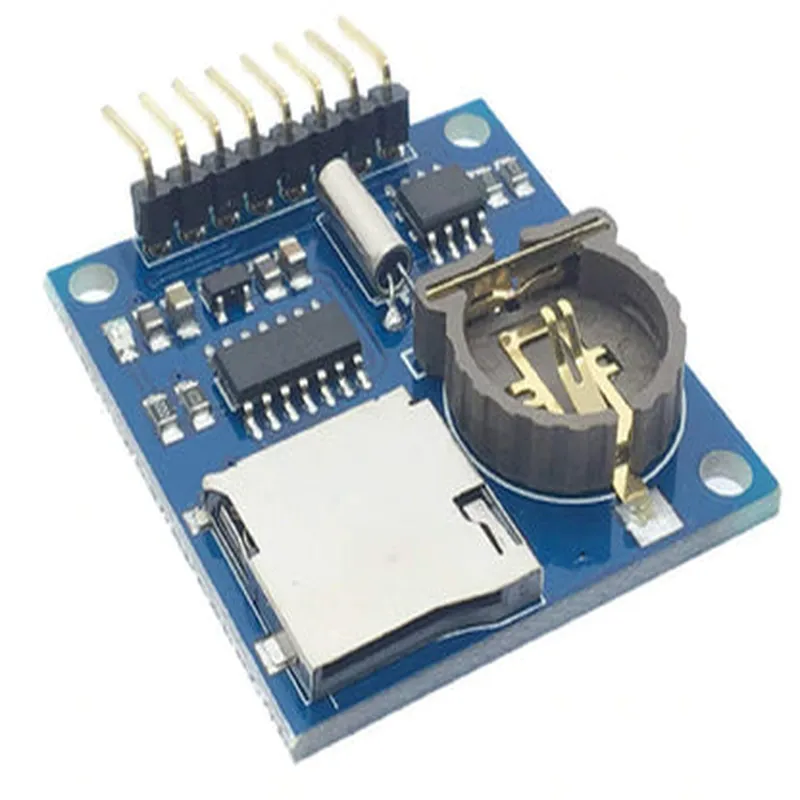
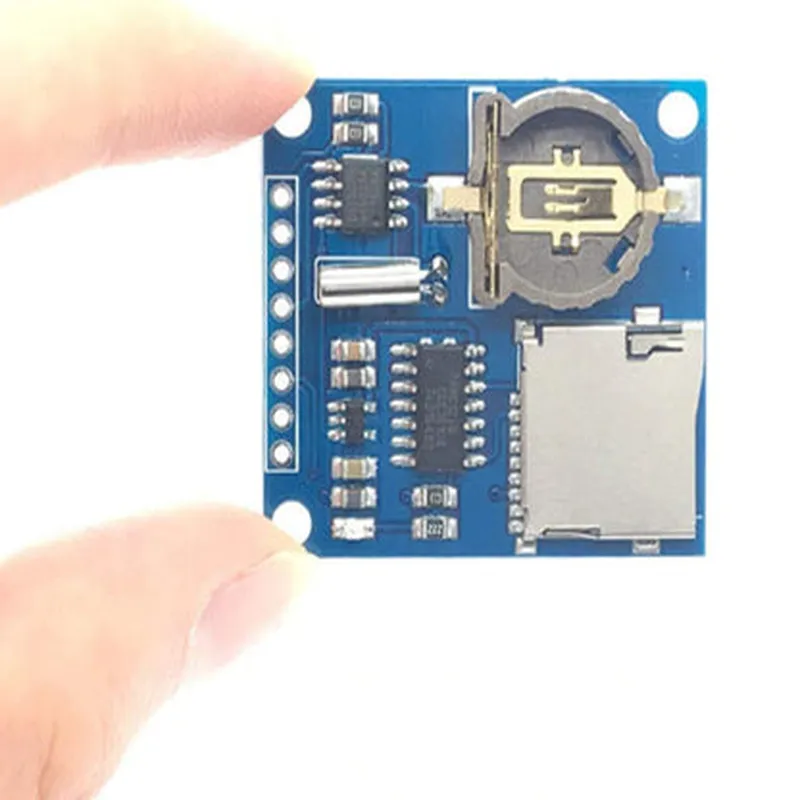
+ 6 x Analog Input Channels (0-5V)
+ 6 x Digital Input Channels
+ DS1307 RTC Chip
+ Battery Backup System (CR2032 Battery)
+ MicroSD Card Slot (supports up to 32GB)
+ 5V DC Power Input
+ Optional Battery Backup (CR2032 Battery)
+ 69.5mm x 53.5mm x 17.5mm
Applications
| The Arduino Data Logger Shield is well-suited for a wide range of applications, including |
Conclusion
The Arduino Data Logger Shield is a powerful and versatile peripheral designed to simplify the process of logging and storing data from various sensors and inputs. With its compact design, range of input channels, and customizable logging options, this shield is an ideal choice for a wide range of applications, from environmental monitoring to industrial automation and IoT projects.
Arduino Data Logger Shield for Boards CompatibleOverviewThe Arduino Data Logger Shield is a versatile expansion board designed to work with various Arduino boards, enabling users to log data from sensors, analog inputs, and digital inputs to a microSD card. This shield is ideal for applications requiring data logging, such as environmental monitoring, industrial automation, and IoT projects.FeaturesCompatible with various Arduino boards, including Uno, Mega, and Due
MicroSD card slot for data storage
3x Analog input channels (0-5V)
4x Digital input channels
Real-time clock (RTC) with battery backup
Supports FAT16 and FAT32 file systemsHardware ConnectionsTo use the Data Logger Shield, connect it to an Arduino board as follows:Stack the shield on top of the Arduino board, ensuring the pins align correctly.
Insert a microSD card into the shield's microSD card slot.Software Examples### Example 1: Logging Sensor DataIn this example, we'll log temperature and humidity data from a DHT11 sensor to a microSD card.```c++
#include <DHT.h>
#include <SD.h>// Define DHT11 sensor pin connections
#define DHT11_PIN 2// Create a DHT object
DHT dht(DHT11_PIN, DHT11);void setup() {
// Initialize the SD card
SD.begin();// Create a file to log data
File logFile = SD.open("log.txt", FILE_WRITE);// Write the header to the file
logFile.println("Date,Time,Temperature,Humidity");
logFile.close();
}void loop() {
// Read temperature and humidity data from the DHT11 sensor
float temperature = dht.readTemperature();
float humidity = dht.readHumidity();// Create a string to log the data
String dataString = String(year()) + "-" + String(month()) + "-" + String(day()) + "," +
String(hour()) + ":" + String(minute()) + ":" + String(second()) + "," +
String(temperature) + "," + String(humidity);// Open the log file in append mode
File logFile = SD.open("log.txt", FILE_WRITE);// Write the data to the file
logFile.println(dataString);
logFile.close();// Wait 10 minutes before logging again
delay(600000);
}
```### Example 2: Logging Digital Input StatesIn this example, we'll log the states of four digital input channels to a microSD card.```c++
#include <SD.h>// Define the digital input pins
const int inputPins[] = {2, 3, 4, 5};void setup() {
// Initialize the SD card
SD.begin();// Create a file to log data
File logFile = SD.open("log.txt", FILE_WRITE);// Write the header to the file
logFile.println("Date,Time,Input 1,Input 2,Input 3,Input 4");
logFile.close();
}void loop() {
// Create a string to log the data
String dataString = String(year()) + "-" + String(month()) + "-" + String(day()) + "," +
String(hour()) + ":" + String(minute()) + ":" + String(second()) + ",";// Read the digital input states
for (int i = 0; i < 4; i++) {
dataString += String(digitalRead(inputPins[i])) + ",";
}// Remove the trailing comma
dataString.remove(dataString.length() - 1);// Open the log file in append mode
File logFile = SD.open("log.txt", FILE_WRITE);// Write the data to the file
logFile.println(dataString);
logFile.close();// Wait 10 minutes before logging again
delay(600000);
}
```### Example 3: Real-Time Clock (RTC) UsageIn this example, we'll use the RTC to log the current date and time to a microSD card.```c++
#include <Wire.h>
#include <RTClib.h>
#include <SD.h>// Create an RTC object
RTC_DS3231 rtc;void setup() {
// Initialize the SD card
SD.begin();// Check if the RTC is available
if (!rtc.begin()) {
Serial.println("RTC not found!");
while (1);
}// Create a file to log data
File logFile = SD.open("log.txt", FILE_WRITE);// Write the header to the file
logFile.println("Date,Time");
logFile.close();
}void loop() {
// Get the current date and time from the RTC
DateTime now = rtc.now();// Create a string to log the data
String dataString = String(now.year()) + "-" + String(now.month()) + "-" + String(now.day()) + "," +
String(now.hour()) + ":" + String(now.minute()) + ":" + String(now.second());// Open the log file in append mode
File logFile = SD.open("log.txt", FILE_WRITE);// Write the data to the file
logFile.println(dataString);
logFile.close();// Wait 10 minutes before logging again
delay(600000);
}
```These examples demonstrate the basic usage of the Arduino Data Logger Shield for logging sensor data, digital input states, and using the RTC. You can modify and expand upon these examples to suit your specific IoT project requirements.