Stufin
Home Quick Cart Profile

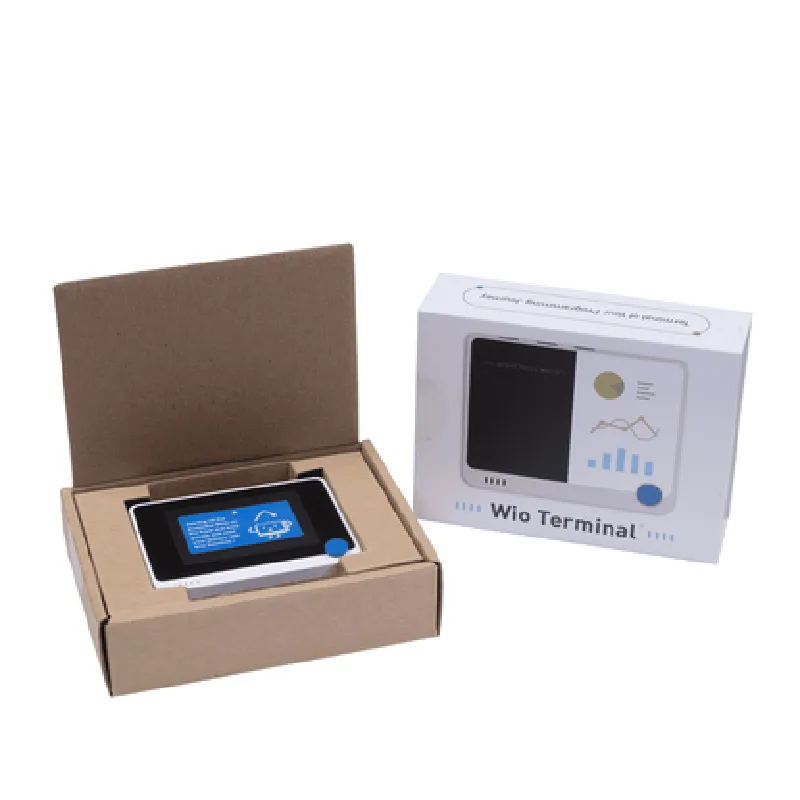
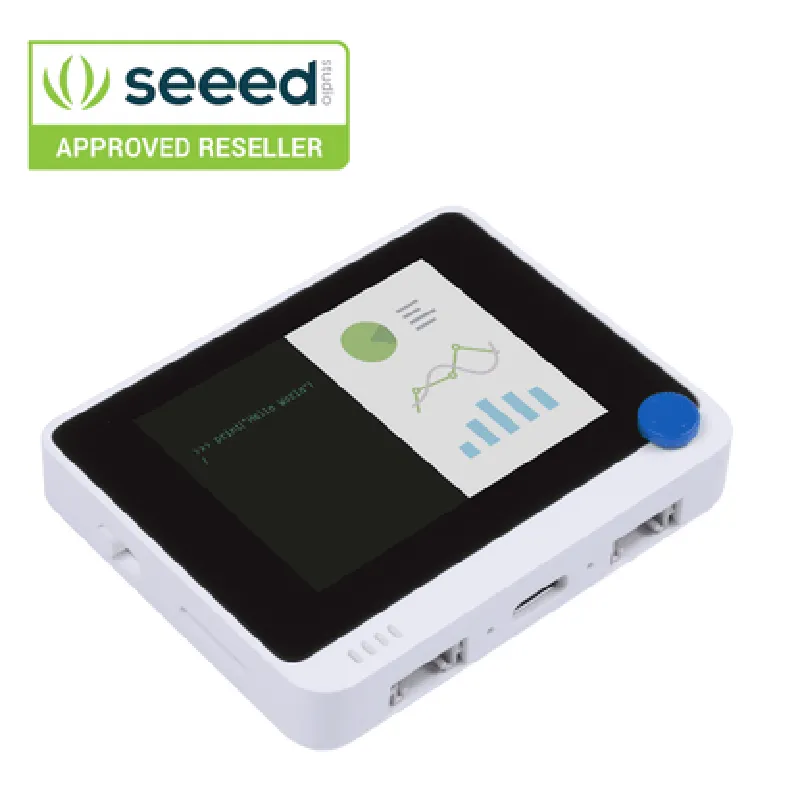
Wio Terminal Development Board

Buy Now on Stufin

MCU

Microchip ATSAMD51P20A

Wi-Fi ModuleESP32

Display

2.4-inch IPS LCD, 320x240 pixels

Power Supply

Rechargeable Li-ion battery (350mAh), USB-C port, and Micro-USB port

Operating Frequency

120 MHz

Onboard Sensors

3-axis accelerometer, digital ambient light sensor, digital microphone

Expansion Options

2x Grove connectors, 1x SD card slot, 1x USB-C port, 1x 3.5mm audio jack, 1x Micro-USB port

Software Support

MicroPython, Arduino, C++

Dimensions

72.2mm x 53.3mm x 15.2mm

Conclusion

The Wio Terminal Development Board is a powerful and versatile platform for IoT development, offering a unique combination of processing power, Wi-Fi connectivity, and a range of peripherals. Its ease of use, flexibility, and affordability make it an ideal choice for professionals, hobbyists, and educational institutions alike.

Pin Configuration

  • Wio Terminal Development Board Pinout Documentation
  • The Wio Terminal Development Board is a versatile IoT board designed for rapid prototyping and development. It features a comprehensive set of pins that allow users to connect various sensors, modules, and peripherals to create innovative projects. Here's a detailed explanation of each pin on the Wio Terminal Development Board:
  • Digital Pins
  • 1. D0 (TX): Serial transmission pin. Used for serial communication protocols such as UART, SPI, and I2C.
  • Connection: Connect to the RX pin of a serial device or module.
  • 2. D1 (RX): Serial reception pin. Used for serial communication protocols such as UART, SPI, and I2C.
  • Connection: Connect to the TX pin of a serial device or module.
  • 3. D2: Digital input/output pin. Can be used as a digital sensor input, output, or for communication protocols like I2C and SPI.
  • Connection: Connect to a digital sensor, module, or peripheral.
  • 4. D3: Digital input/output pin. Can be used as a digital sensor input, output, or for communication protocols like I2C and SPI.
  • Connection: Connect to a digital sensor, module, or peripheral.
  • 5. D4: Digital input/output pin. Can be used as a digital sensor input, output, or for communication protocols like I2C and SPI.
  • Connection: Connect to a digital sensor, module, or peripheral.
  • 6. D5: Digital input/output pin. Can be used as a digital sensor input, output, or for communication protocols like I2C and SPI.
  • Connection: Connect to a digital sensor, module, or peripheral.
  • 7. D6: Digital input/output pin. Can be used as a digital sensor input, output, or for communication protocols like I2C and SPI.
  • Connection: Connect to a digital sensor, module, or peripheral.
  • 8. D7: Digital input/output pin. Can be used as a digital sensor input, output, or for communication protocols like I2C and SPI.
  • Connection: Connect to a digital sensor, module, or peripheral.
  • 9. D8: Digital input/output pin. Can be used as a digital sensor input, output, or for communication protocols like I2C and SPI.
  • Connection: Connect to a digital sensor, module, or peripheral.
  • 10. D9: Digital input/output pin. Can be used as a digital sensor input, output, or for communication protocols like I2C and SPI.
  • Connection: Connect to a digital sensor, module, or peripheral.
  • 11. D10: Digital input/output pin. Can be used as a digital sensor input, output, or for communication protocols like I2C and SPI.
  • Connection: Connect to a digital sensor, module, or peripheral.
  • 12. D11: Digital input/output pin. Can be used as a digital sensor input, output, or for communication protocols like I2C and SPI.
  • Connection: Connect to a digital sensor, module, or peripheral.
  • 13. D12: Digital input/output pin. Can be used as a digital sensor input, output, or for communication protocols like I2C and SPI.
  • Connection: Connect to a digital sensor, module, or peripheral.
  • 14. D13: Digital input/output pin. Can be used as a digital sensor input, output, or for communication protocols like I2C and SPI.
  • Connection: Connect to a digital sensor, module, or peripheral.
  • Analog Pins
  • 1. A0: Analog input pin. Used for reading analog sensor values.
  • Connection: Connect to an analog sensor, such as a potentiometer or photodiode.
  • 2. A1: Analog input pin. Used for reading analog sensor values.
  • Connection: Connect to an analog sensor, such as a potentiometer or photodiode.
  • 3. A2: Analog input pin. Used for reading analog sensor values.
  • Connection: Connect to an analog sensor, such as a potentiometer or photodiode.
  • 4. A3: Analog input pin. Used for reading analog sensor values.
  • Connection: Connect to an analog sensor, such as a potentiometer or photodiode.
  • 5. A4: Analog input pin. Used for reading analog sensor values.
  • Connection: Connect to an analog sensor, such as a potentiometer or photodiode.
  • 6. A5: Analog input pin. Used for reading analog sensor values.
  • Connection: Connect to an analog sensor, such as a potentiometer or photodiode.
  • Power Pins
  • 1. VIN: Input voltage pin. Used to power the board with an external power source.
  • Connection: Connect to a power source, such as a battery or a wall adapter.
  • 2. 3V3: 3.3V output pin. Used to power external modules or sensors.
  • Connection: Connect to a module or sensor that requires a 3.3V power supply.
  • 3. GND: Ground pin. Used as a reference point for the board's power supply.
  • Connection: Connect to a ground point, such as a breadboard or a module's GND pin.
  • Communication Pins
  • 1. SCL: I2C clock pin. Used for I2C communication protocol.
  • Connection: Connect to the SCL pin of an I2C device or module.
  • 2. SDA: I2C data pin. Used for I2C communication protocol.
  • Connection: Connect to the SDA pin of an I2C device or module.
  • 3. SCK: SPI clock pin. Used for SPI communication protocol.
  • Connection: Connect to the SCK pin of a SPI device or module.
  • 4. MOSI: SPI master out slave in pin. Used for SPI communication protocol.
  • Connection: Connect to the MOSI pin of a SPI device or module.
  • 5. MISO: SPI master in slave out pin. Used for SPI communication protocol.
  • Connection: Connect to the MISO pin of a SPI device or module.
  • 6. CS: SPI chip select pin. Used for SPI communication protocol.
  • Connection: Connect to the CS pin of a SPI device or module.
  • Special Pins
  • 1. BOOT: Boot mode pin. Used to enter boot mode for firmware updates.
  • Connection: Short this pin to GND to enter boot mode.
  • 2. RST: Reset pin. Used to reset the board.
  • Connection: Short this pin to GND to reset the board.
  • Note:
  • Always check the pinout diagram and documentation for specific modules or sensors before connecting them to the Wio Terminal Development Board.
  • Use a breadboard or a prototyping board to connect modules and sensors to the board.
  • Be cautious when handling the board and connections to avoid damage or electrical shock.
  • This documentation provides a comprehensive overview of the Wio Terminal Development Board's pins and their functions. By following this guide, users can confidently connect various modules and sensors to create innovative IoT projects.

Code Examples

Wio Terminal Development Board Documentation
Overview
The Wio Terminal is a development board that integrates a microcontroller, LCD display, Wi-Fi, and Bluetooth capabilities in a compact and user-friendly package. It is compatible with the Arduino IDE and supports a wide range of IoT applications.
Hardware Specifications
Microcontroller: ESP32-WROVER
 LCD Display: 2.4" 320x240 TFT LCD
 Wi-Fi: 802.11 b/g/n
 Bluetooth: 4.2
 GPIO: 26 x Digital IO, 2 x Analog IO
 Power: USB-C, Li-Po battery support
Code Examples
### Example 1: Wi-Fi Connectivity and Web Server
In this example, we will demonstrate how to connect the Wio Terminal to a Wi-Fi network and host a simple web server using the ESP32-WROVER's built-in Wi-Fi capabilities.
```cpp
#include <WiFi.h>
const char ssid = "your_wifi_ssid";
const char password = "your_wifi_password";
WiFiServer server(80); // Create a Wi-Fi server on port 80
void setup() {
  Serial.begin(115200);
  WiFi.begin(ssid, password); // Connect to Wi-Fi network
  while (WiFi.status() != WL_CONNECTED) {
    delay(1000);
    Serial.println("Connecting to Wi-Fi...");
  }
  Serial.println("Connected to Wi-Fi");
  server.begin(); // Start the Wi-Fi server
}
void loop() {
  WiFiClient client = server.available(); // Listen for incoming clients
  if (client) {
    String request = client.readStringUntil('
');
    if (request.indexOf("/ledon") != -1) {
      digitalWrite(LED_BUILTIN, HIGH);
    } else if (request.indexOf("/ledoff") != -1) {
      digitalWrite(LED_BUILTIN, LOW);
    }
    client.stop();
  }
  delay(100);
}
```
### Example 2: LCD Display and Sensor Integration
In this example, we will demonstrate how to use the Wio Terminal's built-in LCD display to show sensor readings from a DHT11 temperature and humidity sensor.
```cpp
#include <Wio_Terminal_Library.h>
#include <DHT.h>
#define DHTPIN 2     // DHT11 sensor pin
DHT dht(DHTPIN, DHT11);
Wio_Terminal tft = Wio_Terminal(); // Initialize LCD display
void setup() {
  tft.begin(); // Initialize LCD display
  dht.begin(); // Initialize DHT11 sensor
}
void loop() {
  float temp = dht.readTemperature();
  float humi = dht.readHumidity();
  if (isnan(temp) || isnan(humi)) {
    Serial.println("Failed to read from DHT sensor!");
    return;
  }
  tft.fillScreen(BLACK); // Clear LCD display
  tft.setCursor(0, 0);
  tft.setTextFont(2);
  tft.setTextColor(WHITE);
  tft.println("Temperature: " + String(temp) + "C");
  tft.println("Humidity: " + String(humi) + "%");
  delay(1000);
}
```
### Example 3: Bluetooth Low Energy (BLE) Peripheral
In this example, we will demonstrate how to use the Wio Terminal as a BLE peripheral device, advertising a custom service and characteristic.
```cpp
#include <BLE.h>
BLEService service("esp_gatt_serv"); // Create a BLE service
BLECharacteristic characteristic("esp_gatt_char", BLECharacteristic::PROPERTY_NOTIFY); // Create a BLE characteristic
void setup() {
  Serial.begin(115200);
  BLE.begin(); // Initialize BLE
  BLE.setLocalName("Wio Terminal"); // Set device name
  service.addCharacteristic(characteristic); // Add characteristic to service
  BLE.addService(service); // Add service to BLE device
  BLE.advertise(); // Start advertising
}
void loop() {
  if (BLE.connected()) {
    characteristic.setValue((byte)0x01); // Set characteristic value
    BLE.writeCharacteristic(characteristic); // Write characteristic value
    delay(1000);
  }
}
```
These examples demonstrate the Wio Terminal's capabilities in Wi-Fi connectivity, LCD display, sensor integration, and BLE peripheral mode. The board's versatility and ease of use make it an ideal choice for a wide range of IoT projects.