

Stufin
Home Quick Cart Profile

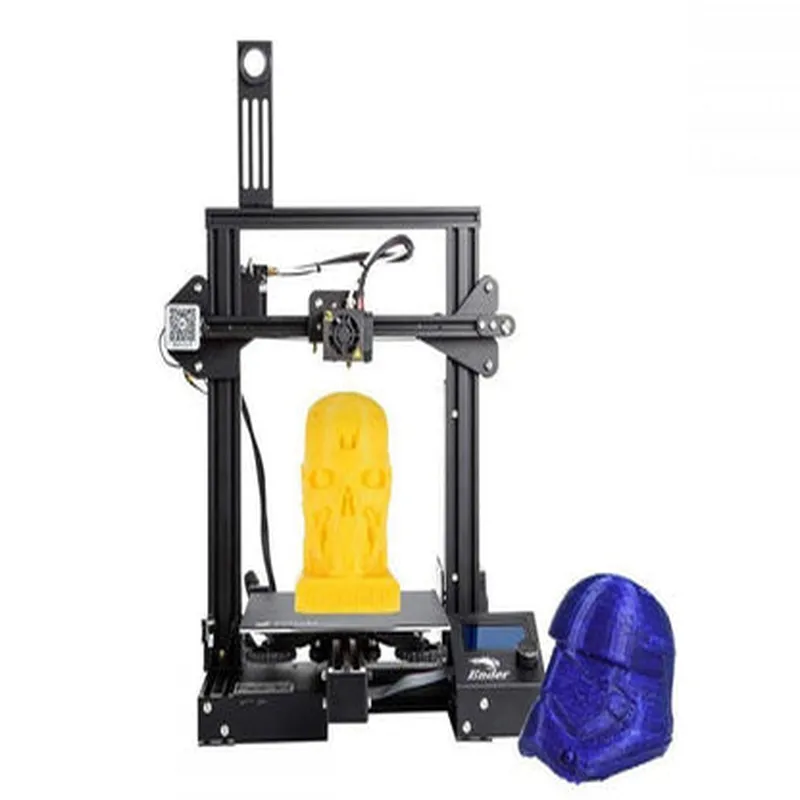
Creality Ender-3 Pro 3D Printer DIY Kit

Buy Now on Stufin

Print Resolution

400x400x400 DPI

Print Speed

30-150mm/s

Hotend Temperature

Up to 300C

Heated Bed Temperature

Up to 100C

Power Supply

12V 20A

Connectivity

SD Card, USB

Inclusions

Main frame assembly

Print bed assembly

Extruder assembly

Hotend assembly

Power supply

SD card

USB cable

Allen wrenches

Assembly instructions

Certifications and Compliance

CE Certified

FCC Compliant

RoHS Compliant

Warranty and Support

1-year limited warranty

Dedicated customer support team

Online resources and documentation available

The Creality Ender-3 Pro 3D Printer DIY Kit is an excellent choice for those looking for a cost-effective, high-performance 3D printing solution. With its large build volume, open-frame design, and advanced features, this kit is suitable for a wide range of applications, from prototyping to production.

Pin Configuration

  • Creality Ender-3 Pro 3D Printer DIY Kit Pinout Documentation
  • The Creality Ender-3 Pro 3D Printer DIY Kit is a popular and affordable 3D printing solution that requires assembly and configuration. The kit includes a mainboard, power supply, motors, and other components that need to be connected correctly for proper operation. This documentation explains the pinout of the mainboard and how to connect the components.
  • Mainboard Pinout:
  • The mainboard of the Creality Ender-3 Pro 3D Printer DIY Kit has several connectors and pin headers that need to be connected to various components. The pinout is as follows:
  • 1. Power Connectors:
  • VIN (Red): +24V Input from Power Supply
  • GND (Black): Ground Connection from Power Supply
  • 2. stepper Motor Connectors:
  • X-Motor:
  • + X_DIR (Dir): X-Axis Motor Direction Signal
  • + X_STEP (Step): X-Axis Motor Step Signal
  • + X_EN (Enable): X-Axis Motor Enable Signal
  • Y-Motor:
  • + Y_DIR (Dir): Y-Axis Motor Direction Signal
  • + Y_STEP (Step): Y-Axis Motor Step Signal
  • + Y_EN (Enable): Y-Axis Motor Enable Signal
  • Z-Motor:
  • + Z_DIR (Dir): Z-Axis Motor Direction Signal
  • + Z_STEP (Step): Z-Axis Motor Step Signal
  • + Z_EN (Enable): Z-Axis Motor Enable Signal
  • E0-Motor (Extruder 0):
  • + E0_DIR (Dir): Extruder 0 Motor Direction Signal
  • + E0_STEP (Step): Extruder 0 Motor Step Signal
  • + E0_EN (Enable): Extruder 0 Motor Enable Signal
  • 3. Endstop Connectors:
  • X-Min:
  • + X-Min Signal: X-Axis Minimum Endstop Signal
  • + X-Min GND: X-Axis Minimum Endstop Ground
  • Y-Min:
  • + Y-Min Signal: Y-Axis Minimum Endstop Signal
  • + Y-Min GND: Y-Axis Minimum Endstop Ground
  • Z-Min:
  • + Z-Min Signal: Z-Axis Minimum Endstop Signal
  • + Z-Min GND: Z-Axis Minimum Endstop Ground
  • X-Max:
  • + X-Max Signal: X-Axis Maximum Endstop Signal
  • + X-Max GND: X-Axis Maximum Endstop Ground
  • Y-Max:
  • + Y-Max Signal: Y-Axis Maximum Endstop Signal
  • + Y-Max GND: Y-Axis Maximum Endstop Ground
  • Z-Max:
  • + Z-Max Signal: Z-Axis Maximum Endstop Signal
  • + Z-Max GND: Z-Axis Maximum Endstop Ground
  • 4. Heated Bed Connector:
  • Bed Heater: Heated Bed Power Connection
  • Bed Thermistor: Heated Bed Thermistor Signal
  • 5. Hotend Connectors:
  • E0-Hotend: Extruder 0 Hotend Power Connection
  • E0-Thermistor: Extruder 0 Hotend Thermistor Signal
  • 6. Fan Connectors:
  • Fan 1: Fan 1 Power Connection
  • Fan 2: Fan 2 Power Connection
  • 7. LCD and SD Card Connectors:
  • LCD-CS: LCD Chip Select Signal
  • LCD-CLK: LCD Clock Signal
  • LCD-MOSI: LCD Master Out Slave In Signal
  • LCD-MISO: LCD Master In Slave Out Signal
  • SD-CS: SD Card Chip Select Signal
  • SD-CLK: SD Card Clock Signal
  • SD-MOSI: SD Card Master Out Slave In Signal
  • SD-MISO: SD Card Master In Slave Out Signal
  • Connection Structure:
  • To connect the components, follow these steps:
  • Step 1: Connect Power Supply
  • Connect the +24V input from the power supply to the VIN pin on the mainboard.
  • Connect the ground connection from the power supply to the GND pin on the mainboard.
  • Step 2: Connect Stepper Motors
  • Connect the X-Motor wires to the X-Motor connector on the mainboard.
  • Connect the Y-Motor wires to the Y-Motor connector on the mainboard.
  • Connect the Z-Motor wires to the Z-Motor connector on the mainboard.
  • Connect the E0-Motor wires to the E0-Motor connector on the mainboard.
  • Step 3: Connect Endstops
  • Connect the X-Min endstop wires to the X-Min connector on the mainboard.
  • Connect the Y-Min endstop wires to the Y-Min connector on the mainboard.
  • Connect the Z-Min endstop wires to the Z-Min connector on the mainboard.
  • Connect the X-Max endstop wires to the X-Max connector on the mainboard.
  • Connect the Y-Max endstop wires to the Y-Max connector on the mainboard.
  • Connect the Z-Max endstop wires to the Z-Max connector on the mainboard.
  • Step 4: Connect Heated Bed
  • Connect the heated bed wires to the Bed Heater connector on the mainboard.
  • Connect the heated bed thermistor wires to the Bed Thermistor connector on the mainboard.
  • Step 5: Connect Hotend
  • Connect the E0-Hotend wires to the E0-Hotend connector on the mainboard.
  • Connect the E0-Thermistor wires to the E0-Thermistor connector on the mainboard.
  • Step 6: Connect Fans
  • Connect the Fan 1 wires to the Fan 1 connector on the mainboard.
  • Connect the Fan 2 wires to the Fan 2 connector on the mainboard.
  • Step 7: Connect LCD and SD Card
  • Connect the LCD wires to the LCD connector on the mainboard.
  • Connect the SD Card wires to the SD Card connector on the mainboard.
  • By following these steps and connecting the components correctly, you should be able to assemble and configure your Creality Ender-3 Pro 3D Printer DIY Kit successfully.

Code Examples

Creality Ender-3 Pro 3D Printer DIY Kit Documentation
Overview
The Creality Ender-3 Pro 3D Printer DIY Kit is a popular and affordable 3D printing solution for hobbyists and professionals alike. This kit includes all the necessary components to assemble a fully functional 3D printer, including the mainboard, stepper motors, hotend, and other essential parts.
Technical Specifications
Print Resolution: Up to 400x400x400 dpi
 Print Speed: Up to 180 mm/s
 Layer Thickness: 0.1-0.3 mm
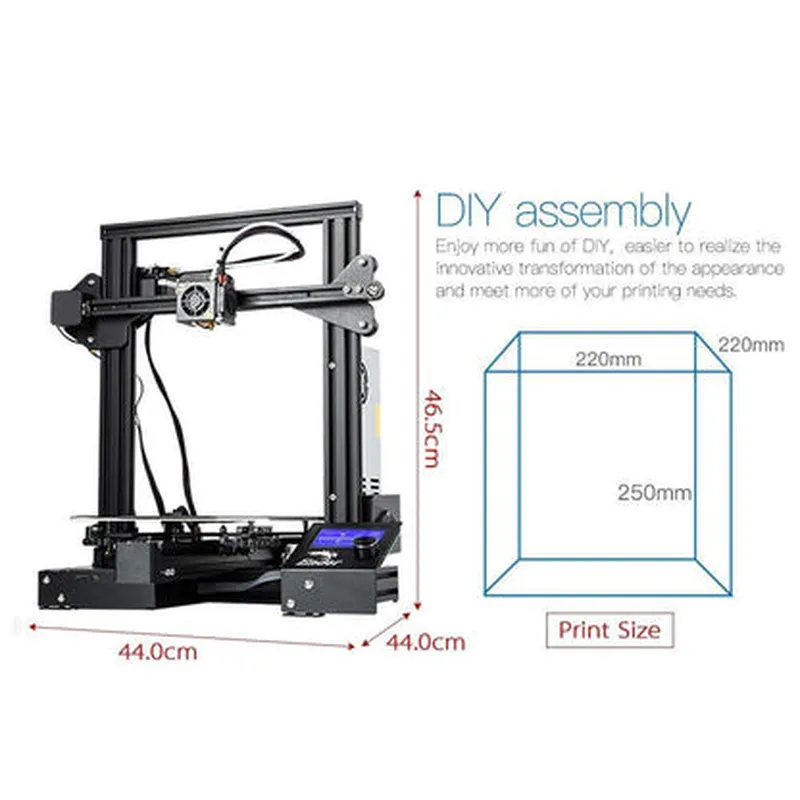
 Print Bed Size: 220x220 mm
 Connectivity: USB, SD Card
Programming and Control
The Creality Ender-3 Pro 3D Printer DIY Kit can be controlled and programmed using various platforms and languages, including:
Marlin Firmware: A popular open-source firmware for 3D printers, which can be customized and modified to suit specific needs.
 G-Code: A standard programming language for CNC machines, including 3D printers, which can be used to create custom printing scripts.
Code Examples
### Example 1: Basic Printing Script using G-Code
The following G-Code script demonstrates a basic printing sequence:
```gcode
; Set units to millimeters
G21
; Set print speed to 100 mm/s
G1 F100
; Move to starting position
G1 X0 Y0 Z0.2
; Print a small square
G1 X10 Y10 E0.5 F100
G1 X10 Y20 E0.5 F100
G1 X20 Y20 E0.5 F100
G1 X20 Y10 E0.5 F100
; Move to end position
G1 X0 Y0 Z0.2
```
This script sets the units to millimeters, sets the print speed to 100 mm/s, moves to the starting position, prints a small square, and then moves to the end position.
### Example 2: Custom LED Lighting Control using Marlin Firmware
The following C++ code example demonstrates how to customize the LED lighting on the Creality Ender-3 Pro using Marlin Firmware:
```cpp
#include <Marlin.h>
// Define the LED pin
#define LED_PIN 13
void setup() {
  // Initialize the LED pin as an output
  pinMode(LED_PIN, OUTPUT);
}
void loop() {
  // Set the LED to blink while printing
  if (IS_PRINTING) {
    digitalWrite(LED_PIN, HIGH);
    delay(50);
    digitalWrite(LED_PIN, LOW);
    delay(50);
  } else {
    // Set the LED to a steady state when not printing
    digitalWrite(LED_PIN, HIGH);
  }
}
```
This code defines the LED pin, initializes it as an output, and sets the LED to blink while printing. When not printing, the LED is set to a steady state.
Note: These code examples are for demonstration purposes only and may require modification to work with your specific setup and requirements. Be sure to consult the official documentation and resources provided by Creality and the Marlin Firmware community for more detailed information and guidance.