1.54 inch E-ink Display Module, Three Color 200x200


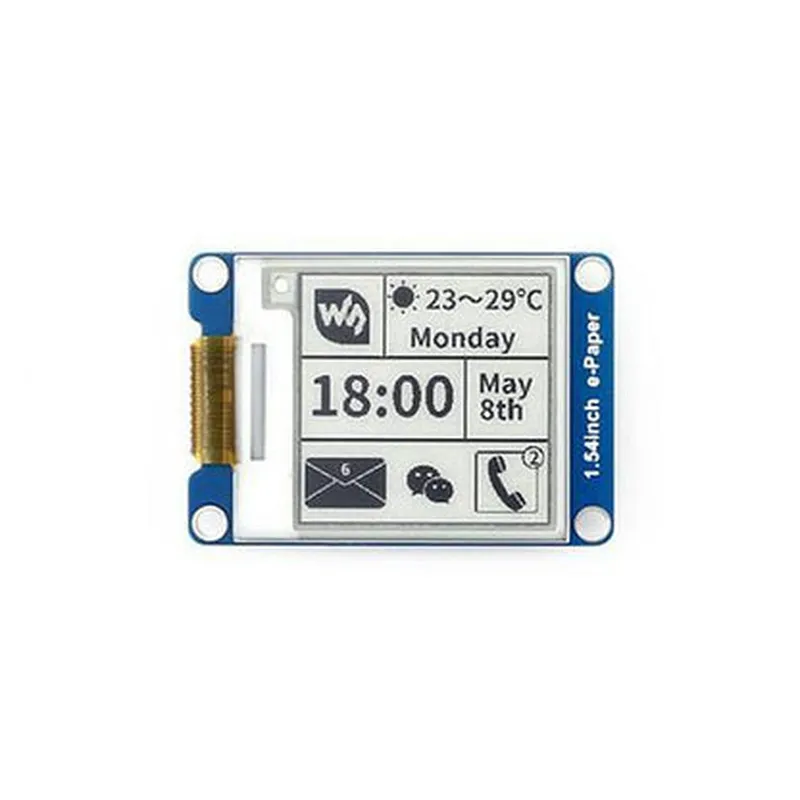
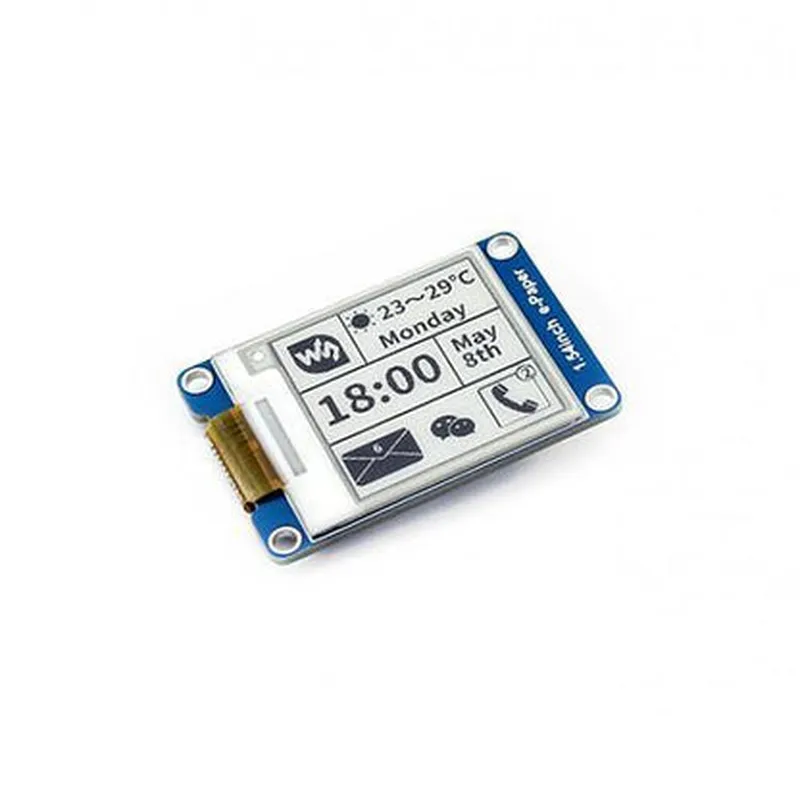
1.54 inch E-ink Display Module, Three Color 200x200
| The 1.54 inch E-ink Display Module is a compact, low-power, and high-contrast display module designed for a wide range of IoT applications. This module features a 1.54-inch display screen with a resolution of 200x200 pixels, capable of displaying three colors | black, white, and red. |
The 1.54 inch E-ink Display Module is designed to provide a high-quality display solution for IoT devices, Wearables, and handheld devices. It receives image data from a host microcontroller and displays it on the screen using electrophoretic technology. This module is ideal for applications that require a low-power, high-contrast, and sunlight-readable display.
| ### Display Specifications |
1.54 inches
200x200 pixels
Electrophoretic (E-ink)
Three colors (Black, White, and Red)
0.12 mm x 0.12 mm
180 (all directions)
| ### Interface and Compatibility |
SPI (4-wire)
3.3V
Industry-standard SPI protocol
Most microcontrollers and development boards
| ### Power Management |
Ultra-low power consumption (average 20uA)
Supports sleep mode and partial update mode
| Wake-up Time | < 10ms from sleep mode |
| ### Physical Characteristics |
36.5 mm x 24.5 mm x 1.5 mm
Approximately 6 grams
Through-hole and surface-mount options available
-20C to +50C
| ### Additional Features |
Rapid display update (less than 2 seconds)
Ideal for battery-powered devices
Provides clear visibility in various lighting conditions
Suitable for outdoor and industrial applications
| The 1.54 inch E-ink Display Module is suitable for a wide range of IoT applications, including |
Wearables and fitness trackers
Smart home devices and automation systems
Industrial control and monitoring systems
Handheld devices and scanners
E-ink signage and display systems
For technical documentation, datasheets, and code examples, please refer to the manufacturer's documentation and resources section.
1.54 inch E-ink Display Module, Three Colour 200x200 DocumentationOverviewThe 1.54 inch E-ink Display Module, Three Colour 200x200 is a compact, low-power display module designed for IoT applications. This module features a 200x200 pixel resolution, three-color e-ink display, and is suitable for a wide range of projects, from simple informational displays to complex interactive interfaces.Technical SpecificationsDisplay Size: 1.54 inches
Resolution: 200x200 pixels
Display Type: Three-color e-ink
Interface: SPI
Power Supply: 3.3V
Operating Temperature: -20C to 70C
Storage Temperature: -30C to 80CPinout| Pin | Function |
| --- | --- |
| VCC | Power Supply (3.3V) |
| GND | Ground |
| SCK | SPI Clock |
| MOSI | SPI Master Out Slave In |
| CS | SPI Chip Select |
| RST | Reset |
| BUSY | Busy Signal |Library and Example CodeTo demonstrate the usage of this component, we will provide examples using the Arduino platform.Example 1: Basic DisplayThis example showcases how to initialize the display and display a simple text message.Hardware Requirements1.54 inch E-ink Display Module, Three Colour 200x200
Arduino Board (e.g., Arduino Uno)
Breadboard and jumper wiresSoftware RequirementsArduino IDE
`Epd` library (install using the Arduino Library manager)Code
```c++
#include <Epd.h>#define EPD_CS 5 // Chip Select pin
#define EPD_RST 6 // Reset pin
#define EPD_BUSY 7 // Busy signal pinEpd epd(EPD_CS, EPD_RST, EPD_BUSY);void setup() {
epd.init();
epd.set_rotation(0); // Set rotation to 0 degrees
epd.clear_screen();
}void loop() {
epd.set_text_wrap(true);
epd.set_text_size(1);
epd.set_cursor(0, 0);
epd.print("Hello, World!");
epd.update_screen();
delay(1000);
}
```
Example 2: Image DisplayThis example demonstrates how to display a 200x200 pixel image on the e-ink display.Hardware Requirements1.54 inch E-ink Display Module, Three Colour 200x200
Arduino Board (e.g., Arduino Uno)
Breadboard and jumper wires
MicroSD card module (for storing the image file)
Image file (200x200 pixels, 3-bit color, stored on the microSD card)Software RequirementsArduino IDE
`Epd` library (install using the Arduino Library manager)
`SD` library (install using the Arduino Library manager)Code
```c++
#include <Epd.h>
#include <SD.h>#define EPD_CS 5 // Chip Select pin
#define EPD_RST 6 // Reset pin
#define EPD_BUSY 7 // Busy signal pin
#define SD_CS 4 // MicroSD card chip select pinEpd epd(EPD_CS, EPD_RST, EPD_BUSY);
SDCard sdCard(SD_CS);void setup() {
epd.init();
epd.set_rotation(0); // Set rotation to 0 degrees
epd.clear_screen();if (!sdCard.begin()) {
Serial.println("Error: MicroSD card initialization failed");
return;
}File imageFile = sdCard.open("image.bin");
if (!imageFile) {
Serial.println("Error: Image file not found");
return;
}epd.set_image(imageFile);
epd.update_screen();
}void loop() {
// No operation
}
```
Example 3: Animated DisplayThis example demonstrates how to create a simple animated display using the e-ink display module.Hardware Requirements1.54 inch E-ink Display Module, Three Colour 200x200
Arduino Board (e.g., Arduino Uno)
Breadboard and jumper wiresSoftware RequirementsArduino IDE
`Epd` library (install using the Arduino Library manager)Code
```c++
#include <Epd.h>#define EPD_CS 5 // Chip Select pin
#define EPD_RST 6 // Reset pin
#define EPD_BUSY 7 // Busy signal pinEpd epd(EPD_CS, EPD_RST, EPD_BUSY);void setup() {
epd.init();
epd.set_rotation(0); // Set rotation to 0 degrees
epd.clear_screen();
}void loop() {
for (int i = 0; i < 10; i++) {
epd.set_text_wrap(true);
epd.set_text_size(1);
epd.set_cursor(0, 0);
epd.print("Frame ");
epd.print(i);
epd.update_screen();
delay(500);
epd.clear_screen();
}
}
```
These examples demonstrate the basic usage of the 1.54 inch E-ink Display Module, Three Colour 200x200. By following these examples, you can create more complex and interactive IoT projects using this display module.