Insulated copper wire


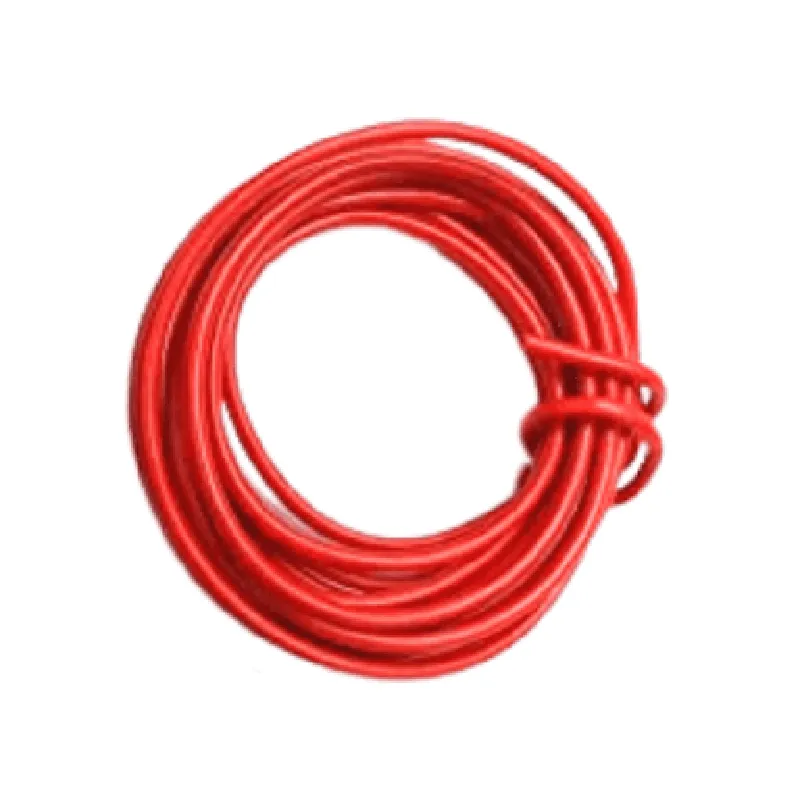
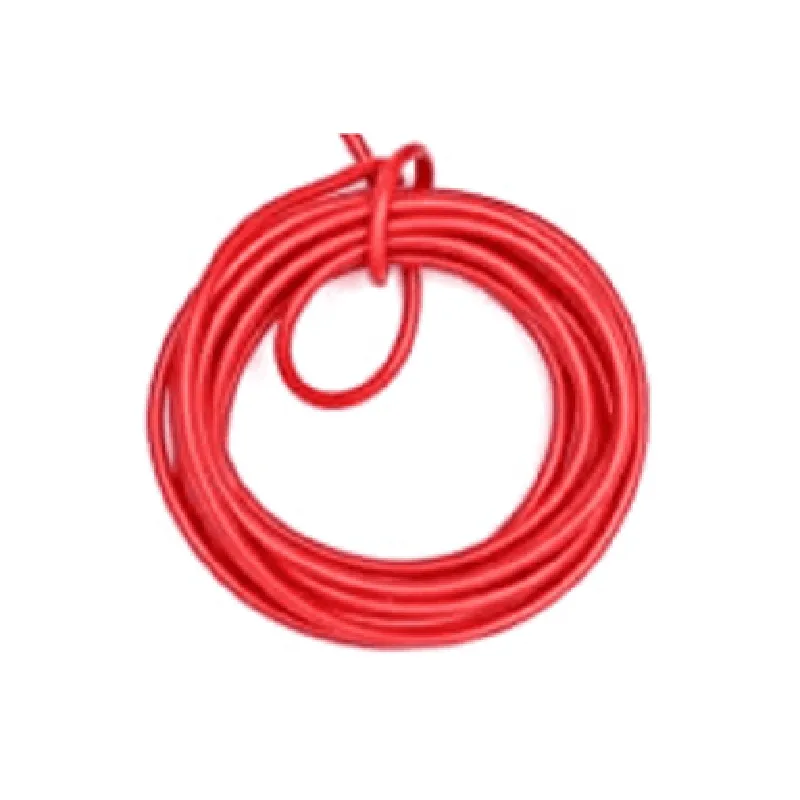
Insulated copper wire
PVC (Polyvinyl Chloride) or Teflon (PTFE)
Copper
Varies (e.g., 20 AWG, 18 AWG, 16 AWG)
60 meters
Red
-20C to 80C
Stranded copper wire
Applications
IoT projects
Robotics and automation
Electronics and electrical engineering projects
Prototyping and proof-of-concept development
Repair and maintenance of existing electrical systems
Safety Precautions
Handle the wire with care to avoid damaging the insulation or conductors.
Ensure proper connection and termination to prevent electrical shock or short circuits.
Follow applicable safety standards and regulations when working with electrical systems.
Storage and Handling
Store the wire in a dry, cool place, away from direct sunlight and moisture.
Avoid tangling or kinking the wire to prevent damage.
Handle the wire by the insulation, rather than the conductor, to prevent electrical shock.
By providing a detailed description of the Hook up Wire (Red) - 60 Meters, this documentation aims to help technical professionals and informed hobbyists understand the component's functionality, key features, and specifications, ensuring successful integration into their IoT projects.
Hook up Wire (Red) - 60 MetersOverviewThe Hook up Wire (Red) - 60 Meters is a 60-meter long, insulated copper wire with a red color code, used for connecting electronic components in a variety of IoT projects. This wire is suitable for use in breadboards, prototyping, and permanent installations.SpecificationsWire length: 60 meters
Wire material: Insulated copper
Wire color: Red
Wire gauge: 22 AWG (American Wire Gauge)
Voltage rating: 300V
Temperature rating: -20C to 80CUsage Examples### Example 1: Connecting an LED to a BreadboardIn this example, we will use the Hook up Wire (Red) to connect an LED to a breadboard.Hardware RequirementsHook up Wire (Red) - 60 Meters
Breadboard
LED (any color)
1 k resistor
Power source (e.g., Arduino or Raspberry Pi)Code Example (Arduino)
```c
const int ledPin = 13; // choose a digital pin for the LEDvoid setup() {
pinMode(ledPin, OUTPUT);
}void loop() {
digitalWrite(ledPin, HIGH); // turn the LED on
delay(1000); // wait 1 second
digitalWrite(ledPin, LOW); // turn the LED off
delay(1000); // wait 1 second
}
```
Connection Diagram1. Connect one end of the Hook up Wire (Red) to the positive leg of the LED.
2. Connect the other end of the wire to digital pin 13 on the breadboard.
3. Connect the 1 k resistor between the negative leg of the LED and the GND pin on the breadboard.
4. Connect the power source to the breadboard.### Example 2: Interfacing a Sensor with a MicrocontrollerIn this example, we will use the Hook up Wire (Red) to connect a temperature sensor to a microcontroller.Hardware RequirementsHook up Wire (Red) - 60 Meters
Microcontroller (e.g., Arduino or Raspberry Pi)
Temperature sensor (e.g., DS18B20)
BreadboardCode Example (Python for Raspberry Pi)
```python
import RPi.GPIO as GPIO
import time# Set up GPIO library
GPIO.setmode(GPIO.BCM)# Define the temperature sensor pin
temp_pin = 17# Set up the temperature sensor pin as an input
GPIO.setup(temp_pin, GPIO.IN)while True:
# Read the temperature sensor value
temp_value = GPIO.input(temp_pin)
print("Temperature: ", temp_value)
time.sleep(1)
```
Connection Diagram1. Connect one end of the Hook up Wire (Red) to the VCC pin of the temperature sensor.
2. Connect the other end of the wire to a 3.3V or 5V pin on the microcontroller.
3. Connect the GND pin of the temperature sensor to a GND pin on the microcontroller using a separate wire.
4. Connect the data pin of the temperature sensor to a digital input pin on the microcontroller (e.g., GPIO 17 on Raspberry Pi).Note: Make sure to follow proper wiring and safety precautions when working with electronic components.