Stufin
Home Quick Cart Profile

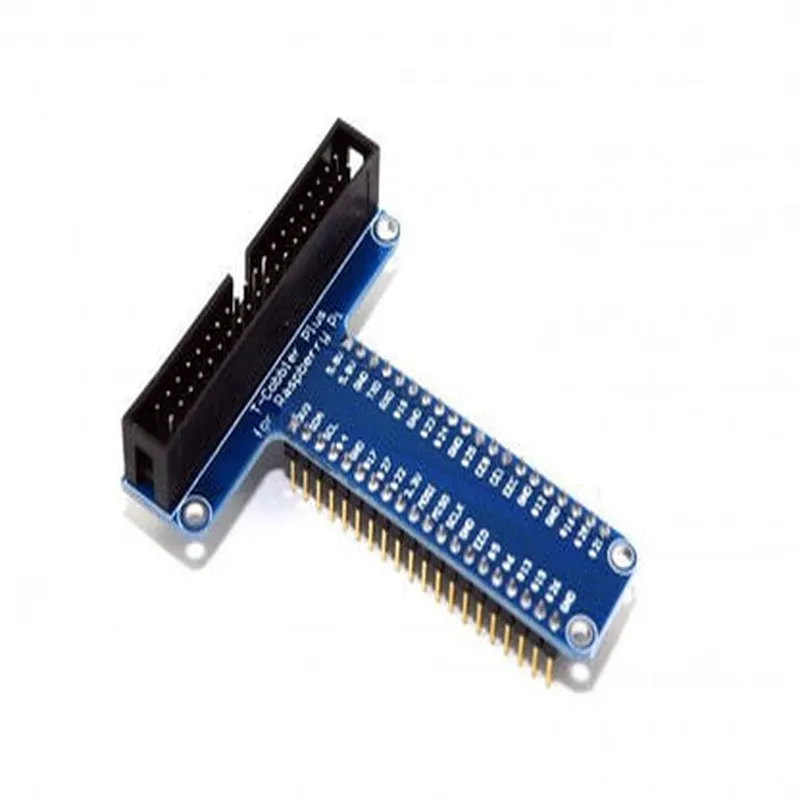
Raspberry Pi T-Cobbler

Buy Now on Stufin

Dimensions

2.5 inches x 1.5 inches (63.5mm x 38.1mm)


Operating Temperature

-20C to 80C (-4F to 176F)

Storage Temperature

-40C to 125C (-40F to 257F)

Applications

The Raspberry Pi T-Cobbler is an essential tool for

Rapid prototyping and development of IoT projects

Learning and education in robotics, electronics, and computer science

Building proof-of-concepts and MVPs for startups and entrepreneurs

Development of commercial products and solutions

Conclusion

The Raspberry Pi T-Cobbler is a versatile and convenient breakout board that simplifies the process of prototyping and developing projects with the Raspberry Pi. Its ease of use, clear labelling, and robust construction make it an ideal tool for both professionals and hobbyists working with IoT projects.

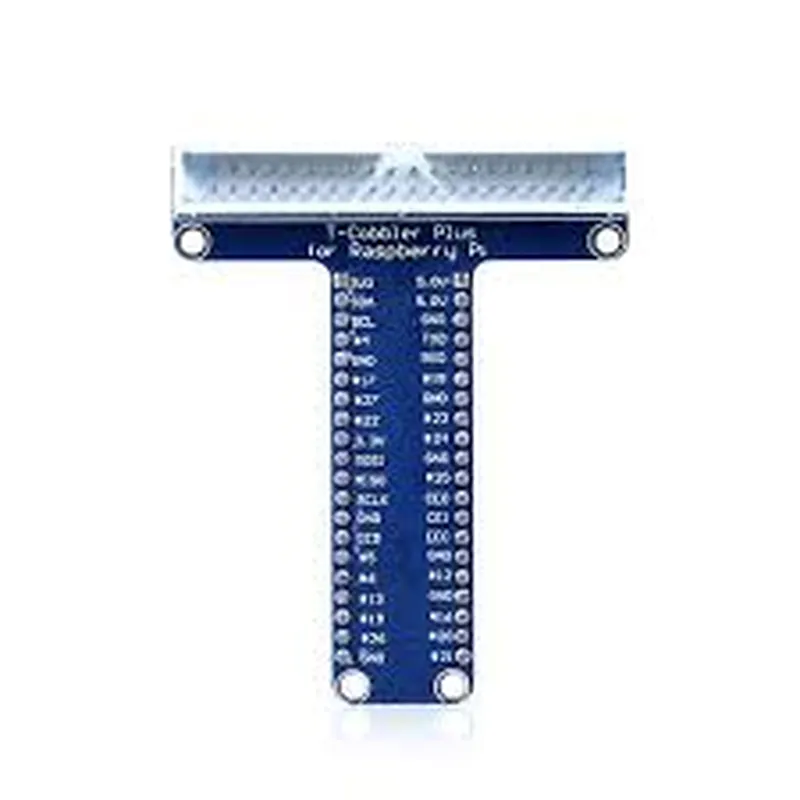
Pin Configuration

  • Raspberry Pi T-Cobbler Documentation
  • The Raspberry Pi T-Cobbler is a convenient and innovative way to connect your Raspberry Pi to a breadboard, making it easier to prototype and develop projects. The T-Cobbler is an adapter that breaks out the GPIO pins of the Raspberry Pi into a 40-pin header, allowing for easy connections to a breadboard or other development boards.
  • Pinout Explanation:
  • The Raspberry Pi T-Cobbler has a total of 40 pins, which are divided into three categories:
  • GPIO Pins (26): These pins are used for general-purpose input/output operations, such as digital inputs/outputs, I2C, SPI, UART, and other specialized functions.
  • Power Pins (4): These pins provide power and ground connections to your project.
  • Reserved Pins (10): These pins are reserved for future use and should not be connected to anything.
  • Here is a detailed explanation of each pin, point by point:
  • GPIO Pins (26):
  • 1. GPIO 2: GPIO input/output pin, can be used for digital input/output operations.
  • 2. GPIO 3: GPIO input/output pin, can be used for digital input/output operations.
  • 3. GPIO 4: GPIO input/output pin, can be used for digital input/output operations.
  • 4. GPIO 5: GPIO input/output pin, can be used for digital input/output operations.
  • 5. GPIO 6: GPIO input/output pin, can be used for digital input/output operations.
  • 6. GPIO 7: GPIO input/output pin, can be used for digital input/output operations.
  • 7. GPIO 8: GPIO input/output pin, can be used for digital input/output operations.
  • 8. GPIO 9: GPIO input/output pin, can be used for digital input/output operations.
  • 9. GPIO 10: GPIO input/output pin, can be used for digital input/output operations.
  • 10. GPIO 11: GPIO input/output pin, can be used for digital input/output operations.
  • 11. GPIO 12: GPIO input/output pin, can be used for digital input/output operations.
  • 12. GPIO 13: GPIO input/output pin, can be used for digital input/output operations.
  • 13. GPIO 14: TXD (Transmit) pin for UART communication.
  • 14. GPIO 15: RXD (Receive) pin for UART communication.
  • 15. GPIO 16: GPIO input/output pin, can be used for digital input/output operations.
  • 16. GPIO 17: GPIO input/output pin, can be used for digital input/output operations.
  • 17. GPIO 18: GPIO input/output pin, can be used for digital input/output operations.
  • 18. GPIO 19: GPIO input/output pin, can be used for digital input/output operations.
  • 19. GPIO 20: GPIO input/output pin, can be used for digital input/output operations.
  • 20. GPIO 21: GPIO input/output pin, can be used for digital input/output operations.
  • 21. GPIO 22: GPIO input/output pin, can be used for digital input/output operations.
  • 22. GPIO 23: GPIO input/output pin, can be used for digital input/output operations.
  • 23. GPIO 24: GPIO input/output pin, can be used for digital input/output operations.
  • 24. GPIO 25: GPIO input/output pin, can be used for digital input/output operations.
  • 25. GPIO 26: GPIO input/output pin, can be used for digital input/output operations.
  • 26. GPIO 27: GPIO input/output pin, can be used for digital input/output operations.
  • Power Pins (4):
  • 27. 3.3V: 3.3V power supply pin, provides power to your project.
  • 28. 5V: 5V power supply pin, provides power to your project.
  • 29. GND: Ground pin, provides a common ground connection.
  • 30. GND: Ground pin, provides a common ground connection.
  • Reserved Pins (10):
  • 31. Reserved: Do not connect to anything.
  • 32. Reserved: Do not connect to anything.
  • 33. Reserved: Do not connect to anything.
  • 34. Reserved: Do not connect to anything.
  • 35. Reserved: Do not connect to anything.
  • 36. Reserved: Do not connect to anything.
  • 37. Reserved: Do not connect to anything.
  • 38. Reserved: Do not connect to anything.
  • 39. Reserved: Do not connect to anything.
  • 40. Reserved: Do not connect to anything.
  • Connecting the Pins:
  • To connect the pins to a breadboard or other development boards, follow these steps:
  • 1. Identify the pin you want to connect to your project.
  • 2. Locate the corresponding pin on the Raspberry Pi T-Cobbler.
  • 3. Use a jumper wire or a connector to connect the pin to your project.
  • 4. Make sure to connect the power pins (3.3V, 5V, and GND) to a suitable power source and ground connection.
  • 5. Use the GPIO pins to connect your project's components, such as sensors, actuators, or other devices.
  • Important Notes:
  • Always use a suitable power supply and follow proper safety precautions when working with electricity.
  • Be careful not to short-circuit any pins, as this can damage your Raspberry Pi or other components.
  • Refer to the Raspberry Pi documentation and other relevant resources for more information on using the GPIO pins and other components.
  • By following this documentation, you should be able to successfully connect and use the Raspberry Pi T-Cobbler in your IoT projects.

Code Examples

Raspberry Pi T-Cobbler Documentation
The Raspberry Pi T-Cobbler is a innovative breakout board that makes it easy to connect your Raspberry Pi to a breadboard or other prototyping area. This documentation provides an overview of the component, its features, and code examples to get you started.
Overview
The Raspberry Pi T-Cobbler is a convenient and compact solution for prototyping with the Raspberry Pi. It allows you to easily connect your Raspberry Pi to a breadboard or other prototyping area, making it ideal for DIY projects, proof-of-concepts, and educational activities.
Features
Compact design for easy prototyping
 Breakout for all 40 GPIO pins on the Raspberry Pi
 Clearly labeled headers for easy identification
 Compatible with Raspberry Pi models A, B, A+, B+, 2, 3, and 4
Code Examples
### Example 1: Blinking LED using Python
In this example, we'll use the T-Cobbler to connect an LED to a Raspberry Pi and control it using Python.
Hardware Requirements:
Raspberry Pi
 T-Cobbler
 Breadboard
 LED
 220 ohm resistor
 Jumper wires
Software Requirements:
Raspbian OS (or equivalent)
 Python 3.x
Code:
```python
import RPi.GPIO as GPIO
import time
# Set up GPIO mode
GPIO.setmode(GPIO.BCM)
# Define the pin for the LED
LED_PIN = 17
# Set up the LED pin as an output
GPIO.setup(LED_PIN, GPIO.OUT)
while True:
    # Turn the LED on
    GPIO.output(LED_PIN, GPIO.HIGH)
    time.sleep(1)
    # Turn the LED off
    GPIO.output(LED_PIN, GPIO.LOW)
    time.sleep(1)
```
Example 2: Reading Temperature and Humidity using Python
In this example, we'll use the T-Cobbler to connect a DHT11 temperature and humidity sensor to a Raspberry Pi and read the values using Python.
Hardware Requirements:
Raspberry Pi
 T-Cobbler
 Breadboard
 DHT11 sensor
 Jumper wires
Software Requirements:
Raspbian OS (or equivalent)
 Python 3.x
 Adafruit DHT library (install using `pip install Adafruit_DHT`)
Code:
```python
import Adafruit_DHT
# Define the pin for the DHT11 sensor
DHT_PIN = 4
while True:
    # Read temperature and humidity values
    humidity, temperature = Adafruit_DHT.read(DHT_PIN)
    if temperature is not None and humidity is not None:
        print('Temp={0:0.1f}C  Humidity={1:0.1f}%'.format(temperature, humidity))
    else:
        print('Failed to get reading. Try again!')
    time.sleep(2)
```
These examples demonstrate how to use the Raspberry Pi T-Cobbler to connect peripherals to the Raspberry Pi and control them using Python. The T-Cobbler's compact design and clearly labeled headers make it an ideal solution for prototyping and DIY projects.