


Stufin
Home Quick Cart Profile

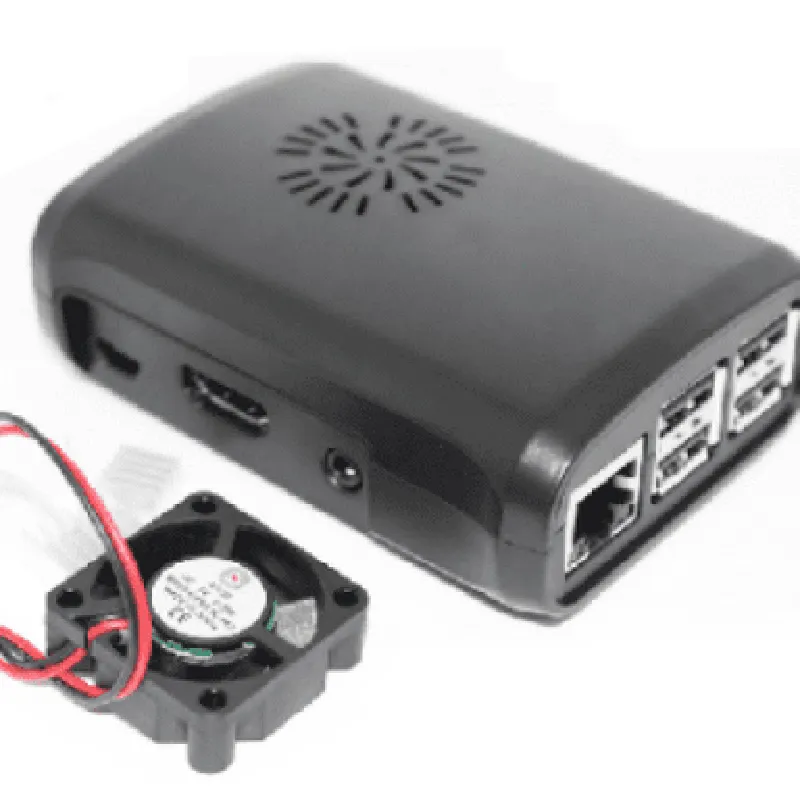
Raspberry Pi ABS case with Fan(Back)

Buy Now on Stufin

Material

ABS plastic

Dimensions

85 x 56 x 35 mm (L x W x H)

Weight

120g

Fan specifications

+ TypeBrushless DC fan
+ Voltage5V
+ Current0.2A
+ Speed2500 RPM

Operating temperature

0C to 40C

Usage Scenarios

The Raspberry Pi ABS Case with Fan (Back) is ideal for a wide range of projects, including

IoT projects

Home automation systems

Media centers

Retro game consoles

Robotics and automation projects

Prototyping and development environments

Conclusion

The Raspberry Pi ABS Case with Fan (Back) is a reliable and efficient solution for protecting and cooling your Raspberry Pi project. Its durable construction, precise fit, and built-in fan make it an excellent choice for various IoT and robotics applications.

Pin Configuration

  • Raspberry Pi ABS Case with Fan (Back) Pinout Guide
  • The Raspberry Pi ABS case with Fan (Back) is a popular encasing solution for Raspberry Pi single-board computers. The case provides a neat and compact design, while the built-in fan ensures efficient heat dissipation. This documentation focuses on the pinout of the Raspberry Pi ABS case with Fan (Back) and provides a comprehensive guide on connecting the pins.
  • GPIO Pinout:
  • The Raspberry Pi ABS case with Fan (Back) has a standard 40-pin GPIO header, similar to the Raspberry Pi boards. The pins are numbered from 1 to 40 and are divided into two rows of 20 pins each. Here's a point-by-point explanation of each pin:
  • Row 1 (Pins 1-20):
  • 1. 3.3V Power: Provides 3.3V power supply to peripherals and accessories.
  • 2. 5V Power: Supplies 5V power to peripherals and accessories.
  • 3. GPIO 2 (SDA): General-purpose input/output pin, also used as I2C data line.
  • 4. GPIO 3 (SCL): General-purpose input/output pin, also used as I2C clock line.
  • 5. GPIO 4 (GPCLK0): General-purpose input/output pin, also used as clock output.
  • 6. GPIO 5: General-purpose input/output pin.
  • 7. GPIO 6: General-purpose input/output pin.
  • 8. GPIO 7: General-purpose input/output pin.
  • 9. GPIO 8 (TXD): General-purpose input/output pin, also used as UART transmit data line.
  • 10. GPIO 9 (RXD): General-purpose input/output pin, also used as UART receive data line.
  • 11. GPIO 10 (CTS): General-purpose input/output pin, also used as UART clear-to-send line.
  • 12. GPIO 11 (RTS): General-purpose input/output pin, also used as UART request-to-send line.
  • 13. GPIO 12: General-purpose input/output pin.
  • 14. GPIO 13: General-purpose input/output pin.
  • 15. GPIO 14 (TXD): General-purpose input/output pin, also used as UART transmit data line.
  • 16. GPIO 15 (RXD): General-purpose input/output pin, also used as UART receive data line.
  • 17. 3.3V Power: Provides 3.3V power supply to peripherals and accessories.
  • 18. GPIO 18: General-purpose input/output pin.
  • 19. GPIO 19: General-purpose input/output pin.
  • 20. GPIO 20: General-purpose input/output pin.
  • Row 2 (Pins 21-40):
  • 21. GPIO 21: General-purpose input/output pin.
  • 22. GPIO 22: General-purpose input/output pin.
  • 23. GPIO 23: General-purpose input/output pin.
  • 24. GPIO 24: General-purpose input/output pin.
  • 25. GPIO 25: General-purpose input/output pin.
  • 26. GPIO 26: General-purpose input/output pin.
  • 27. GPIO 27: General-purpose input/output pin.
  • 28. GPIO 28: General-purpose input/output pin.
  • 29. GPIO 29: General-purpose input/output pin.
  • 30. GPIO 30: General-purpose input/output pin.
  • 31. GPIO 31: General-purpose input/output pin.
  • 32. GPIO 32: General-purpose input/output pin.
  • 33. GPIO 33: General-purpose input/output pin.
  • 34. GPIO 34: General-purpose input/output pin.
  • 35. GPIO 35: General-purpose input/output pin.
  • 36. GPIO 36: General-purpose input/output pin.
  • 37. GPIO 37: General-purpose input/output pin.
  • 38. GPIO 38: General-purpose input/output pin.
  • 39. GPIO 39: General-purpose input/output pin.
  • 40. GPIO 40: General-purpose input/output pin.
  • Fan Connection:
  • The Raspberry Pi ABS case with Fan (Back) has a built-in fan for heat dissipation. The fan is connected to the GPIO header as follows:
  • Fan positive wire (red): Connects to Pin 2 (5V Power)
  • Fan negative wire (black): Connects to Pin 6 (GPIO 6)
  • Important Notes:
  • Before connecting any devices or peripherals, ensure you have a basic understanding of electronics and circuitry.
  • Always use a breadboard or PCB to connect devices to the GPIO pins to avoid damage to the Raspberry Pi or the ABS case.
  • Be cautious when handling the pins and connections to avoid electrical shock or damage to the components.
  • By following this pinout guide, you can successfully connect your Raspberry Pi to various peripherals, accessories, and devices using the GPIO header.

Code Examples

Raspberry Pi ABS Case with Fan (Back) Documentation
Overview
The Raspberry Pi ABS Case with Fan (Back) is a protective enclosure designed specifically for the Raspberry Pi single-board computer. This case provides excellent heat dissipation and airflow, thanks to the built-in fan located at the back of the case. This documentation provides an overview of the case's features, technical specifications, and code examples to demonstrate its usage in various contexts.
Features
Compatible with Raspberry Pi models (A, B, A+, B+, 2B, 3B, 3B+, 4B)
 Durable ABS plastic construction
 Built-in fan for efficient heat dissipation
 Access to all Raspberry Pi ports and interfaces
 Easy to assemble and disassemble
 Compact design for convenient storage and transportation
Technical Specifications
Material: ABS plastic
 Dimensions: 94mm x 60mm x 25mm
 Weight: 120g
 Fan specifications:
	+ Voltage: 5V
	+ Current: 0.2A
	+ Speed: 2500 RPM
	+ Noise level: 20 dBA
Code Examples
### Example 1: Controlling the Fan using Python
This example demonstrates how to control the fan using Python on the Raspberry Pi. We'll use the `RPi.GPIO` library to access the fan's GPIO pin.
Hardware Requirements:
Raspberry Pi (any model)
 Raspberry Pi ABS Case with Fan (Back)
 Jumper wires
Software Requirements:
Raspbian OS (or any compatible OS)
 Python 3.x
 RPi.GPIO library (install using `sudo apt-get install python-rpi.gpio`)
Code:
```python
import RPi.GPIO as GPIO
# Set GPIO mode to BCM
GPIO.setmode(GPIO.BCM)
# Define the fan's GPIO pin
FAN_PIN = 18
# Set the fan pin as an output
GPIO.setup(FAN_PIN, GPIO.OUT)
try:
    while True:
        # Turn the fan on
        GPIO.output(FAN_PIN, GPIO.HIGH)
        print("Fan on")
        time.sleep(5)
# Turn the fan off
        GPIO.output(FAN_PIN, GPIO.LOW)
        print("Fan off")
        time.sleep(5)
except KeyboardInterrupt:
    GPIO.cleanup()
```
### Example 2: Monitoring Temperature and Controlling the Fan using Node-RED
This example demonstrates how to monitor the Raspberry Pi's temperature and control the fan using Node-RED, a visual programming tool.
Hardware Requirements:
Raspberry Pi (any model)
 Raspberry Pi ABS Case with Fan (Back)
 Jumper wires
Software Requirements:
Raspbian OS (or any compatible OS)
 Node-RED (install using `sudo apt-get install nodered`)
Flow:
1. Create a new Node-RED flow and add the following nodes:
	 `raspberry-pi` node (to monitor the system temperature)
	 `debug` node (to display the temperature)
	 `rpi-gpio` node (to control the fan)
	 `switch` node (to toggle the fan based on temperature thresholds)
2. Configure the nodes as follows:
	 `raspberry-pi` node: Set the `Temp` property to `System Temperature`.
	 `debug` node: Set the ` msg.payload` property to `{{temp}}`.
	 `rpi-gpio` node: Set the `Pin` property to `18`, `Mode` to `Output`, and `Initial State` to `LOW`.
	 `switch` node: Set the `Property` to `msg.payload`, `Threshold` to `45`, and `On` and `Off` states to `HIGH` and `LOW`, respectively.
3. Connect the nodes as follows:
	 `raspberry-pi` node -> `debug` node
	 `debug` node -> `switch` node
	 `switch` node -> `rpi-gpio` node
Result:
The fan will turn on when the system temperature exceeds 45C and turn off when it drops below 45C.
These examples demonstrate the versatility of the Raspberry Pi ABS Case with Fan (Back) and its potential applications in various IoT projects.