

Stufin
Home Quick Cart Profile

Creality Ender 3 3D Printer

Buy Now on Stufin

Component Name

Creality Ender 3 3D Printer

Overview

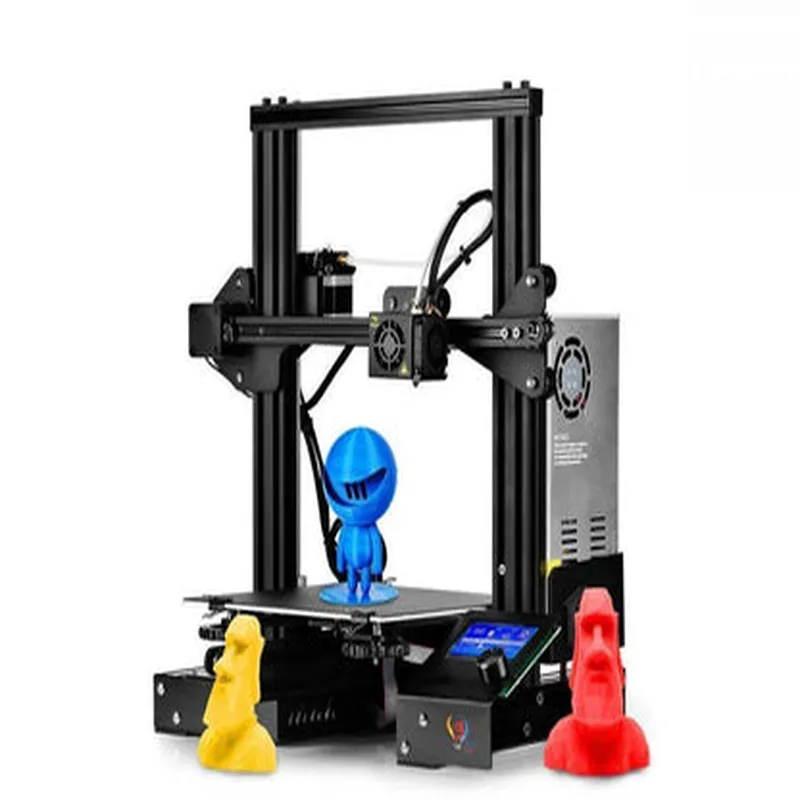
The Creality Ender 3 is an open-frame, Fused Deposition Modeling (FDM) 3D printer designed for hobbyists, enthusiasts, and professionals alike. This affordable printer offers a unique combination of affordability, ease of use, and impressive print quality, making it an ideal choice for those looking to venture into the world of 3D printing.

Functionality

The Creality Ender 3 3D Printer is designed to create three-dimensional objects from digital models by extruding melted plastic filament through a heated nozzle, layer by layer. The printer uses a Cartesian coordinate system, with three linear axes (X, Y, and Z) that work together to precisely move the print head and bed to create the desired object.

Key Features

  • Large Print Volume: The Ender 3 boasts a spacious print volume of 300x300x400mm, allowing users to create larger objects or multiple smaller ones in a single print job.
  • Open-Frame Design: The printer's open-frame design provides easy access to the print bed and internal components, making maintenance, upgrades, and repairs a breeze.
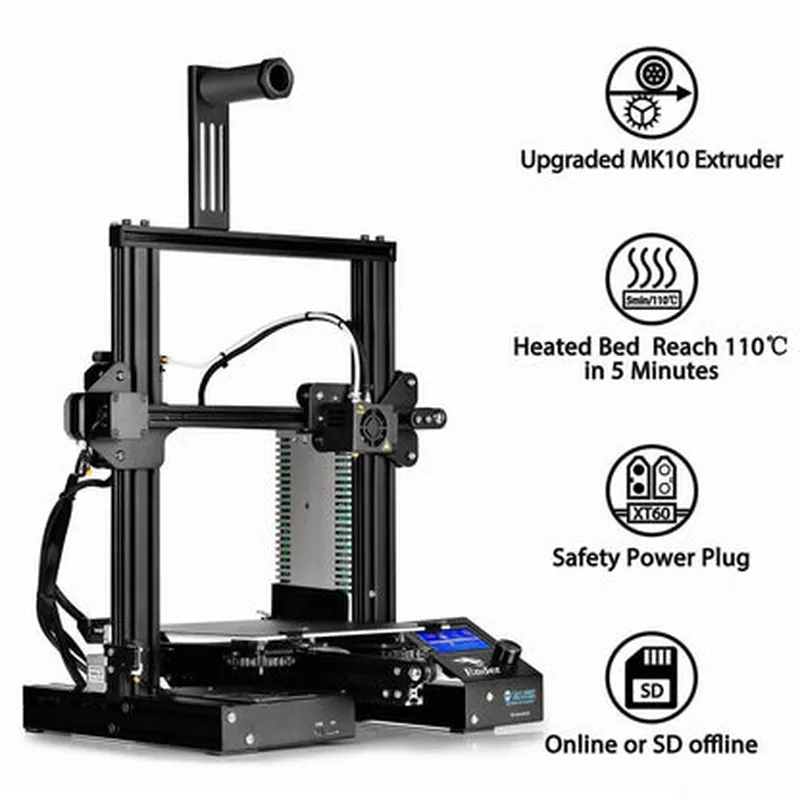
  • Heated Bed and Nozzle: The Ender 3 features a heated bed (up to 100C) and nozzle (up to 255C), allowing for printing with a wide range of thermoplastic materials, including ABS, PLA, and PETG.
  • Micro-Step Stepper Motor Drivers: The printer's micro-step stepper motor drivers enable precise movement and smooth printing, reducing vibrations and noise.
  • Auto-Homing: The Ender 3 features automatic homing, which allows the printer to automatically detect and align the print head and bed, ensuring accurate prints and reducing manual calibration efforts.
  • SD Card Support: The printer comes with an SD card slot, enabling users to print from the SD card without the need for a connected computer.
  • Resume Print Function: The Ender 3's resume print function allows users to resume printing from where it left off in case of a power outage or other interruptions.
  • Cable Management: The printer's thoughtful cable management design keeps cables organized and out of the way, reducing clutter and potential print disruptions.
  • Upgradable and Customizable: The Ender 3's modular design and open-source nature make it an ideal platform for modifications, upgrades, and customizations, allowing users to tailor the printer to their specific needs.
  • Affordable Price Point: The Creality Ender 3 offers exceptional value, making it an attractive option for those looking to enter the world of 3D printing without breaking the bank.

Technical Specifications

Print Resolution

Up to 400 microns

Print Speed

Up to 180 mm/s

Layer Thickness

0.1-0.3 mm

XY Resolution

0.011 mm

Z Resolution

0.0025 mm

Power Supply

240W, 110V-240V, 50-60Hz

Dimensions

475x430x620mm (18.7x16.9x24.4 inches)

Weight

12 kg (26.4 lbs)

Conclusion

The Creality Ender 3 3D Printer is an excellent choice for those seeking an affordable, feature-rich, and highly customizable 3D printing solution. With its large print volume, heated bed and nozzle, and auto-homing capabilities, this printer is well-suited for a wide range of applications, from prototyping and modeling to art and education.

Pin Configuration

  • Creality Ender 3 3D Printer Pinout Documentation
  • The Creality Ender 3 3D Printer is a popular and affordable 3D printing machine that uses a variety of electronic components to control its various functions. Understanding the pinout of these components is crucial for troubleshooting, modifying, and upgrading the printer. This documentation will provide a detailed explanation of each pin on the printer's mainboard, as well as guidance on how to connect them.
  • Mainboard Pinout
  • The Creality Ender 3's mainboard is a Melzi V2.0 board, which is a popular open-source 3D printer controller board. The mainboard has several connectors and pins that interface with various components of the printer. Below is a point-by-point explanation of each pin:
  • 1. Power Connector (J1)
  • Pin 1: VCC (5V)
  • Pin 2: GND (Ground)
  • Pin 3: VCC (12V)
  • Pin 4: GND (Ground)
  • This connector provides power to the mainboard and is connected to the power supply unit (PSU).
  • 2. Stepper Motor Connectors (J2-J5)
  • Pin 1: DIR (Direction)
  • Pin 2: STEP (Step signal)
  • Pin 3: ENABLE (Enable signal)
  • Pin 4: GND (Ground)
  • There are four stepper motor connectors, each controlling one of the printer's axes (X, Y, Z, and E). These connectors are connected to the stepper motor drivers, which are integrated into the mainboard.
  • 3. Endstop Connectors (J6-J9)
  • Pin 1: SIGNAL (Endstop signal)
  • Pin 2: GND (Ground)
  • There are four endstop connectors, each connected to the corresponding axis (X, Y, Z, and E). These connectors are connected to the optical or mechanical endstops, which detect the maximum travel distance of each axis.
  • 4. Heated Bed Connector (J10)
  • Pin 1: HEATER (Heated bed signal)
  • Pin 2: GND (Ground)
  • This connector is connected to the heated bed thermistor and heater element.
  • 5. Hotend Connector (J11)
  • Pin 1: HEATER (Hotend heater signal)
  • Pin 2: THERMISTOR (Hotend thermistor signal)
  • Pin 3: GND (Ground)
  • This connector is connected to the hotend thermistor and heater element.
  • 6. Fan Connectors (J12-J13)
  • Pin 1: FAN (Fan signal)
  • Pin 2: GND (Ground)
  • There are two fan connectors, each controlling one of the printer's fans (hotend fan and power supply fan).
  • 7. USB Connector (J14)
  • Pin 1: VCC (5V)
  • Pin 2: D- (USB data-)
  • Pin 3: D+ (USB data+)
  • Pin 4: GND (Ground)
  • This connector provides a USB interface for connecting the printer to a computer or other USB devices.
  • 8. LCD Connector (J15)
  • Pin 1: VCC (5V)
  • Pin 2: SCL (I2C clock)
  • Pin 3: SDA (I2C data)
  • Pin 4: GND (Ground)
  • This connector is connected to the LCD display and provides power, clock, and data signals.
  • 9. SD Card Connector (J16)
  • Pin 1: VCC (3.3V)
  • Pin 2: CS (Chip select)
  • Pin 3: SCK (SPI clock)
  • Pin 4: MOSI (SPI MOSI)
  • Pin 5: MISO (SPI MISO)
  • Pin 6: GND (Ground)
  • This connector is connected to the SD card slot and provides power, chip select, and SPI signals.
  • Connecting the Pins
  • When connecting the pins, ensure that you follow proper safety precautions to avoid damaging the components or causing electrical shock. Use the correct cables and connectors, and double-check the pinouts to avoid mistakes.
  • Use a multimeter to verify the voltage and continuity of the power connections.
  • Connect the stepper motor cables to the corresponding connectors on the mainboard and stepper motor drivers.
  • Connect the endstop cables to the corresponding connectors on the mainboard and endstops.
  • Connect the heated bed and hotend cables to the corresponding connectors on the mainboard and heating elements.
  • Connect the fan cables to the corresponding connectors on the mainboard and fans.
  • Connect the USB cable to the mainboard and computer or USB device.
  • Connect the LCD cable to the mainboard and LCD display.
  • Connect the SD card to the mainboard SD card slot.
  • Remember to consult the printer's manual and online resources for specific instructions on connecting and configuring the printer's components.

Code Examples

Creality Ender 3 3D Printer Documentation
Overview
The Creality Ender 3 is a popular and affordable 3D printer suitable for hobbyists and professionals alike. It features a large print bed, heated bed, and a compact design making it ideal for small to medium-sized prints.
Communication Interface
The Creality Ender 3 3D printer can be controlled using the following communication interfaces:
USB: Connect to a computer using a USB cable for direct printing and monitoring.
 SD Card: Load G-code files onto an SD card for standalone printing.
 Serial Communication: Use serial communication protocols such as UART or TTL to control the printer using a microcontroller or single-board computer.
G-Code Command Set
The Creality Ender 3 3D printer understands a standard set of G-code commands, including:
G0: Rapid positioning move
 G1: Linear interpolation move
 G28: Home the printer
 M104: Set extruder temperature
 M105: Get extruder temperature
 M106: Set fan speed
 M107: Get fan speed
Example 1: Simple Print using USB
Platform: Arduino IDE
Language: C++
Description: This example demonstrates how to send G-code commands to the Creality Ender 3 3D printer using a USB connection.
```c++
#include <Arduino.h>
#define PRINTER_SERIAL Serial
void setup() {
  PRINTER_SERIAL.begin(115200);
}
void loop() {
  // Send G-code commands to home the printer and set extruder temperature
  PRINTER_SERIAL.println("G28");
  PRINTER_SERIAL.println("M104 S200");
// Wait for the printer to heat up and home
  delay(30000);
// Send G-code command to start printing
  PRINTER_SERIAL.println("G1 F300 E10");
// Wait for the print to complete
  delay(30000);
}
```
Example 2: Standalone Printing using SD Card
Platform: None (SD card loading)
Language: G-code
Description: This example demonstrates how to create a simple G-code file to print a small cube using the Creality Ender 3 3D printer.
```gcode
; Cube example
; Layer height: 0.2mm
; Infill: 10%
; Set units to millimeters
G21
; Set extruder temperature
M104 S200
; Home the printer
G28
; Move to starting position
G1 F300 X10 Y10
; Layer 1
G1 F300 E10
G1 F300 X20 Y20
G1 F300 E10
G1 F300 X20 Y10
G1 F300 E10
G1 F300 X10 Y20
G1 F300 E10
G1 F300 X10 Y10
; ... (add more layers as needed)
; End of file
M107
```
Example 3: Serial Communication using Python
Platform: Raspberry Pi
Language: Python
Description: This example demonstrates how to send G-code commands to the Creality Ender 3 3D printer using serial communication with a Raspberry Pi.
```python
import serial
# Open the serial connection
ser = serial.Serial('/dev/ttyUSB0', 115200, timeout=1)
# Send G-code commands to home the printer and set extruder temperature
ser.write(b'G28
')
ser.write(b'M104 S200
')
# Wait for the printer to heat up and home
time.sleep(30)
# Send G-code command to start printing
ser.write(b'G1 F300 E10
')
# Wait for the print to complete
time.sleep(30)
# Close the serial connection
ser.close()
```
These examples demonstrate how to control the Creality Ender 3 3D printer using different communication interfaces and programming languages.