Connect up to three M5Stack modules, such as GPS, Wi-Fi, Bluetooth, or sensor modules, to expand the capabilities of your IoT project.


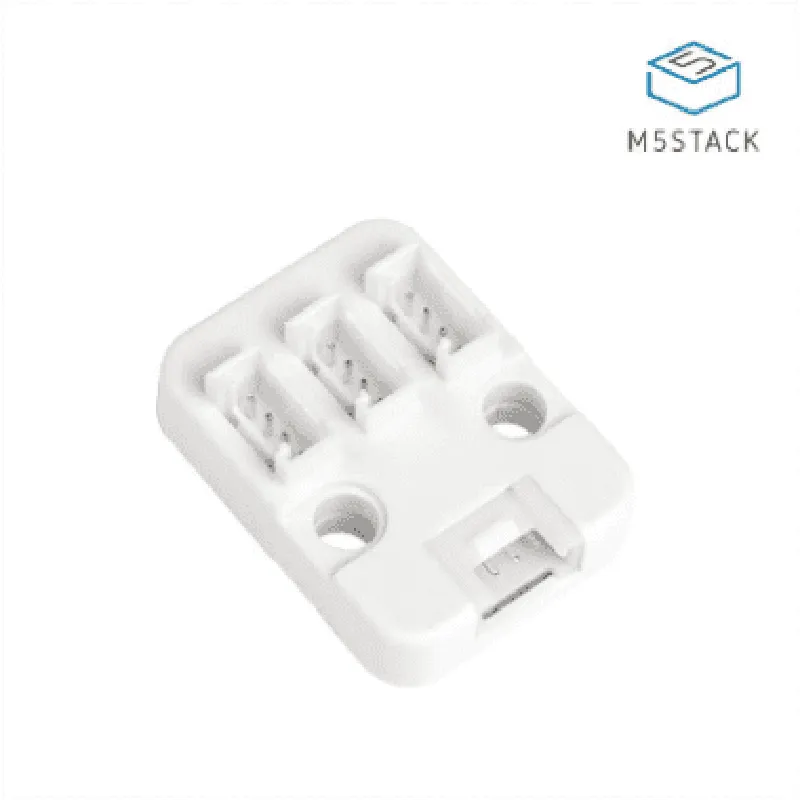
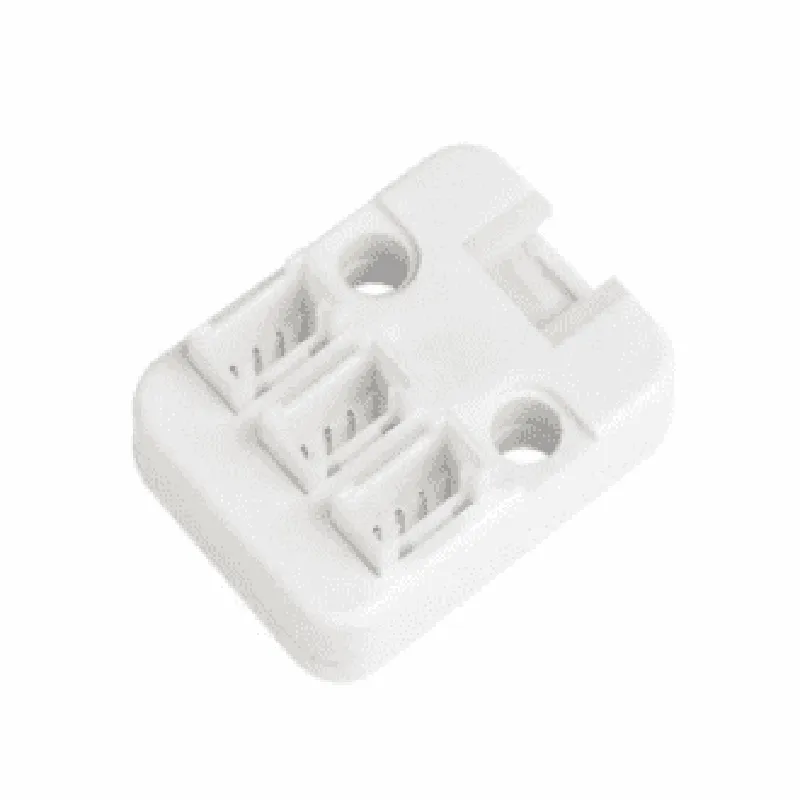
Connect up to three M5Stack modules, such as GPS, Wi-Fi, Bluetooth, or sensor modules, to expand the capabilities of your IoT project.
Intelligent routing with ESD protection
The HUB Unit provides a convenient way to power multiple modules from a single power source, eliminating the need for multiple power cables.
Common grounding point for all connected modules
The HUB Unit features a compact design, making it ideal for projects where space is limited.
Modules can be easily connected and disconnected using the HUB Unit's foolproof socket design.
The HUB Unit is compatible with a wide range of M5Stack modules, making it a versatile expansion solution for various IoT projects.
The HUB Unit's intelligent signal routing and grounding system ensure reliable signal transmission and minimize signal noise.
The HUB Unit simplifies power management by providing a single power input for all connected modules.
Technical Specifications
3.3V to 5V
USB-C or breadboard-friendly pins
3 x M5Stack module sockets
54 x 24 x 12 mm (2.13 x 0.94 x 0.47 in)
20g (0.71 oz)
Applications
| The M5 Stack 1 to 3 HUB Unit is ideal for a wide range of IoT projects, including |
Connect multiple modules to create complex robotic systems.
Use the HUB Unit to connect sensors, actuators, and communication modules for comprehensive home automation systems.
Implement the HUB Unit in industrial automation projects to connect sensors, control systems, and communication modules.
Utilize the HUB Unit as a convenient and efficient way to prototype complex IoT projects.
By providing a flexible and efficient way to connect multiple M5Stack modules, the M5 Stack 1 to 3 HUB Unit simplifies the development of complex IoT projects, making it an essential component for any M5Stack-based project.
M5 Stack 1 to 3 HUB Unit DocumentationOverviewThe M5 Stack 1 to 3 HUB Unit is a versatile IoT component designed to expand the capabilities of M5 Stack devices. This module provides three additional I/O hubs, allowing users to connect more peripherals and sensors to their M5 Stack projects. The HUB Unit is compact, easy to use, and compatible with a wide range of M5 Stack devices.Technical SpecificationsDimensions: 54.2 x 25.4 mm
I/O Hubs: 3
Power consumption: 5V, 50mA (max)
Compatible with M5 Stack devices: M5StickC, M5StickV, M5AtomConnecting the HUB UnitTo use the M5 Stack 1 to 3 HUB Unit, connect it to your M5 Stack device using the provided Grove connector. Make sure to align the pins correctly to ensure a secure connection.Code Examples### Example 1: Using the HUB Unit with Multiple SensorsIn this example, we'll demonstrate how to connect multiple sensors to the HUB Unit and read data from them using an M5StickC device.Hardware Requirements:M5StickC
M5 Stack 1 to 3 HUB Unit
3 x Grove Sensors (e.g., temperature, humidity, and pressure sensors)Code:
```c
#include <M5StickC.h>
#include <Wire.h>#define HUB_UNIT_I2C_ADDRESS 0x1A// Define sensor objects
Sensor tempSensor(HUB_UNIT_I2C_ADDRESS, 0x01);
Sensor humiSensor(HUB_UNIT_I2C_ADDRESS, 0x02);
Sensor presSensor(HUB_UNIT_I2C_ADDRESS, 0x03);void setup() {
M5.begin(); // Initialize M5StickC
Wire.begin(); // Initialize I2C communication
}void loop() {
// Read data from sensors
float temp = tempSensor.read();
float humi = humiSensor.read();
float pres = presSensor.read();// Print sensor data to serial monitor
Serial.print("Temperature: ");
Serial.print(temp);
Serial.println(" C");
Serial.print("Humidity: ");
Serial.print(humi);
Serial.println(" %");
Serial.print("Pressure: ");
Serial.print(pres);
Serial.println(" hPa");delay(1000);
}
```
### Example 2: Using the HUB Unit with a Display and ButtonIn this example, we'll demonstrate how to connect a display and a button to the HUB Unit and use them to create a simple user interface using an M5Atom device.Hardware Requirements:M5Atom
M5 Stack 1 to 3 HUB Unit
1 x Grove Display (e.g., SSD1306)
1 x Grove ButtonCode:
```c
#include <M5Atom.h>
#include <Wire.h>#define HUB_UNIT_I2C_ADDRESS 0x1A// Define display and button objects
Display display(HUB_UNIT_I2C_ADDRESS, 0x3C);
Button button(HUB_UNIT_I2C_ADDRESS, 0x04);void setup() {
M5.begin(); // Initialize M5Atom
Wire.begin(); // Initialize I2C communication
}void loop() {
// Read button state
bool buttonState = button.read();// If button is pressed, display a message
if (buttonState) {
display.clear();
display.setTextSize(2);
display.setCursor(0, 0);
display.print("Button pressed!");
display.update();
}delay(50);
}
```
Note: These code examples are for illustration purposes only and may require modifications to work with your specific hardware setup. Be sure to consult the datasheets and documentation for your sensors, displays, and other peripherals for specific usage guidelines.