Stufin
Home Quick Cart Profile

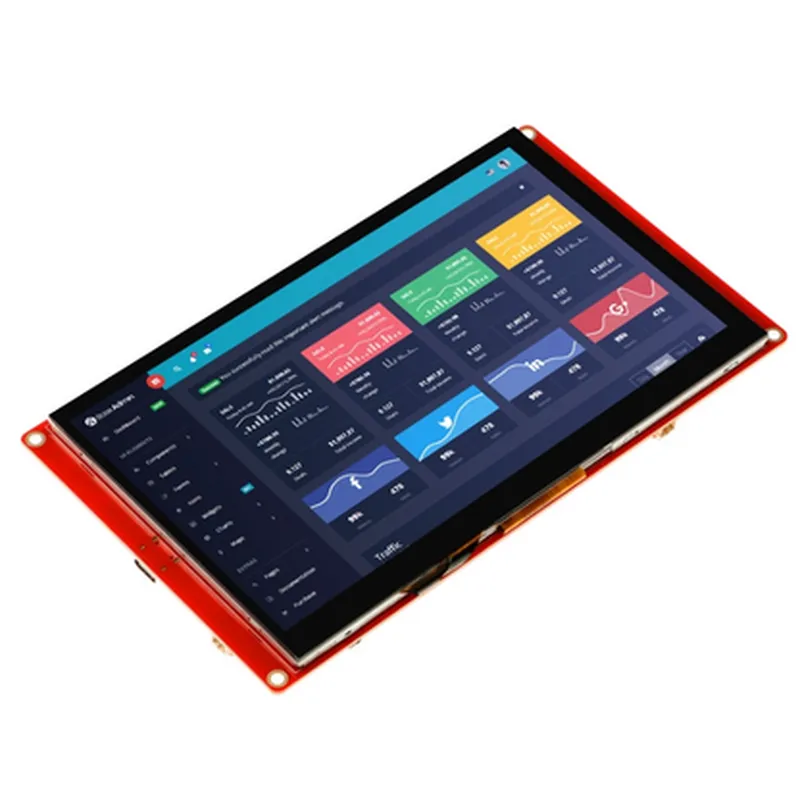
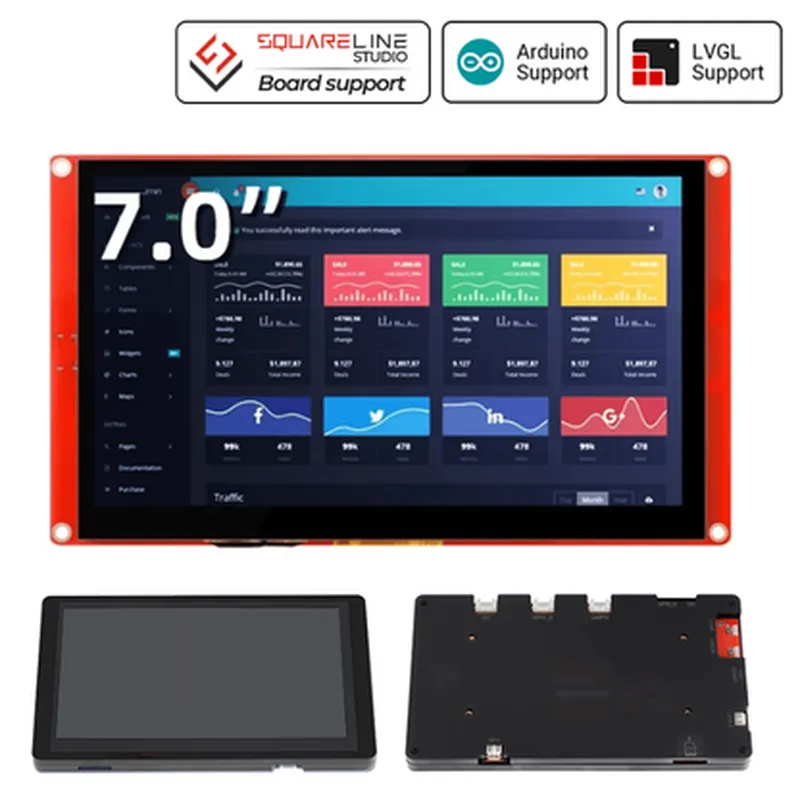
ELECROW 7.0" ESP32 HMI Display: Arduino/LVGL/Micropython/PlatformIO Compatible Without Acrylic Case

Buy Now on Stufin

Display

The module features a 7.0-inch capacitive touchscreen display with a resolution of 1024x600 pixels, providing a clear and responsive user interface.

ESP32 MicrocontrollerThe module is based on the ESP32 microcontroller, which is a dual-core, Wi-Fi-enabled microcontroller with Bluetooth 4.0 capabilities.

HMI Interface

The module provides an intuitive HMI interface for users to interact with, making it ideal for IoT applications such as home automation, industrial control, and medical devices.

Communication

The module supports various communication protocols, including Wi-Fi, Bluetooth, and UART, allowing it to communicate with other devices and systems.

Key Features

The ELECROW 7.0" ESP32 HMI Display module boasts the following key features
High-Resolution Display1024x600 pixels, 7.0-inch capacitive touchscreen display
ESP32 MicrocontrollerDual-core, Wi-Fi-enabled, Bluetooth 4.0-capable microcontroller
Multi-Platform CompatibilityCompatible with Arduino, LVGL, Micropython, and PlatformIO development platforms
Wi-Fi and Bluetooth ConnectivitySupports Wi-Fi 802.11 b/g/n and Bluetooth 4.0 protocols

UART Interface

Supports UART communication protocol for serial communication

SD Card Slot

Features an SD card slot for external storage expansion

Power Supply

Operates on a 5V power supply

Compact Design

Compact design without acrylic case, making it suitable for integration into custom enclosures

Technical Specifications

Display

+ TypeCapacitive touchscreen display
+ Size7.0 inches
+ Resolution1024x600 pixels

ESP32 Microcontroller

+ TypeDual-core microcontroller
+ Clock SpeedUp to 240 MHz
+ Wi-Fi802.11 b/g/n
+ Bluetooth4.0

Communication

+ Wi-Fi802.11 b/g/n
+ Bluetooth4.0
+ UARTTTL level, 3.3V

Power Supply

+ Input Voltage5V
+ Current ConsumptionTBD

Dimensions

+ Width194.5mm
+ Height117.5mm
+ Thickness14.5mm

Applications

The ELECROW 7.0" ESP32 HMI Display module is suitable for a wide range of IoT applications, including

Home automation systems

Industrial control systems

Medical devices

Smart home appliances

Wearable devices

Robotics and drone applications

Package Includes

1 x ELECROW 7.0" ESP32 HMI Display module

1 x Power cable

1 x USB cable

1 x Quick start guide

Warranty and Support

The ELECROW 7.0" ESP32 HMI Display module is backed by a one-year limited warranty. Comprehensive technical support is available through the manufacturer's website, including documentation, tutorials, and community forums.

Pin Configuration

  • ELECROW 7.0" ESP32 HMI Display Documentation
  • Overview
  • The ELECROW 7.0" ESP32 HMI Display is a high-performance human-machine interface (HMI) display module designed for IoT applications. It features a 7.0-inch TFT LCD display with an ESP32 microcontroller, making it ideal for developing interactive and connected devices. This display module is compatible with various development platforms, including Arduino, LVGL, Micropython, and PlatformIO.
  • Pinout Description
  • The ELECROW 7.0" ESP32 HMI Display has a total of 38 pins, which are divided into several groups. The following section provides a detailed description of each pin, including its function and recommended connections.
  • Power Pins
  • VIN (Pin 1): Input voltage pin, accepts 5V power supply.
  • + Connection: Connect to a 5V power source, such as a USB port or a battery.
  • 3V3 (Pin 2): 3.3V power output pin, used to power external devices.
  • + Connection: Connect to external devices requiring 3.3V power supply.
  • GND (Pins 3, 4, 5, and 37): Ground pins, used for circuit grounding.
  • + Connection: Connect to GND pins of other devices or to a common ground plane.
  • ESP32 Microcontroller Pins
  • GPIO0 (Pin 6): General-purpose input/output pin, used for digital signals.
  • + Connection: Connect to sensors, actuators, or other digital devices.
  • GPIO1 (Pin 7): General-purpose input/output pin, used for digital signals.
  • + Connection: Connect to sensors, actuators, or other digital devices.
  • GPIO2 (Pin 8): General-purpose input/output pin, used for digital signals.
  • + Connection: Connect to sensors, actuators, or other digital devices.
  • GPIO3 (Pin 9): General-purpose input/output pin, used for digital signals.
  • + Connection: Connect to sensors, actuators, or other digital devices.
  • GPIO4 (Pin 10): General-purpose input/output pin, used for digital signals.
  • + Connection: Connect to sensors, actuators, or other digital devices.
  • GPIO5 (Pin 11): General-purpose input/output pin, used for digital signals.
  • + Connection: Connect to sensors, actuators, or other digital devices.
  • GPIO12 (Pin 12): General-purpose input/output pin, used for digital signals.
  • + Connection: Connect to sensors, actuators, or other digital devices.
  • GPIO13 (Pin 13): General-purpose input/output pin, used for digital signals.
  • + Connection: Connect to sensors, actuators, or other digital devices.
  • GPIO14 (Pin 14): General-purpose input/output pin, used for digital signals.
  • + Connection: Connect to sensors, actuators, or other digital signals.
  • GPIO15 (Pin 15): General-purpose input/output pin, used for digital signals.
  • + Connection: Connect to sensors, actuators, or other digital signals.
  • GPIO16 (Pin 16): General-purpose input/output pin, used for digital signals.
  • + Connection: Connect to sensors, actuators, or other digital signals.
  • GPIO17 (Pin 17): General-purpose input/output pin, used for digital signals.
  • + Connection: Connect to sensors, actuators, or other digital signals.
  • GPIO18 (Pin 18): General-purpose input/output pin, used for digital signals.
  • + Connection: Connect to sensors, actuators, or other digital signals.
  • GPIO19 (Pin 19): General-purpose input/output pin, used for digital signals.
  • + Connection: Connect to sensors, actuators, or other digital signals.
  • GPIO21 (Pin 21): General-purpose input/output pin, used for digital signals.
  • + Connection: Connect to sensors, actuators, or other digital signals.
  • GPIO22 (Pin 22): General-purpose input/output pin, used for digital signals.
  • + Connection: Connect to sensors, actuators, or other digital signals.
  • GPIO23 (Pin 23): General-purpose input/output pin, used for digital signals.
  • + Connection: Connect to sensors, actuators, or other digital signals.
  • GPIO25 (Pin 25): General-purpose input/output pin, used for digital signals.
  • + Connection: Connect to sensors, actuators, or other digital signals.
  • GPIO26 (Pin 26): General-purpose input/output pin, used for digital signals.
  • + Connection: Connect to sensors, actuators, or other digital signals.
  • GPIO27 (Pin 27): General-purpose input/output pin, used for digital signals.
  • + Connection: Connect to sensors, actuators, or other digital signals.
  • Display Interface Pins
  • LCD_CS (Pin 28): Chip select pin for TFT LCD display.
  • + Connection: Connect to TFT LCD display's CS pin.
  • LCD_CLK (Pin 29): Clock pin for TFT LCD display.
  • + Connection: Connect to TFT LCD display's CLK pin.
  • LCD_MOSI (Pin 30): Master out slave in pin for TFT LCD display.
  • + Connection: Connect to TFT LCD display's MOSI pin.
  • LCD_MISO (Pin 31): Master in slave out pin for TFT LCD display.
  • + Connection: Connect to TFT LCD display's MISO pin.
  • LCD_DC (Pin 32): Data/command pin for TFT LCD display.
  • + Connection: Connect to TFT LCD display's DC pin.
  • LCD_RST (Pin 33): Reset pin for TFT LCD display.
  • + Connection: Connect to TFT LCD display's RST pin.
  • Touch Interface Pins
  • TP_CS (Pin 34): Chip select pin for touch panel.
  • + Connection: Connect to touch panel's CS pin.
  • TP_CLK (Pin 35): Clock pin for touch panel.
  • + Connection: Connect to touch panel's CLK pin.
  • TP_MOSI (Pin 36): Master out slave in pin for touch panel.
  • + Connection: Connect to touch panel's MOSI pin.
  • Note: Make sure to check the datasheet and documentation of the specific devices you are connecting to ensure correct pin connections and voltage levels.

Code Examples

ELECROW 7.0" ESP32 HMI Display Documentation
Overview
The ELECROW 7.0" ESP32 HMI Display is a touchscreen display module featuring an ESP32 microcontroller, suitable for various IoT applications. This display is compatible with Arduino, LVGL, MicroPython, and PlatformIO, making it a versatile component for developers. This documentation provides an overview of the component's features, specifications, and code examples to get you started.
Features and Specifications
7.0" TFT LCD display with 800x480 resolution
 ESP32 microcontroller with Wi-Fi and Bluetooth capabilities
 Touchscreen interface with gesture recognition
 Compatible with Arduino, LVGL, MicroPython, and PlatformIO
 operating voltage: 5V
 Communication interfaces: UART, SPI, I2C, I2S, and GPIO
 Dimensions: 164mm x 104mm x 12mm (without acrylic case)
Code Examples
### Example 1: Arduino - Basic Display Initialization and Touchscreen Interaction
This example demonstrates how to initialize the display and read touchscreen events using Arduino.
```c
#include <Arduino.h>
#include <TFT_eSPI.h> // Include the TFT_eSPI library
// Initialize the display
TFT_eSPI tft = TFT_eSPI();
void setup() {
  Serial.begin(115200);
  tft.init(); // Initialize the display
// Set the screen orientation
  tft.setRotation(1);
// Clear the screen
  tft.fillScreen(TFT_BLACK);
// Draw a simple button
  tft.fillRoundRect(100, 100, 200, 50, 10, TFT_RED);
  tft.setTextColor(TFT_WHITE);
  tft.setTextSize(2);
  tft.setCursor(110, 110);
  tft.println("Click me!");
}
void loop() {
  // Read touchscreen events
  TS_Point p = tft.getTouch();
  if (p.z > 0) {
    Serial.print("Touch at: ");
    Serial.print(p.x);
    Serial.print(", ");
    Serial.println(p.y);
// Check if the button is pressed
    if ((p.x > 100 && p.x < 300) && (p.y > 100 && p.y < 150)) {
      Serial.println("Button pressed!");
    }
  }
  delay(100);
}
```
### Example 2: MicroPython - LVGL UI with Button and Label
This example demonstrates how to create a simple LVGL UI with a button and label using MicroPython.
```python
import lvgl as lv
import utime
# Initialize the display
lv.init()
# Create a screen object
scr = lv.obj()
lv.scr_load(scr)
# Create a button
btn = lv.btn(scr)
btn.set_pos(100, 100)
btn.set_size(200, 50)
label = lv.label(btn)
label.set_text("Click me!")
# Create a label
label = lv.label(scr)
label.set_pos(100, 200)
label.set_text("Waiting for button press...")
# Set up button event handler
def on_btn_click(e):
    label.set_text("Button pressed!")
btn.set_event_cb(on_btn_click, lv.EVENT.CLICKED)
# Start the LVGL task
while True:
    lv.task_handler()
    utime.sleep_ms(10)
```
Additional Resources
datasheet: [ELECROW 7.0" ESP32 HMI Display Datasheet](https://cdn-shop.adafruit.com/product-files/4363/ELECROW+7.0+ESP32+HMI+Display+Datasheet.pdf)
 library documentation: [TFT_eSPI Library Documentation](https://github.com/Bodmer/TFT_eSPI)
 community support: [ELECROW Forum](https://forum.elecrow.com/)
By following this documentation and exploring the provided code examples, you'll be well on your way to integrating the ELECROW 7.0" ESP32 HMI Display into your IoT projects.