5V (via USB)


5V (via USB)
5V (regulated)
Up to 115.2 kbps
AVR microcontrollers (ATmega, ATtiny, AT90S, etc.)
0C to 40C
-20C to 85C
65mm x 35mm x 18mm (L x W x H)
Conclusion
The Elementz AVR USB Programmer with Cable is a reliable and efficient solution for programming and debugging AVR microcontrollers. Its compact design, ease of use, and compatibility with popular programming software make it an ideal choice for hobbyists, students, and professionals working on AVR-based projects.
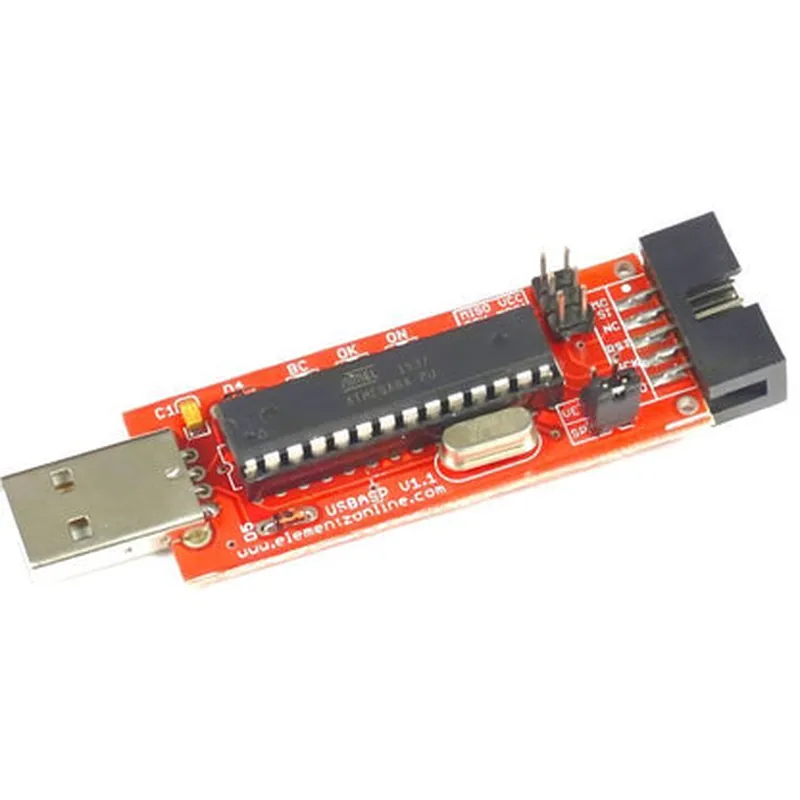
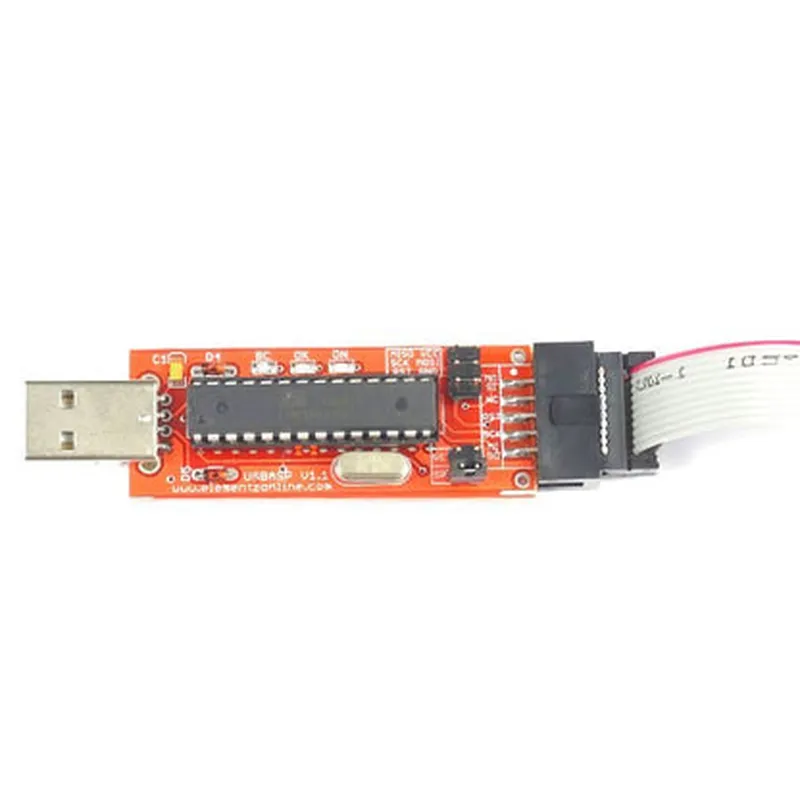
Elementz AVR USB Programmer with Cable DocumentationOverviewThe Elementz AVR USB Programmer with Cable is a versatile and compact device that enables users to program and debug AVR microcontrollers via a USB connection. This programmer supports a wide range of AVR microcontrollers, making it an ideal choice for hobbyists, students, and professionals working on various IoT projects.FeaturesSupports programming and debugging of AVR microcontrollers
USB interface for easy connectivity to computers
Compatible with a wide range of AVR microcontrollers
Powered via USB, no external power source required
Compact design, ideal for prototyping and developmentCode Examples### Example 1: Programming an ATmega328P using the Elementz AVR USB Programmer with Cable (Arduino IDE)In this example, we will demonstrate how to program an ATmega328P microcontroller using the Elementz AVR USB Programmer with Cable and the Arduino IDE.Hardware RequirementsElementz AVR USB Programmer with Cable
ATmega328P microcontroller
Breadboard and jumper wiresSoftware RequirementsArduino IDE (version 1.8.x or later)Code
```c
void setup() {
Serial.begin(9600);
pinMode(LED_BUILTIN, OUTPUT);
}void loop() {
digitalWrite(LED_BUILTIN, HIGH);
delay(1000);
digitalWrite(LED_BUILTIN, LOW);
delay(1000);
}
```
Step-by-Step Instructions1. Connect the Elementz AVR USB Programmer with Cable to your computer.
2. Connect the ATmega328P microcontroller to the programmer using the provided cable.
3. Open the Arduino IDE and create a new project.
4. Select the "ATmega328P" board and the "Elementz AVR USB Programmer" programmer from the Tools menu.
5. Upload the code to the microcontroller using the Upload button or by pressing Ctrl+U.
6. Observe the LED on the ATmega328P microcontroller blinking every second.### Example 2: Using the Elementz AVR USB Programmer with Cable with AVRDUDE (Command Line)In this example, we will demonstrate how to use the Elementz AVR USB Programmer with Cable with AVRDUDE, a command-line tool for programming AVR microcontrollers.Hardware RequirementsElementz AVR USB Programmer with Cable
ATmega328P microcontroller
Breadboard and jumper wiresSoftware RequirementsAVRDUDE (version 6.3 or later)Code
```bash
avrdude -c elementz -p m328p -U flash:w:blink.hex
```
Step-by-Step Instructions1. Connect the Elementz AVR USB Programmer with Cable to your computer.
2. Connect the ATmega328P microcontroller to the programmer using the provided cable.
3. Compile your code using a C compiler (e.g., GCC) and generate a HEX file named `blink.hex`.
4. Open a terminal or command prompt and navigate to the directory containing the HEX file.
5. Run the AVRDUDE command to upload the HEX file to the microcontroller.
6. Verify that the LED on the ATmega328P microcontroller is blinking.Note: The `blink.hex` file is assumed to contain the compiled code for blinking an LED.Additional ResourcesElementz AVR USB Programmer with Cable datasheet
AVRDUDE documentation
Arduino IDE documentationBy following these examples, you can successfully program and debug your AVR microcontrollers using the Elementz AVR USB Programmer with Cable.